Creating a background and foreground in applications
In addition to 3D content, an application usually has a static background and a foreground that contains UI objects. In Kanzi Studio you can create a background and a foreground in your application using layers. See
Layers.
Creating a simple background
Use a simple background when a single image is enough for the background in your application. When you want to create a background with several images, create a flexible background. See Creating a flexible background.
In your application you can use both simple and flexible backgrounds at the same time.
To create a simple background:
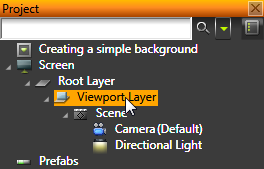
- In the Project select the Viewport Layer for the scene to which you want to add a background.
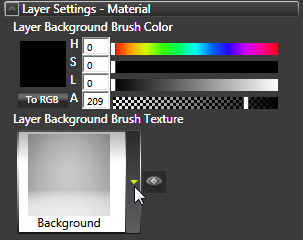
- In the Properties click Add Properties, add Layer Background Brush Texture property, and select the image you want to use for the background.
Creating a flexible background
When you need more than just a simple image for the background of your application, create a flexible background.
In your application you can use both simple and flexible backgrounds at the same time.
To create a flexible background:
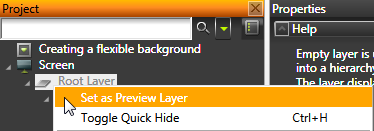
- In the Project right-click Root Layer and select Set as Preview Layer.
The Root Layer is the parent of both the background and the Viewport Layer that shows the scene. By setting it as a preview layer it shows all its content.
- In the Properties set the Vertical Alignment property to Center.
When your application is scaled on screens of different sizes or orientations, setting the alignment to center keeps the background in the center.
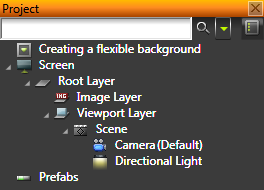
- Right-click the Root Layer and select Create > Image Layer.
- Move the Image Layer above the Viewport Layer.
When the Image Layer is above the Viewport Layer, the image in the image layer is rendered first, followed by the content of the transparent viewport layer.
- In the Project select the Image Layer and in the Properties set:
- Image to the image you want to use for the background
- Horizontal Alignment to Stretch
- Vertical Alignment to Stretch
- In the Library select Composing > Composers > Composer > Render Pass and in the Properties in Color Buffer disable the Clear Enabled property.
Creating a foreground
To create a foreground:
- In the Project right-click the Viewport Layer and select Create > Image Layer.
- In the Project select the Image Layer and in the Properties set:
- Image to the image you want to use for the foreground
- Horizontal Alignment to set the horizontal position of the foreground image
- Vertical Alignment to set the vertical position of the foreground image
See also
Layers
Using image layers
Using viewport layers
Open topic with navigation