Using state managers
You can use states in state managers to define different states of objects. States override the default and inherited values, but you can override the values set by the state manager by setting the object property values locally.
Create a simple state manager for a button
To create a simple state manager for a button:
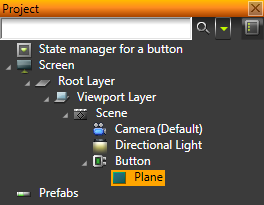
- In the Project create a Button object and add a mesh to it. See Using buttons.
For example, add a Plane.
- In the Library right-click State Managers and select Create State Manager.
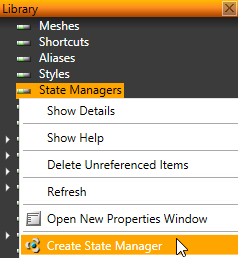
Kanzi Studio creates a new state manager including a state group with two states. In this procedure you use one state for when the button is pressed and the other for when the button is released.
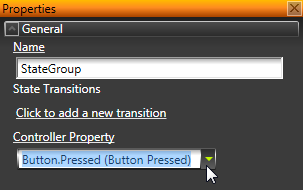
- In the Library select the State Group, and in the Properties set the Controller Property property to the property that sets the state of the state group.
For example, to set the state of the state group when the button is pressed, select Button Pressed.
- In the Library select the state you want to define for the button when it is released, and in the Properties uncheck the Button Pressed checkbox.
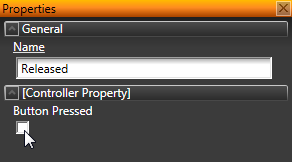
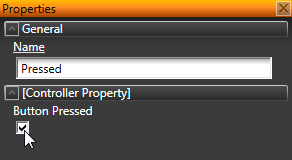
- In the Library select the state you want to define for the button when it is pressed, and in the Properties check the Button Pressed checkbox.
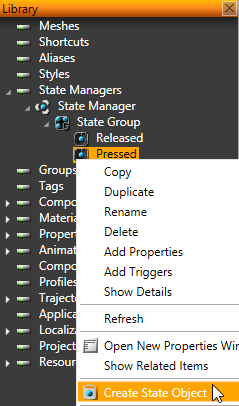
- In the Library right-click the state that defines the button when it is pressed, select Create State Object, and in the Properties set:
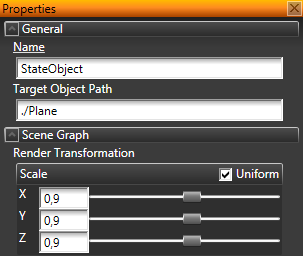
- Target Object Path to the relative path of the object inside the button you control with the state manager.
For example, to set the target to the Plane inside the Button, set the Target Object Path to ./Plane. - Click Add Properties, add Render Transformation property, and change the size or position of the object you want to associate with the state when the button is pressed.
For example, decrease the size of the Plane to 0.9.
- In the Project select the button you control with the state manager, and in the Properties:
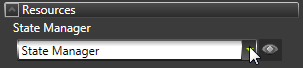
- Click Add Properties and add property State Manager.
- Set the value of the State Manager property to the state manager you created earlier.
When you set the Preview to play mode and press and hold the mouse button on the button in your application, the mesh object in the button changes to the values you set in the Render Transformation property of the State Object object.
Adding a transition between state manager states
To add a transition between state manager states:
- Create a button and a state manager that has one state group with two states (pressed and released), and pressed state that has one state object. See Create a simple state manager for a button.
- In the Library select the state group, in the Properties click Add transition, and in the State Transition Editor set:
- Start State to <ANY>
- End State to <ANY>
- Duration to 200
- Duration If Interrupted to ELAPSED
- Automatic Transition Type to SMOOTH_STEP
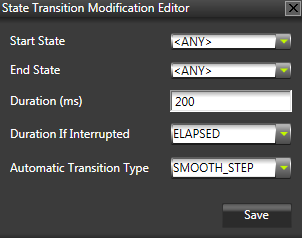
Click Save.
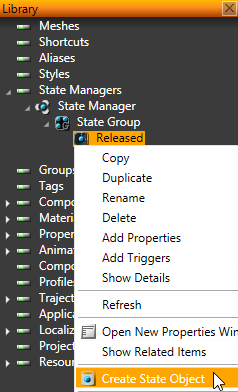
- In the Library right-click the state that defines the button when it is released, select Create State Object, and in the Properties set:
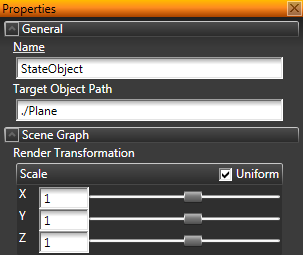
- Target Object Path to the relative path of the object inside the button you control with the state manager. Set the property to the same object you did for the pressed state.
For example, to set the target to the Plane inside the Button, set the Target Object Path to ./Plane. - Click Add Properties, add Render Transformation property, and change the size or position of the object you want to associate with the state when the button is released.
For example, if the pressed state makes the Plane to decrease in size, set the Render Transformation of the released state to the original size of the Plane.
When you set the Preview to play mode and press and hold the mouse button on the button in your application, the mesh object in the button changes to the values you set in the Render Transformation property of the State Object object for the pressed state. When you release the mouse button, the mesh object changes to the values you set in the Render Transformation property of the State Object object for the released state.
See also
State managers
Using buttons
Open topic with navigation