Using triggers
Use triggers and actions to create interactions based on user input. A trigger defines a condition and an action defines what the trigger does when that condition is met. For example, to execute a JavaScript script when a node is attached to the scene graph, add the On Attached trigger to that node and add the Execute Script action to that trigger.
In a similar way you can add actions to print to the Log window (Write Log), set a property to a certain value (Set Property), navigate to a Page node (Navigate to Page), or change application theme (Activate Theme). See Adding a trigger and Removing a trigger.
When a trigger intercepts a message that originates from an action you can set what the trigger does with the message. You can:
- Intercept the message, act on it, and let it continue traveling up or down the project tree.
- Intercept the message, act on it, and handle it. When a trigger handles a message it consumes it so that the message stops at the trigger that handles it and no other node can intercept it.
With a trigger you can intercept a message either at the node where the message originates, or in a trigger in any of its ancestor or descendant nodes. You can intercept many different message types in the same node. When a message travels up the project tree, the message bubbles. When a message travels down the project tree, the message tunnels. You can set in the action that creates the message whether the message bubbles, tunnels, or both bubbles and tunnels.
For example, if the action creates a bubbling message, after an action generates a message, the message bubbles from the node that receives the input to its parent node, then to the parent's parent, and so on until a trigger intercepts the message. If the trigger also handles the message, the message stops bubbling (traveling up the project tree). If none of the ancestors handle the message, the message travels all the way to the root node of the project.
By default all triggers handle their own messages. You can control the handling of trigger messages by setting the Set Message Handled property in the Trigger Settings. See Setting where and which trigger messages are handled.
For a list of all the triggers you can use in Kanzi Studio, see Triggers reference.
Adding a trigger
The most common place to add a triggers is in the node that uses the trigger, but you can add a trigger to any node.
To add a trigger:
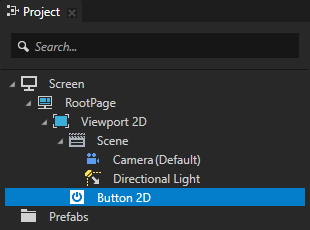
- In the Project create or select a node to which you want to add a trigger.
For example, create a Button 2D node. When you create the Button 2D node it already has a Button: Click trigger.
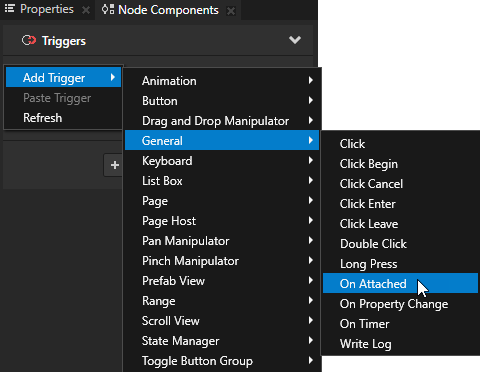
- In the Node Components > Triggers section right-click, select Add Trigger, and select a trigger that intercepts the type of message you want to intercept.
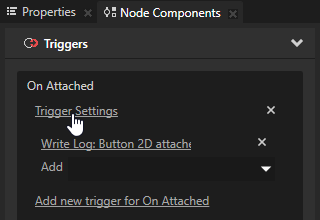
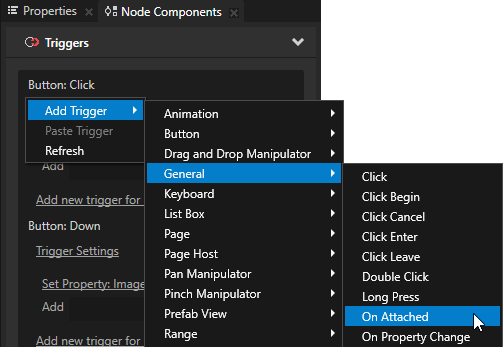
For example, add an On Attached trigger. The On Attached trigger is set off when Kanzi attaches the node to the scene graph.
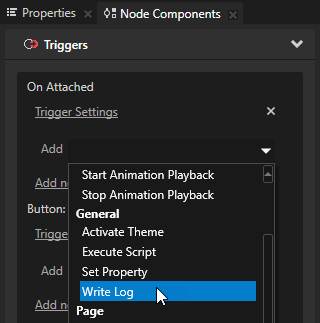
- In the Node Components > Triggers section click the dropdown menu for the trigger you added in the previous step and select an action.
For example, select the Write Log action and enter a message you want to write to the Log window when the trigger is set off. The Write Log action is useful when you want to verify that the object received the input.
You can add any number of actions. Kanzi carries out the actions in the order beginning from the first action.
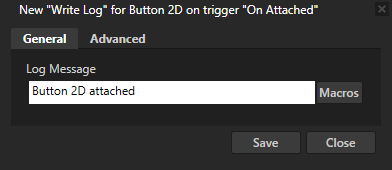
When Kanzi attaches the node, it prints the message you entered as the value of the Log Message property to the Log window. To open the Log window, in the main menu select > Log.

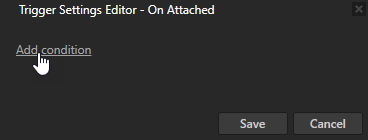
- (Optional) If you want the trigger to be set off only under specific conditions, in the Node Components > Triggers section under the trigger for which you want to set a condition, click Trigger Settings, in the Trigger Settings Editor click Add condition, and define the condition.
Removing a trigger
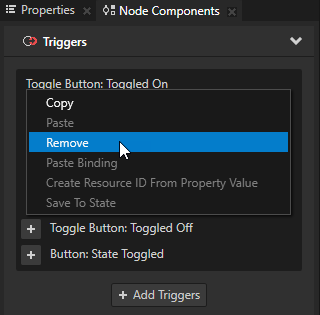
To remove a trigger, in the Node Components > Triggers section right-click the trigger you want to remove and select Remove.
Setting where and which trigger messages are handled
When a trigger handles a message it consumes it so that the message stops at the trigger that handles it and no other node can intercept it. See Creating custom messages in Kanzi Studio.
To set where and which trigger messages are handled:
- In the Node Components > Triggers section under the trigger for which you want to set message handling, click Trigger Settings.
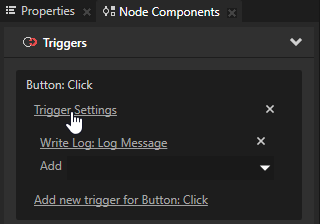
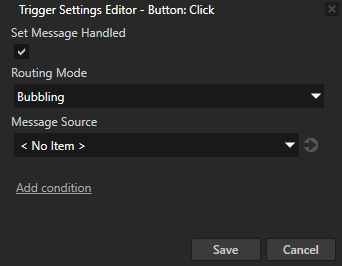
- In the Trigger Settings Editor set:
- Set Message Handled property:
- When you enable the Set Message Handled property, this trigger intercepts and handles the message. The message stops here, and does not continue neither bubbling nor tunneling in the project tree.
- When you disable the Set Message Handled property, this trigger intercepts the message, but the message continues bubbling or tunneling in the project tree.
- Routing Mode property:
- Bubbling to intercept only bubbling messages.
- Direct to intercept only messages that are sent directly to this node.
- Tunneling to intercept only tunneling messages.
- Tunneling and bubbling to intercept tunneling and bubbling messages.
- Message Source property:
- To intercept messages from a specific target item, do one of the following:
- Select the item from the dropdown menu.
- Select <Relative> and set the path to the item:
- Separate node names with
/ to build the path. - Use
. to access the current item. - Use
.. to access the parent item of the current item. - Use
# to access a node using an alias in the resource dictionary of the current node. See Using aliases.
- To intercept messages from all sources, select <No Item>.
Creating a node which reacts to clicks
You can make any node react to clicks. Using actions you can set what happens when a user clicks that node.
To create a node which reacts to clicks:
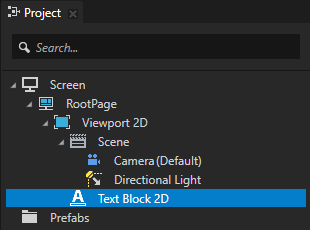
- Select or create a node which you want to react to clicks.
For example, create a Text Block 2D node.
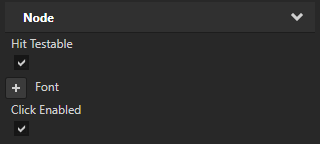
- In the Properties add and enable these properties:
- Click Enabled
When you enable this property you install a click manipulator which generates click messages. - Hit Testable
When you enable this property you enable a user to pick a node.
- In the Node Components > Triggers section add the Click trigger.
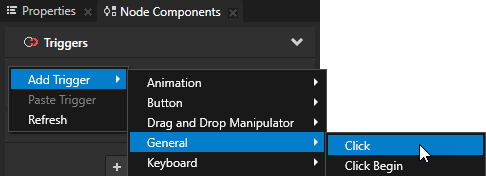
- You set off a Click trigger when you press down and then release the node while the pointer is still within the node area.
-
You set off a Click Cancel trigger when you first press down the node, then move the pointer outside of the node area, and lift the pointer.
-
You set off a Click Enter trigger:
- When you press down the node.
- When you press down the node, move the pointer outside the node area, and then move the pointer back to the node area while still holding down the pointer.
-
You set off a Click Leave trigger:
- When you press down the node and then lift the pointer.
- When you press down the node and then move the pointer outside of the node area.
- You set off a Click Begin trigger when you press down the node.
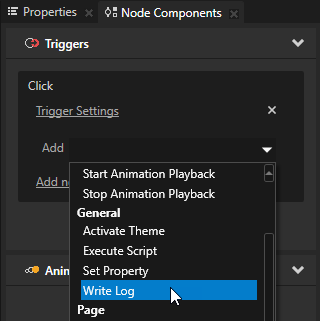
- In the Node Components > Triggers in the Add dropdown menu under the Click trigger select an action.
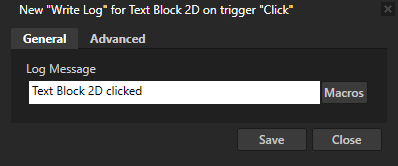
For example, select the Write Log action and enter a message you want to write to the Log window when the user clicks that node.
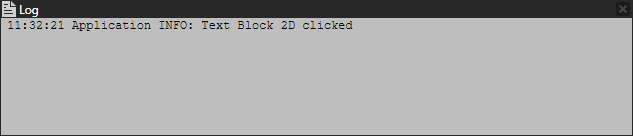
- When you click the node which you set to react to Click events, the trigger sets off the action you defined in the trigger.
Defining which node receives user input
Since only one node receives user input at a time, when creating your user interface take special care how your application handles user input. For example, is a click handled by the node in the front or by the one behind it.
To define how your application handles user input, use the Hit Testable property. The node that is in front of the camera and has the Hit Testable property enabled, receives the click input.
For example, if you place two boxes so that BoxFront is in front of BoxRear and occludes it completely:
- BoxFront always receives the input when:
- BoxFront Hit Testable property is enabled
- BoxRear Hit Testable property is enabled
- BoxRear receives the input even though it is occluded by BoxFront when:
- BoxFront Hit Testable property is disabled
- BoxRear Hit Testable property is enabled
Setting the size of the input area
When you want to change the input area of a node use the Hit Testable Container property, which takes into consideration the layout size rather than the bounding volume of the node. Hit testing of all nodes is by default based on their layout size.
To define the size of the input area, add and enable the Hit Testable Container property in the node. If the node is not a button, you also have to add and enable the Hit Testable property.
For example, if you want to set the area of a button to be larger than the mesh in the button:
- Create a Button 3D, add and enable the Hit Testable Container property, and add an action to the Button: Click message.
- Create a Box inside the Button 3D, and add and set the Layout Height, Layout Width, and Layout Depth properties to the area where you want your button to respond to clicks or taps.
The Button 3D receives the click input from the area set by the Layout Height, Layout Width, and Layout Depth properties of the Box inside the Button 3D.
Defining which Button and Toggle Button nodes receive key input
When Button and Toggle Button nodes have focus, they by default receive input from the keyboard keys Space, Enter, and Enter on the numeric pad. When you create Toggle Button nodes inside a Toggle Button Group node, use the trySetFocus() function in scripting to set which Toggle Button node receives the keyboard input.
For the Button 2D and Button 3D nodes, you can use keyboard input with the Button: Click trigger. For the Toggle Button 2D and Toggle Button 3D nodes, you can use keyboard input with the Toggle Button: Toggled On and Toggle Button: Toggled Off triggers.
To make a Button or Toggle Button node receive keyboard input:
- In the Project select the Button or Toggle Button node to which you want to set focus.
You need to have a working button which contains a trigger with an action to set what the button does when it receives input. See Using the Button nodes.
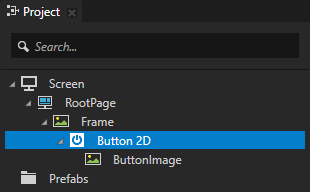
For example, a Button 2D node needs to have the Button: Click trigger with an action.
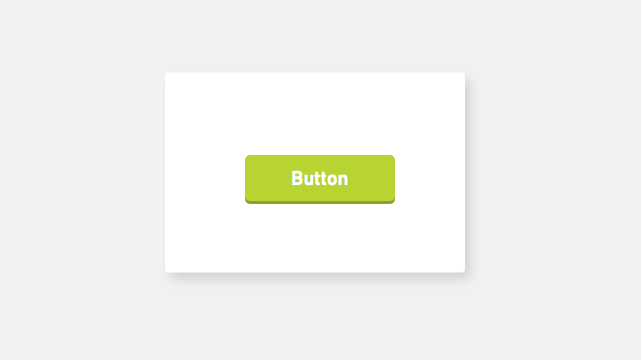
- In the Node Components > Triggers section add a trigger, which you use to execute a script that sets focus to the button node. For example, use the On Attached trigger.
The On Attached trigger is set off when Kanzi attaches the node.
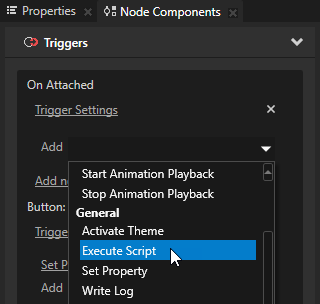
- In the On Attached trigger add the Execute Script action.
- In the Execute Script window select + Create Script, and in the Script Editor enter the script which sets focus to the button.
By default the focus is set to the Screen in the application. Use the trySetFocus() function in scripting to set focus to a node in the project. See Scripting reference and Using scripts.
For example, to set the focus to the node from which you execute the script, in the Script Editor enter
node.trySetFocus();
When you press either Space, Enter, or Enter on the numeric pad, you set off the Button: Click trigger.
Setting up an application to receive input from the keyboard
You can use the Key Down and Key Up triggers to enable your application to receive input from the computer keyboard Use actions to define how the application reacts when a user presses or releases a keyboard key. For example, you can use the right and left arrow keys to navigate between Page nodes in your application. See Tutorial: Use keyboard input to navigate your application and Focus.
For a list of keyboard key codes, see Keyboard input codes reference.
To set up an application to receive input from keyboard keys:
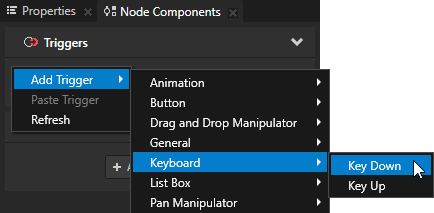
- Select the Screen node and in the Node Components > Triggers section add the Key Down trigger.
You use the Key Down trigger to set the application to receive input when a user presses that key.
In this example you use the arrow keys on the keyboard to create navigation between Page nodes on a navigation bar which contains a toggle button for each page.
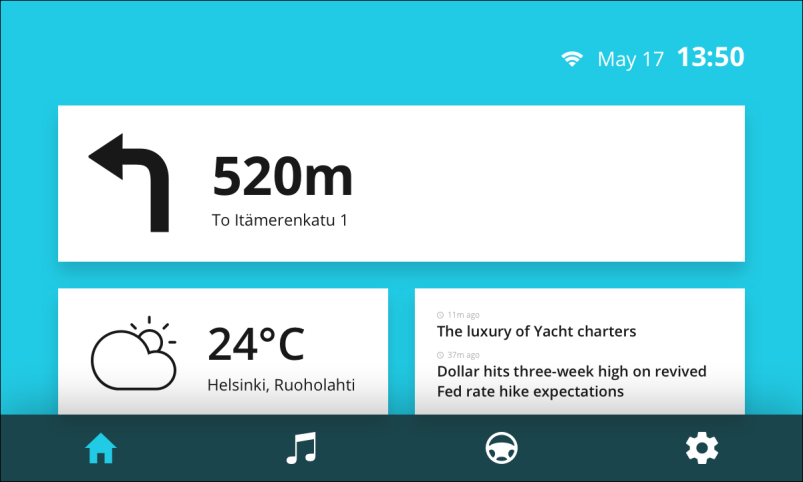
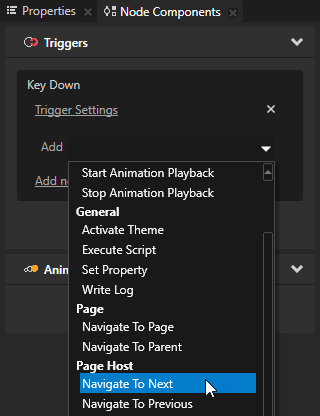
- In the Node Components > Triggers section click the dropdown menu for the trigger you added in the previous step and select an action.
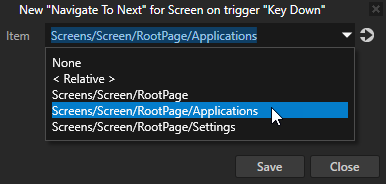
For example, select the Navigate to Next action, and set the Item to the Page Host node the next subpage of which you want to navigate to.
You set the application to go to the next subpage under the Page Host node when the user presses the key.
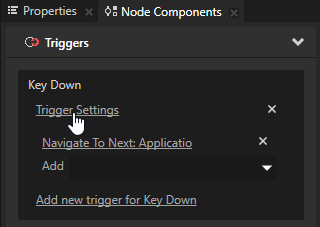
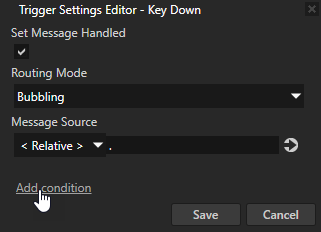
- To set the application to receive input from a particular key on the keyboard, in the Node Components > Triggers section in the trigger you created in the first step click Trigger Settings to open the Trigger Settings Editor.
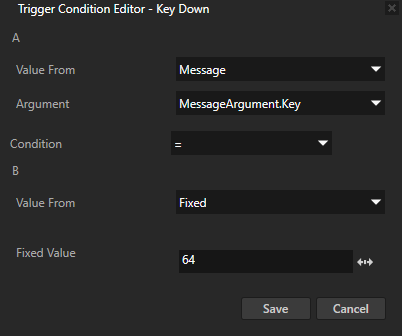
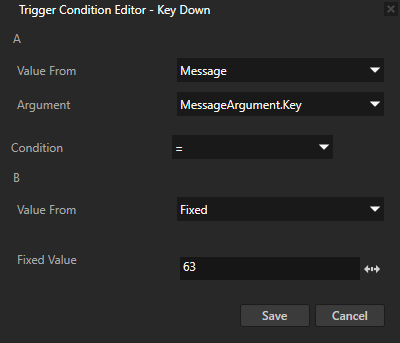
In the Trigger Settings Editor click Add condition to add a condition to the trigger, and in the Trigger Condition Editor set the condition you want for the trigger.
For example, for the Key Down trigger set:- A
- Condition to =
- B
- Value From to Fixed
- Fixed Value to 64.
You set the right arrow key to set off the actions you define in the trigger.
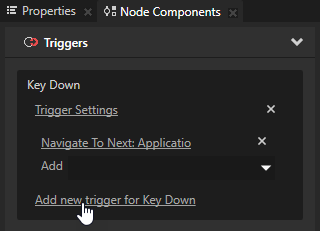
- To set the application to receive input from another key, in the Key Down trigger add a new trigger for the Key Down, and add the action you want to result when the user presses that key.
For example, add the Navigate to Previous action, and set the Item to the Page Host node the previous subpage of which you want to navigate to.
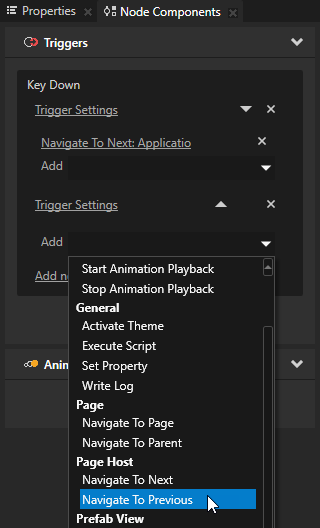
- Repeat step 3 to set a condition for the trigger, but in the Trigger Condition Editor set from which key you want the application to receive input.
For example, set the Fixed Value to 63 to make the left arrow key to set off the actions you set in the trigger.
In the application when you press the left and right arrow keys on the keyboard, the application navigates between the subpages of the Page Host node to which you set the Navigate to Next and Navigate to Previous actions to point.
See also
Triggers
Triggers reference
Keyboard input codes reference
Using scripts

Open topic with navigation