Automating Kanzi Studio tasks
You can automate tasks in Kanzi Studio by executing Kanzi Studio commands on the command line interface. For example, use this approach when you want to export kzb files of a large number of Kanzi Studio projects on a build server.
For the list of available commands see Kanzi Studio command reference
.
To automate Kanzi Studio tasks:
- In a text editor create a script where you define what commands you want Kanzi Studio to run.
For example, to open a Kanzi Studio project in Kanzi Studio, create a script that contains the LoadProject command followed by the path to the Kanzi Studio project you want to open, and save the script as MyScript.txt.LoadProject "C:\KanziWorkspace\Projects\MyProject\Tool_project\MyProject.kzproj"
- Open the command line interface in the <KanziInstallation>/Studio/Bin directory and run the KanziStudio.exe file with the
/Script flag pointing to the script you created in the previous step.
For example, on the command line interface runKanziStudio.exe /Script="C:\Users\username\Documents\MyScript.txt"
Automating the exporting of kzb files
Use the ExportBinary command when you want to export a kzb file from a Kanzi Studio project.
To automate the exporting of kzb files:
- In a text editor create a script that opens a project and exports a kzb file.
# Open the project named MyProject.
LoadProject "C:\KanziWorkspace\Projects\MyProject\Tool_project\MyProject.kzproj"
# Export the kzb file to the location set in the > in the Binary Export Directory property.
# To export the kzb file to another location use: ExportBinary "Path\to\directory\MyProjectBinary.kzb"
ExportBinary
# Close Kanzi Studio. If you want to continue using Kanzi Studio after the script executes, comment out this line.
ExitApplication
- Open the command line interface in the <KanziInstallation>/Studio/Bin directory and run the KanziStudio.exe file with the script you created in the previous step.
KanziStudio.exe /Script="C:\Users\username\Documents\MyScript.txt"
Automating the building of Kanzi applications for Android
Use the ExportApk command when you want to build Kanzi applications for Android.
To automate the building of Kanzi applications for Android:
- In a text editor create a script that opens a project, sets the configuration for the Android build, and builds the APK file.
# Open the project named MyProject.
LoadProject "C:\KanziWorkspace\Projects\MyProject\Tool_project\MyProject.kzproj"

# Before you build the APK file, set whether you want to install the APK file to your Android device and launch the application.
# If you do not want to install the APK file, in the Library > Applications > MyProject disable the Install to Device property.
SetProperty "/Resource Files/Applications/MyProject" BuildConfigurationInstallToDevice false
# If you do not want to launch the application on the device, in the Library > Applications > MyProject disable the Launch Application property.
SetProperty "/Resource Files/Applications/MyProject" BuildConfigurationRunApplication false

# Build the APK file using the Library > Applications > MyProject application configuration.
# The last parameter sets whether Kanzi Studio compresses the images in the project.
ExportApk null "/Resource Files/Applications/MyProject" true

# Close the project.
CloseProject
- Open the command line interface in the <KanziInstallation>/Studio/Bin directory and run the KanziStudio.exe file with the script you created in the previous step.
KanziStudio.exe /Script="C:\Users\username\Documents\MyScript.txt"
Automating the importing and updating of Kanzi Engine plugins
Use the ImportEnginePlugin command when you want to:
Automating the importing of Kanzi Engine plugins
To automate the importing of Kanzi Engine plugins:
- In a text editor create a script that opens a project, imports a Kanzi Engine plugin, saves the project, and closes the project.
# Open the project named MyProject.
LoadProject "C:\KanziWorkspace\Projects\MyProject\Tool_project\MyProject.kzproj"
# Import the Kanzi Engine plugin DLL from MyOtherProject\Application\lib\Win32\GL_vs2015_Debug_DLL.
ImportEnginePlugin "C:\KanziWorkspace\Projects\MyOtherProject\Application\lib\Win32\GL_vs2015_Debug_DLL\XML_data_source.dll"
# Save the project.
# When you save the project with a different name, the second parameter sets whether Kanzi Studio continues working in the original project.
SaveProject "C:\KanziWorkspace\Projects\MyProject\Tool_project\MyProject.kzproj" true
# Close the project.
CloseProject
- Open the command line interface in the <KanziInstallation>/Studio/Bin directory and run the KanziStudio.exe file with the script you created in the previous step.
KanziStudio.exe /Script="C:\Users\username\Documents\MyScript.txt"
Automating the updating of Kanzi Engine plugins
When you make changes to a Kanzi Engine plugin, to take these changes into use, you must update that Kanzi Engine plugin in your Kanzi Studio project.
To automate the updating of Kanzi Engine plugins:
- In a text editor create a script that opens a project, updates a Kanzi Engine plugin, saves the project, and closes the project.
# Open the project named MyProject.
LoadProject "C:\KanziWorkspace\Projects\MyProject\Tool_project\MyProject.kzproj"
# Update the Library > Kanzi Engine Plugins > XML_data_source plugin.
# You leave the first parameter empty because you do not import a new plugin to the project.
ImportEnginePlugin "" "/Kanzi Engine Plugins/XML_data_source"
# Save the project.
# When you save the project with a different name, the second parameter sets whether Kanzi Studio continues working in the original project.
SaveProject "C:\KanziWorkspace\Projects\MyProject\Tool_project\MyProject.kzproj" true
# Close the project.
CloseProject
- Open the command line interface in the <KanziInstallation>/Studio/Bin directory and run the KanziStudio.exe file with the script you created in the previous step.
KanziStudio.exe /Script="C:\Users\username\Documents\MyScript.txt"
Automating the setting of property values
Use the SetProperty command when you want to set property values of nodes and resources in a Kanzi Studio project.
To automate the setting of property values:
- In a text editor create a script that opens a project, sets the values of the properties, saves the project, and closes the project.
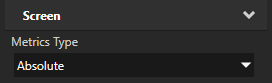
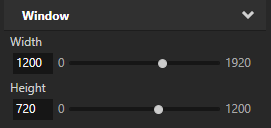
For example, to set the size of the Screen node to 1200 x 720 pixels use this script:# Open the project named MyProject.
LoadProject "C:\KanziWorkspace\Projects\MyProject\Tool_project\MyProject.kzproj"
# In the Screen node set the Metrics Type property to Absolute.
SetProperty "/Screens/Screen" Window.MetricsType Absolute
# In the Screen node set the Width property to 1200.
SetProperty "/Screens/Screen" WindowAbsoluteWidth 1200
# In the Screen node set the Height property to 720.
SetProperty "/Screens/Screen" WindowAbsoluteHeight 720
# Save the project.
# When you save the project with a different name, the second parameter sets whether Kanzi Studio continues working in the original project.
SaveProject "C:\KanziWorkspace\Projects\MyProject\Tool_project\MyProject.kzproj" true
# Close the project.
CloseProject
- Open the command line interface in the <KanziInstallation>/Studio/Bin directory and run the KanziStudio.exe file with the script you created in the previous step.
KanziStudio.exe /Script="C:\Users\username\Documents\MyScript.txt"
Automating the logging of invalid project items
Use the PrintDiagnosticReport command when you want to write to log the invalid items in a Kanzi Studio project.
To automate the logging of invalid project items:
- In a text editor create a script that opens a project and writes the invalid project items to %USERPROFILE%\AppData\Local\Temp\KanziStudioLogs\KanziStudio.log.
# Open the project named MyProject.
LoadProject "C:\KanziWorkspace\Projects\MyProject\Tool_project\MyProject.kzproj"
# Write a list of invalid project items to the KanziStudio.log file.
PrintDiagnosticReport MyProject
# Close the project.
CloseProject
- Open the command line interface in the <KanziInstallation>/Studio/Bin directory and run the KanziStudio.exe file with the script you created in the previous step.
KanziStudio.exe /Script="C:\Users\username\Documents\MyScript.txt"
See also
Kanzi Studio command reference

Open topic with navigation