Step 1 - Use keyboard keys to navigate between Page nodes
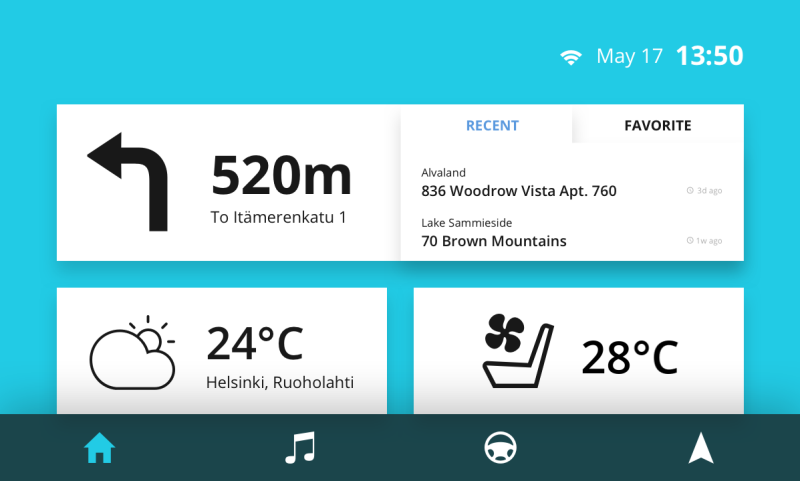
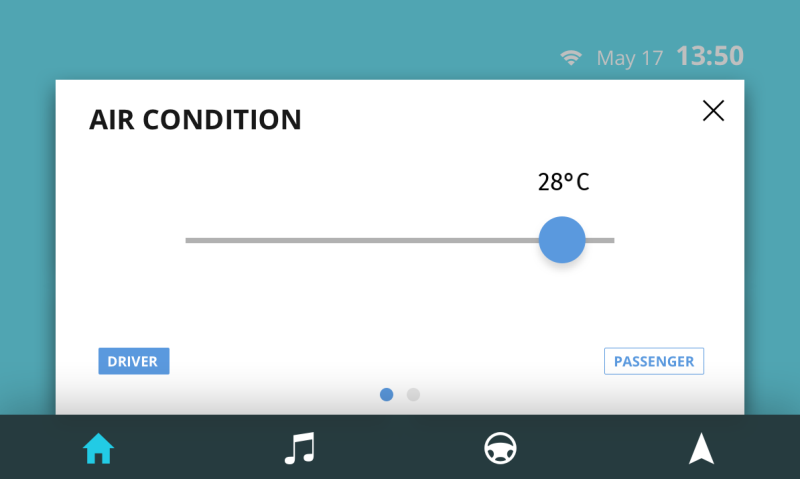
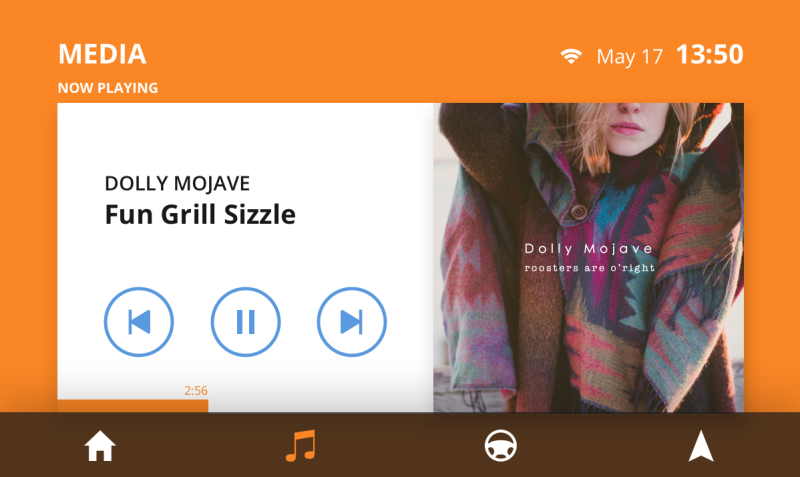
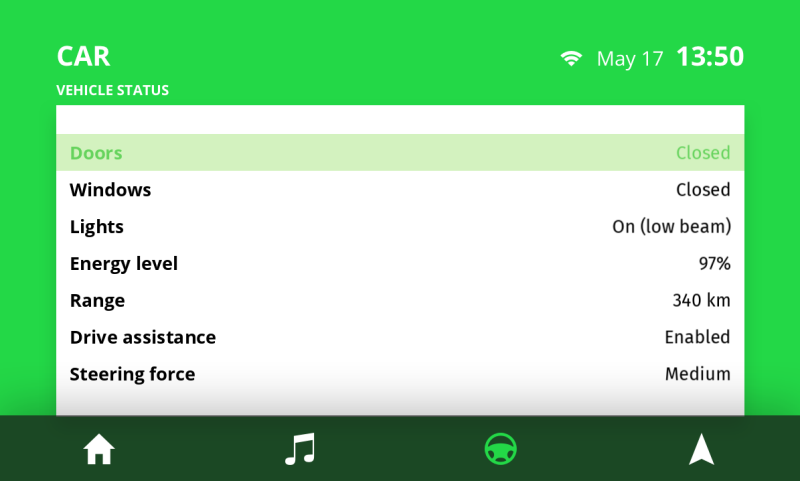
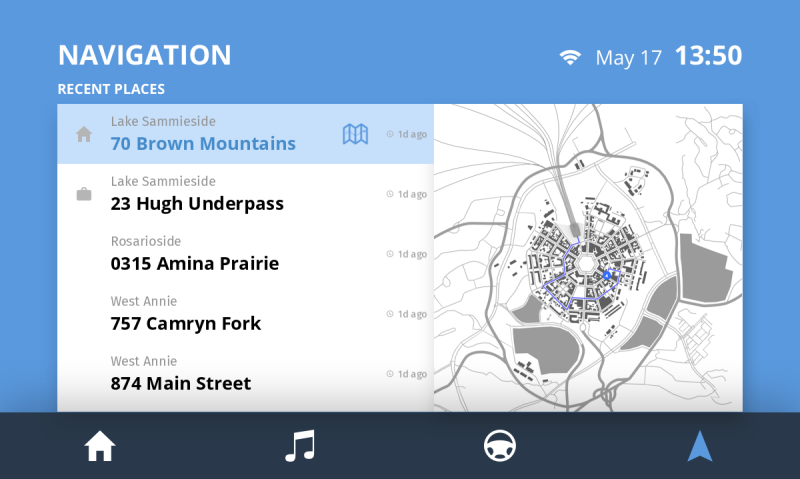
In this step of the tutorial you create keyboard navigation between the Home, Media, Car, and Navigation application screens. You set focus to the toggle buttons on the navigation bar and set the application to navigate between the application screens when the user presses the → (Right Arrow) and ← (Left Arrow) keyboard keys.
Assets for the tutorial
The starting point of this tutorial is the Keyboard input.kzprojKanzi Studio project file stored in <KanziWorkspace>/Tutorials/Keyboard input/Start directory.
The <KanziWorkspace>/Tutorials/Keyboard input/Completed directory contains the completed project of this tutorial.
The starting point project contains the content you need to complete this tutorial:
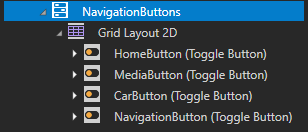
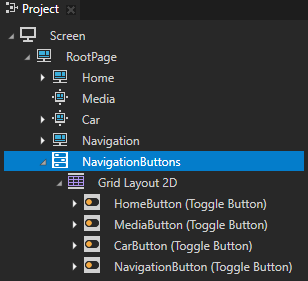
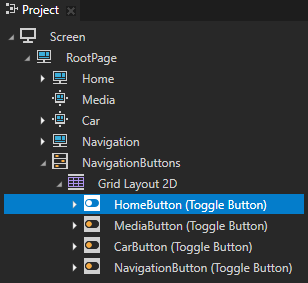
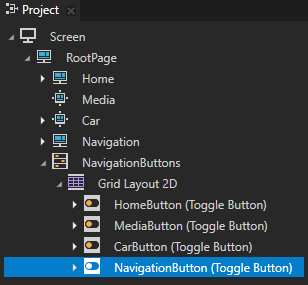
The Toggle Button Group 2D node NavigationButtons contains the toggle buttons at the bottom of the application user interface, which users use to navigate between the Home, Media, Car, and Navigation application screens.
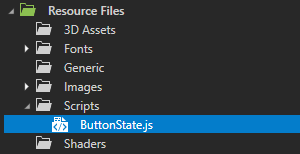
The Library > Resource Files > Scripts contains a script called ButtonState.js which sets the appearance of each navigation button when that button has focus.
The Home node shows the content on the Home application screen.
The Recent and Favorite nodes show the recent and favorite addresses on the Home application screen.
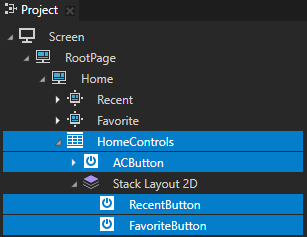
The HomeControls node positions the buttons users use to navigate between the Recent, Favorite, and AirCondition on the Home application screen.
The AirCondition node shows the content on the AirCondition application screen. The Driver and Passenger nodes contain the sliders you use to set the air conditioning temperature on the AirCondition screen.
The Media node shows the Media application screen.
The Car node contains a Grid List Box 2D node which shows the car settings on the Car application screen.
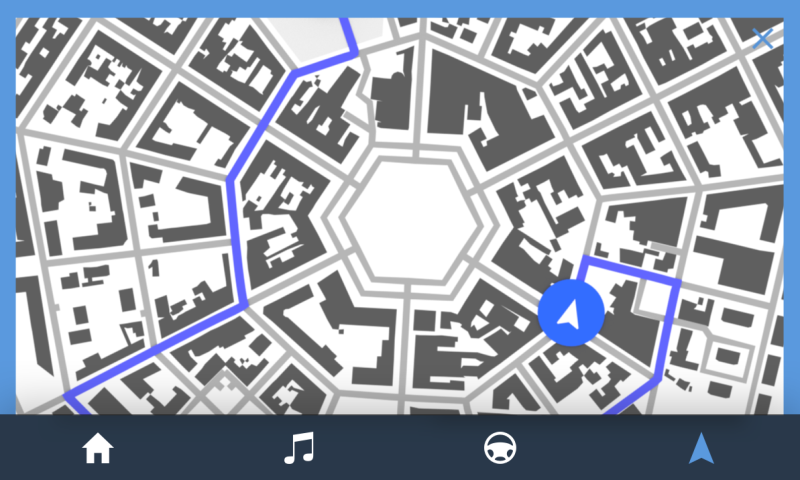
The Navigation node shows the content on the Navigation application screen.
The Grid Layout 2D node positions:
The Navigation Grid List Box node which contains the address entries on the Navigation application screen.
The OpenMap node which users use to navigate to the Map application screen.
The Map node shows the Map application screen.
The Scroll View 2D node enables scrolling for the map on the Map application screen.
The CloseMap node closes the Map application screen and navigates back to the Navigation application screen.
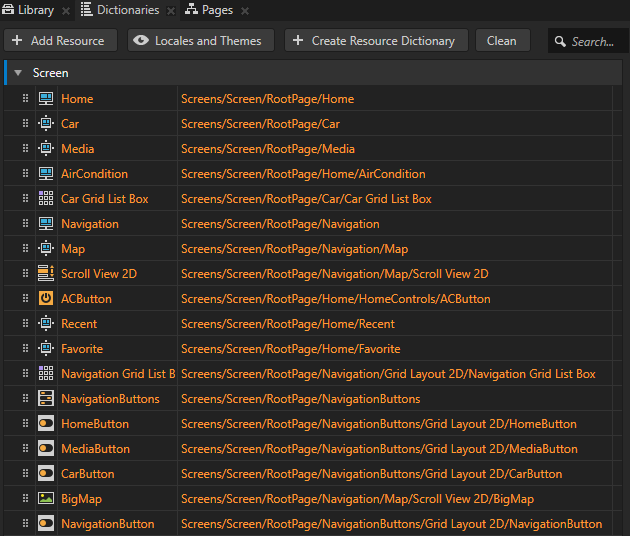
The resource dictionary of the Screen node contains aliases for nodes in the project. Aliases provide a convenient way to access nodes from JavaScript scripts in the application. You can find the content of resource dictionaries in the Dictionaries window. To learn more about aliases and how to use them, see Using aliases.
Create keyboard navigation between application screens
In this section you create keyboard navigation for the toggle buttons you use to navigate between the Page nodes which show the application screens.
To create keyboard navigation between application screens:
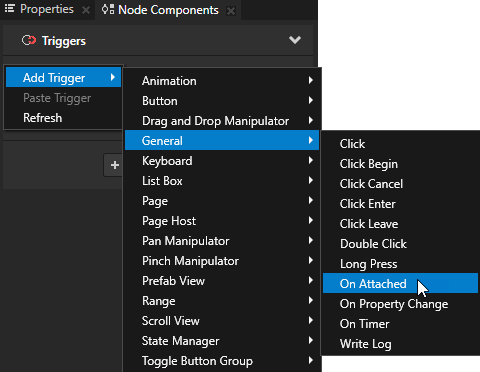
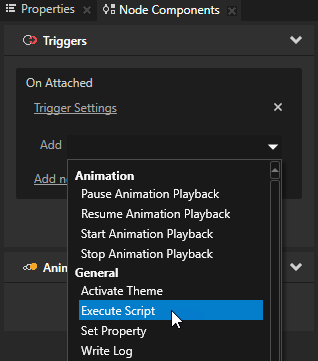
In the Project select the Screen node, in the Node Components right-click in the Triggers, and select Add Trigger > General > On Attached. When you start the application, Kanzi by default sets the focus to the Screen node. You use the On Attached trigger to execute a script which sets focus to the navigation bar when you start the application.
In the Node Components add to the On Attached trigger an Execute Script action.
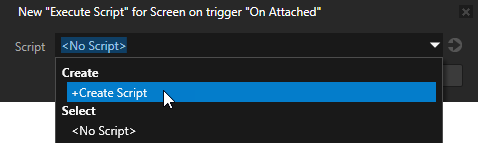
In the Execute Script window select + Create Script, and name the script InitialFocus.
In the Script Editor use this script:
// Get the Toggle Button Group 2D node NavigationButtons.
var navigationButtons = node.lookupNode('#NavigationButtons');

// Set focus to the NavigationButtons node.
navigationButtons.trySetFocus();
When you are done writing the script, in the Script Editor click Save. You use the script to set focus to the NavigationButtons node when the application starts.
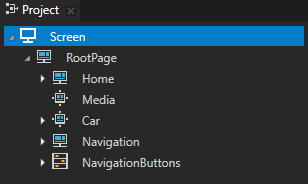
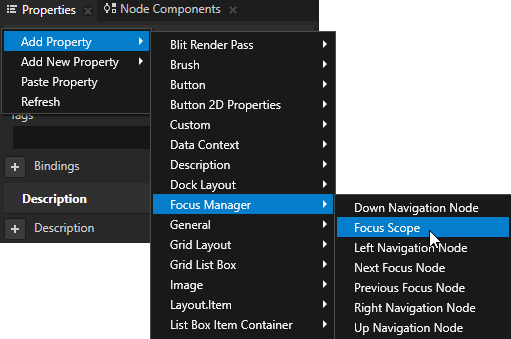
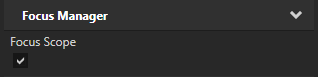
In the Project > RootPage select the NavigationButtons node, in the Properties right-click, select Add Property > Focus Manager > Focus Scope property, and enable that property. You use the Focus Scope property to forward the focus from the toggle button group to the toggle buttons which you use to navigate between the application screens. This way the user can use keyboard keys to navigate between those toggle buttons.
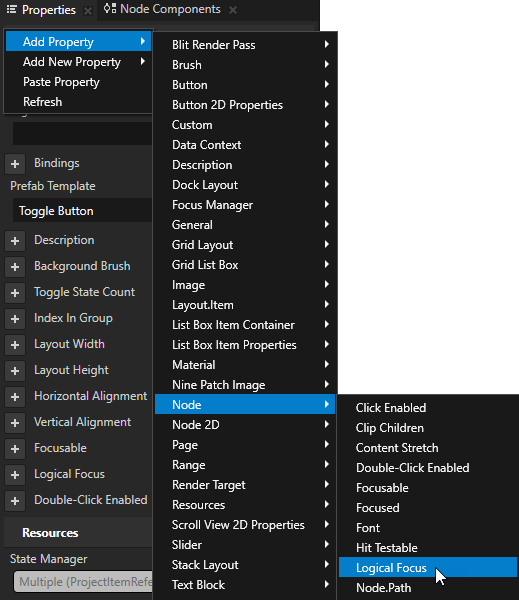
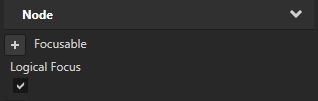
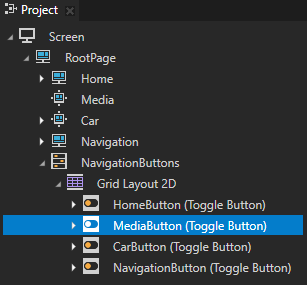
In the Project > RootPage > NavigationButtons > Grid Layout 2D select the HomeButton node, in the Properties right-click, select Add Property > Node > Logical Focus property, and enable that property. You set the HomeButton node to receive focus when you set focus to the Toggle Button Group 2D node NavigationButtons.
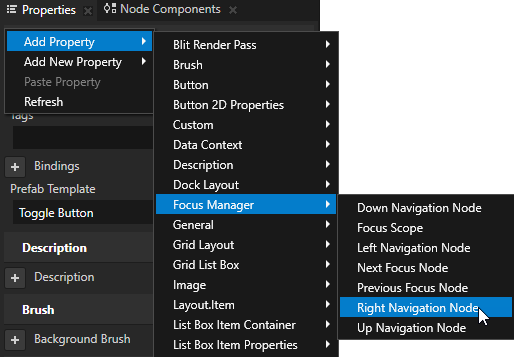
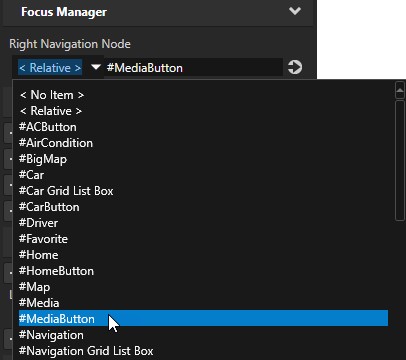
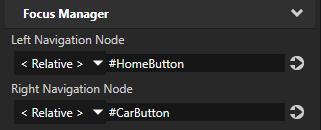
In the Project > RootPage > NavigationButtons > Grid Layout 2D select the HomeButton node, in the Properties right-click, select Add Property > Focus Manager > Right Navigation Node property, and set it to #MediaButton. The focus chain in Kanzi enables you to navigate between nodes based on their rendered position using the ← (Left Arrow), → (Right Arrow), ↑ (Up Arrow), and ↓ (Down Arrow) keys. You use the Right Navigation Node property to set focus from the HomeButton node to the MediaButton node when the user presses the → (Right Arrow) key on their keyboard.
TIP
Aliases provide a convenient way to set the nodes in a focus chain.
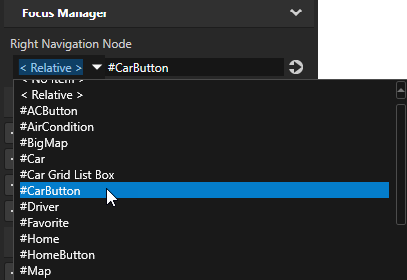
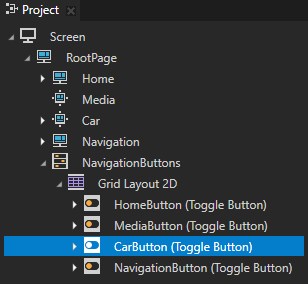
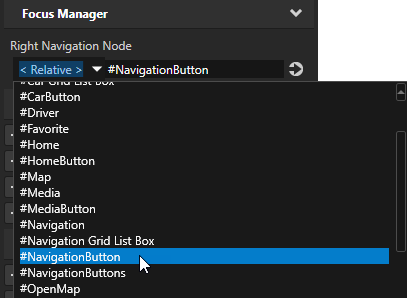
Repeat the previous step for the MediaButton and CarButton nodes but in the Properties set the Right Navigation Node property:
For the MediaButton node to #CarButton.
For the CarButton node to #NavigationButton.
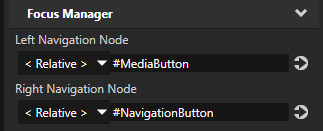
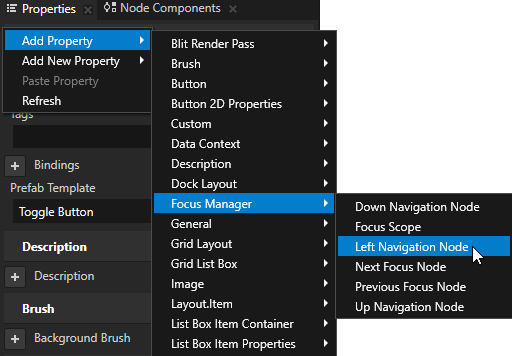
In the Project > RootPage > NavigationButtons > Grid Layout 2D select the MediaButton node, in the Properties right-click, select Add Property > Focus Manager > Left Navigation Node property, and set it to #HomeButton. You use the Left Navigation Node property to set focus from the MediaButton node to the HomeButton node when the user presses the ← (Left Arrow) key on their keyboard.
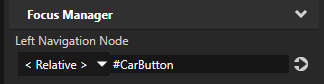
Repeat the previous step for the CarButton and NavigationButton nodes but in the Properties set the Left Navigation Node property:
For the CarButton node to #MediaButton.
For the NavigationButton node to #CarButton.
Restart the Preview to set the initial focus to the HomeButton toggle button. You can now use the → (Right Arrow) and ← (Left Arrow) keyboard keys to navigate between application screens.