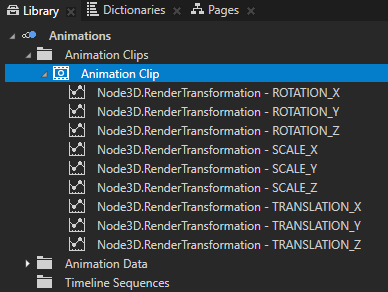
In this step you first clean up the animation by removing the unused Animation Data items, make the bouncing ball animation smoother by using the Bezier interpolation between the keyframes, and you make the shadow react to the position of the BeachBall.
When you drag properties into the Animation Clip Editor to create keyframes, Kanzi Studio automatically adds the Animation Data items for each attribute of the property to that Animation Clip item. Since you changed only Translation Y and Scale Y attributes of the Render Transformation property, you can delete all the other Animation Data items.
In the Library in the Animations > Animation Clips right-click the Animation Clip item you want to clean up, and select Delete Animations with One or Zero Effective Keyframes.
This deletes all Animation Data items that do not contain information needed in your animation.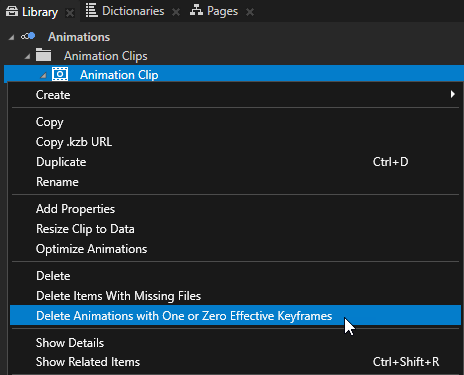
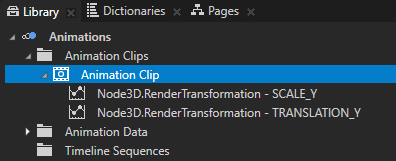
In this section you change the interpolation between the keyframes from linear to Bezier interpolation to make the animation smoother.
To make the animation smoother:
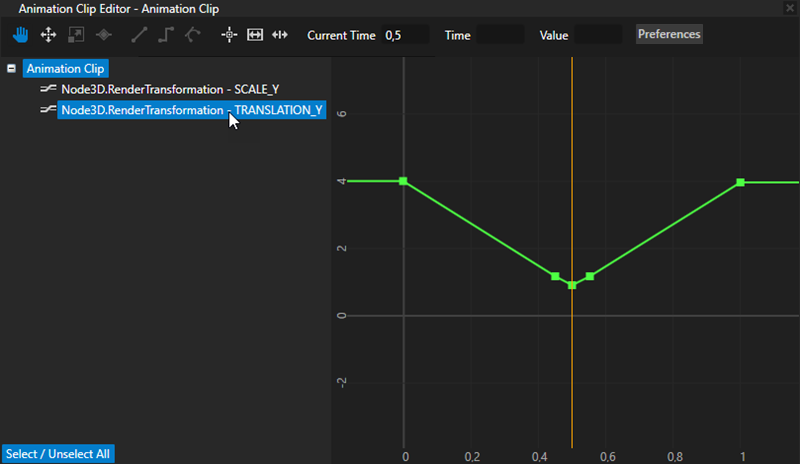
 to select the Move tool.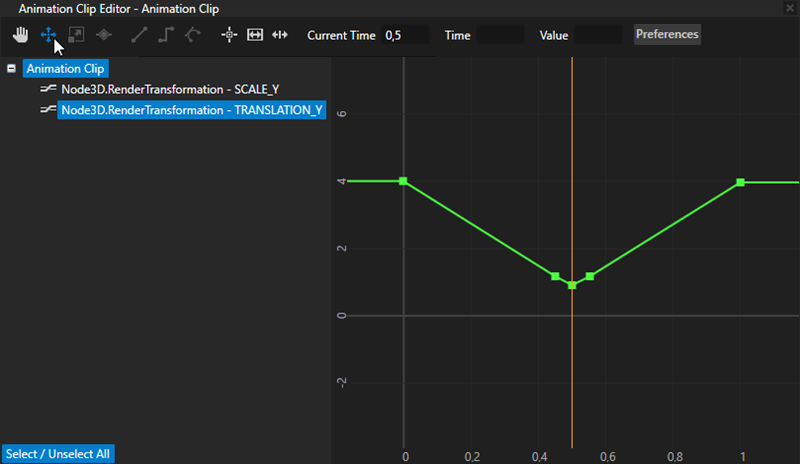
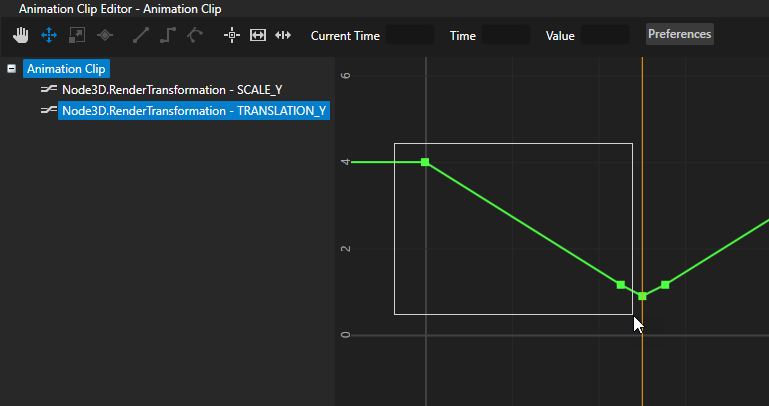
 to change the interpolation between the keyframes to Bezier interpolation.
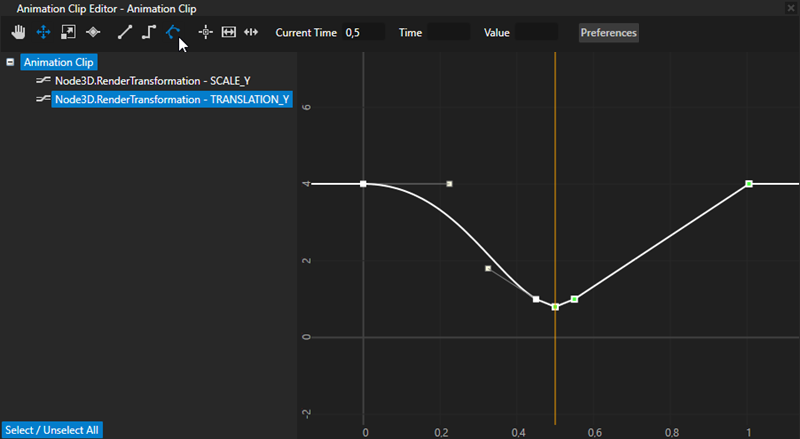 to select the last two keyframes that define the position of the BeachBall node as it leaves the ground and returns to its starting position, and then click to change the interpolation between the keyframes to Bezier interpolation.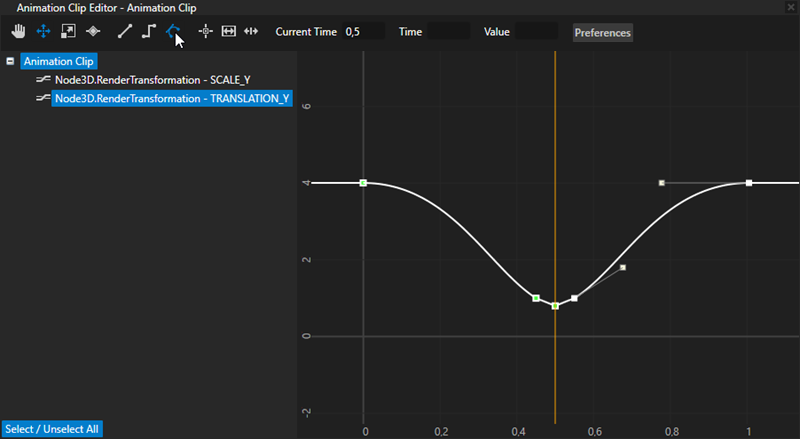
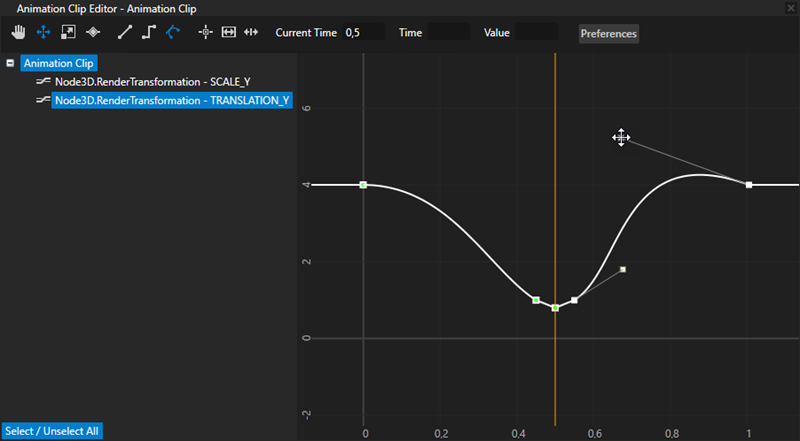
In this section you connect the size of the shadow texture on the Ground node to the distance of the BeachBall node from the Ground node using Kanzi bindings. You make the shadow larger and more transparent when the BeachBall node is farther away from the Ground node.
To make the shadow react to the position of the BeachBall:
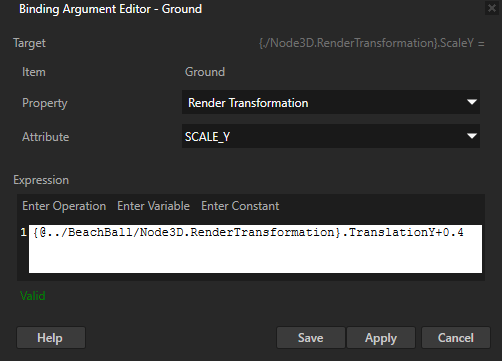
 next to the Bindings property, and in the Binding Argument Editor set:
{@../BeachBall/Node3D.RenderTransformation}.TranslationY+0.4With this binding you control the scale of the Ground node on the x axis with the position of the BeachBall node on the y axis: the higher the BeachBall node is, the larger the shadow texture on the ground node is.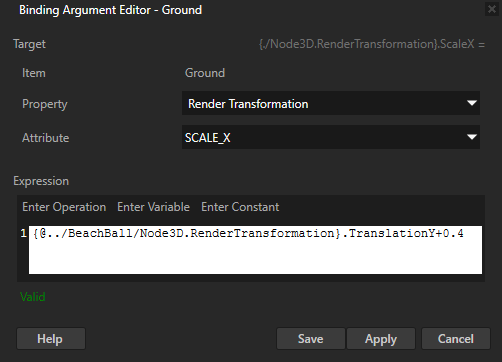
Y = {@../BeachBall/Node3D.RenderTransformation}.TranslationY
MIX(0.5, 0.0, Y*0.2)
With this binding you control the strength of the shadow texture on the Ground node with the position of the BeachBall node on the y axis: the higher the BeachBall node is, the weaker the shadow texture on the ground node is. This binding uses the mix function to adjust the final value of the Blend Intensity property. You can use other binding functions to adjust the value. See Bindings expressions reference.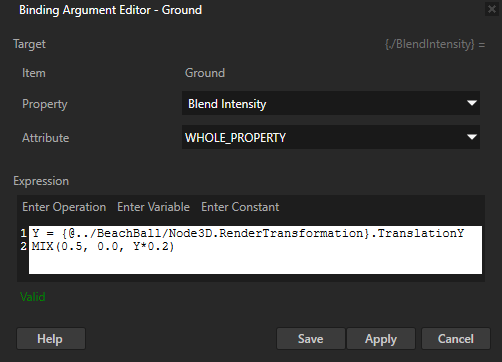
In this tutorial you learned how to create a simple keyframe animation in Kanzi Studio. Now you can learn how to:
To learn more about creating Kanzi applications, see Tutorials.
To learn more about how to control the playback of animations in Kanzi, see Playing keyframe animations.
To find out more about the animations in Kanzi, see Animations.
To find out more about Kanzi Studio features, see Working with ....
