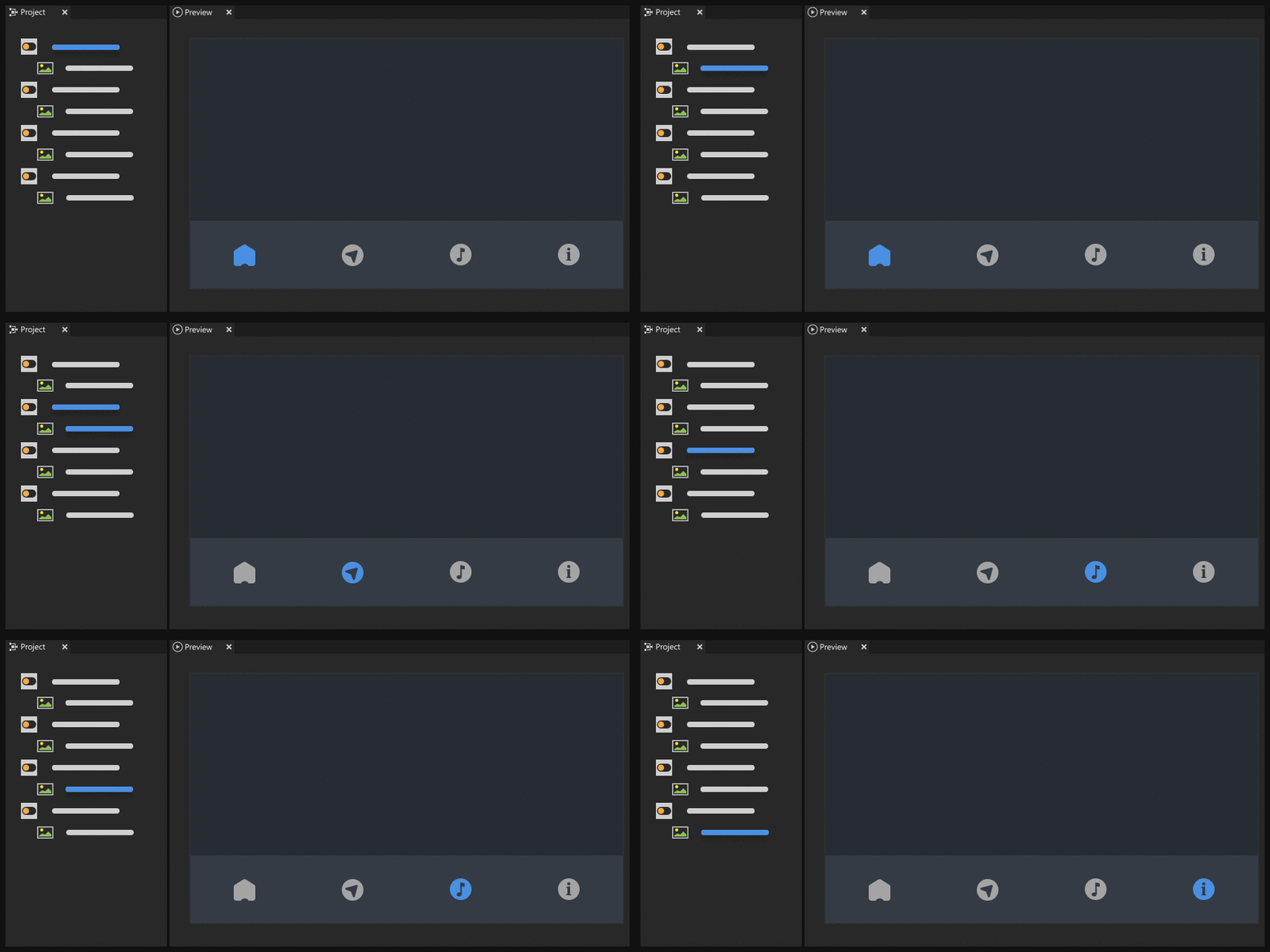
These are the default keyboard keys you can use to navigate the focus in your application:
Navigate in the forward direction by pressing the Tab key and in the backward direction by pressing the ShiftTab keys.
Navigate between nodes based on their rendered position using the ← (Left Arrow), → (Right Arrow), ↑ (Up Arrow), and ↓ (Down Arrow) keys.
When a Button node has focus, it receives input from the keyboard keys Space, Enter, and Enter on the numeric pad.
When a Toggle Button node has focus, it receives click input from the keyboard keys Space, Enter, and Enter on the numeric pad.
When a Slider node has focus use:
The ← (Left Arrow) and → (Right Arrow) keyboard keys if the slider knob moves in a horizontal direction
The ↑ (Up Arrow) and ↓ (Down Arrow) keyboard keys if the slider knob moves in a vertical direction
To move a slider knob with keyboard keys, in the Properties you need to set the Step Value property for that slider to define how many steps the knob moves each time you press a key.
When a Scroll View node has focus, you can scroll the contents of that node using the ← (Left Arrow), → (Right Arrow), ↑ (Up Arrow), and ↓ (Down Arrow) keyboard keys.
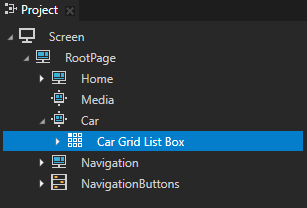
When a Grid List Box node has focus use:
The ↑ (Up Arrow) and ↓ (Down Arrow) keyboard keys to scroll the list items in a vertical list box
The → (Right Arrow) and ← (Left Arrow) keyboard keys to scroll the list items in a horizontal list box
The Home keyboard key selects the first list item
The End keyboard key selects the last list item
The Page Up and Page Down keyboard keys go to the beginning and end of the visible area of a list box
Setting focus
By default the Screen node has focus. The user can interact with user interface elements using keyboard keys when those elements have focus.
To set focus:
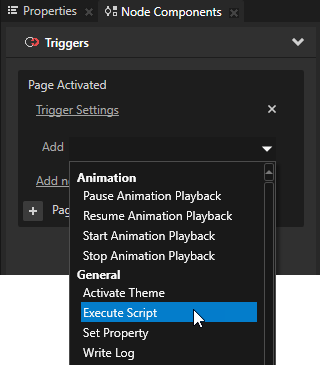
In the Project select the node to which you want to set focus and in the Node Components add a trigger which you use to set off the action that sets the focus. For example, add a Page Activated trigger. The Page Activated trigger is set off when a Page or Page Host node becomes active.
In the Node Components add to the Page Activated trigger an Execute Script action. You set the application to execute a JavaScript script when the Page or Page Host node to which you added the trigger becomes active.
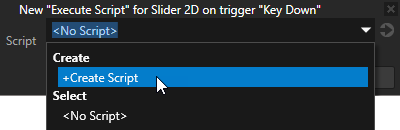
In the Execute Script window select + Create Script to create a script.
In the Script Editor use the trySetFocus() function to set focus to the node in the project. See Scripting reference. For example, to set focus to a Slider 2D node in the project use this script:
// Get the Slider 2D node to which you want to set focus.
slider = node.lookupNode('#Slider 2D');

// Set focus to the Slider 2D node.
slider.trySetFocus();
When you navigate to the page for which you added the trigger, you set focus to the node you defined in the script. For example, if you set focus to a Slider node, you can by default use the arrow keys on your keyboard to move the slider.
Showing when a user interface element has focus
You can set a user interface element, such as a button or a slider, to change appearance when it has focus. For example, you can highlight a button when that button has focus or change how a slider knob looks when the slider has focus.
To show when a user interface element has focus:
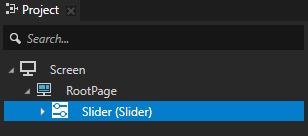
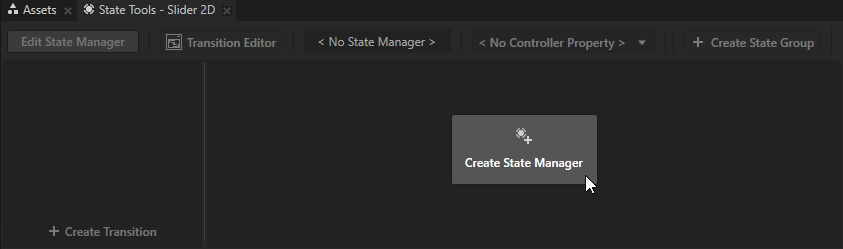
In the Project select the node for which you want to create focus visualization and in the State Tools click Create State Manager to create a state manager for that node.
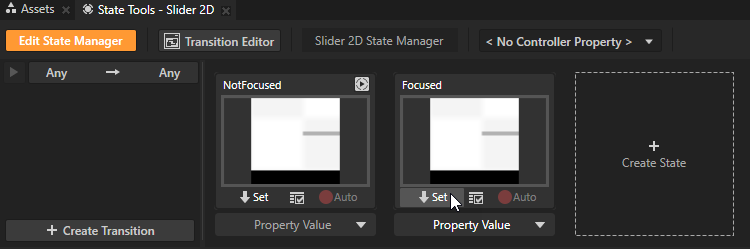
In the State Tools click Create State twice to create two states. Name them, for example, NotFocused and Focused. The NotFocused state defines the state of your application when the node is not focused and the Focused state when the node is focused.
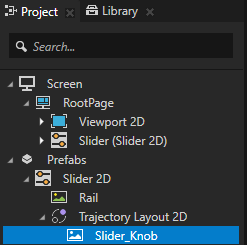
In the Project select the node for which you want to create focus visualization and set the value of the property you want to change when that node has focus. For example, you can use a different image for the slider knob when the slider has focus.
In the State Tools click below the state which defines how the node looks when it has focus to save the current property values to that state. For example, click below the Focused state.
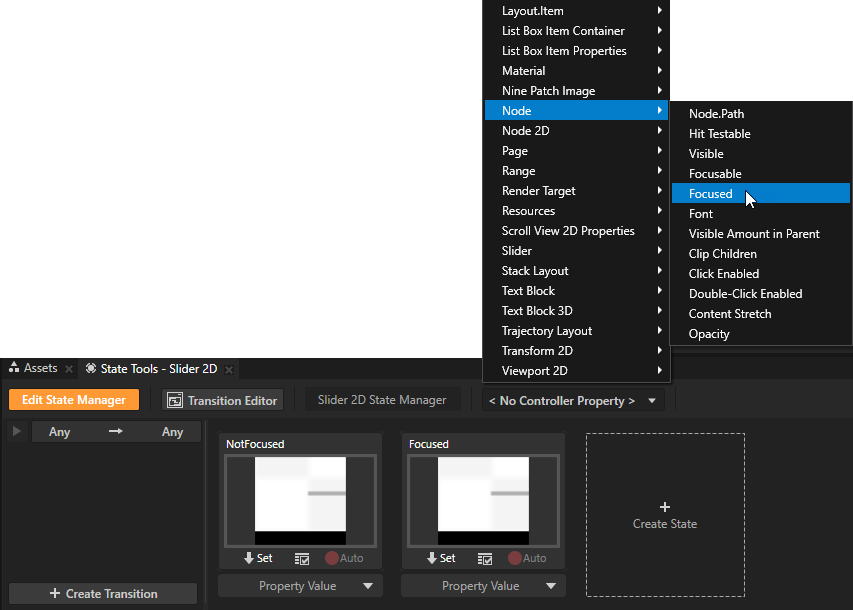
In the State Tools click the <No Controller Property> dropdown menu and select the Node > Focused property. When you set the Focused property as the controller property for the state manager, the state manager transitions to a state based on the value of that property.
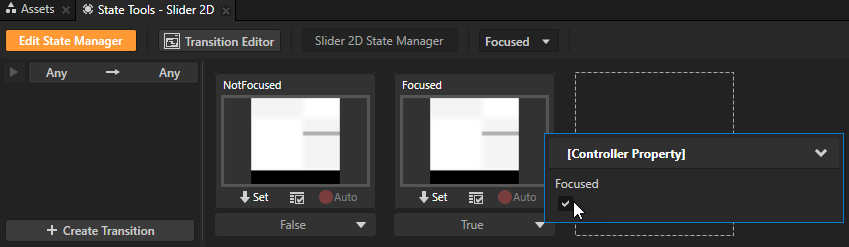
In the State Tools under the state which defines how the node looks when it has focus, set the value of the Focused property to True.
In the State Tools click Edit State Manager to deactivate the State Tools.
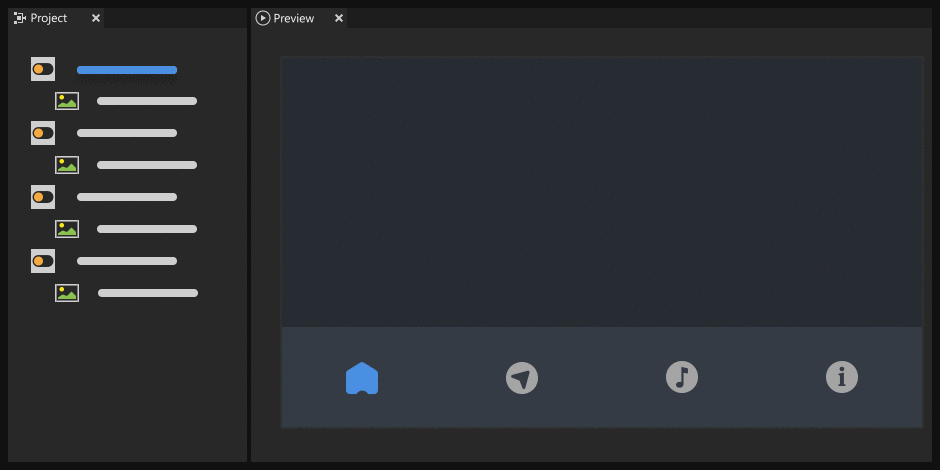
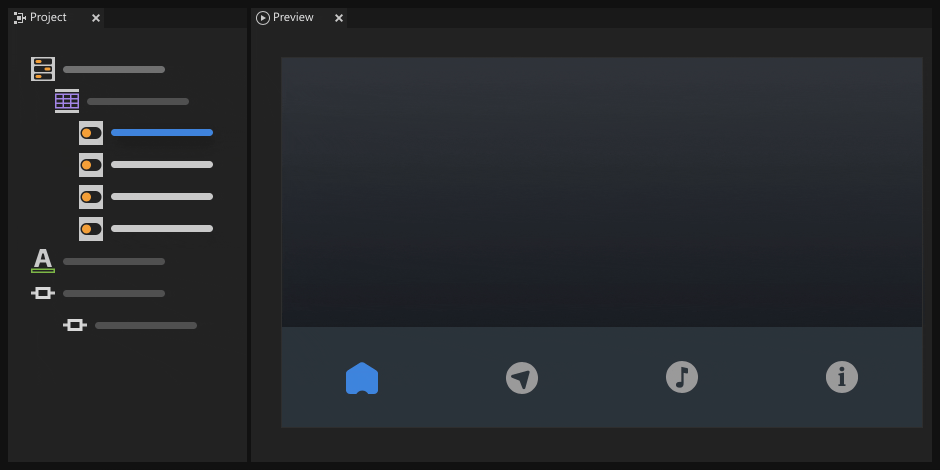
When you set focus to the slider, the appearance of the slider knob changes.
Moving focus in a focus chain
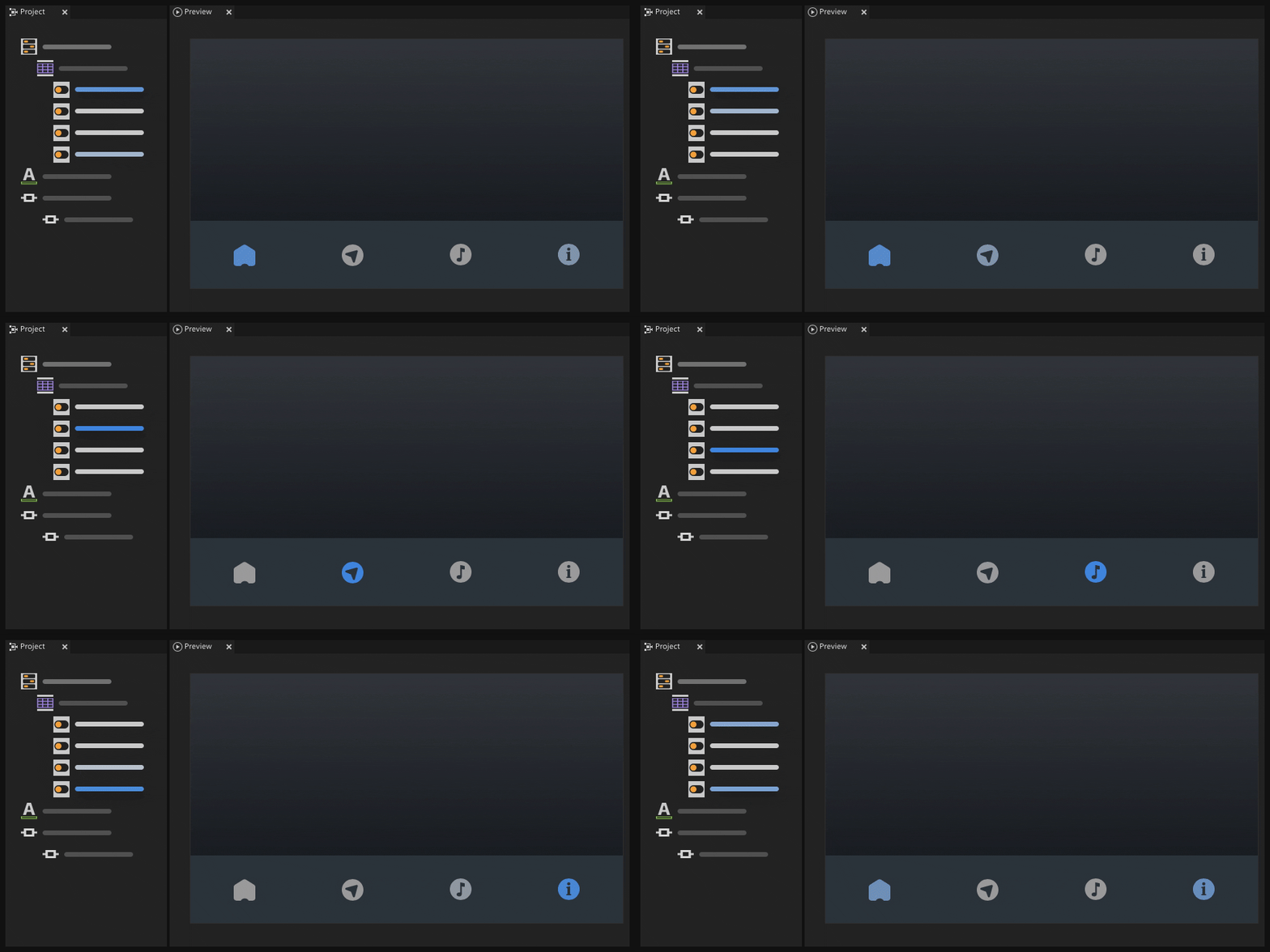
Focus chain is a sequence of nodes which defines the order in which Kanzi sets focus to those nodes. Kanzi automatically includes in the focus chain all nodes in your project. By default the focus chain moves the active focus from each node to the next child node. When a node has no child node which can receive focus, the focus moves to the next node in the project tree. You can define a custom focus chain or redirect the default focus chain navigation by setting which node receives focus after the currently focused node.
To move focus in a focus chain:
In the Project select each node which you want to receive focus and in the Properties add and set:
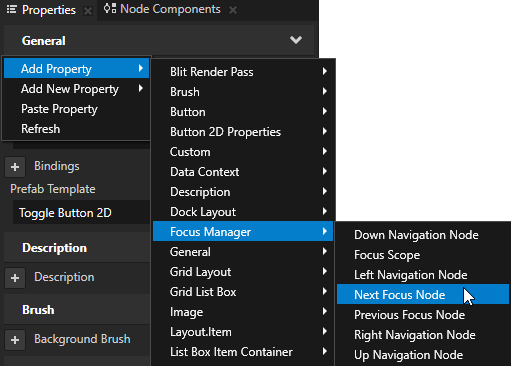
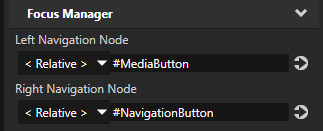
Next Focus Node property to the node to which you want to set focus when the user navigates in the forward direction. For example, set the Next Focus Node property to point to a node which represents a control you show on the same application screen, such as a list box or a button.
Previous Focus Node property to the node to which you want to set focus when the user navigates in the backward direction.
You can move the focus to the next node in the focus chain by pressing the Tab key and to the previous node by pressing the ShiftTab keys.
TIP
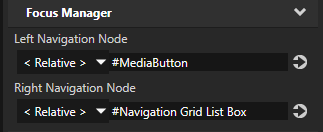
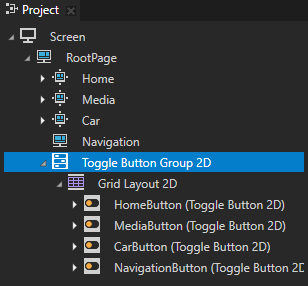
Aliases provide a convenient way to set the nodes in a focus chain.
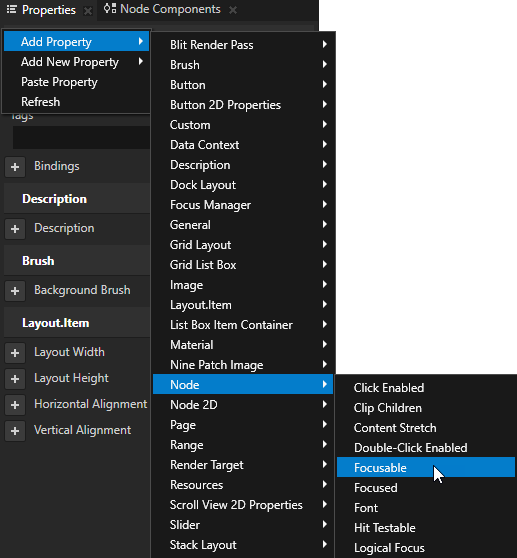
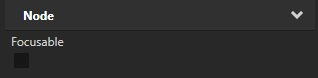
In the Project select each node in your project which you want to not receive focus and in the Properties right-click, select Add Property > Node > Focusable property, and disable that property.
Setting a focus scope
Use a focus scope to handle navigation in a focus chain. You can set a node to be a focus scope to forward the focus from that node to a child node. When you set focus to a focus scope, Kanzi forwards the focus to the child node of that scope which has logical focus.
To set a focus scope:
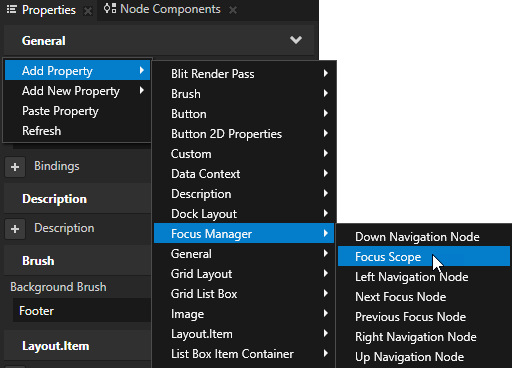
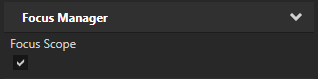
In the Project select the node which you want to set as a focus scope and in the Properties add and enable the Focus Scope property.
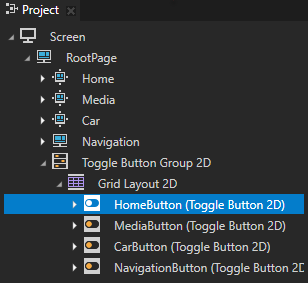
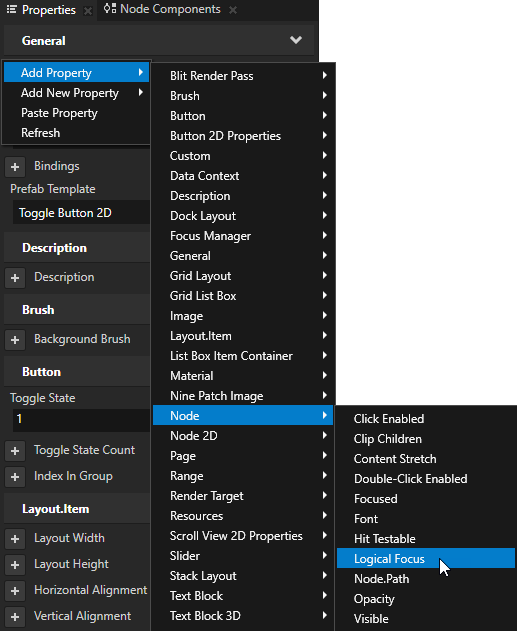
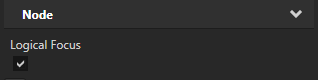
In the Project select the child node of the focus scope node to which you want to set focus and in the Properties add and enable the Logical Focus property. When you set focus to the focus scope node, the child node for which you enable the Logical Focus property receives focus. If the focus scope has several child nodes with the Logical Focus property enabled, the focus manager sets focus to the last child node.
Setting a focus fence
Use a focus fence to navigate the focus within a part of an application. A focus fence allows the user to navigate the content within the boundaries of a focus scope. For example, you can use a focus fence to create keyboard navigation for a navigation bar or a popup window.
To set a focus fence:
In the Project select the node which you want to set as a focus fence and set that node as a focus scope. See Setting a focus scope.
In the Project select the node you set as a focus scope, in the Properties add the Focusable property, and disable the property. When you set a focus scope to not receive focus, you cannot navigate to or from the focus scope boundaries.
Setting a specific keyboard key to move focus
When creating keyboard navigation for your application, you can set which keyboard keys the user can use to navigate the application.
To set a specific keyboard key to move focus:
In the Project select the node from which you want to move focus to another node with a specific keyboard key.
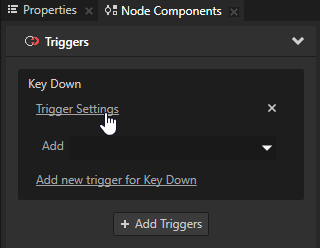
In the Node Components right-click in the Triggers and add the Keyboard > Key Down trigger. You use the Key Down trigger to execute a script which sets focus to a node when the user presses a specific key on the keyboard.
In the Node Components click Trigger Settings and in the Trigger Settings Editor click Add condition. The Trigger Condition Editor opens. Trigger conditions enable you to set which conditions must be met for the trigger to set off. You set off the Key Down trigger when the node to which you added that trigger has focus and the user presses a specific key on the keyboard.
In the Trigger Condition Editor set which keyboard key sets off the Key Down trigger:
Value A
Value From to Message The Key Down trigger intercepts the messages generated when a user presses down a key on their keyboard. The message contains the key code which Kanzi uses to set off the trigger.
Operator to =
Value B
Value From to Fixed
Fixed Value to the key code for the key you want to use to set off the trigger. For example, use 19. You use the key code for the E key to set off the trigger when the user presses that key on their keyboard. For a list of the keyboard key codes used in Kanzi, see Keyboard input codes reference.
In the Trigger Condition Editor and the Trigger Settings Editor windows click Save.
When the user presses down the E key, the Key Down trigger executes the script which sets the focus.
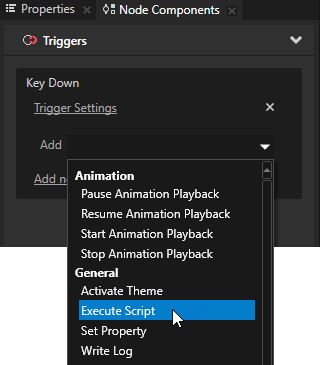
In the Node Components add to the Key Down trigger an Execute Script action.
In the Execute Script window select + Create Script to create a script.
In the Script Editor use a scripting function to set focus to the node in the project. For example, use the tryMoveActiveFocusForward() function to set focus to the next node in the focus chain use this script. See Scripting reference and Focus.
// Sets focus to the next node in the focus chain.
tryMoveActiveFocusForward();

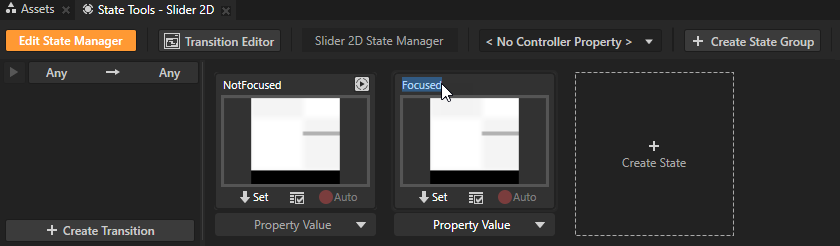
 below the state which defines how the node looks when it has focus to save the current property values to that state.