To use data from an external data source in your Kanzi application:
- Define your data source in a Kanzi Engine plugin. See Defining a data source.
- Use in your Kanzi Studio project the data source plugin which defines your data source. See Taking a data source plugin into use.
To learn how to use a data source in your Kanzi Studio project, see Using a data source.
Defining a data source
To define a data source:
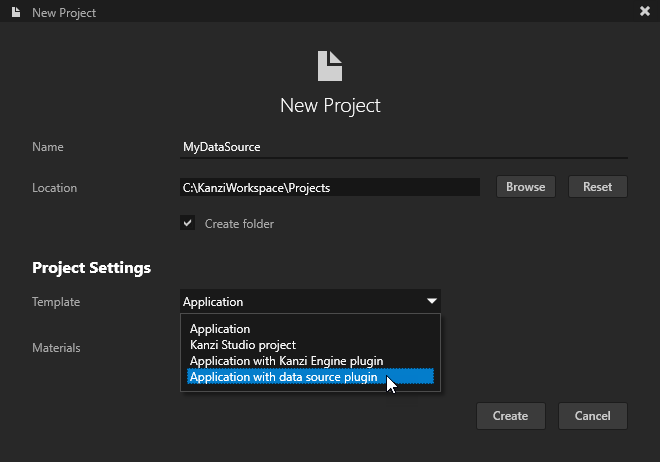
- In Kanzi Studio create a new project and in the New Project window set the Template to the Application with data source plugin template.
- bin directory contains the binaries and configuration files of your project.
- configs directory contains the configuration files for different platforms. By default Kanzi creates configuration files for several different platforms. The recommended platform for developing Kanzi applications is Microsoft Visual Studio. See Deploying Kanzi applications.
- src contains the source code for your project.
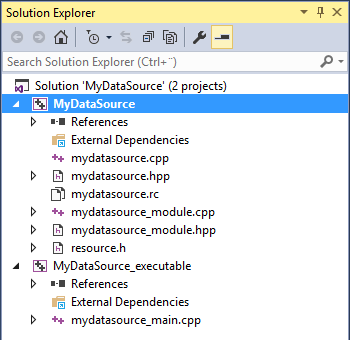
- In Visual Studio open the solution stored in <ProjectName>/Application/configs/platforms/win32. The solution contains two projects:
- <ProjectName> project. Define your data source in this project. If you build this empty template project, you create a data source which you can use to create a data source in your Kanzi Studio project, however such data source does not have any functionality. If you created the project only to define your data source, you need to use only this project in the Visual Studio solution.
- <ProjectName>_executable project. Define the logic of your Kanzi application in this project.
- Define your data source. Make sure you also define how you want to reload the data in your data source.
For an example of how to define a data source, see Tutorial: Get application data from a data source. - Select one of the DLL solution configurations for your version of Visual Studio.
During the development select one of the debug DLL configurations. When you are ready to create the version for production, select one of the release DLL configurations.
For example, select the GL_vs2015_Release_DLL configuration.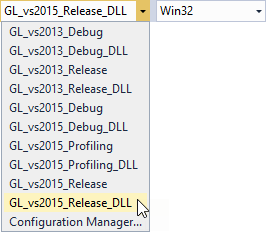
- In Visual Studio right-click the project where you defined your data source and select Build.
Visual Studio builds your plugin into a .dll and saves it in <ProjectName>/Application/lib/<PlatformName>/<ConfigurationName> directory.
If the Kanzi Studio project which uses this plugin is opened, before you start building the plugin .dll in Visual Studio, in Kanzi Studio select > Exit Preview.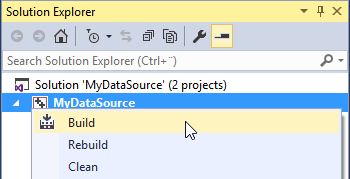
Kanzi creates a Kanzi Studio project in <KanziWorkspace>/Projects/<ProjectName>/Tool_project directory and the structure for the Visual Studio solution for your project in <KanziWorkspace>/Projects/<ProjectName>/Application:
Taking a data source plugin into use
Once you have your data source plugin ready, you have to either enable it in your Kanzi Studio project, or import the plugin into another Kanzi Studio project where you want to use the same type of the data source.
To define a data source, see Defining a data source.
To take the data source plugin into use in your Kanzi Studio project:
- If you are using the same Kanzi Studio project which you created to define the data source:
- In Kanzi Studio in the Library > Kanzi Engine Plugins right-click the data source plugin you defined and built in Visual Studio and select Update Kanzi Engine Plugin.
You have to update the plugin metadata every time you make a change to the plugin source code and build the plugin in Visual Studio.
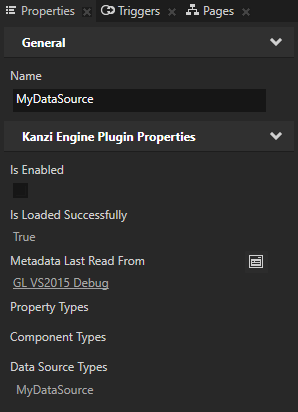
After you update the plugin metadata and select the plugin in the Library, in the Properties the Metadata Last Read From property shows which plugin .dll file Kanzi Studio loaded and read metadata from.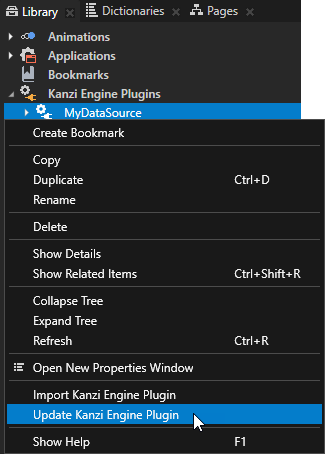
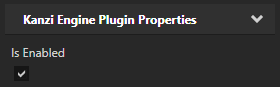
- In the Library > Kanzi Engine Plugins select the plugin and in the Properties make sure that the Is Enabled property is enabled.
 TIP
TIPUse the Is Enabled property to enable or disable any Kanzi Engine plugin in your project.
- In Kanzi Studio in the Library > Kanzi Engine Plugins right-click the data source plugin you defined and built in Visual Studio and select Update Kanzi Engine Plugin.
- In any other Kanzi Studio project where you want to use the plugin where you defined your data source:
- In Kanzi Studio create a new project and in the New Project window select the Application, Application with data source plugin, or Application with Kanzi Engine plugin project template.
- In Visual Studio open the solution stored in <ProjectName>/Application/configs/platforms/win32 and import the Visual Studio project from the Kanzi project where you defined the data source plugin you want to use.
- Select one of the DLL solution configurations for your version of Visual Studio.
During the development select one of the debug DLL configurations. When you are ready to create the version for production, select one of the release DLL configurations.
For example, select the GL_vs2015_Release_DLL configuration. - In Visual Studio right-click the project where you defined your data source and select Build.
Visual Studio builds your plugin into a .dll and saves it in <ProjectName>/Application/lib/<PlatformName>/<ConfigurationName> directory.
If the Kanzi Studio project which uses this plugin is opened, before you start building the plugin .dll in Visual Studio, in Kanzi Studio select > Exit Preview. - In the Library right-click Kanzi Engine Plugins and select Import Kanzi Engine Plugin.
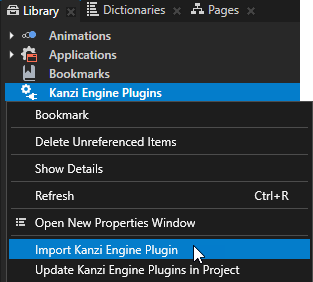
- Select the plugin .dll which defines your data source and click Open.
- In the Library > Kanzi Engine Plugins select the plugin and in the Properties make sure that the Is Enabled property is enabled.TIP
Use the Is Enabled property to enable or disable any Kanzi Engine plugin in your project.
