Filters collect and reorganize 3D nodes in your Kanzi project. You can use filters to determine which 3D nodes to render in different render passes. After you set one or more filters or object sources, a filter collects and outputs a set of 3D nodes that match the requirements you define in that filter.
Use filters to adjust the rendering for the whole or parts of your Kanzi application. In a Draw Objects Render Pass or Draw Objects With Material Render Pass set the Object Source property so that the render pass renders only those nodes which the object source passes to the render pass. See Rendering.
For example, you can use filters to:
- Collect all nodes in your project you want to render only once. See Using the Tag Filter.
- Create reflections for nodes. See Tutorial: Create reflections.
- Apply a stencil to 3D content. See Tutorial: Apply a stencil to 3D content.
- Render only transparent nodes. See Rendering partially transparent nodes.
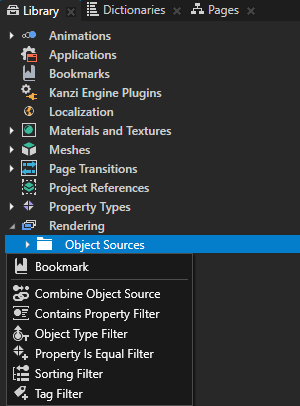
These filters are available in Kanzi Studio in the Library > Rendering > Object Sources:
- Contains Property Filter collects 3D nodes that contain, or do not contain a specific property. See Using the Contains Property Filter.
- Object Type Filter collects 3D nodes based on their type. See Using the Object Type Filter.
- Property Is Equal Filter collects 3D nodes that contain, or do not contain a specific property the value of which matches a specific value. See Using the Property Is Equal Filter.
- Sorting Filter either orders 3D nodes by their position on the z axis or groups them by their material type. See Using the Sorting Filter.
- Tag Filter collects 3D nodes that have a specific tag assigned. See Using the Tag Filter.
Using filters in the API
For details, see the KzuFilterObjectSource class in the API reference.
See also
Using the Contains Property Filter
Using the Property Is Equal Filter
Tutorial: Apply a stencil to 3D content
