Using the Factory Content assets
You can add assets from the Factory Content asset source to your Kanzi application in Kanzi Studio. For a list of the Factory Content, see Factory Content assets.
Using Factory Content in your project
To use Factory Content in your project:
In the Asset Packages window select the Factory Content asset source.
The Factory Content asset packages contain ready-made components and materials that you can use to create prototype projects faster.
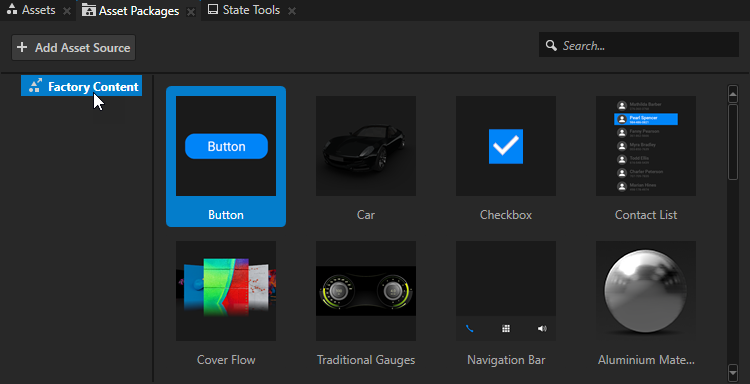
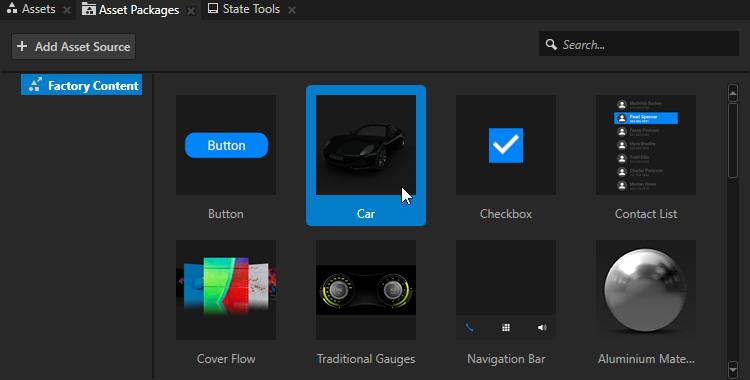
From the Asset Packages drag the item that you want to use in your project to a node in the Node Tree, to the Prefabs, to the Preview, or to a Page node in the Pages window.
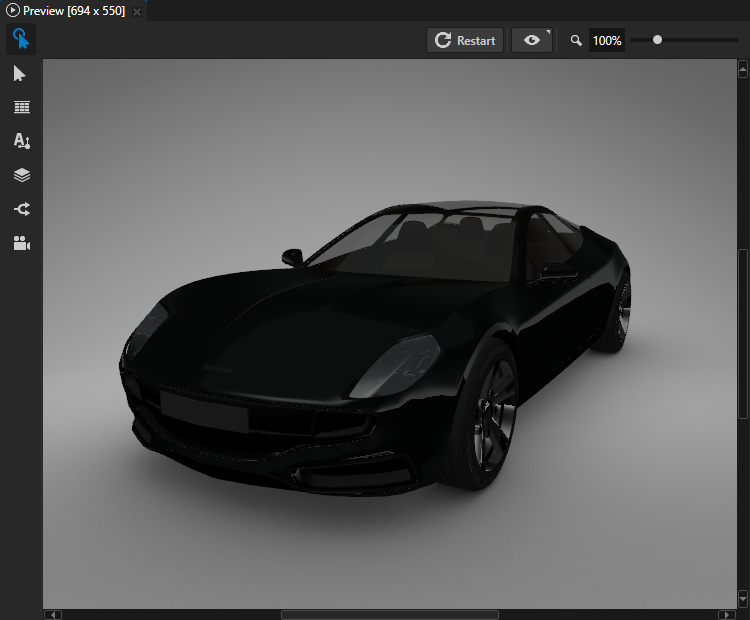
For example, drag the Car to the Preview. When you drag an item from the Asset Packages to the Preview or a node in the Node Tree or Pages, Kanzi Studio instantiates that item as a prefab, and adds it to the Prefabs.
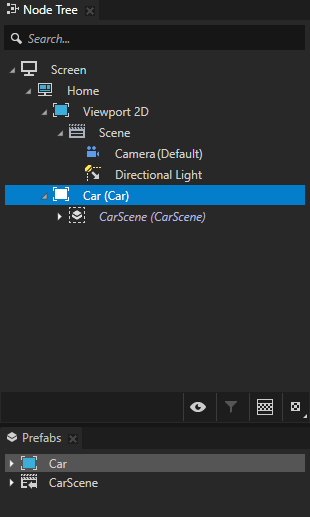
Using Factory Content materials in your project
To use Factory Content materials in your project:
In the Asset Packages window select the Factory Content asset source.
The Factory Content asset packages contain ready-made components and materials that you can use to create prototype projects faster.
From the Asset Packages drag the material that you want to use in your project to a node in the Preview, or a node in the Node Tree.
For example, to use a material for a car body, drag that material to either:
Preview and drop it on the car body.
Node Tree and drop it on the Model node that shows the mesh for the car body.
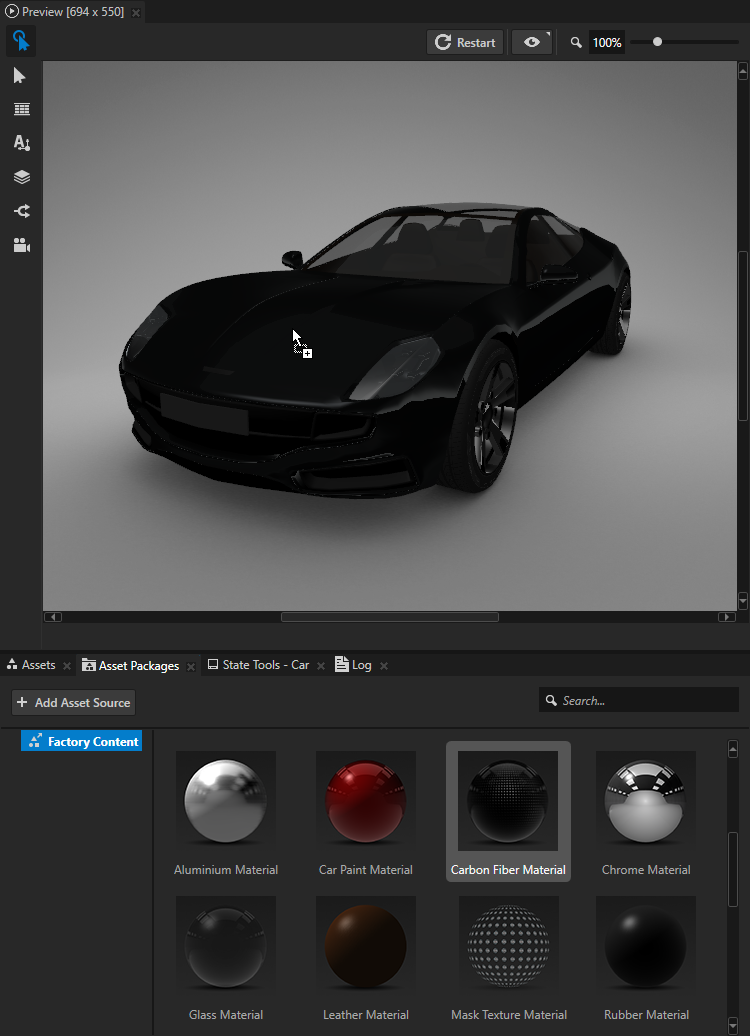
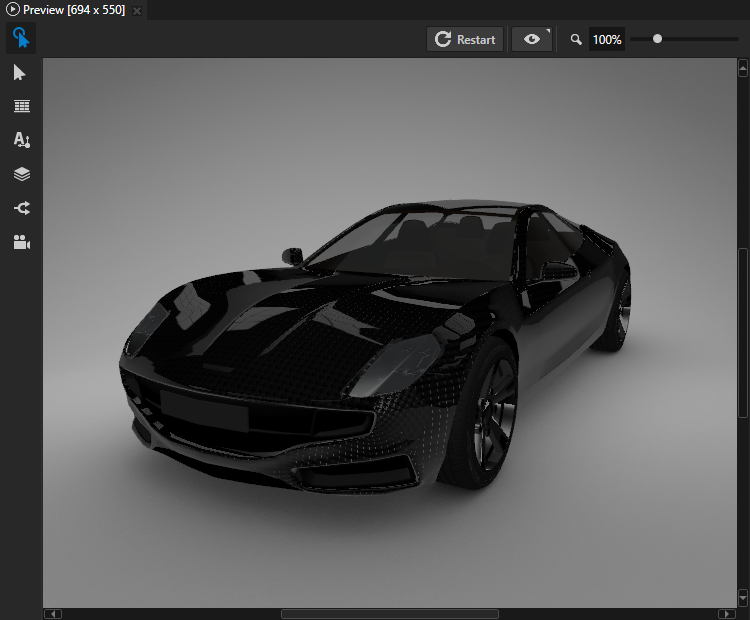
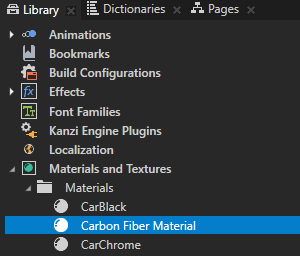
When you use a Factory Content material in your project, Kanzi Studio adds that material to the Library > Materials and Textures > Materials, and the shaders used by the material to the Library > Resource Files > Shaders.
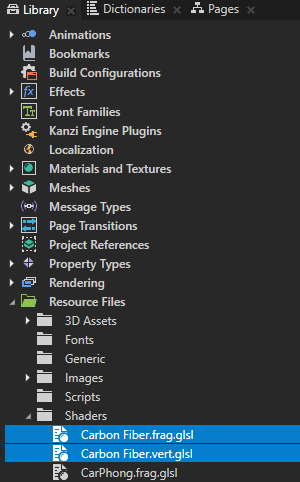
To use a material that uses normal map textures, the 3D model where you want to use such material must have tangents. These Factory Content materials use normal map textures:
Aluminium Material
Carbon Fiber Material
Leather Material
Rubber Material
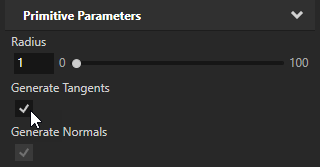
To use a material with a normal map texture on a primitive mesh, select the primitive mesh node and in the Properties enable the Generate Tangents property.
Using the Skybox Factory Content in your project
To use the Skybox Factory Content in your project:
In the Asset Packages window select the Factory Content asset source.
In Asset Packages > Factory Content, right-click Skybox and select Import to bring the package as a prefab into your project.
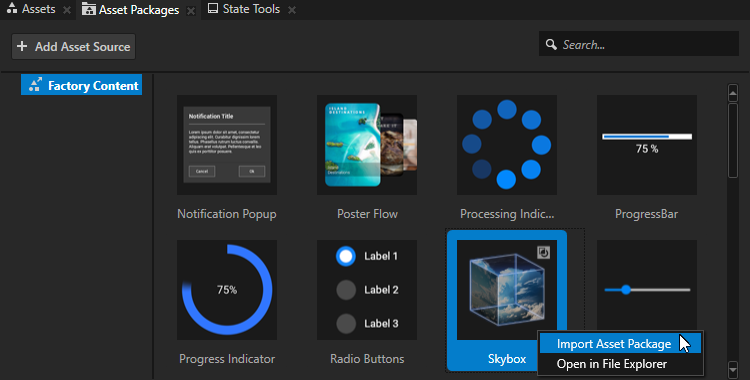
When you import the Skybox into your project, Kanzi Studio adds it to the Library > Rendering > Render Pass Prefabs.
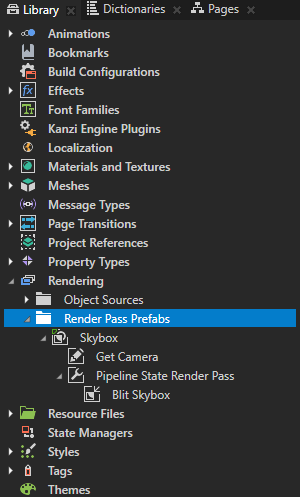
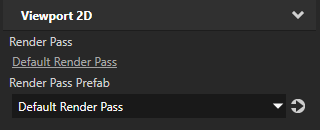
If you do not have a custom Render Pass Prefab selected in your Viewport 2D, in Library > Rendering > Render Pass Prefabs, right-click and Create > Default Render Pass.
In the Properties of your Viewport 2D, set the Default Render Pass as the value of the Render Pass Prefab property.
In the Library > Rendering > Render Pass Prefabs, drag the Skybox Render Pass from its root node under the Draw Objects Opaque node of the Render Pass Prefab assigned to the target Viewport 2D.
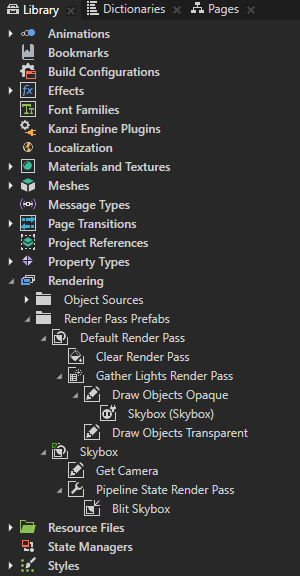
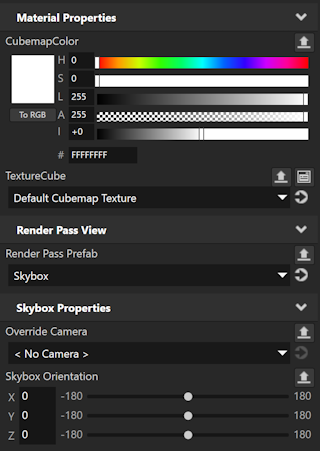
To adjust the Skybox background, select and adjust the properties on the Skybox Render Pass View in the previous step.
To adjust the color of the background, adjust the CubemapColor property.
To select the background cubemap texture, use the TextureCube property.
To override the tracking camera, use the Override Camera property.
To adjust the orientation of the background, use the Skybox Orientation property.