Navigation
In Figma, you can create navigation for prototyping by setting navigation targets for any layer. You can navigate to other root-level frames within a page. For navigation, you can use the On Tap trigger or other types of interaction. You can use different types of navigation, such as Navigate To and Open Overlay.
Figma navigation in Kanzi Studio
Kanzi Figma Importer converts Figma layers with navigation to Kanzi Button 2D nodes that send a bubbling Navigate To message. To implement your own navigation, set your application to listen to these messages.
To use a Figma prototype in Kanzi, use the Page Host prefab created during the import. For production projects, instead of Page Host nodes, design the application structure so that it does not rely on the Page and Page Hosts. In this case, do not import any of the pre-made Figma frames, but only the building blocks as reusable and configurable prefabs that you can fit into your Kanzi Studio project. See Components.
After importing, Page Host prefabs use a State Manager to change the Figma frames based on the navigation messages. To make a Page Host start from a specific Figma frame, in Figma, set the Flow Starting Point. See Figma’s prototyping feature.
To view Figma frames with a Page Host, instead of starting with the flow starting point. In Kanzi Studio in the Library > State Manager, in each state manager, see the value of the Controller Property.
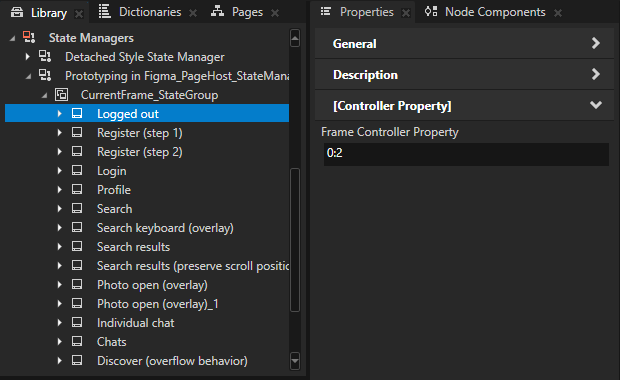
You can see the states of a State Manager in the Kanzi State Tools.

Keep in mind that editing a State Manager in Kanzi Studio can break navigation transitions and that reimporting from a Figma project overrides your changes.
Using Figma navigation in Kanzi Studio
To learn how to use prototyping navigation from a Figma project, you can use the Prototyping in Figma example project that contains such frames and buttons that trigger transitions between frames.
Tip
If you want to inspect or edit the project, in Figma, duplicate the example project and open the duplicated project.
To use Figma navigation in Kanzi Studio:
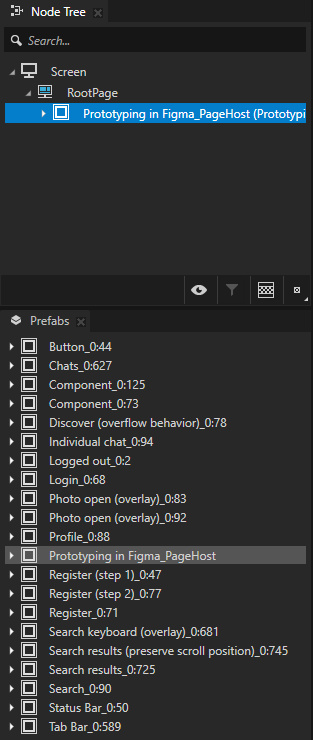
In Kanzi Studio, import the example project and from the Prefabs, drag the prefab called Prototyping in Figma_PageHost to the Node Tree and drop it on the RootPage node.
In the Preview, you can see the content of the default state of the Page Host node that contains the initial frame from the Figma project.
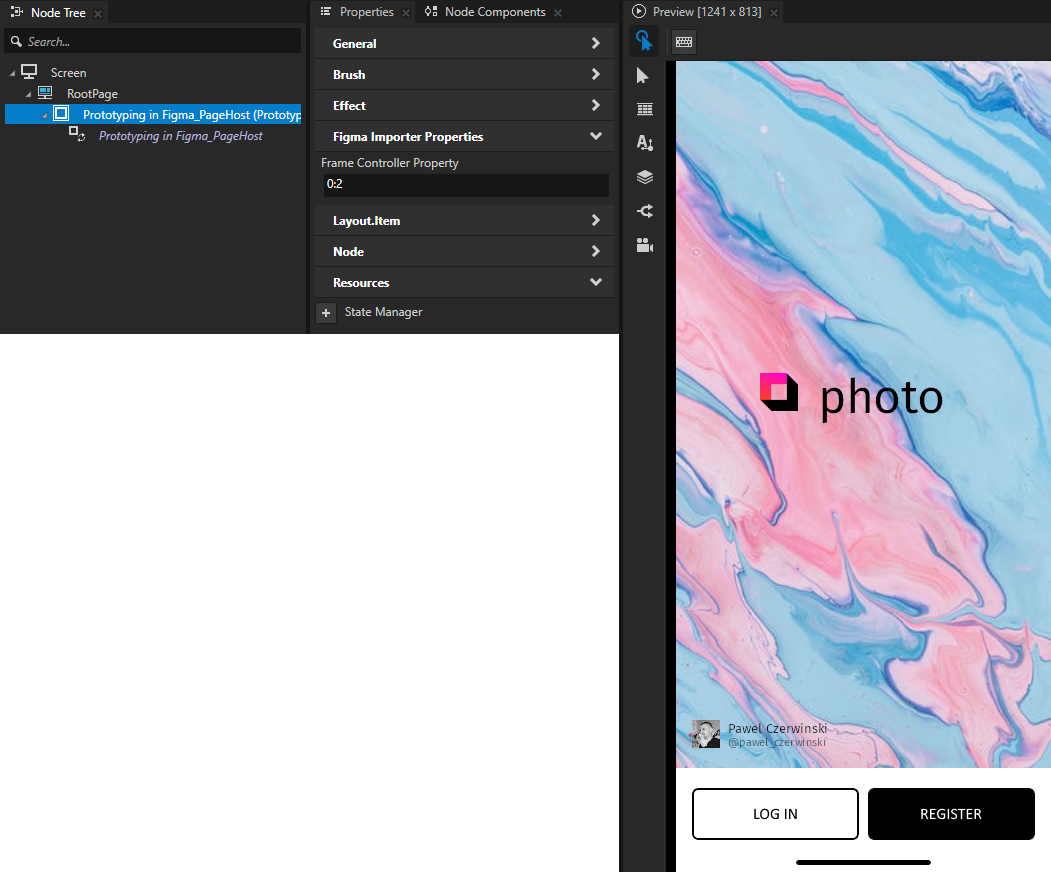
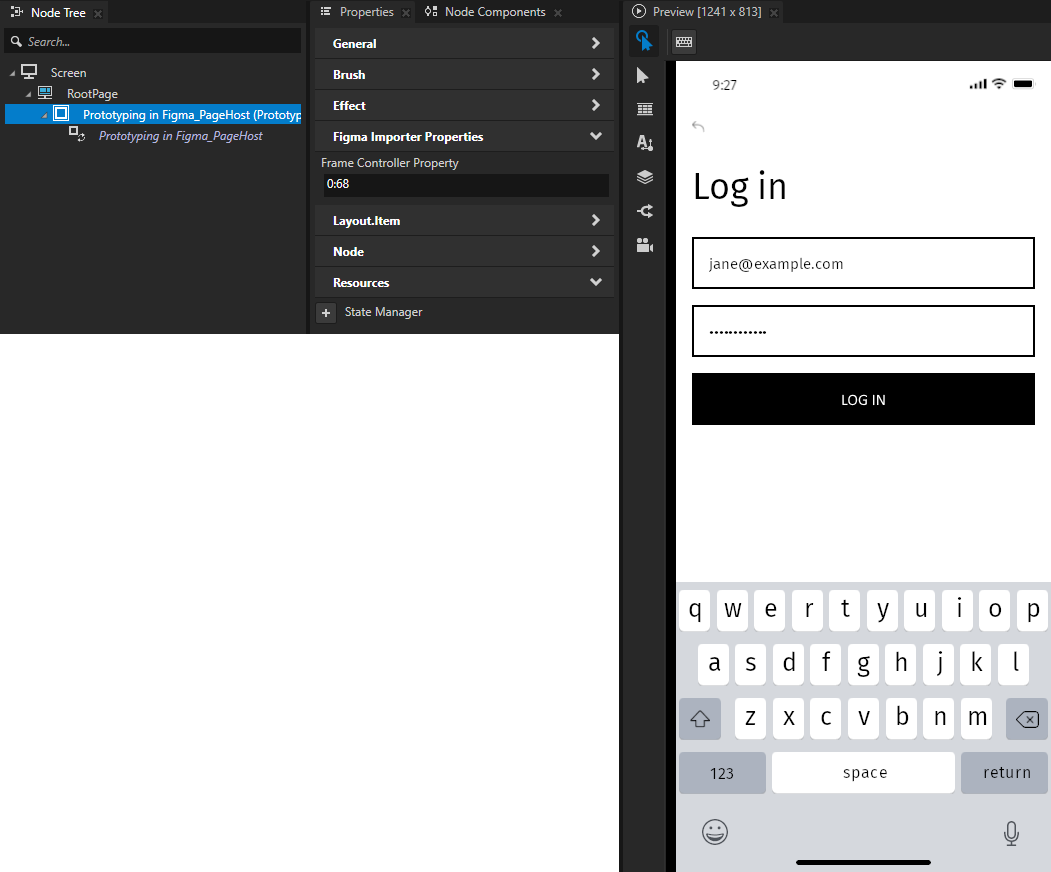
To navigate between frames, click the buttons in the UI. For example:
Click LOG IN to navigate to the Login frame.
Click REGISTER to navigate to the Register frame.
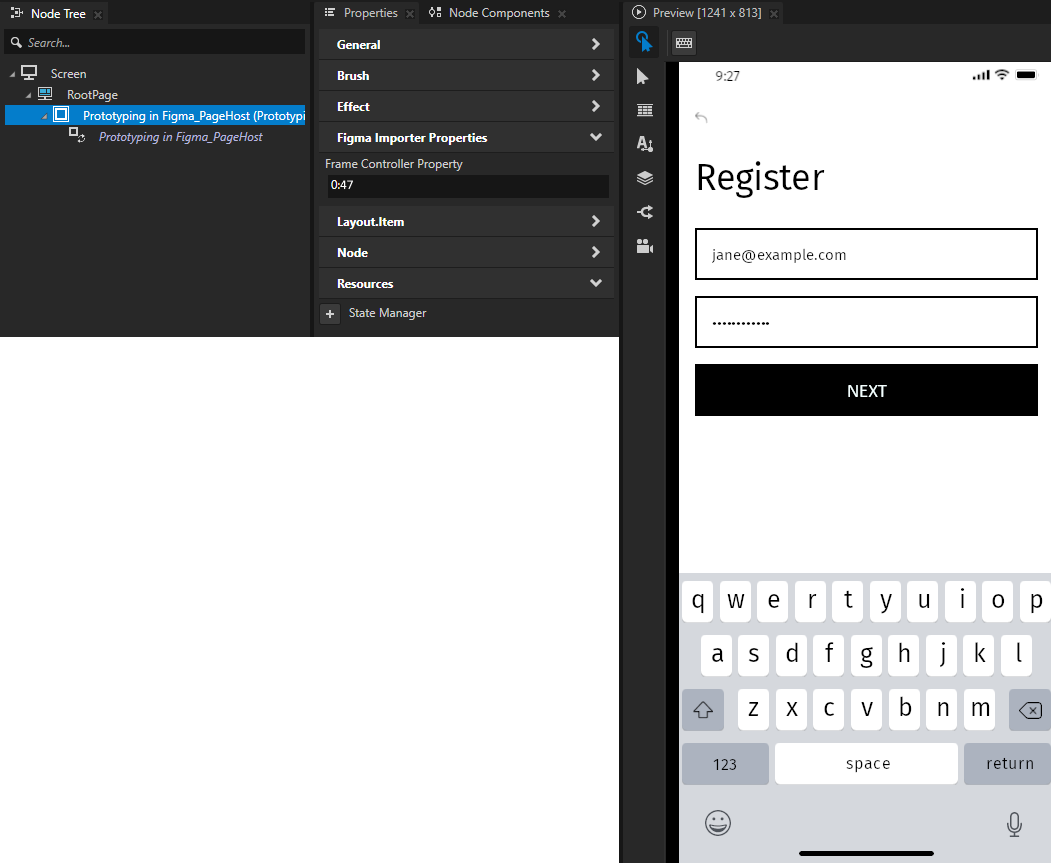
To change the frame to which to navigate, change the Frame Controller Property value. This way you trigger the State Manager and the current frame changes.