Getting started with Kanzi Particles
Kanzi Particles defines different types of emitter and affector nodes that you use to create particle effects:
Emitter nodes release particles.
Kanzi Particles includes these types of emitter nodes:
Particle Box Emitter emits particles from within a volume the shape of a box or from its surface.
Particle Mesh Emitter emits particles from the surface of a mesh.
See Using emitter nodes.
Affector nodes apply force to particles.
Kanzi Particles includes these types of affector nodes:
Particle Curl Affector defines an infinite force field that a curl noise function randomly distorts.
Particle Force Affector applies to particles a directional force.
Particle Point Affector pulls particles towards or pushes particles away from itself.
See Using affector nodes.
By combining different emitter and affector nodes and adjusting their properties, Kanzi Particles provides you with an almost endless amount of possibilities to create particle effects.
Creating the simplest particle system
The simplest particle system contains only a particle emitter node.
To create the simplest particle system:
Set up your Kanzi Studio project for Kanzi Particles.
In the Node Tree, press Alt and right-click a Scene node and create a Particle System node.
The Particle System node is the root node for all particle nodes. All particle nodes emit or affect particles when they are child or descendant nodes of a Particle System node.
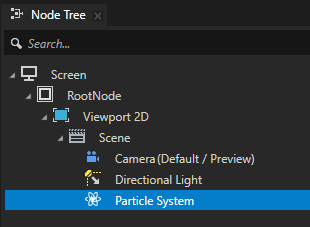
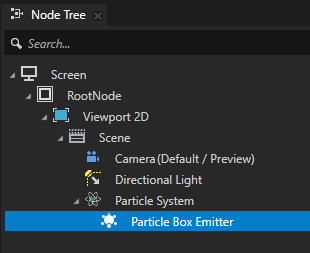
In the Node Tree, press Alt and right-click the Particle System node that you created in the previous step and create an emitter node.
Emitter nodes release particles.
For example, create a Particle Box Emitter node.
Tip
Kanzi Particles supports hierarchical structures in the scene graph:
The transformation of a parent node is applied to each descendant node.
Affector nodes affect only their parent node and all their sibling nodes. This allows you to limit the scope of affector nodes to specific emitter nodes within a single Particle System node.
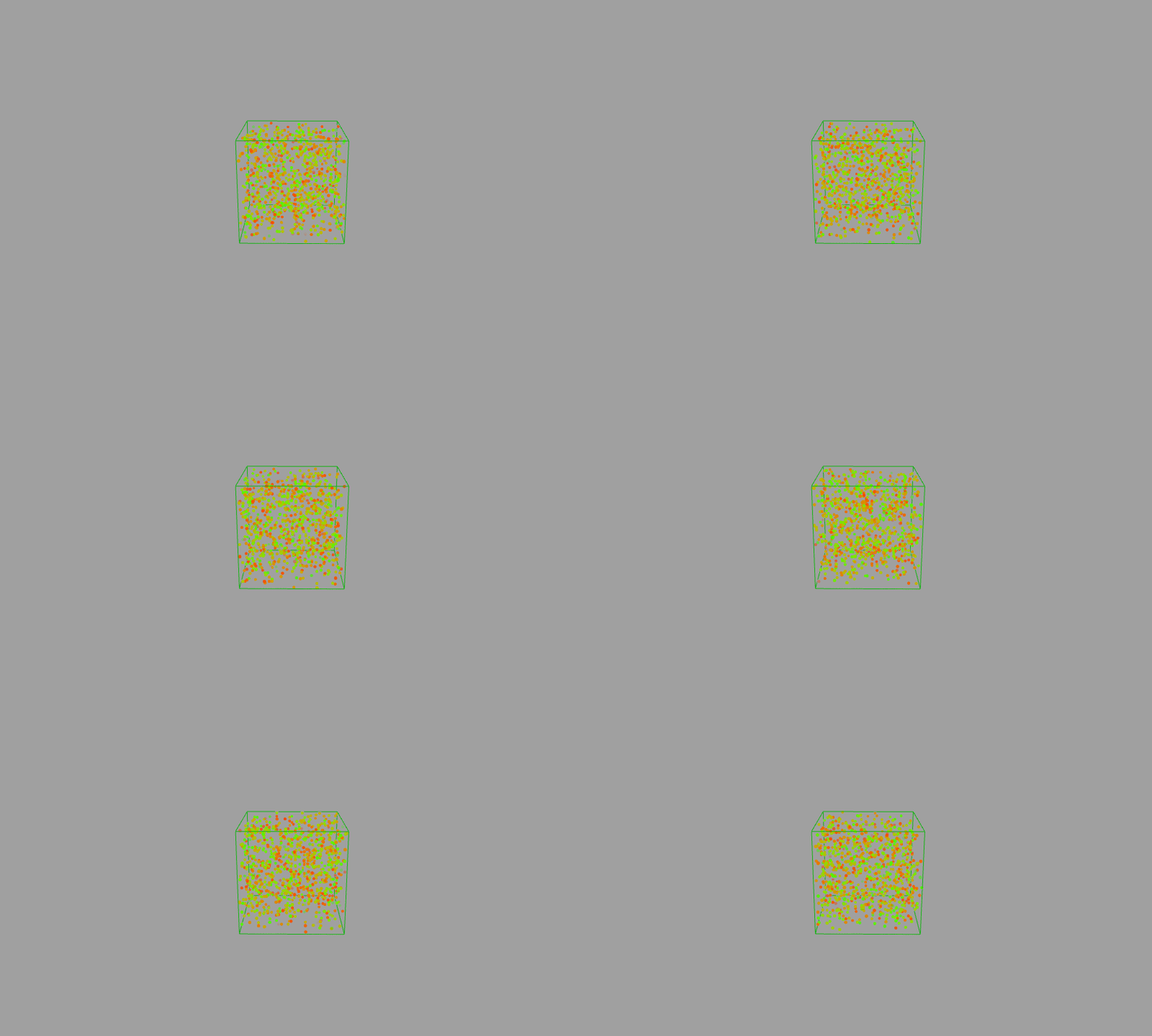
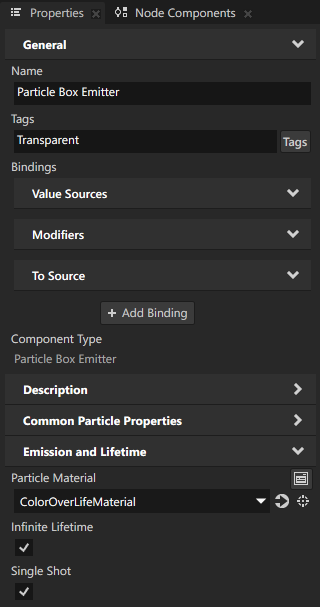
In the Node Tree, select the emitter node that you created. In the Properties, set the Particle Material property to the material that you want to use to render the particles emitted by the emitter node. For example, set the Particle Material property to the ColorOverLifeMaterial material.
Tip
When you define your own material for an emitter node to render particles, these are the minimum requirements for a shader for that material:
Sets either a color or a texture to define the basic look of each particle.
Sets the particles to face to the Camera node which renders the content of the Scene node where the particle system is.
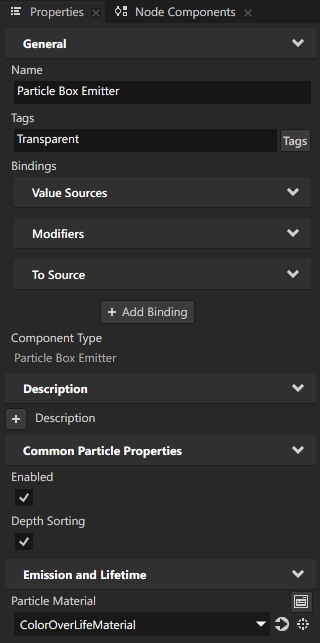
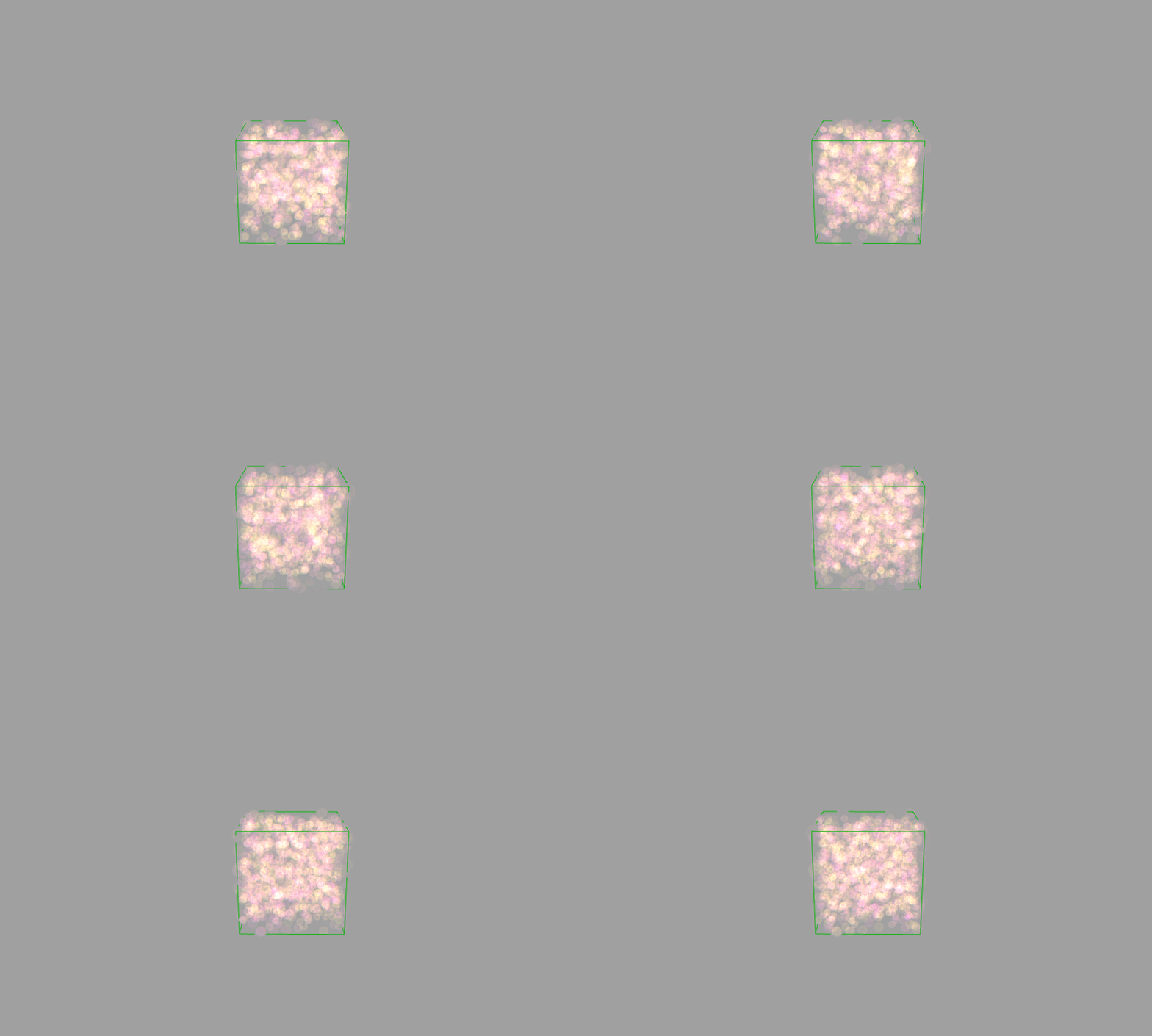
(Optional) In the Properties, add and set the properties of the emitter node to define how the emitter node releases particles. See Using emitter nodes.
Applying force to particles
When you want the particles in a particle system to move according to the rules of a force, use affector nodes.
Affector nodes apply force to particles.
To apply force to particles:
Create the simplest particle system. See Creating the simplest particle system.
In the Node Tree, press Alt and right-click the Particle System node that has an emitter node and create an affector node. For example, create a Particle Point Affector node.
Particle Point Affector pulls particles towards or pushes particles away from itself.
By applying force to particles, affector nodes make the particles move.
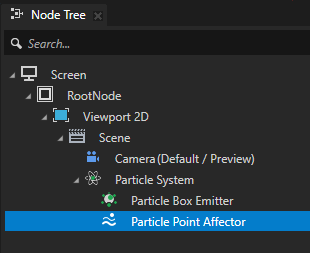
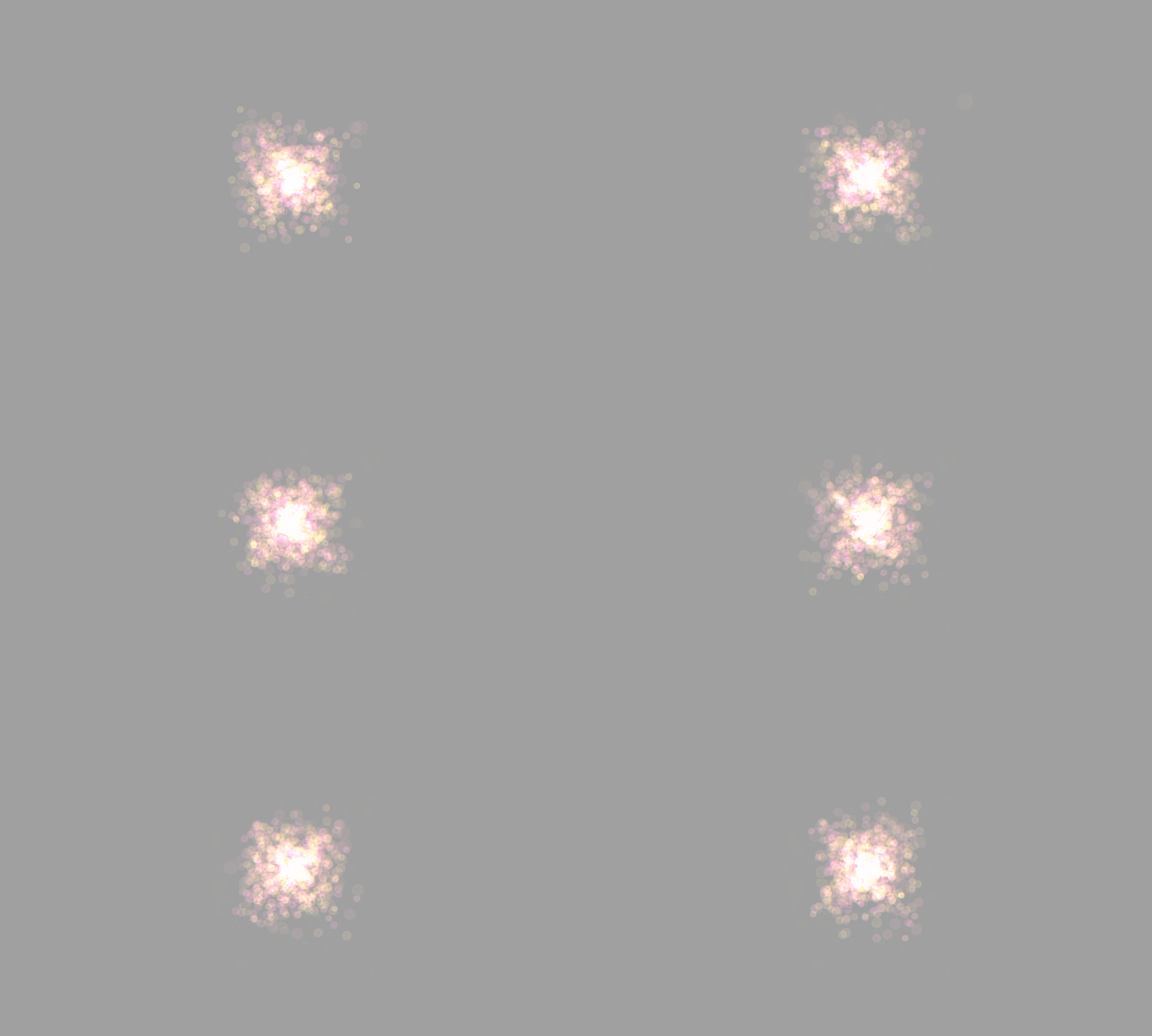
(Optional) In the Properties, set the properties of the affector to define how the affector applies force to particles.
Adjusting the appearance of particles
You adjust the appearance of particles with a material that you set in an emitter node and by setting the properties of that material.
To adjust the appearance of particles:
In the Node Tree, select the emitter node whose appearance of particles you want to change. In the Properties, set the Particle Material property to the material that you want to use.
For example, set the Particle Material property to ColorOverLifeMaterial.
In the Library, in the Materials and Textures > Materials, select the material that your particle emitter uses. From the Properties drag all the material properties to the Node Tree to the emitter node that you set to use this material.
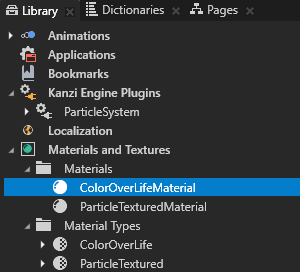
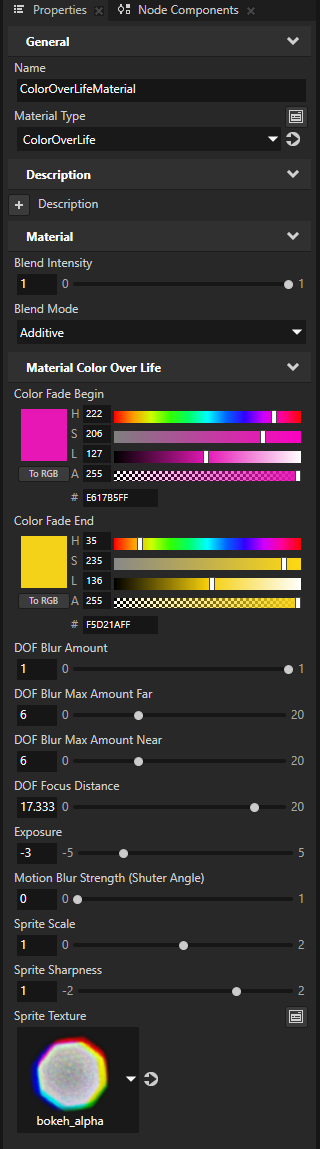
In the Node Tree, select the emitter node that you set to use the ColorOverLife material. In the Properties, adjust the properties of the material:
Blend Intensity is the multiplier for the brightness of particles.
Blend Mode sets the type of blending used for rendering particles. To create transparent particles, set to Alpha: Premultiplied.
Color Fade Begin sets the color of particles when they are spawned.
Color Fade End sets the color of particles right before a particle dies.
DOF Blur Amount is the multiplier for the amount of blur when the particles are out of focus.
DOF Blur Max Amount Far limits the blur effect by setting a certain size of particles when they are far from a Camera node.
DOF Blur Max Amount Near limits the blur effect to setting a certain size of particles when they are close to a Camera node. This enables you to control the size of particles close to a Camera node, so that they do not take up too much space.
DOF Focus Distance sets the distance of the focal plane. Kanzi Particles simulates the depth of field by making the particles larger and more transparent when they are out of focus.
Exposure allows to adjust the particle sprite brightness in exposure value (EV) stops. Increasing the value by one means doubling brightness, while decreasing by one means making the sprite half as bright.
Motion Blur Strength (Shutter Angle) sets the multiplier for stretching in the direction of the movement of a particle to achieve a blur effect.
Sprite Scale linearly scales the size of individual particle sprites before DOF is applied.
Sprite Sharpness allows to adjust sharpness level of the particles rendered with SpriteTexture. Lower values appear blurrier, while higher values appear sharper, although high levels of sharpness can exhibit more aliasing.
Sprite Texture sets the texture used for rendering particle sprites.
The emitter node exposes two additional properties that can be modified to tune the visual appearance of particles.

Fade In Duration sets the time that it takes for a particle to become completely visible. This time is relative to the lifetime of a particle.
Fade Out Duration sets the time that it takes for a particle to become completely invisible. This time is relative to the lifetime of a particle.
Controlling your particle system
You can control the particles in a Particle System node in these ways:
Change the behavior of particles in a Particle System.
For example, when you use more than one emitter or affector, you can achieve different results by enabling and disabling emitters and affectors.
To change the behavior in a Particle System node, in the Node Tree, select an emitter or an affector node and in the Properties, set the Enabled property.
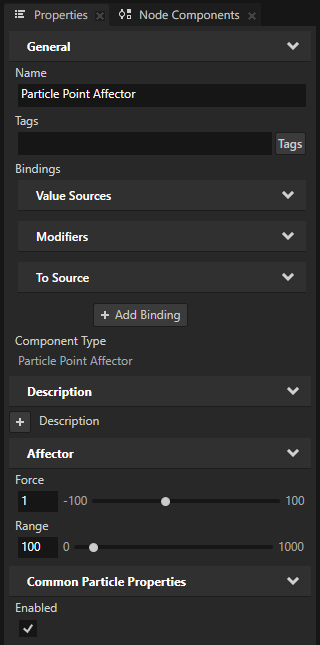
Disabling a Particle System.
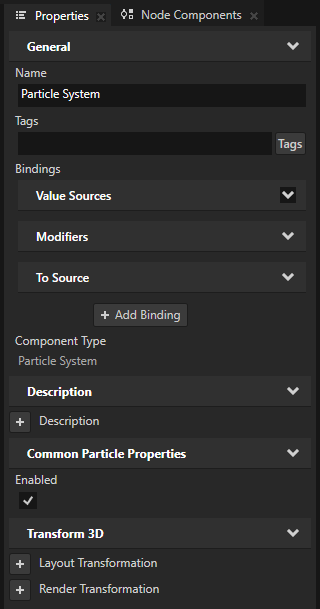
When a Particle System node is not visible, Kanzi Particles automatically disables that Particle System node. When a Particle System node is disabled, it stops showing the particles from its emitter nodes, resets all emitter nodes, and frees the memory used by that Particle System node.
To manually control when a Particle System node is enabled, in the Node Tree, select a Particle System node and in the Properties, add and set the Enabled property.
Debugging a particle system
To debug a particle system:
Enable debug rendering for particles nodes.
In the Preview, click
 to enable the Analyze mode. Right-click
  and select Debug objects.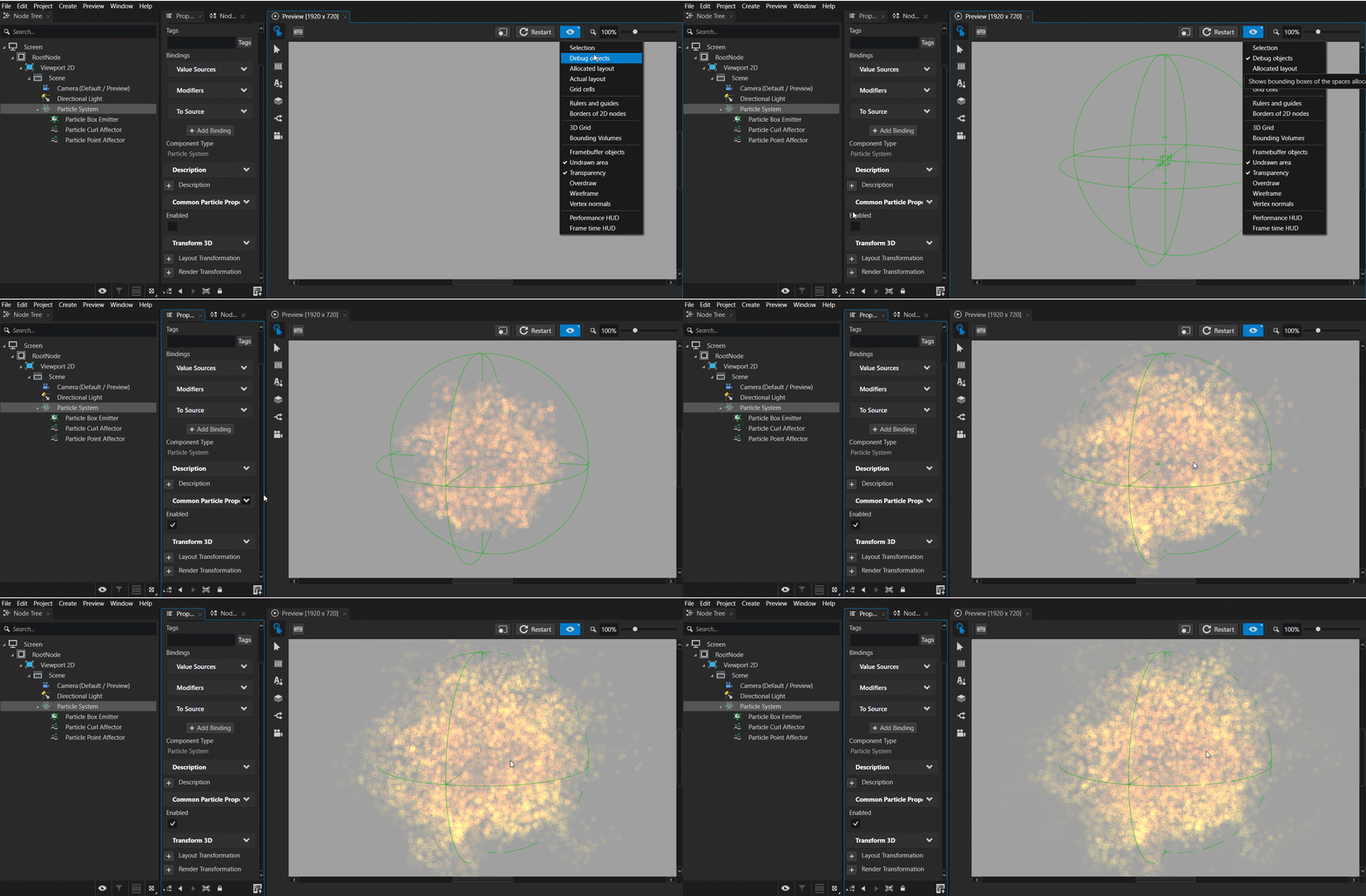
Tip
To disable debug rendering for a specific particles node, in the Node Tree, select the node and press Ctrl H.
Emit the maximum amount of particles with infinite life.
In the Node Tree, select the emitter node that you want to debug. In the Properties, set:
Infinite Lifetime to enabled
When you enable this property, the particles from that emitter stay alive indefinitely.
Single Shot to enabled
When you enable this property, that emitter emits all its particles at once.