Online mode
Warning
Online mode is not yet generally available. The Figma plugin must be published to the Figma Community before browsers can install it. Manifest sideload only works in Figma Desktop. Until publication completes, online mode is unavailable.
The Kanzi Figma Importer bridge server runs on 127.0.0.1, which Figma in the browser cannot reach directly. Online mode solves this with a Cloudflare Tunnel: Kanzi Studio opens a tunnel, generates an access key, and the Figma plugin connects over HTTPS to that tunnel instead of ws://127.0.0.1:3847.
Use online mode when Figma runs in a browser, or when Figma and Kanzi Studio run on different machines.
Starting an online connection
Online mode requires a tunnel to be established before pairing.
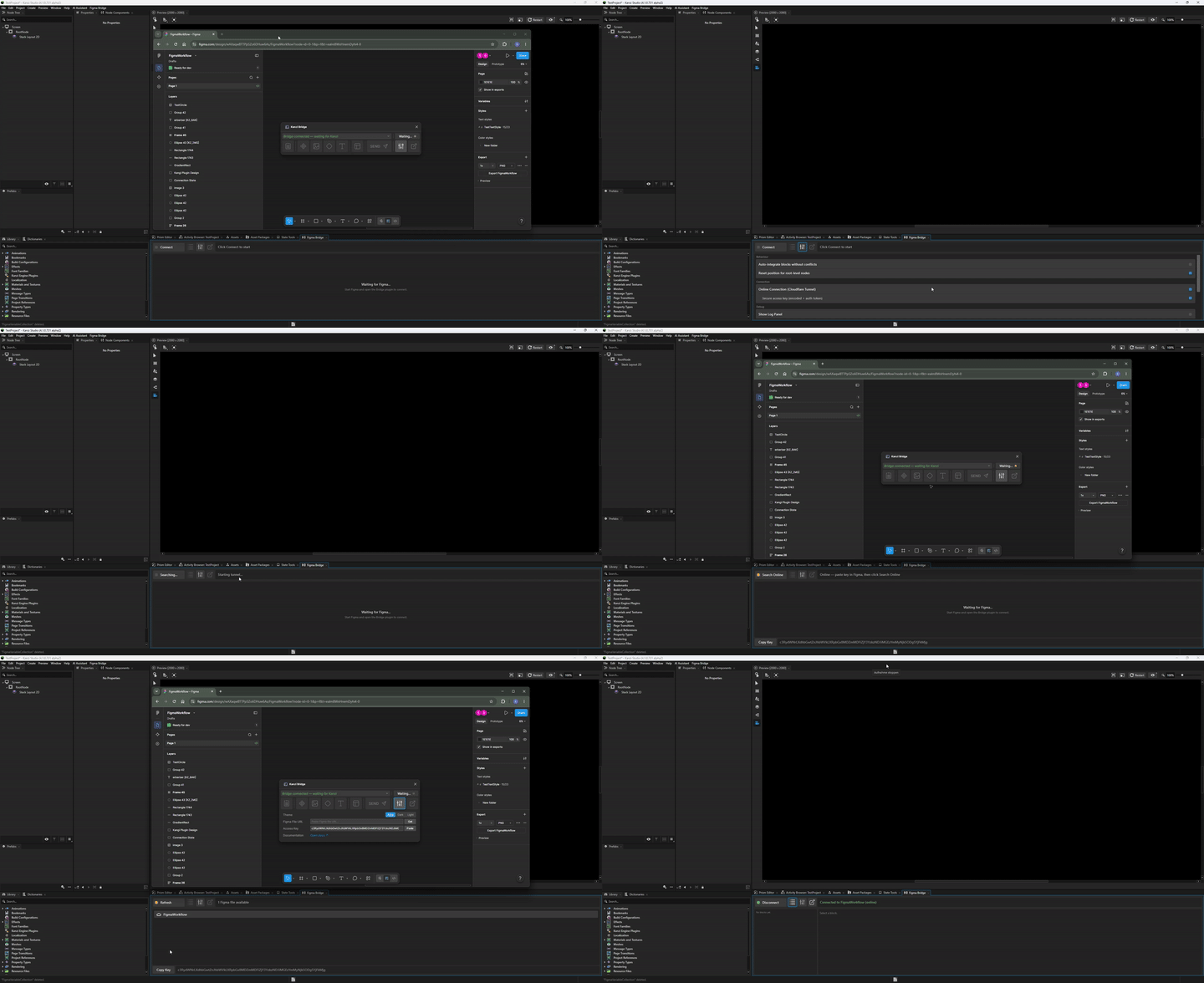
To start an online connection:
Load the Figma plugin in Figma Online (browser). The plugin must be officially published in the Figma Community (see the warning above).
Close any existing connection on the Kanzi Studio side if one is active.
In the Kanzi Studio plugin, open Settings > Online Connection and enable it.
Click Connect in the Kanzi Studio plugin. The tunnel starts automatically.
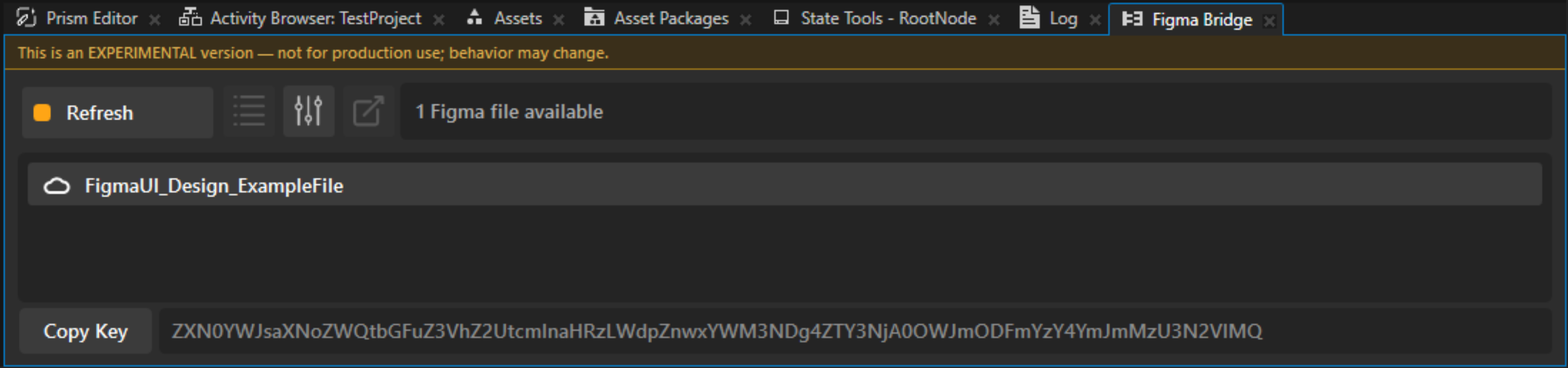
An access key appears at the bottom of the Kanzi Studio plugin. Click the Copy button next to the access key to copy it to the clipboard.
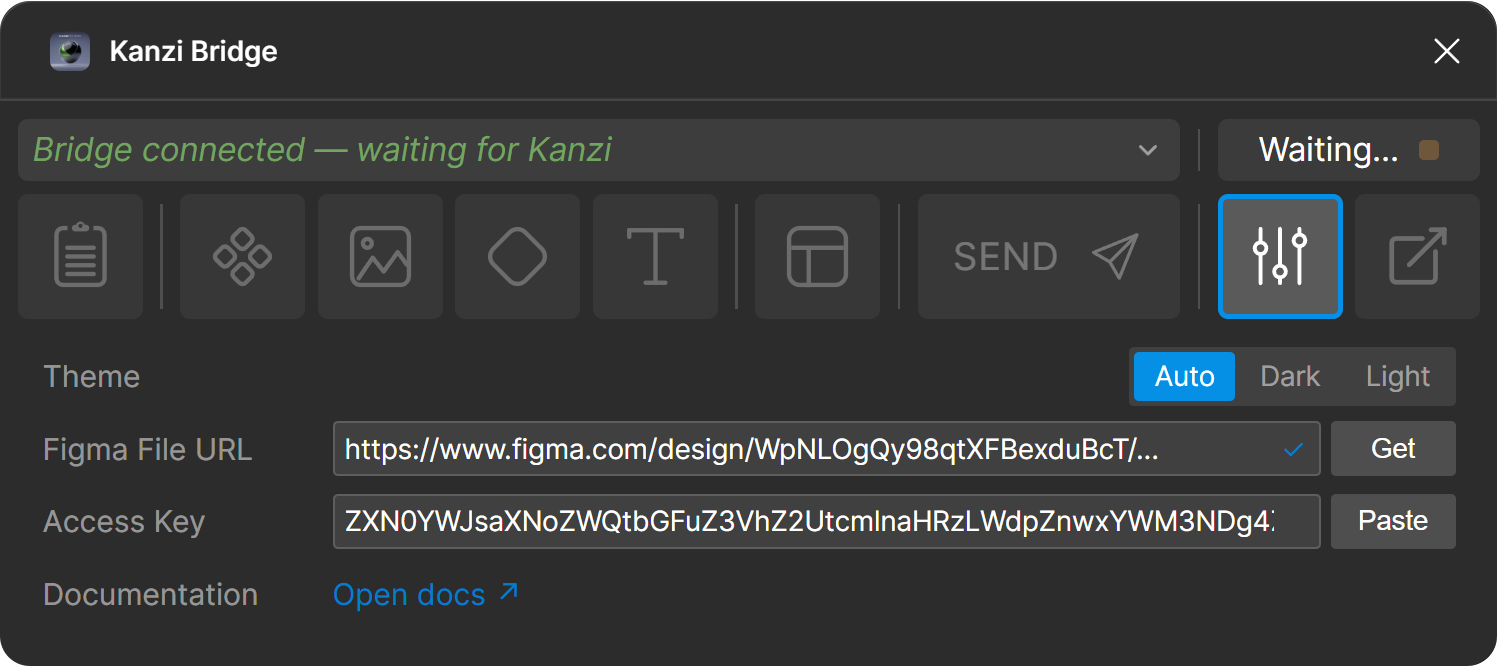
In the Figma plugin, open Settings > Paste access key and paste the key.
Note
The Paste button in the Figma plugin is not yet functional. Press Ctrl+V in the field instead.
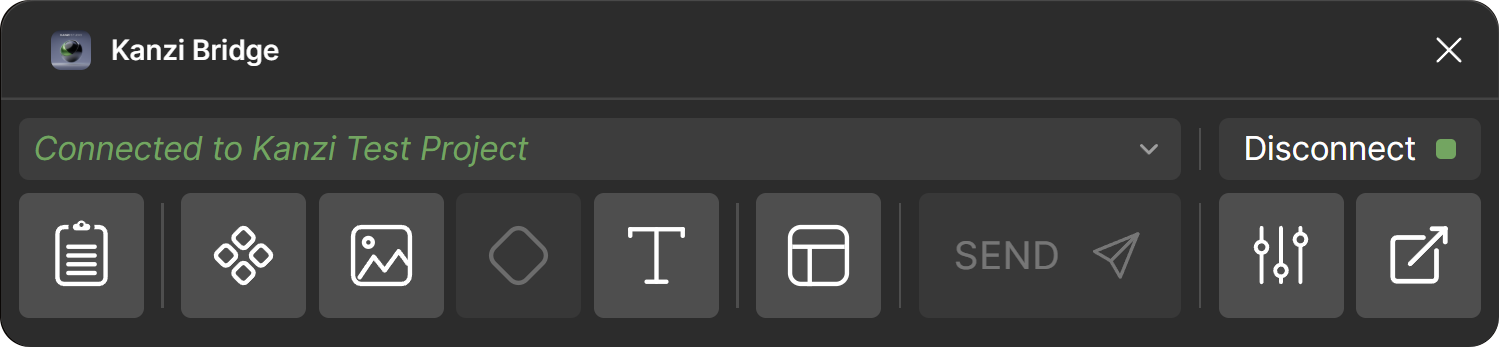
The Figma file appears in the Kanzi Studio plugin pending list with a cloud icon (instead of the desktop monitor icon). Click the entry to complete pairing.
Security notes
The tunnel URL grants connection access to your local bridge server. Do not share it publicly. Treat it as a temporary password.
The connection to the tunnel is HTTPS-encrypted.
Pairing security is controlled by the Secure access key toggle, a sub-option of Settings > Online Connection that is on by default. When on, pairing requires the auto-generated tunnel access key. When off, the connection accepts a simpler shared password. Either way, do not share the value publicly.
Tunnels are ephemeral. Each fresh connection produces a new access key; restarting the bridge server or the Kanzi Studio plugin invalidates the previous one.