Developing with the Kanzi Android Service
The Kanzi Android Service enables using the same Kanzi Android framework (droidfw) instance from multiple applications on your device. This is done by hosting Kanzi Android framework (droidfw) in an Android service in one application, and then utilizing it from all the client applications, using Android IPC mechanisms.
This enables the following capabilities:
Shared libraries. Optimizes static memory usage by reusing a single set of Kanzi libraries across the client applications.
Shared runtime and resources. Optimizes runtime memory and GPU usage by sharing the same Kanzi Engine and resources across the client applications.
Improved application startup time. Improves startup time by preloading Kanzi Engine and resources in the background.
Cross-application transition animations. Enables seamless transition animations between different applications using shared Kanzi resources.
For an example on how the Kanzi Android Service can be used, see Android Service example.
Note
Kanzi Android Service is an experimental feature, and your feedback is very important to us. To submit your feedback, use this feedback form.
Breakdown of the architecture
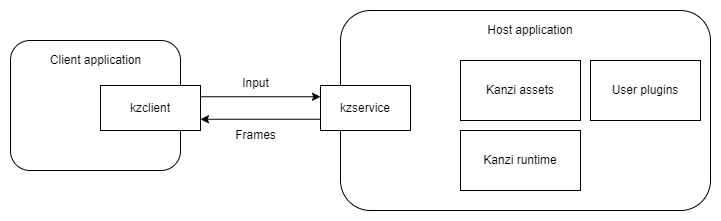
Service host application
This application hosts a Kanzi Android Service through the kzservice library. The service is responsible for initializing the Kanzi Android framework (droidfw), and through it the Kanzi runtime.
The host application is where you bundle all your Kanzi assets, Kanzi native libraries and Kanzi Engine plugins.
Client applications
These are any number of applications on the same system that use the Kanzi functionality from the Service application.
They access Kanzi using the view and composable types from the kzclient library.
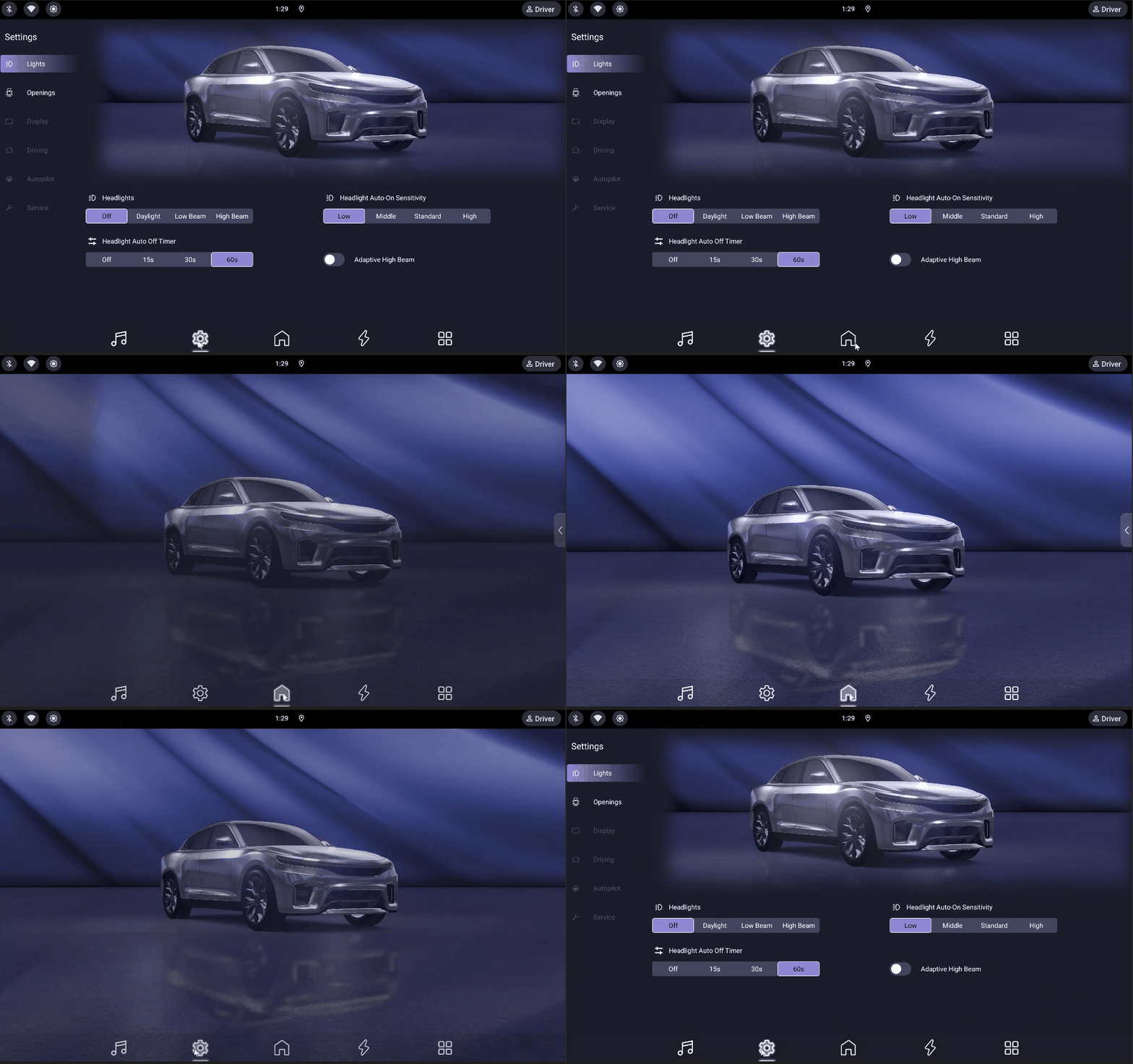
Cross-application transition animations
Clients can request the service to perform seamless transition animations between different applications using shared Kanzi resources. This works by the service creating an overlay window that is visible on top of all other applications, and rendering the transition animation there. When the animation is done, the overlay window is hidden.
Getting started
To create a Kanzi Android Service project in Kanzi Studio:
In the New tab of the Quick Start window, select the Android Service application project template.
Click Create.
Kanzi creates a Kanzi Studio project and two Android Studio application projects:
The service host application located in the
<MyProject>Applicationdirectory.The client application located in the
<MyProject>Clientdirectory.
Using the Client API
This is the API that you use in your client applications to configure and communicate with the Kanzi Engine instance in the service application.
View and Composable types
You can add Kanzi content to your XML layout or Composables.
In XML layout, for SurfaceView-based rendering, add
<com.rightware.kanzi.service.KanziServiceSurfaceView
    android:id="@+id/clientred"
    app:clientId="clientred"
    app:kzbPathList="clientred.kzb"
    app:startupPrefabUrl="kzb://clientred/StartupPrefab"
    app:serviceHostPackage="com.example.host"
    app:serviceIntentAction="com.example.host.action.LAUNCH_SERVICE"
    />
For TextureView-based rendering, add
<com.rightware.kanzi.service.KanziServiceTextureView
    android:id="@+id/clientred"
    app:clientId="clientred"
    app:kzbPathList="clientred.kzb"
    app:startupPrefabUrl="kzb://clientred/StartupPrefab"
    app:serviceHostPackage="com.example.host"
    app:serviceIntentAction="com.example.host.action.LAUNCH_SERVICE"
    />
KanziServiceTextureView does not support cross-application transitions. See Setting up cross-application transition animations.
To learn about the differences between SurfaceView-based and TextureView-based views, see Adding a Kanzi view.
Or in your composable, add:
KanziServiceComposable(
    modifier = Modifier,
    request = Request(
        clientId = "clientblue",
        kzbPathList = "clientblue.kzb",
        startupPrefabUrl = "kzb://clientblue/StartupPrefab",
    ),
    serviceHostPackage = "com.example.host",
    serviceIntentAction = "com.example.host.action.LAUNCH_SERVICE"
)
KanziServiceComposable is based on KanziServiceSurfaceView and also accepts optional parameters: transparency, focusableInTouchMode, and listener.
The view and composable types accept these XML attributes:
Attribute |
Format |
Description |
|---|---|---|
|
string |
Identifier of the Kanzi content that the client shows. Use the same client ID in two client applications only for a cross-application transition between them. See Setting up cross-application transition animations. |
|
string |
Comma-separated list of .kzb or .kzb.cfg files to be loaded for this client. |
|
string |
URL of the prefab that is instantiated onto the client’s surface when it loads. |
|
string |
Android package name of the application that hosts Kanzi Android Service. |
|
string |
Intent action that Kanzi Android Service uses to bind the client application with the service. |
|
color |
Color used to clear the surface. Default: |
|
boolean |
Enables clearing the surface. Default: |
|
boolean |
Enables built-in rotary input handling. When set, Kanzi processes rotary input events and translates them to Kanzi key events. Default: |
|
boolean |
Enables transparency support. Default: |
Ensure that serviceHostPackage and serviceIntentAction exactly match applicationId and the Intent action declared in the manifest file of your Service host application.
Client view lifecycle
A client view connects to the Kanzi Android Service when it attaches to a window, and disconnects when it detaches from the window. This applies to KanziServiceSurfaceView, KanziServiceTextureView, and KanziServiceComposable. Views attach and detach repeatedly, for example, with fragments, ViewPager, RecyclerView, and LazyColumn. When you add a removed client view back, it connects again and shows its content.
When a client view detaches from its window, the Kanzi Android Service host calls KanziServiceViewAdapterListener.onDetachedFromWindow. The Kanzi Android Service host does not call it when another client view with the same clientId still shows the content, or while a cross-application transition is in progress. The Kanzi Android Service host also calls onDetachedFromWindow when it releases the content of a client application that terminated. See Client application termination.
The client drops the calls that you make before onServiceConnected and after the client view detaches from its window. The Kanzi Android Service host keeps the data that you pushed before the client view detached. In onServiceConnected, push the data that changed while the client view was detached.
KanziServiceClientListener
KanziServiceClientListener is an interface for receiving notifications about client lifecycle events. All callbacks have default empty implementations, so you only need to override the ones you are interested in.
Callback |
Description |
|---|---|
|
Called when the Kanzi Android Service is connected and the client is ready to use. Called again when the Kanzi Android Service connects after the client view re-attaches to a window, and when the Kanzi Android Service host restarts. See Service host restart. |
|
Called when the client view is attached to a window. |
|
Called when the client view is detached from its window. |
|
Called when the rendering surface is created and available. |
|
Called when the rendering surface is about to be destroyed. |
|
Called when the rendering surface size has changed. |
To set a listener on a view:
val kanziView = findViewById<KanziServiceSurfaceView>(R.id.clientred)
kanziView.listener = object : KanziServiceClientListener {
    override fun onServiceConnected(client: KanziServiceClient) {
        // Service is ready, interact with Kanzi
    }
}
Note
Set the listener before the view attaches to a window. Setting the listener after the service is already connected results in missed callbacks.
Data source setters
You can obtain a KanziServiceClient reference, in view-based application as:
val clientX = findViewById(R.id.clientred) as KanziServiceClient
And in compose-based application as:
var kanziServiceClient: KanziServiceClient? by remember { mutableStateOf(null) }
KanziServiceComposable(
    ...
    listener = object : KanziServiceClientListener {
        override fun onServiceConnected(client: KanziServiceClient) {
            kanziServiceClient = client
        }
    },
)
Through this reference, you get access to setters pushDataInt, pushDataString, pushDataReal, and pushDataBoolean. For example:
kanziServiceClient?.pushDataInt(
    "kzb://launcher/Data Sources/Scene Data source",
    "MainMenuScene",
    MainMenuScenes.HOME.value
)
You need to provide the KZB URL of the data source, the path to the data object, and the value to be pushed. The client drops the calls that you make before onServiceConnected and after the client view detaches from its window.
Manual client detachment
By default, the client application does not explicitly detach from the service when the activity stops. As a result, the service continues running the associated Kanzi Engine instance and keeps the resources allocated for that client.
To explicitly detach, call handleClientAttached and handleClientDetached on the KanziServiceClient instance within the activity’s lifecycle methods.
override fun onStop() {
    super.onStop()
    kanziServiceClient?.handleClientDetached()
}

override fun onStart() {
    super.onStart()
    kanziServiceClient?.handleClientAttached()
}
Note
Manual detach is incompatible with the seamless transition feature. Do not call these methods if you are using cross-application transitions.
Client application termination
A client application can terminate without detaching from the Kanzi Android Service. For example, Android stops it to free memory, or you force-stop it. When the process of a client application terminates while its client view is on the screen, the Kanzi Android Service releases the surface of that view. If the other client application of a cross-application transition with that client ID is still running, the Kanzi Android Service keeps the content for that client application. Otherwise, the Kanzi Android Service also releases the content of that client ID and calls KanziServiceViewAdapterListener.onDetachedFromWindow. When a client application with that client ID connects again, the Kanzi Android Service loads the startup prefab of that client application, not a prefab that you preloaded.
When a client application terminates in the background, after it lost its surface, the Kanzi Android Service keeps its content. The client application then shows the content immediately when it starts again. If the client application that last showed the content terminated on the screen, the Kanzi Android Service does not keep the content. It releases the content when the last client application with that client ID terminates, also in the background.
Note
When a client application terminates during a cross-application transition, the Kanzi Android Service does not release its surface or its content. See Known issues.
Handling orientation changes
When the device orientation changes, notify Kanzi Android Service:
kanziServiceClient?.handleOrientationChange(newOrientation)
Set newOrientation to the new device orientation value from the Android Configuration.
The event does not rotate the Kanzi content. To set the orientation of the Kanzi content, use the Orientation property of the Screen node.
Handling visibility changes
When the visibility of the client view changes, notify Kanzi Android Service so that it can optimize rendering:
kanziServiceClient?.handleVisibilityChange(isVisible)
Set isVisible to true when the view is visible and false if not. Kanzi Android Service ignores the call while the client has no content. A client has content from the moment its client view attaches to a window or the Kanzi Android Service host preloads its prefab. The content exists until the client view detaches from the window.
Content that a client hides stays hidden until a client with another connection provides a surface for the same client ID. Kanzi Android Service then shows the content. This happens, for example, when Android recreates the activity, which gives it a new connection, or when a client takes over content that the Kanzi Android Service host preloaded and hid.
When several clients with the same client ID are connected, Kanzi Android Service attributes a visibility change to the client that connected last. If an older client hides the content, the content stays hidden when the newest client provides its surface again.
Service host restart
When the Kanzi Android Service host process terminates, Android restarts it and connects the client again:
While the Kanzi Android Service host is down, the client drops the calls that you make, such as
pushDataInt.When the client connects again,
onServiceConnectedfires again.The restarted Kanzi Android Service host loads the client content again from the
startupPrefabUrl. The data that you pushed before the restart is lost. Push it again inonServiceConnected.
Using the Service API
This is the API that you use in the service host application to initialize and configure Kanzi Android framework (droidfw) through the Kanzi Java API:
KanziServiceRuntime is a reference-counted singleton that you acquire by calling KanziServiceRuntime.acquire(context). Store the returned Reference as a member in your Application subclass to keep the runtime alive before the service has been started. When the last Reference is closed, the runtime shuts down.
To register Kanzi Engine Java plugins, acquire
KanziServiceRuntimeand use itsdomainwith the Kanzi Java API. For example:private lateinit var runtimeRef: KanziServiceRuntime.Reference override fun onCreate() { super.onCreate() runtimeRef = KanziServiceRuntime.acquire(this) val domain = requireNotNull(runtimeRef.get().domain) { "KanziServiceRuntime.domain must not be null after acquire()" } domain.registerPlugin(MyJavaPlugin()) }
You can implement
KanziServiceViewAdapterListenerto listen for state changes in aKanziViewAdapterassociated with a client application in your service host application.For example, use the
KanziServiceViewAdapterListener.onPrefabLoadedcallback to access and modify the node tree instantiated from the startup prefab that you have configured.override fun onCreate() { super.onCreate() KanziServiceRuntime.addViewAdapterListener(clientId, object : KanziServiceViewAdapterListener { override fun onPrefabLoaded( clientId: String, viewAdapter: KanziViewAdapter, domain: Domain ) { // Look up a child node starting from the root. val text = viewAdapter.root.lookupNode<TextBox2D>("#Text") // Set properties on a node. text.setProperty(TextBox2D.TextProperty, "Hello world!") } }) }
To show or hide the content of a client from the service host application, call
KanziServiceRuntime.handleVisibilityChangewith the client ID. For example, to keep preloaded content hidden until a client application takes it over:runtimeRef.get().handleVisibilityChange("clientred", false)
The call follows the same rules as a visibility change of a client. Kanzi Android Service attributes it to the client that connected last, and a client with another connection shows the content again when it provides its surface. See Handling visibility changes.
Preloading client prefabs
You can preload a client prefab in the service host application so that when the client application starts, the Kanzi content is immediately available without waiting for the prefab to load.
To preload a client prefab, in your Application subclass onCreate method, acquire KanziServiceRuntime, and call preloadClientPrefab:
private lateinit var runtimeRef: KanziServiceRuntime.Reference

override fun onCreate() {
    super.onCreate()
    runtimeRef = KanziServiceRuntime.acquire(this)
    runtimeRef.get().preloadClientPrefab(
        "clientred",
        arrayOf("clientred.kzb"),
        "kzb://clientred/Prefabs/ClientRedPrefab"
    )
}
preloadClientPrefab creates a KanziViewAdapter for the given clientId, loads the KZB files, and instantiates the prefab. If the prefab URL is empty, preloadClientPrefab loads no prefab, and the client keeps the startup prefab that it registered.
Call preloadClientPrefab before the first client application connects, or while a client application has a surface. While the prefab loads, the preloaded content drives the Kanzi main loop without a window. A debug build of the Kanzi Android Service host terminates while the prefab loads in these cases:
You call
preloadClientPrefabafter every client application has lost its surface.The last client application that has a surface loses it before the prefab has loaded.
Calling preloadClientPrefab from Application.onCreate avoids the first case.
The client application configuration does not differ whether the prefab is preloaded or not. Preloading only affects the client startup time.
Note
Preloaded content stays in memory until a real client connects with the same clientId and takes ownership of it. If no client ever connects with a given clientId, its preloaded resources remain allocated for the lifetime of the service. When the Kanzi Android Service releases the content of a client ID because a client application terminated, it does not preload that content again. See Client application termination.
Submitting tasks while no client view is active
The service host application runs the Kanzi main loop only while at least one client view is active. A client view is active while it has a surface and is visible. A preloaded client view is active while its prefab loads. While no client view is active, for example when all client applications are in the background, Kanzi runs no frames.
The tasks that the service host application submits to the TaskDispatcher while no client view is active wait. Kanzi executes all of them in the first frame after a client view becomes active again. If the service host application keeps submitting tasks at a high rate, for example for each update of a data source, these tasks pile up. They delay the first frame of the client view by the time that it takes to execute all of them.
While no client view is active, do not submit a task for each update. Instead, keep the latest value of each data item and submit a task only when no task that applies the values is waiting. See Submitting tasks while no view is active.
The data source setters of the client API, such as pushDataInt, do not use the task dispatcher. They set the value of the data object on the main thread of the service host application, so the values that client applications push do not pile up.
Setting up cross-application transition animations
Cross-application transition animations allow you to create seamless visual transitions when moving between different Android applications in your Kanzi project.
To set up a cross-application transition:
Configure the Kanzi service views in the source and target applications to:
Use the same Kanzi Android Service instance and the same
clientId.Use
KanziServiceSurfaceVieworKanziServiceComposablein both client applications.Note
KanziServiceTextureViewdoes not support cross-application transitions, because aTextureViewhas noSurfaceControl. ItsstartSeamlessTransitionthrowsUnsupportedOperationException.Be a fullscreen view in the activity.
Meet the Kanzi Android framework (droidfw) transparency requirements. See Creating a transparent view:
In the Kanzi service view, set:
transparencytotrueclearEnabledtotrueclearColorto@android:color/transparent
Edit the
application.cfgto require a surface with alpha bits. See Color format.SurfaceBitsAlpha = 8
In Kanzi Studio select the node that shows the transparent content and in the Properties set the Background Brush property to < No Brush >.
Call the
startSeamlessTransitionAPI with the following parameters:clientId- The client ID that moves across Android applications.transitionDuration- The duration that the Kanzi content remains in the overlay.kanziTransition- A lambda function that updates the Kanzi state to drive the visual transition.androidTransition- A lambda function that initiates the Android-side application transition.leftMargin- Optional left margin in pixels for positioning the Kanzi content in the overlay. Default:0.topMargin- Optional top margin in pixels for positioning the Kanzi content in the overlay. Default:0.rightMargin- Optional right margin in pixels for positioning the Kanzi content in the overlay. Default:0.bottomMargin- Optional bottom margin in pixels for positioning the Kanzi content in the overlay. Default:0.
// Start a seamless transition between applications.
kanziServiceView?.startSeamlessTransition(
    clientId = "coverflow",
    transitionDuration = 2.seconds,
    kanziTransition = {
        // Update Kanzi state to drive the visual transition.
        kanziServiceView?.pushDataInt(
            "kzb://service/Data Sources/Data source",
            "State",
            1
        )
    },
    androidTransition = {
        // Launch the target application.
        val intent = Intent().apply {
            setClassName(
                "com.example.clientred",
                "com.example.clientred.MainActivity"
            )
            addFlags(Intent.FLAG_ACTIVITY_NEW_TASK)
        }
        startActivity(intent)
    }
)
When you call this API, Kanzi Android Service creates an overlay window that displays the animation during the application transition. If the target application does not show its Kanzi service view, the overlay stays on the screen for up to 10 seconds before the transition ends.
Grant the Display over other applications permission to the service host application. The service host renders the overlay, so only that application needs this permission.
To grant this permission:
Install the service host application on your device.
Open the device settings.
Navigate to Apps > <HostApplicationName> > Permissions.
Enable the Display over other applications permission.
Note
On Android Automotive devices, you cannot grant the Display over other applications permission through the Android UI for newly installed applications.
Use one of these alternatives:
Sign the host APK with platform keys to automatically grant this permission.
Grant the permission at the AOSP level for the host application.
Grant the permission with adb:
adb shell appops set <host_package_name> SYSTEM_ALERT_WINDOW allow
For example, for the host application in the Android Service example example:
adb shell appops set com.rightware.kanzi.transition.host SYSTEM_ALERT_WINDOW allow
Known issues
The service host application currently requires the Display over other applications permission, even if the animation feature is not used by any client.
When a client application terminates during a cross-application transition, the Kanzi Android Service does not release its surface or its content.
See also
Developing Kanzi applications for Android
Developing with the Kanzi Android framework (droidfw)
Developing for Android with the Kanzi application framework (appfw)
Deploying Kanzi applications to Android