Using the shader include library
The shader include library provides a set of reusable .glsl files that Kanzi Studio installs alongside itself. You can include these system shader files in any project shader without copying them into your project directory. Kanzi Studio does not include system shaders in project save data, so existing projects that do not use them are not affected.
See also Reusing shader code.
System shader directory
Kanzi Studio maintains a system shader directory that contains the .glsl files shipped with Kanzi. Kanzi Studio watches this directory for external changes and picks up additions, removals, and modifications while Kanzi Studio is running. You do not need to restart Kanzi Studio.
The system shader directory is at <KanziInstallation>/Studio/Asset Library/System Shaders/.
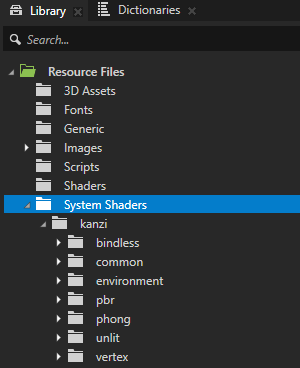
Any .glsl file placed in the system shader directory is automatically available as an include file. You do not need to register the file or configure your project.
The system shader directory is read-only from within Kanzi Studio. To customize a system shader for your project, clone it first. See Cloning a system shader to your project.
Including system shaders
The #include directive supports two forms that follow C/C++ include conventions:
Syntax |
Resolution |
|---|---|
|
Searches the directory of the file that contains the |
|
Searches the project |
Use angle brackets (<>) to include system shaders. A file in your project Shaders directory at the same path as a system shader overrides that system shader, including where other system shaders include it. See Cloning a system shader to your project. Use quoted includes ("") for files next to your shader.
For example:
// Resolves from the project Shaders directory first, then from the system shader directory.
#include <kanzi/common/lights.glsl>

// Resolves from the directory of this shader first, then like an include with angle brackets.
#include "math_utils.glsl"
Cloning a system shader to your project
To customize a system shader for your project, you can clone it. Cloning copies the system shader file into your project Shaders directory, at the same path that the file has in the system shader directory. You can edit the copy freely. For example, cloning kanzi/common/lights.glsl creates Shaders/kanzi/common/lights.glsl.
The clone overrides the system shader wherever a shader includes it, such as #include <kanzi/common/lights.glsl>. The override also applies in other system shaders and in the material types that Kanzi Studio provides, so a change to the clone reaches every material that uses the system shader.
Your copy can include the system shader that it overrides by the same path, for example to add code around it. In that case, rename the include guard macro in your copy, such as KANZI_LIGHTS in lights.glsl. Otherwise the include guard of your copy hides the content of the system shader.
Note
A clone of a system shader that you made with an earlier version of Kanzi Studio is directly in the Shaders directory, for example Shaders/lights.glsl. To make such a clone override the system shader, move it to the path that the system shader has, for example Shaders/kanzi/common/lights.glsl.
To clone a system shader to your project:
In Library > Resource Files > System Shaders, right-click the system shader file you want to customize.
Select Clone To Project.
Kanzi Studio copies the file into your project
Shadersdirectory.Edit the cloned file as needed in the Shader Source Editor.
Shaders that include the system shader now use your copy.