Observing state changes and handling events in Kanzi Android framework (droidfw)
Observing state changes
You can implement KanziViewListener to listen for state changes in KanziView. Use this to inject custom initialization and un-initialization logic.
For example:
Use the
KanziViewListener.onAttachedToWindowcallback to access domain, register Kanzi Engine Java plugins or manually setup the view’s node tree.view.addListener(new KanziViewListener() { ... @Override public void onAttachedToWindow(View view, Domain domain) { // Register a plugin. domain.registerPlugin(new MyPlugin()); // Manually setup the node tree. // Instantiate a node. ObjectRef<TextBlock2D> text = TextBlock2D.create(domain, "text"); // Set as root of the view. ((KanziView) view).setRoot(text.get()); // Set properties on a node. text.get().setProperty(TextBox2D.TextProperty, "Hello Kanzi!");
view.addListener(object : KanziViewListener {
   ...

   override fun onAttachedToWindow(view: View, domain: Domain) {
         // Register a plugin.
         domain.registerPlugin(MyPlugin())

         // Manually setup the node tree.
         // Instantiate a node.
         val text = TextBlock2D.create(domain, "text")
         // Set as root of the view.
         (view as KanziView).root = text.get()
         // Set properties on a node.
         text.get().setProperty(TextBox2D.TextProperty, "Hello Kanzi!")
Use the
KanziViewListener.onStartupPrefabLoadedcallback to access and modify the node tree instantiated from the startup prefab that you have configured.view.addListener(new KanziViewListener() { ... @Override public void onStartupPrefabLoaded(View view, Domain domain) { // Look up a child node starting from the root. TextBox2D text = ((KanziView)view).getRoot().lookupNode("#Text"); // Set properties on a node. text.setProperty(TextBox2D.TextProperty, "Hello world!");
view.addListener(object : KanziViewListener {
   ...

   override fun onStartupPrefabLoaded(view: View, domain: Domain) {
         // Look up a child node starting from the root.
         val text = (view as KanziView).root.lookupNode<TextBox2D>("#Text")
         // Set properties on a node.
         text.setProperty(TextBox2D.TextProperty, "Hello world!")
To learn more about Kanzi Engine Java plugins, see Creating Kanzi Engine Java plugins.
Handling input
By default, KanziSurfaceView and KanziTextureView handle input events. If you want Kanzi Engine to process events of an arbitrary view that uses KanziViewAdapter, you must manually forward such input events. To do this, use these interfaces:
All Kanzi views by default set focusableInTouchMode to True, unless otherwise set programmatically or through layout attributes. This makes them gain and keep focus when clicked on. See Android touch mode.
Handling input from the Android Automotive rotary controller
By default, KanziSurfaceView and KanziTextureView handle the rotary controller input.
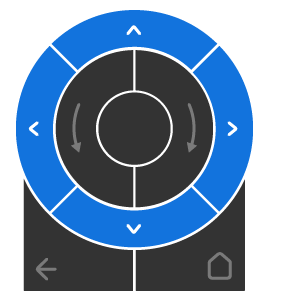
Rotary action |
How Kanzi handles the actions |
|
|---|---|---|
|
|
Kanzi Android framework (droidfw) handles these actions as corresponding arrow key events. Kanzi does not support and ignores input from diagonal nudges. |
|
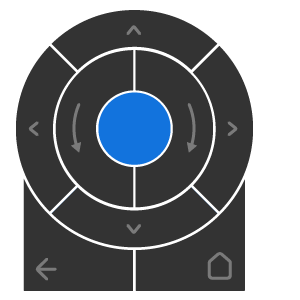
Center button |
Kanzi Android framework (droidfw) tries to enable the direct manipulation mode for the focused Kanzi view. If Kanzi Android framework (droidfw) cannot enable the direct manipulation mode, it forwards the key event to Kanzi Engine. Kanzi Engine translates the key code |
|
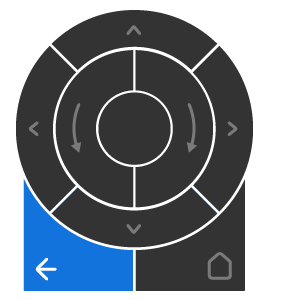
Back button |
Kanzi Android framework (droidfw) forwards the key event to Kanzi Engine. If Kanzi Engine does not consume the event, Kanzi Android framework (droidfw) disables the direct manipulation mode for the Kanzi view. |
|
|
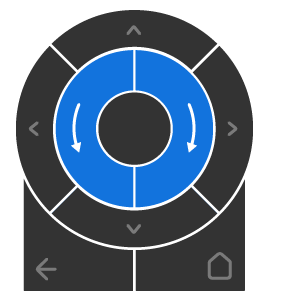
Android sends a generic motion event containing the direction of rotation and the number of presses. Kanzi views forward all generic motion events to
|
To disable the default rotary controller input handling, use one of these approaches:
In the layout file, for the Kanzi view element, set the
rotaryHandlingEnabledattribute tofalse:<com.rightware.kanzi.KanziSurfaceView android:id="@+id/rotaryview" app:name="Rotary" app:kzbPathList="rotary.kzb" app:startupPrefabUrl="kzb://rotary/StartupPrefab" app:rotaryHandlingEnabled="false"/>
In the activity code, pass
falseto theKanziViewAdapter.setRotaryHandlingEnabledfunction call:protected void onCreate(Bundle icicle) { super.onCreate(icicle); setContentView(R.layout.activity_main); mView = findViewById(R.id.rotaryview); mView.getAdapter().setRotaryHandlingEnabled(false); }
Handling orientation change
When the screen orientation changes, an Android application, by default, destroys and recreates the activity. This allows an application to use an alternate layout for portrait and landscape screens, but it also means that you lose all internal Kanzi states.
You can override this by adding the android:configChanges="orientation" property to the AndroidManifest.xml file. With this option, the activity is no longer destroyed on orientation changes, instead onConfigurationChanged() is called on the activity. Forward this event manually to KanziView.handleOrientationChange. This option avoids recreating the Kanzi controls and therefore all internal state is retained. See Android configuration changes.
You can forward the event before the view has a surface or after the view loses its surface. In that case, Kanzi ignores the event.
The event does not rotate the Kanzi content. To set the orientation of the Kanzi content, use the Orientation property of the Screen node.
Handling the Android lifecycle
While KanziSurfaceView and KanziTextureView handle window and surface events by default, an arbitrary view using KanziViewAdapter must manually forward the window and surface events it wants Kanzi to process, through the KanziViewAdapter.handleAttachedToWindow, KanziViewAdapter.handleSurfaceCreated, KanziViewAdapter.handleSurfaceChanged, KanziViewAdapter.handleSurfaceDestroyed, and KanziViewAdapter.handleDetachedFromWindow interfaces.
Handling the user-visibility of views
Kanzi Android framework (droidfw) automatically and continuously tracks whether each connected view is visible to the user, and stops rendering and input processing for hidden views.
To check whether a view is visible to the user, Kanzi Android framework (droidfw) considers:
The visibility state of the view
The visibility state of all ancestors of the view
The alpha of the view
The effectively visible portion of the view computed through
View.getGlobalVisibleRect()
An arbitrary view using KanziViewAdapter must manually forward visibility events that it wants Kanzi to process through the KanziViewAdapter.handleVisibilityChange interface.
Idle state
Kanzi Android framework (droidfw) automatically suspends unnecessary operations when out of work. While at least one Kanzi view is active, Kanzi Android framework (droidfw) wakes up when work becomes available. While no view is active, Kanzi Android framework (droidfw) runs no frames. See Application idle state and Submitting tasks while no view is active.
To detect changes from the outside of the Kanzi main loop during suspension, Kanzi Android framework (droidfw) can either:
Subscribe to the Android
MessageQueue.IdleHandlerevent.Run a lightweight task on the Android Choreographer.
By default, Kanzi Android framework (droidfw) subscribes to the Android idle event and checks for external changes when an Android application enters idle state. In this mode Kanzi goes to truly zero CPU usage during suspension.
You can switch Kanzi to use a background task by calling KanziRuntime.enableSuspendedChangeTrackingTask. In this mode, Kanzi runs a lightweight task on the Android Choreographer at the rate set through KanziRuntime.setSuspendedChangeCheckRate. By changing this rate you can control how often Kanzi checks for external changes. With the default value set to 0, Kanzi tracks external changes at the Display vsync rate. You can lower this rate and related CPU consumption further, but at the cost of a delayed wake up when work becomes available. This rate is independent from the rate of rendering and animation, which are controlled by the framerate limit.
Submitting tasks while no view is active
Kanzi Android framework (droidfw) runs the Kanzi main loop only while at least one Kanzi view is active. A Kanzi view is active while it has a surface and its visibility is VISIBLE. A KanziTextureView also stops being active when its activity stops. A view that Kanzi Android framework (droidfw) hides only because of its user-visibility, for example because another view covers it, stays active. See Handling the user-visibility of views.
While no view is active, for example while your application is in the background, Kanzi runs no frames. The tasks that you submit to the TaskDispatcher during this time wait. Kanzi executes all of them in the first frame after a view becomes active again. If your application keeps submitting tasks at a high rate, for example for each update of a data source, these tasks pile up. They delay the first frame of the view by the time that it takes to execute all of them.
While no view is active, do not submit a task for each update. Instead, keep the latest value of each data item and submit a task only when no task that applies the values is waiting. This way, at most one task waits no matter how long no view is active. For example:
private final AtomicReference<String> mLatestValue = new AtomicReference<>();
private final AtomicBoolean mTaskPending = new AtomicBoolean(false);

// Set this to domain.getTaskDispatcher(), for example in
// KanziViewListener.onAttachedToWindow. Start the updates only after that.
private volatile TaskDispatcher mTaskDispatcher;

// Called from any thread for each update of the data source.
void onDataChanged(String value)
{
    mLatestValue.set(value);
    if (mTaskPending.compareAndSet(false, true))
    {
        mTaskDispatcher.submit(() -> {
            mTaskPending.set(false);
            // Set the latest value to a Kanzi object, for example a data object.
            applyValue(mLatestValue.get());
        });
    }
}
private val latestValue = AtomicReference<String>()
private val taskPending = AtomicBoolean(false)

// Set this to domain.taskDispatcher, for example in
// KanziViewListener.onAttachedToWindow. Start the updates only after that.
@Volatile
private lateinit var taskDispatcher: TaskDispatcher

// Called from any thread for each update of the data source.
fun onDataChanged(value: String) {
    latestValue.set(value)
    if (taskPending.compareAndSet(false, true)) {
        taskDispatcher.submit {
            taskPending.set(false)
            // Set the latest value to a Kanzi object, for example a data object.
            applyValue(latestValue.get())
        }
    }
}