Examples
Kanzi Maps comes with examples that demonstrate the features in Kanzi Maps. You can find these examples in the <KanziWorkspace>/Engine/plugins/maps/examples directory:
Kanzi Maps example in the
maps_exampledirectory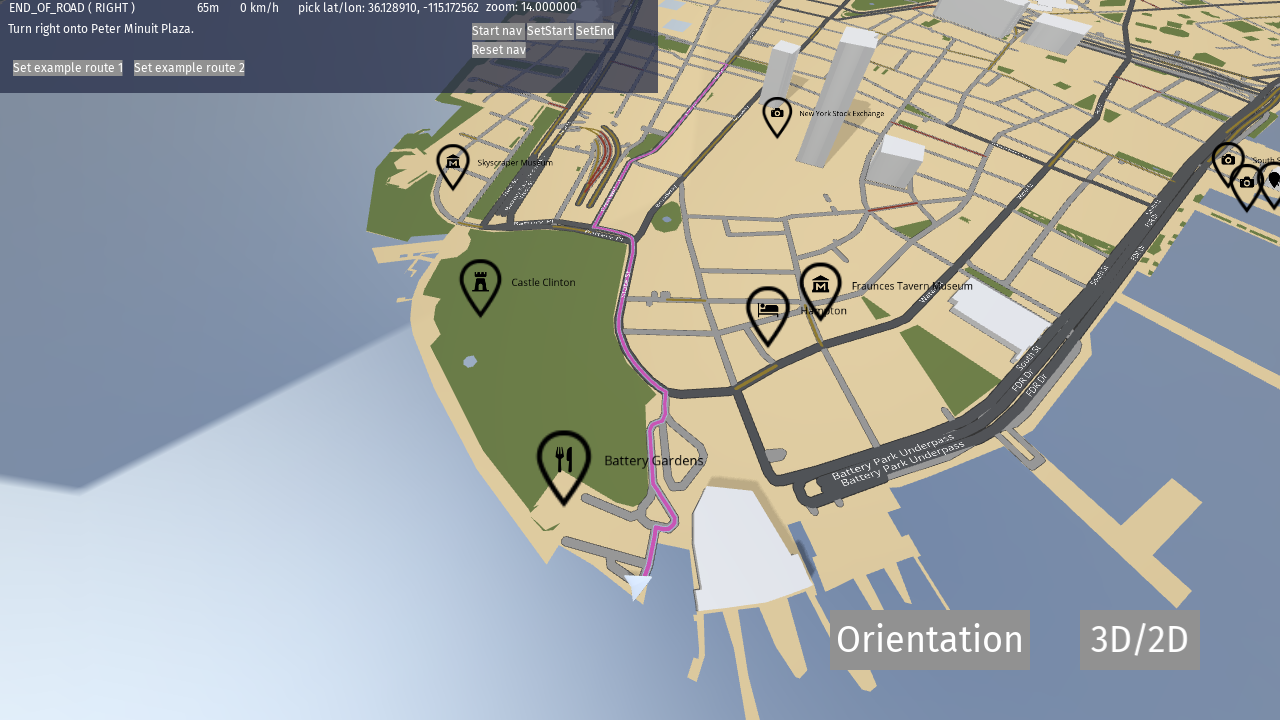
3D terrain example in the
maps_terrain3ddirectory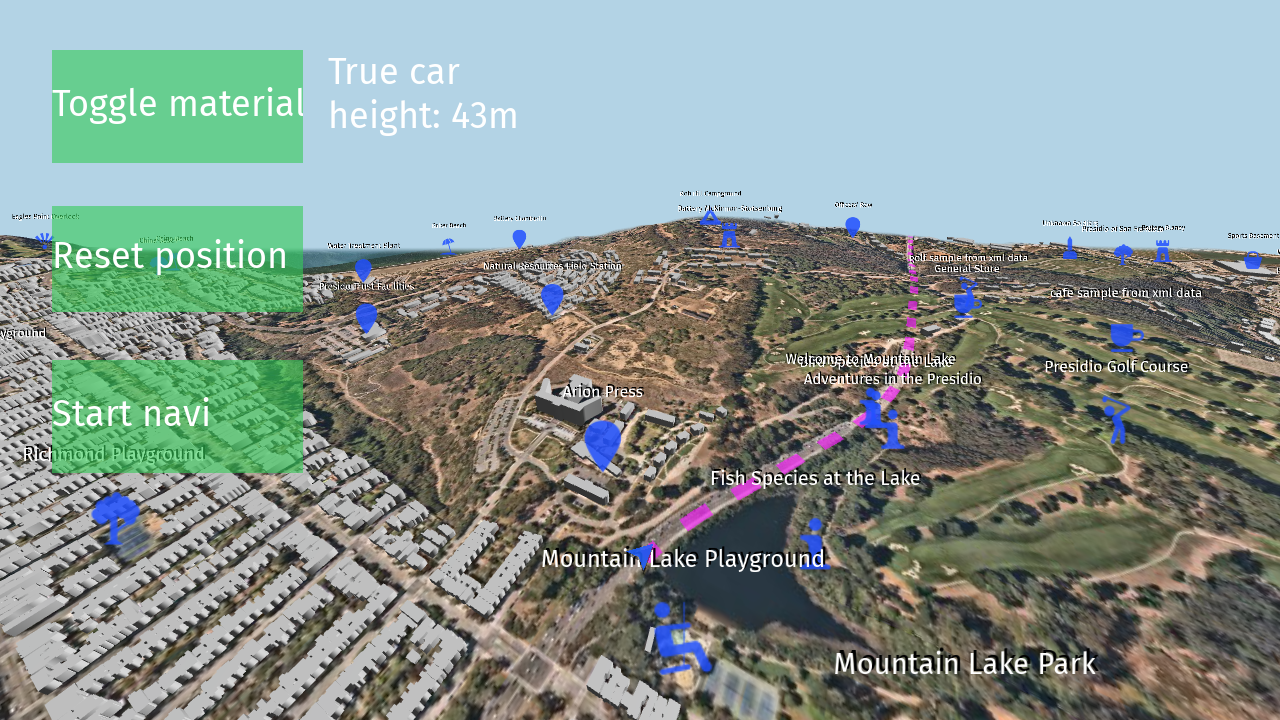
Texturing example in the
maps_texturing_sampledirectory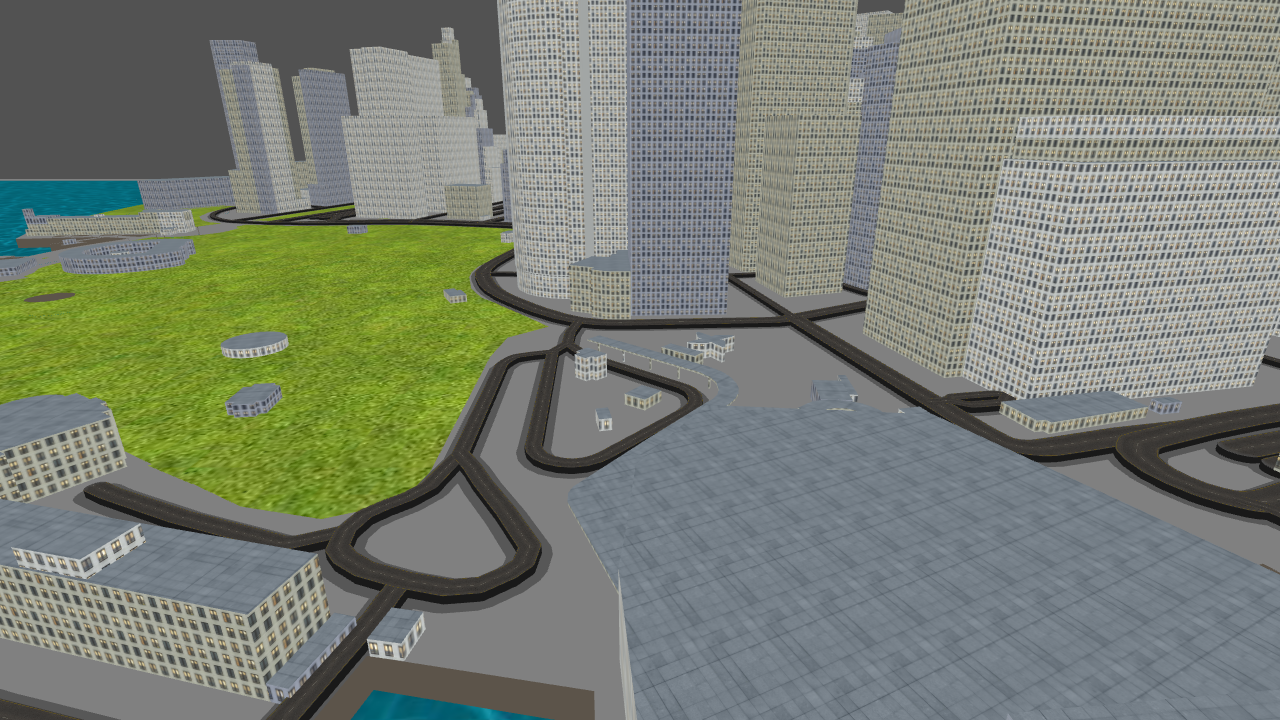
Before you build a Kanzi Maps example:
In Kanzi Studio, open the project that is stored in the
<example>/Tool_projectdirectory. Set up Kanzi Maps and your credentials.Kanzi Maps creates the
<example>/Application/bin/map_settings.xmlfile and stores your backend and credentials in that file.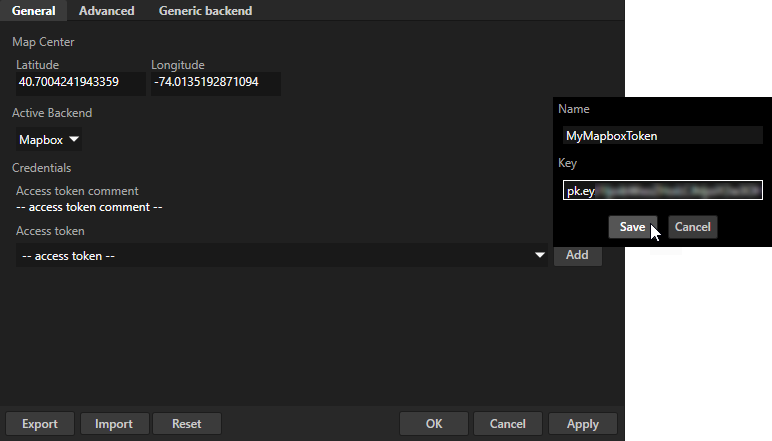
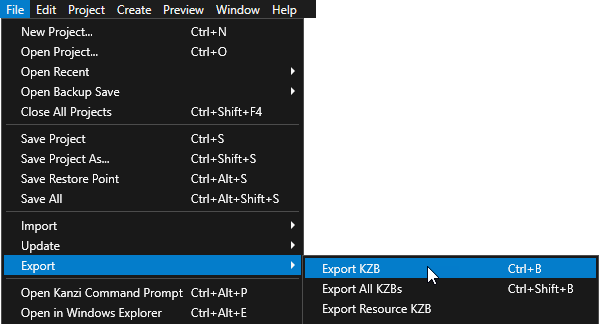
In the File main menu, select Export > Export KZB.
Building a Kanzi Maps example for Windows
To build a Kanzi Maps example application for Windows:
In the Windows Start menu in the Rightware directory, select Kanzi Command Prompt.
When you have more than one version of Kanzi installed, make sure that you launch the Kanzi Command Prompt for the version of Kanzi with which you want to work in that command prompt.
Tip
To open the Kanzi Command Prompt in Kanzi Studio, select File > Open Kanzi Command Prompt.
In the
<KanziWorkspace>/Engine/plugins/maps/examples/<example>/Applicationdirectory, run the script that generates a Visual Studio solution for the example application.For example, if you use Visual Studio 2019, run
generate_cmake_vs2019_solution.bat
This script generates a Visual Studio solution for the application in the
Application/build_vs2019directory.To build the example application, go to the
build_vs<Version>directory and run one of these commands depending on whether you want to use the release or debug build type:cmake --build . --target install --config Release
cmake --build . --target install --config Debug
You can find the example application executable in the Application/bin/Win64/GL_vs<Version>_Release_DLL directory.
Building a Kanzi Maps example for Android
Building from Android Studio
To build a Kanzi Maps example application from Android Studio, open and build the <KanziWorkspace>/Engine/plugins/maps/examples/<example>/Application/configs/platforms/android_gradle Android Gradle project.
Building from the command line
To build a Kanzi Maps example application for Android using the command line:
In the Windows Start menu in the Rightware directory, select Kanzi Command Prompt.
When you have more than one version of Kanzi installed, make sure that you launch the Kanzi Command Prompt for the version of Kanzi with which you want to work in that command prompt.
Tip
To open the Kanzi Command Prompt in Kanzi Studio, select File > Open Kanzi Command Prompt.
In the
<KanziWorkspace>/Engine/plugins/maps/examples/<example>/Application/configs/platforms/android_gradledirectory, run one of these commands depending on whether you want to use the release or debug build type:gradlew assembleRelease
gradlew assembleDebug
You can find the example application in the <example>/Application/configs/platforms/android_gradle/<ExampleProject>/build/outputs/apk directory.
Building a Kanzi Maps example for other platforms
To build a Kanzi Maps example application for other platforms:
In the Windows Start menu in the Rightware directory, select Kanzi Command Prompt.
When you have more than one version of Kanzi installed, make sure that you launch the Kanzi Command Prompt for the version of Kanzi with which you want to work in that command prompt.
Tip
To open the Kanzi Command Prompt in Kanzi Studio, select File > Open Kanzi Command Prompt.
In the
<KanziWorkspace>/Engine/plugins/maps/examples/<example>/Application/configs/platforms/<platform>directory, run one of these commands depending on whether you want to use the release or debug build type:scons --dynamic release
scons --dynamic debug
You can find the example application in the <example>/Application/output directory.