Importing USD files
You can import USD (Universal Scene Description) files to your Kanzi Studio project as 3D assets.
Kanzi USD Importer can import these USD features:
Feature |
Support |
|---|---|
Animation |
Yes |
HDRI |
Yes |
Payloads |
Yes |
PreviewSurface |
Yes |
Skeleton |
Yes |
Variants |
Yes |
Double-sided geometry |
Yes 1 |
USDZ |
Yes |
LODs |
Yes 2 |
MaterialX |
No |
Morph Targets |
No |
1 Kanzi USD Importer supports double-sided geometry through triangle duplication, which can impact performance. For optimal performance, do not use double-sided geometry.
2 There is no defined feature for LODs (Levels of Detail) in Kanzi Studio, nor in the USD file format itself. However, some graphics editors, like Unity, can export different meshes for the same node with varying levels of detail. Kanzi USD Importer detects these and imports the one that you select.
To import a USD file:
In the Kanzi Studio main menu, select Kanzi USD Importer > Import USD. Select the USD file that you want to import and click Open.
Kanzi USD Importer supports these USD file formats:
usd: Binary format for compact storage
usda: Human-readable ASCII format
usdc: Compressed binary format
usdz: Uncompressed zipped file of textures and USD files

In the USD Import Configuration window, select the content that you want to import:
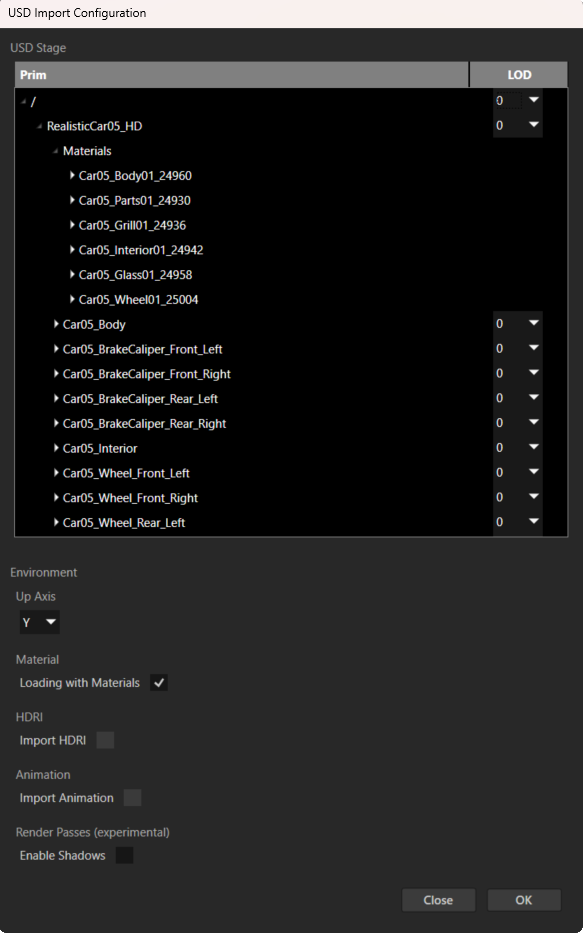
USD Stage shows the USD file structure as a tree list. This is the hierarchy of elements in the 3D scene:
Prim shows the name of each element in the USD file, such as meshes, lights, and other components.
Payload checkbox enables you to select extra data, such as references to external files.
This option is available only when a node or its descendant contains a payload.
Use a payload to defer loading scene data. For example, in large scenes, you can load only parts of a scene and defer the rest until you need them.
Variant dropdown enables you to select the version of a prim, if available.
Variants allow you to define variations of an object or asset in a scene, without duplicating data. Kanzi USD Importer can import only one variant for a node but you can switch a variant for an imported scene. See Using USD variants.
LODs dropdown allows you to select the level of detail for a prim, if available. Higher level numbers represent less detailed meshes.
LODs allow you to represent an object or asset in multiple detail levels, helping reduce data size without full duplication.
Up Axis to the up axis used in the USD file.
After import, if your 3D model appears rotated, reimport the file with a different Up Axis value.
Loading with Materials to whether you want to import the materials from the USD file.
Import HDRI to whether you want Kanzi USD Importer to create environment cubemaps using HDRI for lighting.
This option is available if the USD file contains an HDRI environment texture.
In a USD file, you can store an HDRI image in either exr and hdr extension. For each HDRI image, during import, Kanzi USD Importer creates cubemap textures for image-based lighting and the environment.
Importing of HDRI images takes longer time because their file sizes are larger.
To learn about environment textures in Kanzi, see Using Environment Textures and Using IBL Textures.
Import Animation to whether you want Kanzi USD Importer to create and apply animation clips to the imported models.
This option is available if the USD file contains animation data.
To learn about animations in Kanzi, see Kanzi Animations Documentation
Enable Shadows allows you to dynamically set up Kanzi rendering environment. See Render passes (experimental).
Click OK.
Kanzi USD Importer imports the content of the USD file into a Scene prefab. If the USD file does not contain at least one light or camera, Kanzi USD Importer creates a Light and a Camera node.
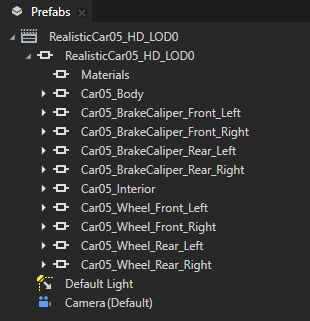
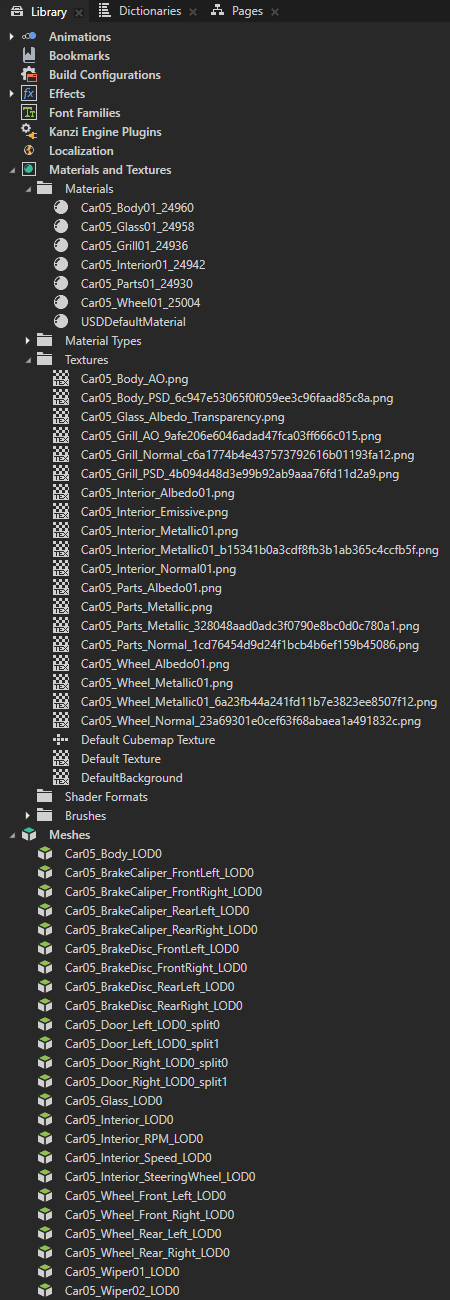
You can find the imported resources from the USD file in the Library window.
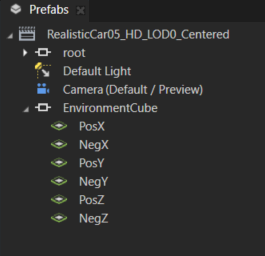
When you import HDRI images, in the imported scene, Kanzi USD Importer creates an environment cubemap with six Plane nodes. Each node represents a side of the environment. In the Library > Materials and Textures > Textures you can find the environment, irradiance, and specular cubemap textures.
When you import animations, Kanzi USD Importer creates Animation Clip, Animation Data, and Time Sequence items for the animations.