Data simulation example
This example demonstrates how to define and simulate the external data dependencies of your application alongside your design in Kanzi Studio using the Lua programming language. It also demonstrates how to disable the simulation and provide the real data values from your application. See Defining a data source using Lua.
Getting the example
To get the example, in the Kanzi Studio Quick Start window, click Examples. Next to the Data_simulation example, click  .
.
Kanzi Studio downloads the example to the <KanziWorkspace>/Examples/Data_simulation directory.
Running the example
Open the example in Kanzi Studio. You can see how this project defines the data in data script and animates data changes in On Timer trigger.
To see how to disable the simulation and provide the real data values from your application:
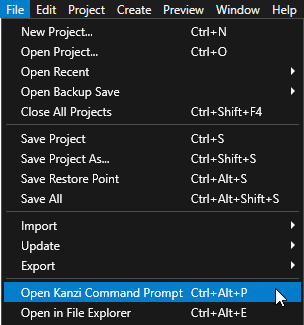
In Kanzi Studio, select File > Open Kanzi Command Prompt.
The Kanzi Command Prompt opens the Windows Command Prompt with the Kanzi environment variables set for the version of Kanzi for which you open a Kanzi Command Prompt.
Use the Kanzi Command Prompt to access Kanzi utilities and build tools, such as Gradle and CMake, without using absolute paths or setting environment variables.
Tip
You can find the Kanzi Command Prompt in the Windows Start Menu in the Rightware directory.
When you have more than one version of Kanzi installed, make sure that you launch a Kanzi Command Prompt for the version of Kanzi with which you want to work in that command prompt.
In the Kanzi Command Prompt in the
<KanziWorkspace>/Examples/Data_simulation/Applicationdirectory run the script that generates a Visual Studio solution for the example application.generate_cmake_vs2022_solution.bat
This script generates a Visual Studio solution for the application in the directory
<KanziWorkspace>/Examples/Data_simulation/Application/build_vs2022.In Visual Studio open the
<KanziWorkspace>/Examples/Data_simulation/Application/build_vs2022/Data_simulation.slnVisual Studio solution.In Visual Studio in the Solution Explorer right-click the
Data_simulationproject and select Set as StartUp Project.Select the solution configuration that you want to use and run your application.
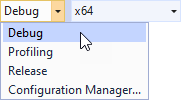
During development, select the Debug configuration. When you are ready to create a version for production, select the Release configuration.