Starting with templates
The ParticleSystemSetup assets package project provides you with several ready-to-use particle system templates that you can use to quickly create different particle effects in your Kanzi application. It also contains different materials and additional assets that you can use to create your particle effects.
To learn how to add a particle system from a template to your Kanzi Studio project, see Adding particles from a template to your scene.
To review the existing templates, see Templates overview.
For more details about available materials, see Overview of available materials.
For more details about additional assets, see Overview for additional assets.
Adding particles from a template to your scene
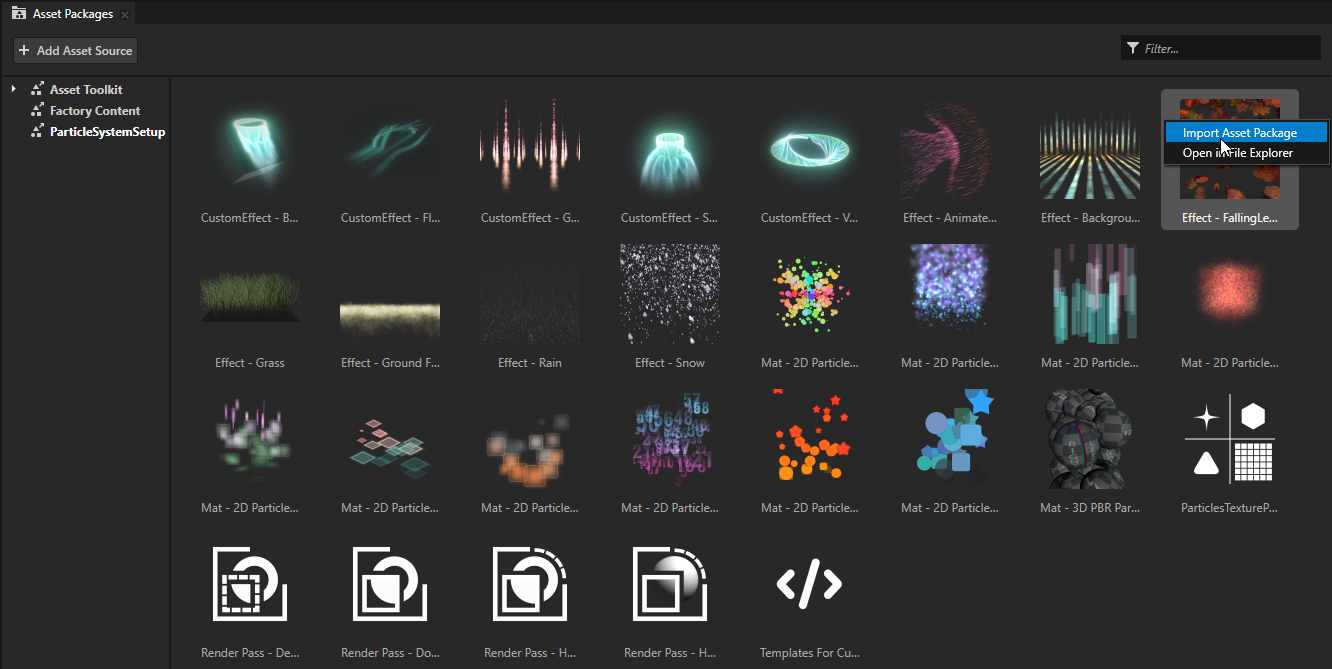
In the Assets Packages, expand the ParticleSystemSetup section, right-click the Effect - FallingLeaves prefab, and select Import Asset Package. This adds the prefab with the falling leaves template to your Kanzi Studio project.
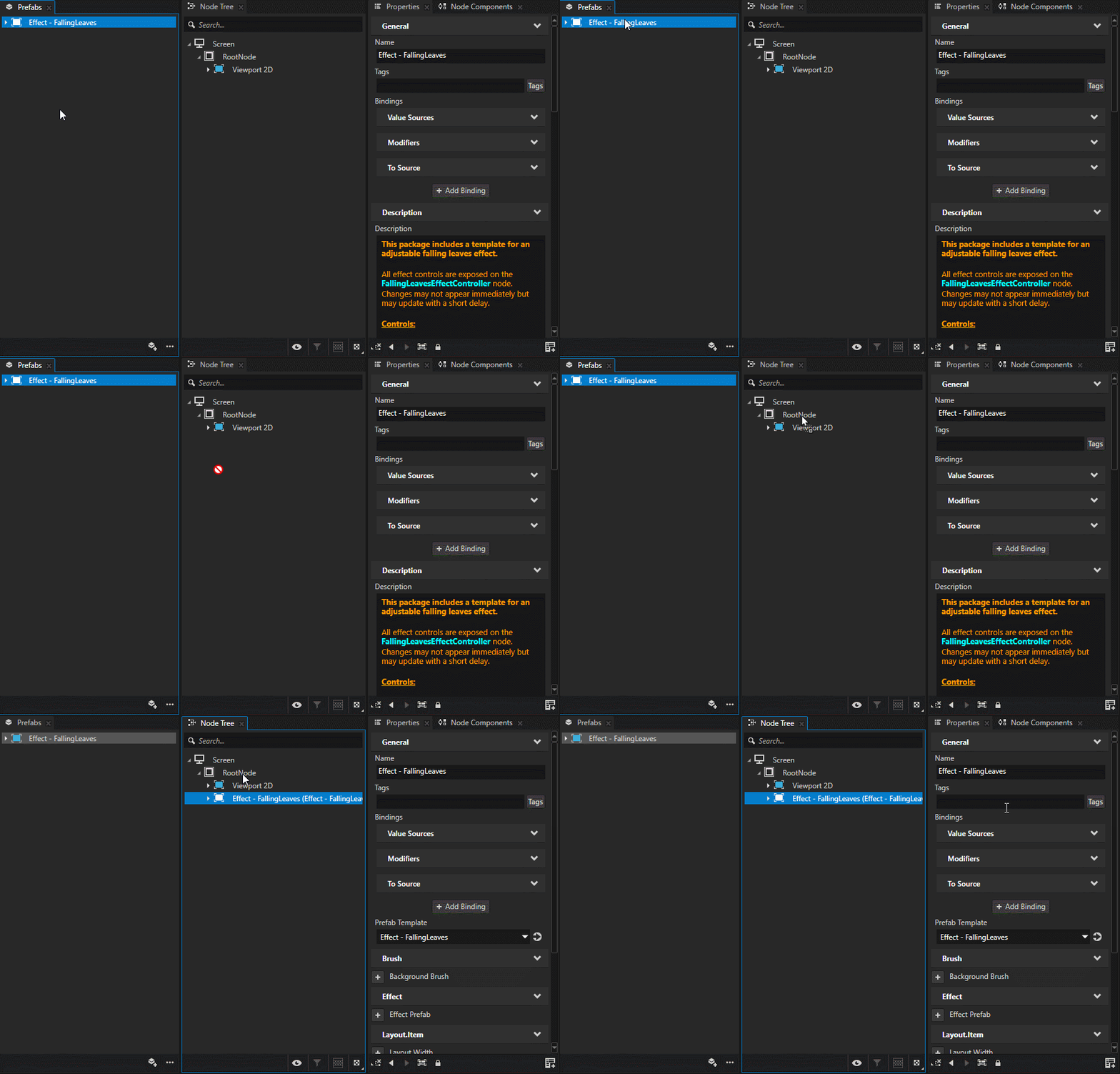
In the Prefab window, select the prefab Effect - FallingLeaves that you have just imported. Drag and drop it to the Node Tree to add the falling leaves effect to your scene.
Tip
If you want to move the particle system to an existing scene, you can copy only the part of the prefab that contains the effect controls.
Ensure that the target Viewport uses the same render pass as the one used in the template prefab. If not, the resulting behavior may look different.
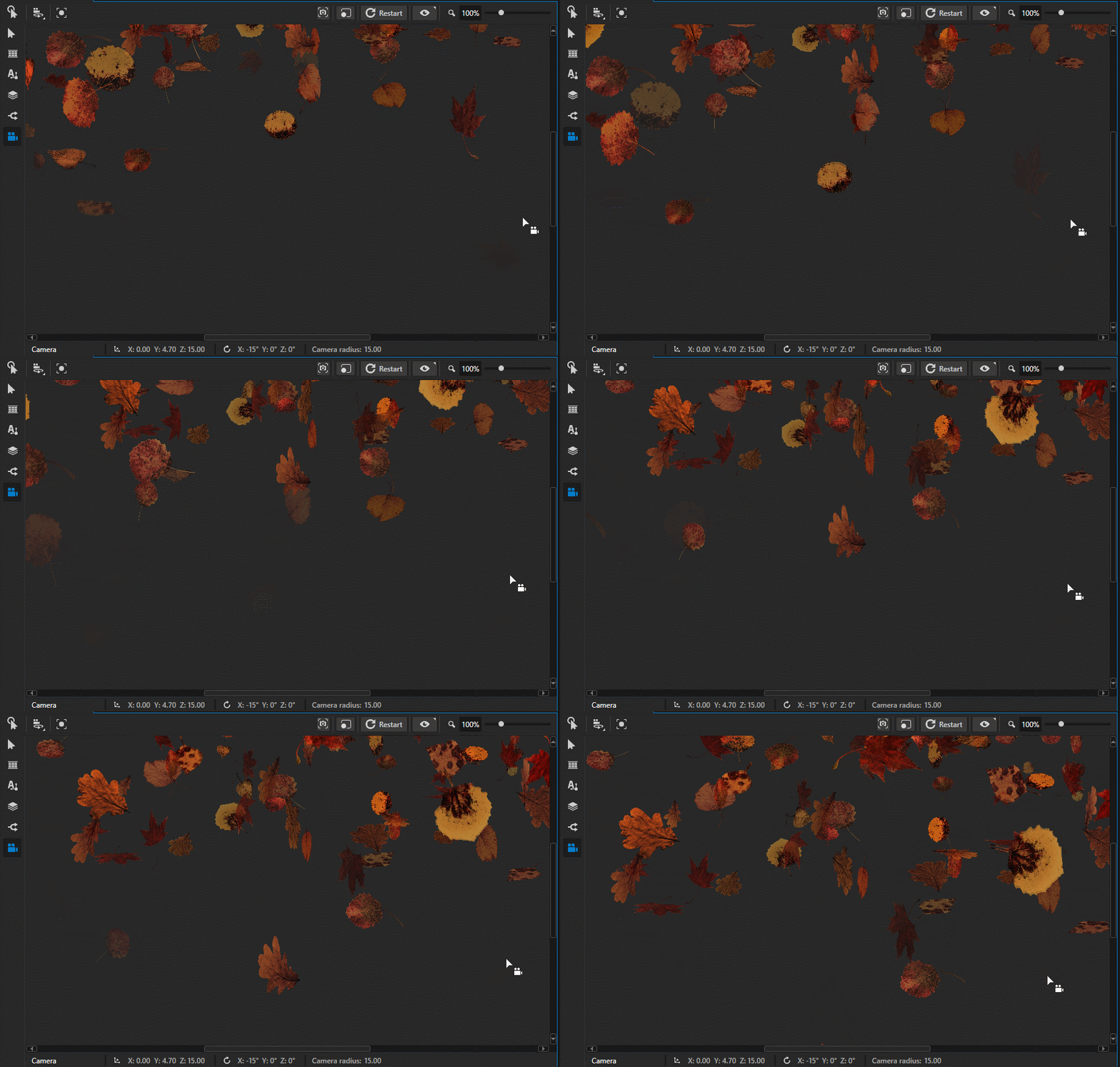
Now you should see the falling leaves effect in the Viewport.
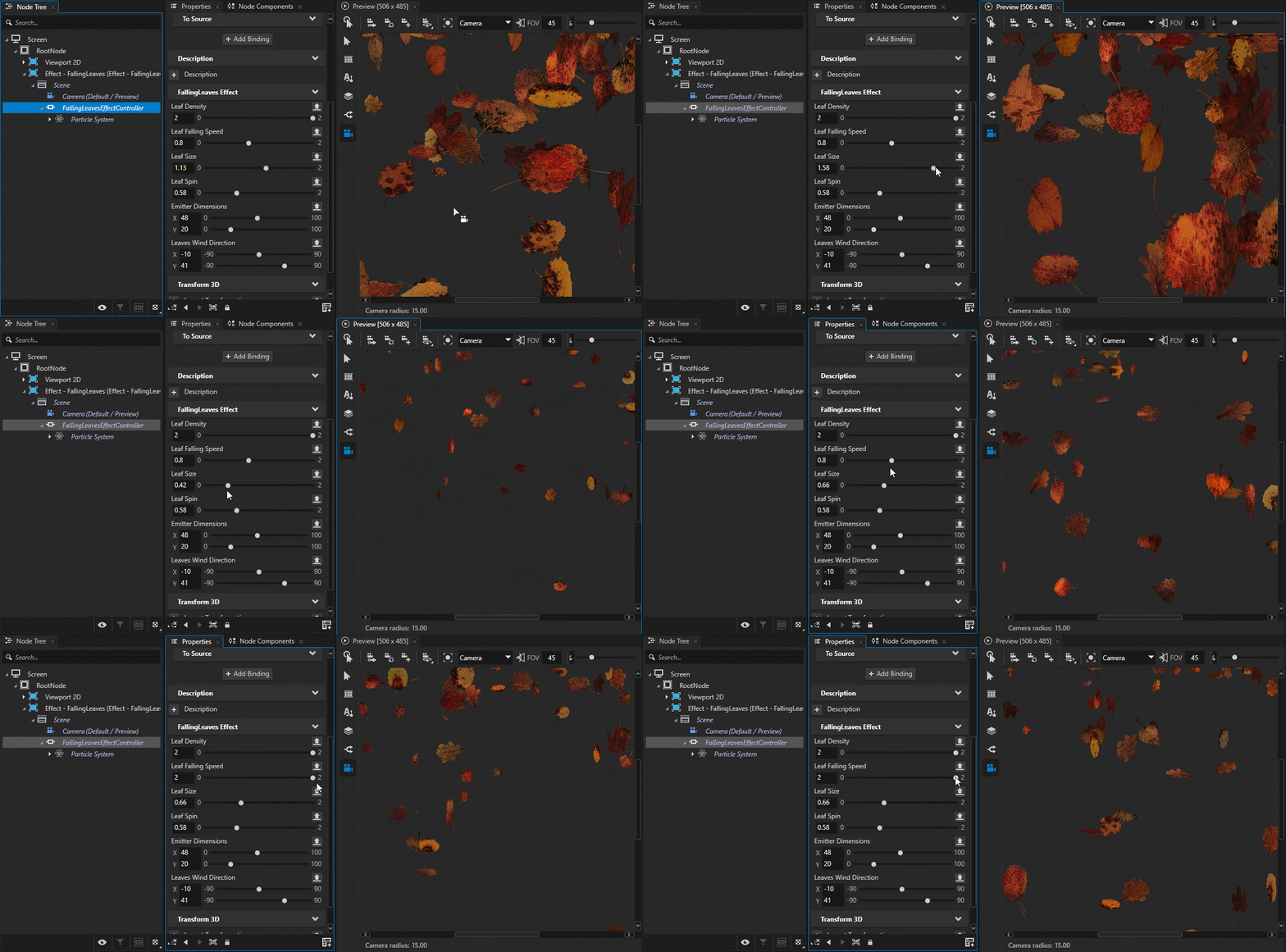
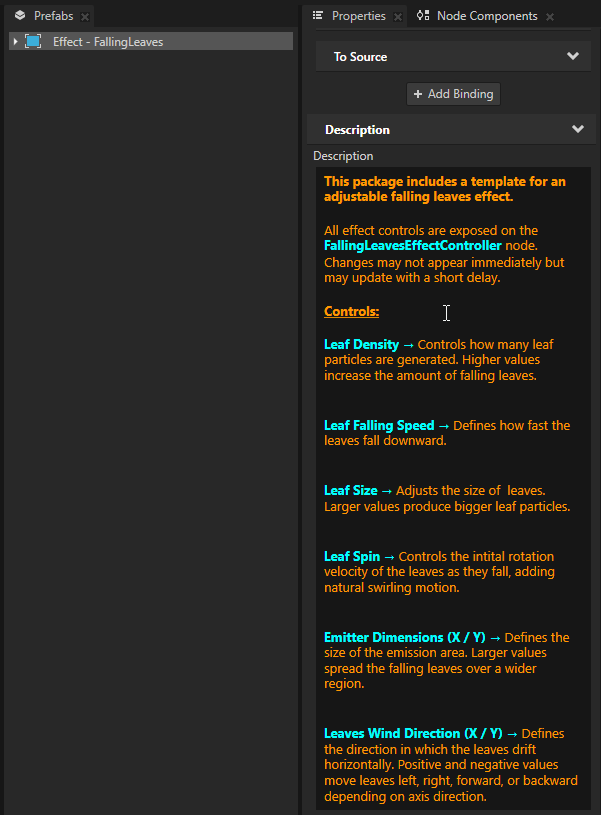
To adjust the falling leaves behavior, in the Prefab, select the FallingLeavesEffectController node. In the Properties, adjust the properties of the falling leaves effect as needed.
To find out more about specific template properties, see the description of the root prefab.
Templates overview
The ParticleSystemSetup assets package project provides the following templates:
Effect - Rain provides a customizable rain effect using particle-based raindrops and splashes.
Effect - Snow provides a customizable snow effect built with spritesheet-based particles.
Effect - FallingLeaves provides a customizable falling leaves effect.
Effect - Ground Fog provides a customizable ground-fog effect using normal-mapped sprites for enhanced depth.
Effect - Background provides a customizable background particle effect. Particles emit from a custom mesh.
Effect - Grass includes an example of static grass using mesh particles with PBR shading.
Effect - Animated Emitter includes an example of animated mesh emitter that creates dynamic and visually appealing particle effects.
It also includes templates with custom emitters and affectors that can be used to create advanced behavior:
CustomEffect - Grid Emitter includes an example demonstrating how to use a Particle Custom Emitter node together with a custom ParticleEmissionGrid material to generate particles from a configurable 3D grid.
CustomEffect - Vortex Affector includes an example using a Custom Affector node to simulate vortex motion that pulls particles into a swirling, rotational flow.
CustomEffect - Box Collider includes an example using a Custom Affector node to simulate particle collisions with a box-shaped volume. The affector uses a custom ColliderBox material to determine collision behavior and particle response.
CustomEffect - Sphere Collider includes an example using a Custom Affector node to simulate particle collisions with a sphere-shaped volume. The affector uses a custom ColliderSphere material to determine collision behavior and particle response. In addition, the setup includes a Custom Emitter node that uses a custom ParticleEmissionCircle material to generate a circular (ring-shaped) particle emission.
CustomEffect - Flow Affector includes an example using a Custom Affector node that applies a spherical flow motion to particles based on a custom AffectorFlow material.
Overview of available materials
The ParticleSystemSetup assets package project provides prefabs with different materials that you can use to create your particle effects:
Mat - 2D Particles Simple contains a simple 2D particle material with basic functionality.
Mat - 2D Particles Color Range contains a 2D particle material with the ability to define a color range for start and end color.
Mat - 2D Particles DOF contains a 2D particle material that adds depth-of-field and motion blur effects to sprite-based particles, making it suitable for bokeh-style highlights and streaked particles.
Mat - 2D Particles Shape contains a 2D particle material that procedurally renders analytic shapes (circle, rectangle, triangle, diamond, hexagon) with configurable fill, outline, and glow.
Mat - 2D Particles Scale Pivot contains a 2D particle material that allows you to define custom scale pivots for both scaling up and scaling down.
Mat - 2D Particles Corner UVs contains a 2D particle material that allows you to define particle shapes using a corner-patch texture.
Mat - 2D Particles Sprite Sheet contains a 2D particle material that animates particles using a spritesheet texture.
Mat - 2D Particles Sprite Sheet Blend contains a 2D particle material that animates particles using a spritesheet texture and blends between adjacent frames for smoother animation.
Mat - 2D Particles Sprite Sheet Random contains a 2D particle material that selects a random sprite from a spritesheet and applies per-particle random variations such as brightness, contrast, saturation, hue shift, and UV flipping. It is ideal for generating natural-looking particle variations from a single atlas.
Mat - 2D Particles Color Based Position contains a 2D particle material that renders circular particles and colorizes them based on their 3D world-space position.
Mat - 3D PBR Particles contains a basic physically based (PBR) material for mesh particles. The material enables particle attribute buffers in the vertex stage, allowing particle-driven transformations and effects to be added on top of standard PBR shading.
Overview for additional assets
The ParticleSystemSetup assets package project provides additional assets that you can use to create your particle effects.
The assets package project includes four types of render passes that can be used to properly render particles for different types of effects.
Tip
Using specific render passes resolves rendering artifacts for partially transparent particles, especially when particles are not sorted.
Add the ‘Transparent’ tag to your emitters to render particles properly with the specific particles render pass.
Render Pass - Default Particles contains the render pass that can be used to properly render billboard particles.
Render Pass - Double Sided Default Particles contains the render pass that can be used to properly render 2D particles. It renders both front and back faces for particles and can be used to render non-billboard particles.
Render Pass - HDR Particles contains the render pass that can be used to properly render billboard particles with the “Bloom” effect.
Render Pass - HDR Particles 3D contains the render pass that can be used to properly render 3D particles with the “Bloom” effect.
The assets package project also contains a pack of different textures that can be used with particles materials. These textures are stored in the ParticlesTexturePack prefab.
The assets package project also contains templates for specific materials with compute shaders that can be used for creating custom effects. These templates are in the Templates For Custom Particles Nodes prefab. To learn more about creating custom effects, see Creating custom emission and simulation.