Using emitter nodes
Emitter nodes release particles. For an emitter node to release particles, it must be a direct child of a Particle System node. To create different particle effects, you can use multiple emitter nodes in a single Particle System node and use the Render Transformation or Layout Transformation properties to position them. When emitter nodes release particles, use one or more affector nodes to define how those particles move. See Using affector nodes.
Types of emitter nodes
Kanzi Particles includes these types of emitter nodes:
Particle Box Emitter emits particles from within a volume the shape of a box or from its surface.
Particle Mesh Emitter emits particles from the surface of a mesh.
Particle Sphere Emitter emits particles from within a volume the shape of a sphere or from its surface.
Particle Trail Emitter emits particles from other particles.
Particle Custom Emitter provides support for creating custom emission and simulation behavior by writing compute shaders.
Use the properties in each emitter node to define how you want to release particles. Each type of emitter node has a set of properties that is specific to that type, but all have a set of properties that are common to all emitter nodes. With these common properties you can:
Control how many particles an emitter releases and how long they stay alive. See Controlling the amount and lifetime of particles.
Set the size of particles. See Setting the dimensions of particles.
Set the initial velocity and rotation of particles. See Setting the initial velocity and rotation of particles.
Set the mass of particles, which affects the impact of forces on particle movement. See Setting the mass of particles.
Controlling the amount and lifetime of particles
In emitter nodes you can control how many particles that an emitter node releases and the amount of seconds the particles stay alive. When an emitter reaches the maximum amount of particles it can generate, it does not release new particles until the lifetime of particles ends.
To control the amount and lifetime of particles:
Create a particle system with an emitter.
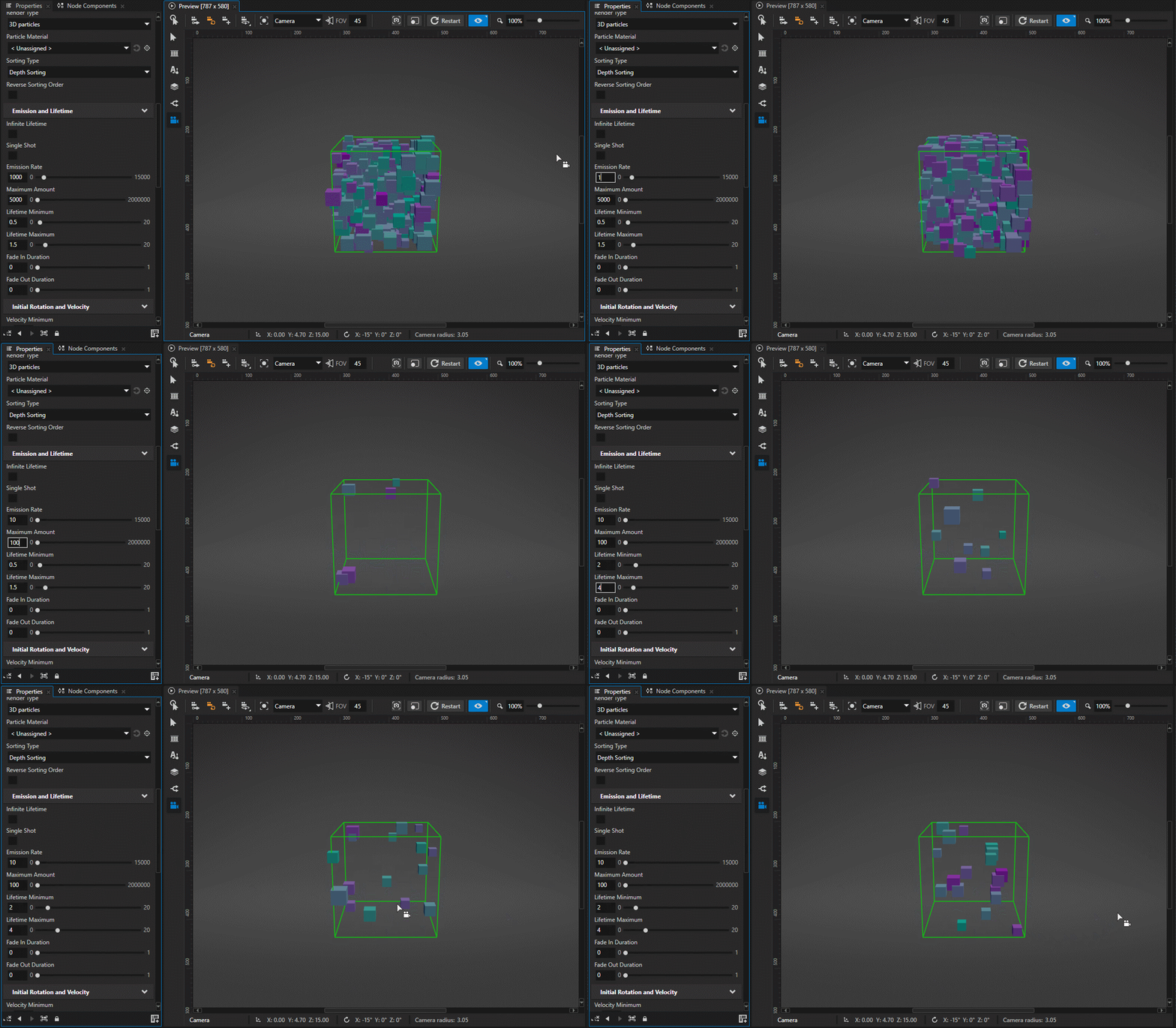
For this example, use a Particle Box Emitter with the Render Type property set to 3D particles to render particles as meshes. By default, the Particle Box Emitter renders particles in the shape of cubes and uses a fallback material that changes color over the particle lifetime.
In the Node Tree, select the emitter to control the amount and lifetime of particles. In the Properties, set:
Emission Rate to 10.
Sets the number of particles that this emitter node releases each second.
Maximum Amount to 100.
Sets the highest number of particles that this emitter node can have at any moment.
Lifetime Minimum to 2.
Sets the minimum amount of time in seconds that each particle stays alive.
Lifetime Maximum to 4.
Sets the maximum amount of time in seconds that each particle stays alive.
Setting the dimensions of particles
In emitter nodes, you can control the dimensions of particles that an emitter node releases.
To adjust the scale of particles:
Create a particle system with an emitter.
For this example, reuse the same Particle Box Emitter as in the previous section.
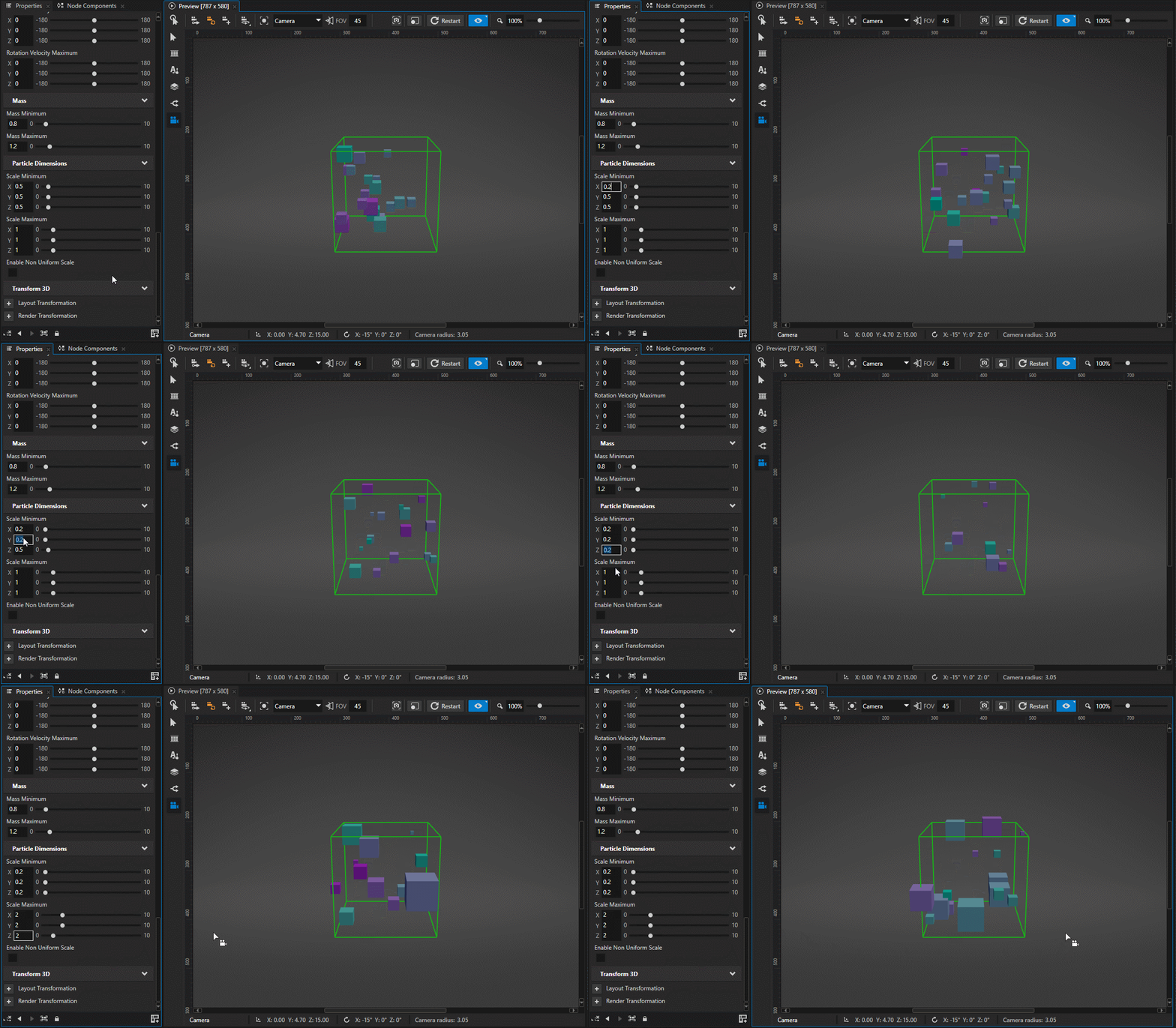
In the Node Tree, select the emitter for which you want to set the scale of particles. In the Properties, set:
Scale Minimum property to {0.2, 0.2, 0.2}.
Sets the minimum scale of a particle for each axis.
Scale Maximum property to {2.0, 2.0, 2.0}.
Sets the maximum scale of a particle for each axis.
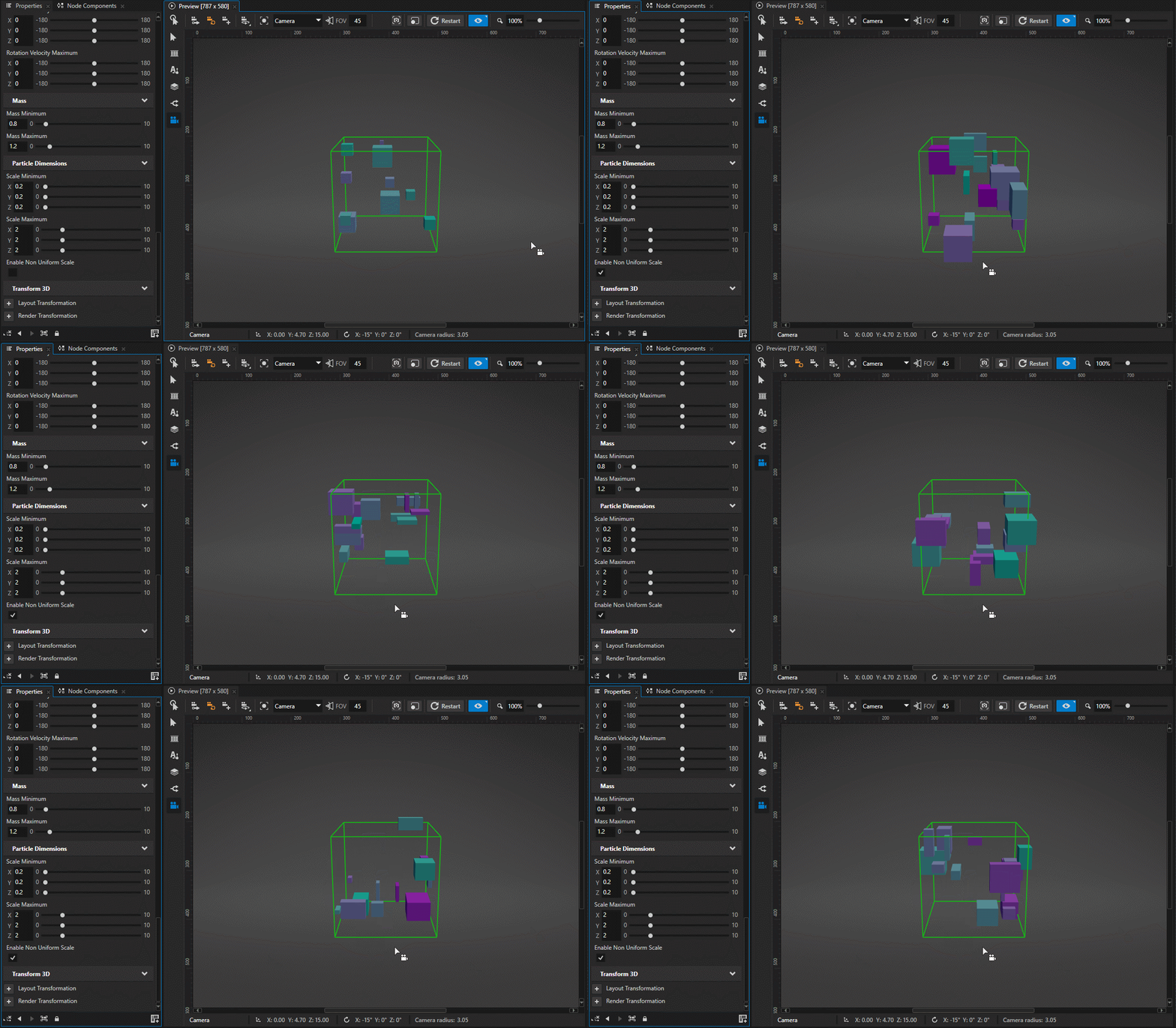
To enable non-uniform scaling of particles, in the Properties, set:
Enable Non Uniform Scale property to true.
Enables non-uniform scaling of particles. When this property is enabled, Kanzi Particles scales each particle by picking a random value between the minimum and maximum values for each axis separately.
Setting the initial velocity and rotation of particles
In emitter nodes, you can adjust the initial random rotation and velocity of particles.
To adjust the rotation and velocity of particles:
Create a particle system with an emitter.
For this example, reuse the same Particle Box Emitter as in the previous section.
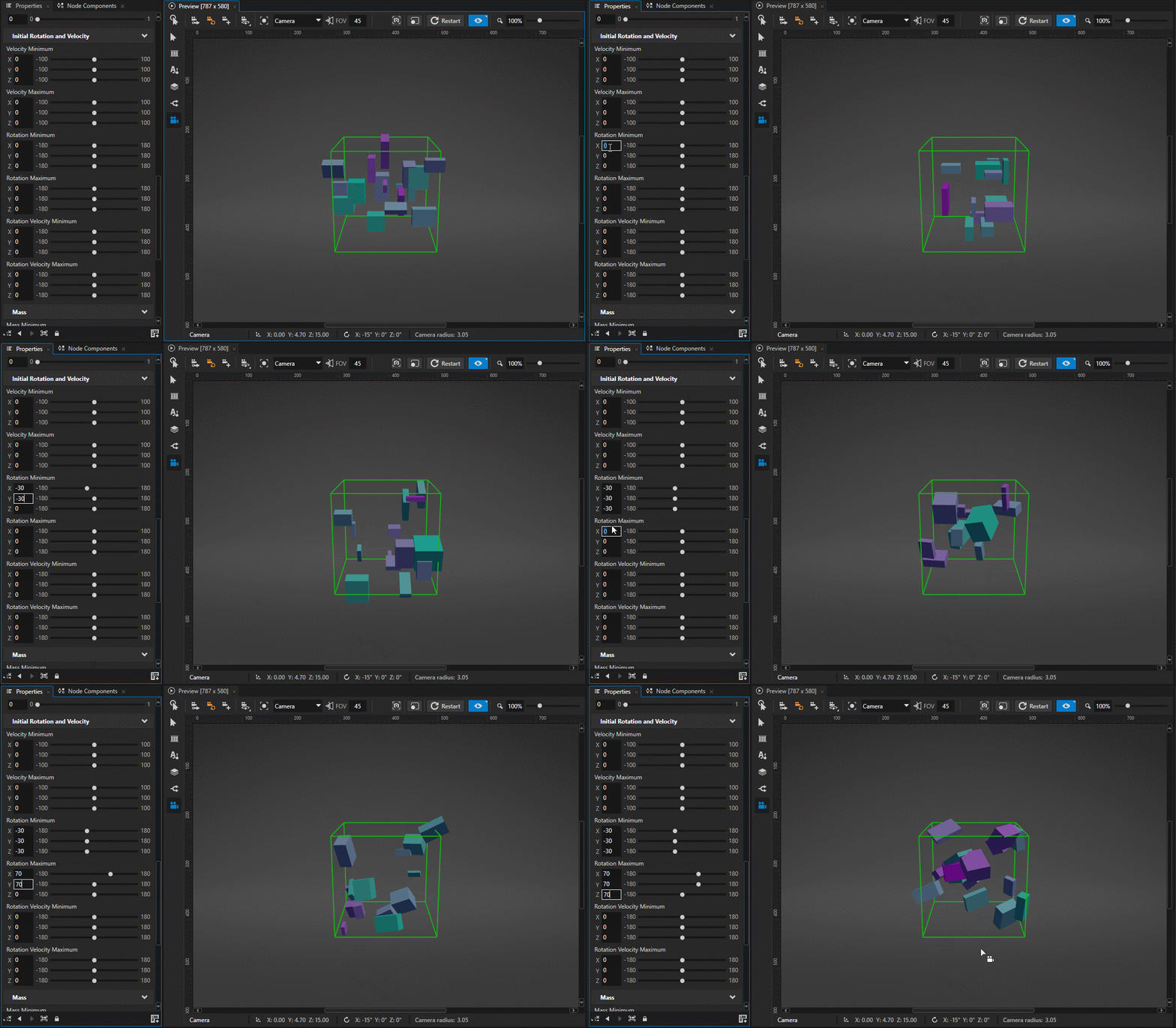
In the Node Tree, select the emitter for which you want to set the initial random rotation of particles. In the Properties, set:
Rotation Minimum to -30, -30, -30.
Sets the minimum value for the initial random rotation of particles for each axis.
Rotation Maximum to 70, 70, 70.
Sets the maximum value for the initial random rotation of particles for each axis.
If you use the same values for Rotation Minimum and Rotation Maximum, Kanzi Particles disables random rotation and emits all particles with the same initial rotation.
To rotate particles over time, adjust the random rotation velocity. In the Properties, set:
Rotation Velocity Minimum to -1, -1, -1.
Sets the largest negative angle of rotation per second speed for each axis.
Rotation Velocity Maximum to 1, 1, 1.
Sets the largest positive angle of rotation per second speed for each axis.
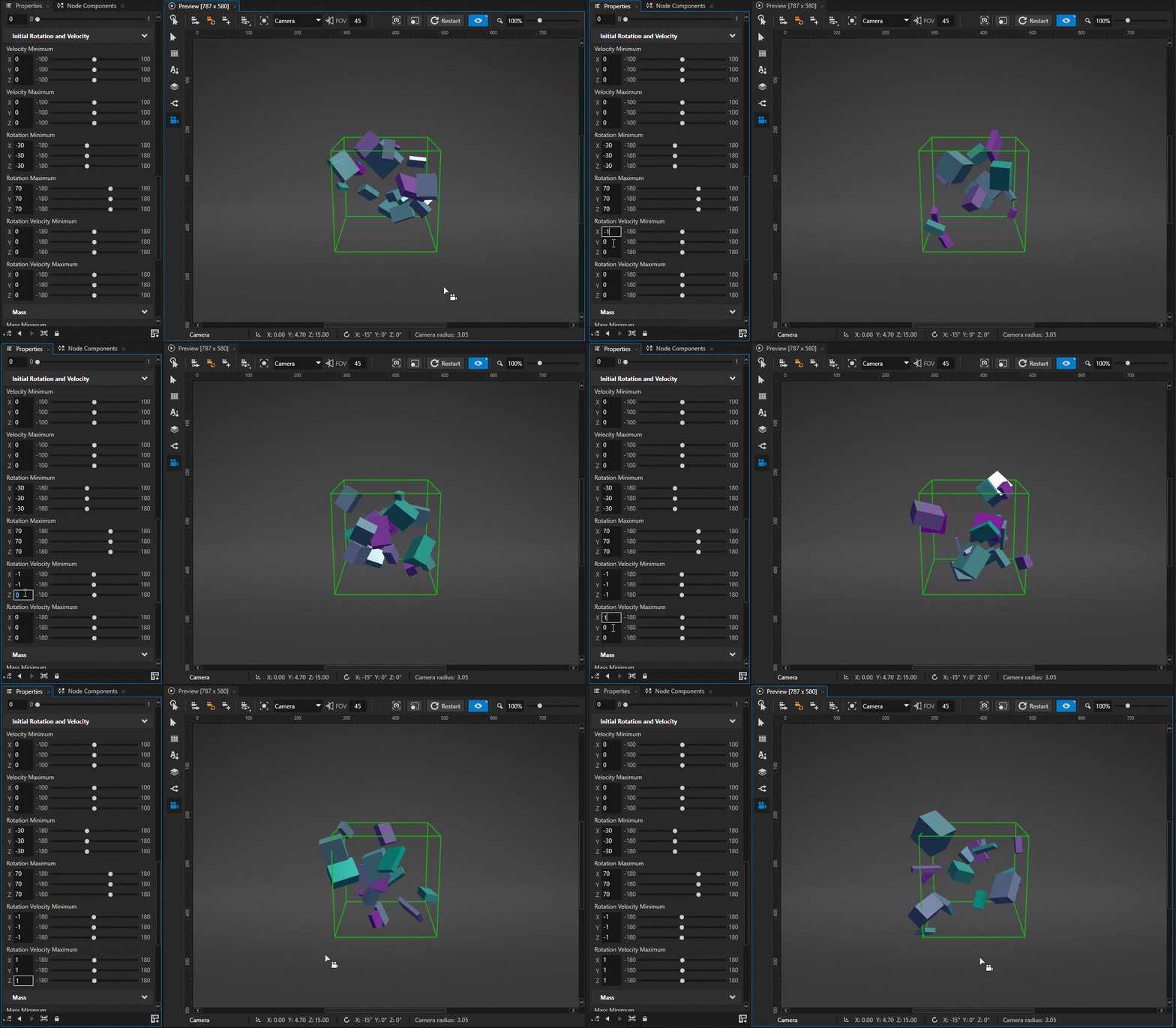
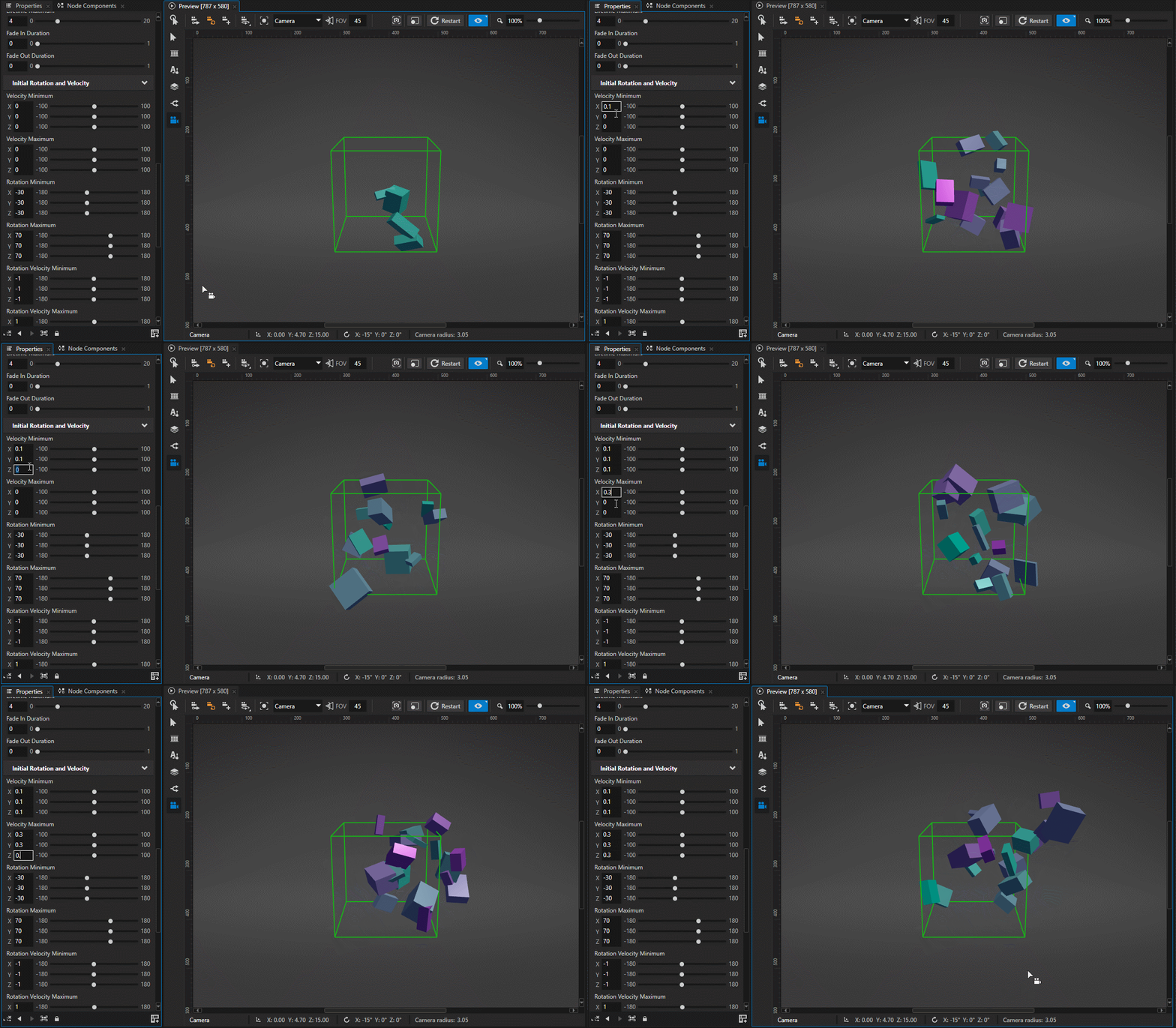
To set the initial random velocity of particles, in the Properties, set:
Velocity Minimum to 0.1, 0.1, 0.1.
Sets the lowest velocity of particles for each axis.
Velocity Maximum to 0.3, 0.3, 0.3.
Sets the highest velocity of particles for each axis.
As a result, particles have a random velocity between 0.1 and 0.3 Kanzi units each second on each axis.
Setting the mass of particles
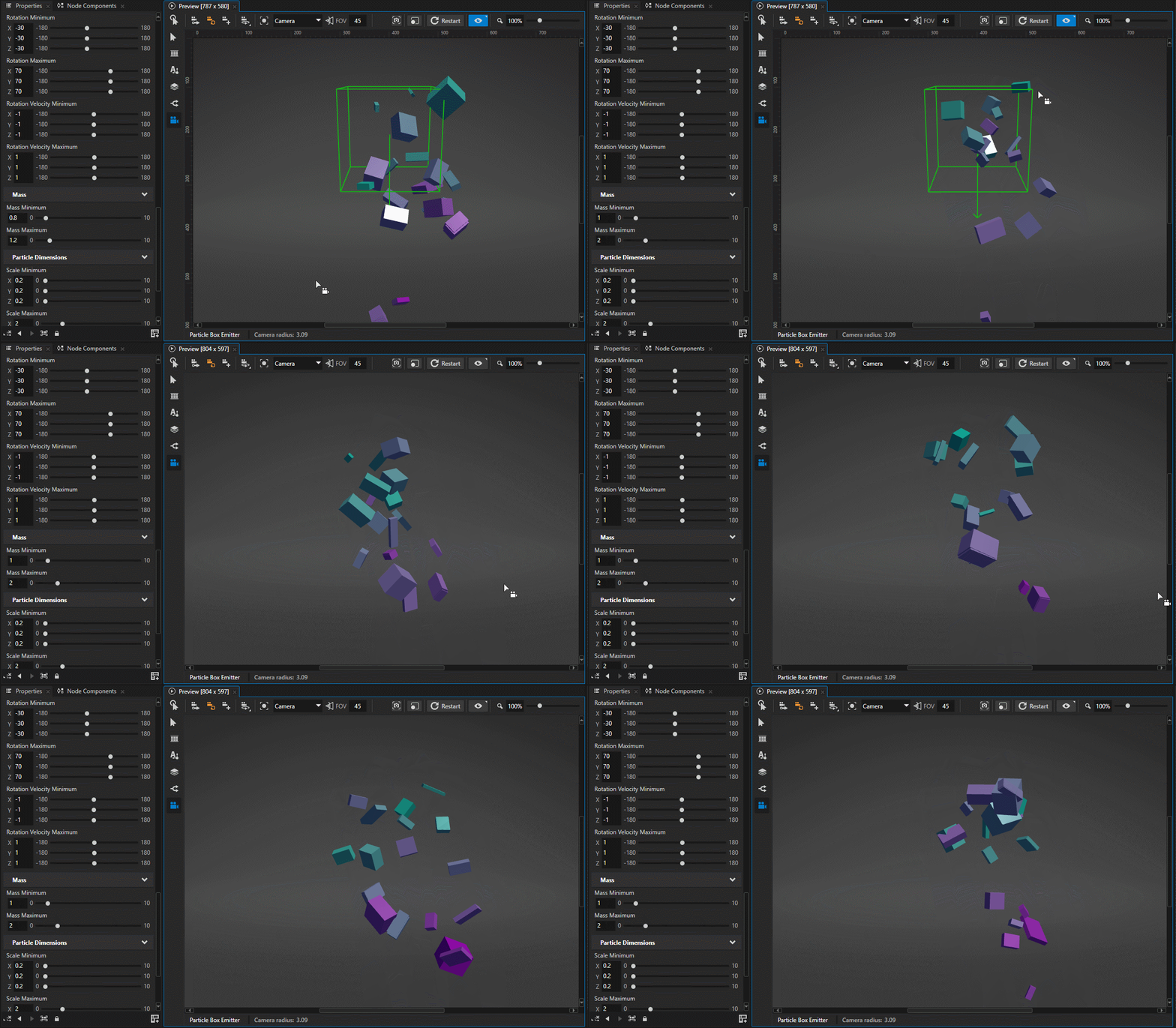
In emitter nodes, you can set the mass of particles that an emitter node releases. By setting the mass of particles, you define the impact of external forces from the affector nodes on the movement of particles. If the mass is higher, the external forces have less influence on that particle.
To set the mass of particles:
Create a particle system with an emitter and an affector.
For this example, reuse the same Particle Box Emitter as in the previous section. To apply force to particles, add a Particle Force Affector with the Force Strength property set to 1. By default, the force direction points downward.
In the Node Tree, select the emitter for which you want to set the mass of particles. In the Properties, set:
Mass Minimum to 1.
Sets the minimum weight of a particle that this emitter releases. The higher the value, the less influence forces have on that particle.
Mass Maximum to 2.
Sets the maximum weight of a particle that this emitter releases. The higher the value, the less influence forces have on that particle.
Using the Particle Box Emitter
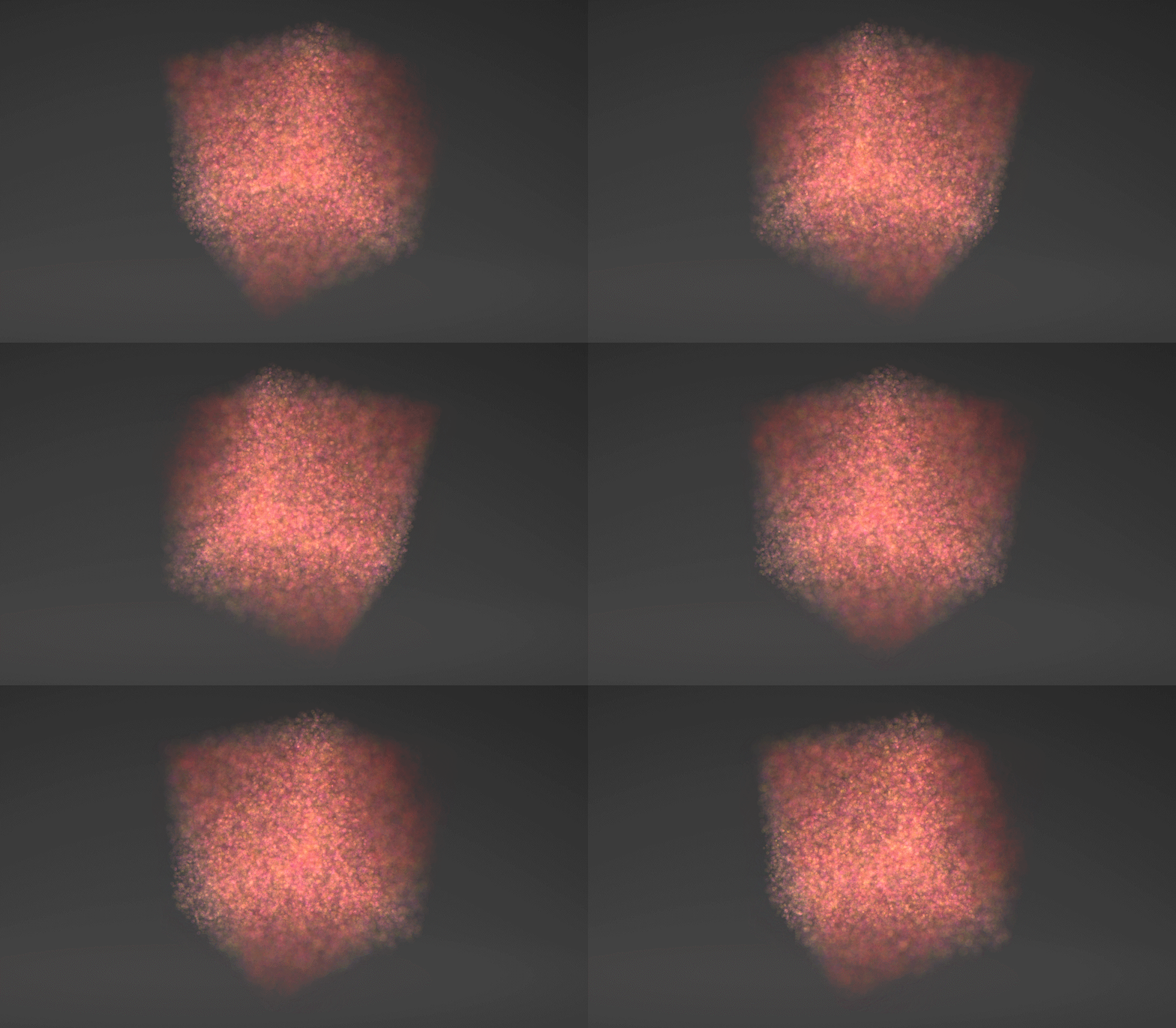
Particle Box Emitter emits particles from within a volume the shape of a box or from its surface.
In addition to the general particle emitter properties, use this property to adjust how a Particle Box Emitter emits particles:
Surface Emission property sets a Particle Box Emitter to emit particles only from the surface of the box.
Using the Particle Mesh Emitter
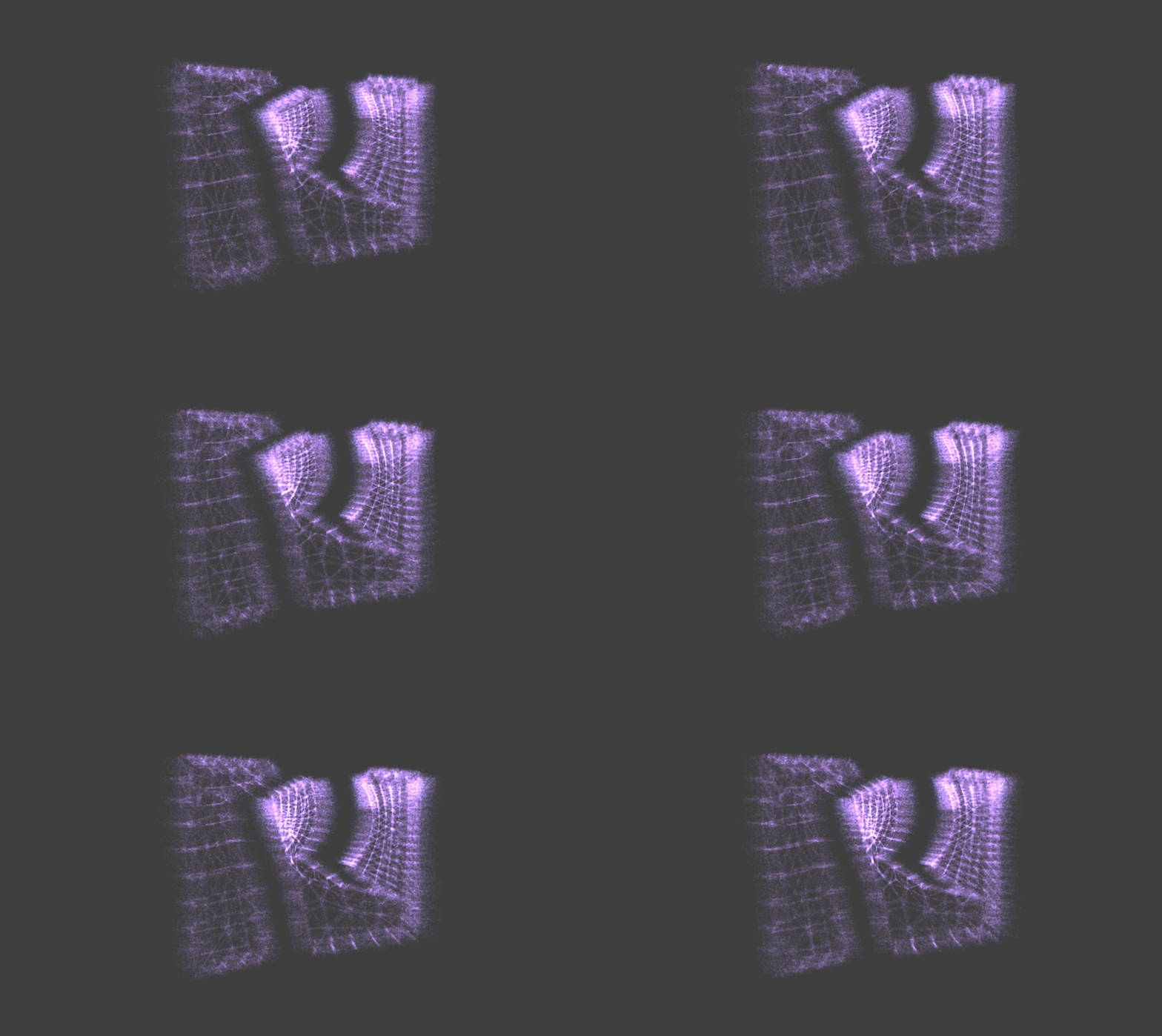
Particle Mesh Emitter emits particles from the surface of a mesh.
In addition to the general particle emitter properties, use these properties to adjust how a Particle Mesh Emitter emits particles:
Mesh property sets the mesh from which you want to emit particles. If the specified mesh is not found, Kanzi Particles loads a default mesh for the Particle Mesh Emitter.
Mesh Emission Pattern property provides control over which parts of the mesh (vertex, edge, or surface patterns) are used to generate emission points. Use:
Surface to emit particles from the whole surface of the mesh.
Vertices to emit particles from the vertices of the mesh.
Edges to emit particles from the edges of the mesh.
Use Normal Velocity property enables support to generate initial velocity based on normal data from the mesh.
Use the Velocity Minimum and Velocity Maximum properties to control how initial velocity is distributed across different directions.
Use Normal Rotation property enables support to generate initial rotation based on normal data from the mesh.
When enabled, you can still add some amount of random rotation using the Rotation Minimum and Rotation Maximum properties.
Using the Particle Sphere Emitter
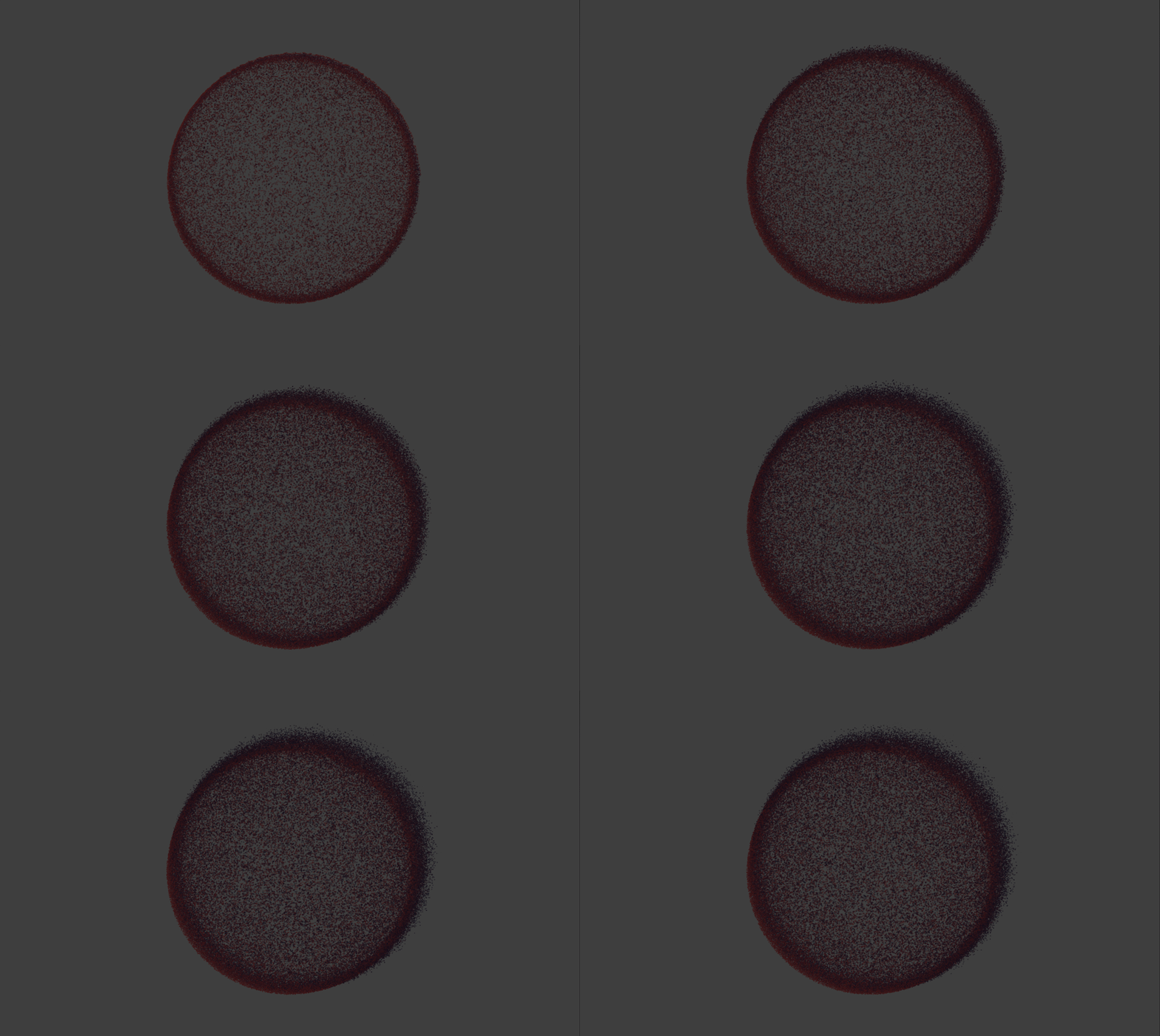
Particle Sphere Emitter emits particles from within a volume the shape of a sphere or from its surface.
In addition to the general particle emitter properties, use these properties to adjust how a Particle Sphere Emitter emits particles:
Sphere Radius sets the radius of the particle source sphere.
Distribution Bias sets from where within the sphere, a Particle Sphere Emitter distributes the creation of particles:
To distribute particles evenly so that any point within the sphere is just as likely to get a particle, set to 0.
To distribute more particles toward the center of the sphere, set to -1.
To distribute more particles toward the surface of the sphere, set to 1.
When the Surface Emission property is enabled, that Particle Sphere Emitter emits particles only from the surface of the sphere, regardless of the value of the Distribution Bias property.
Surface Emission sets a Particle Sphere Emitter to emit particles only from the surface of the sphere.
Using the Particle Trail Emitter
Particle Trail Emitter emits particles from other particles.
In addition to the general particle emitter properties, use these properties to adjust how a Particle Trail Emitter emits particles:
Parent Emitter property sets the source node.
Specifies the source emitter for the particle trails. Select a parent emitter node from the available options in the property. If the property value is missing or invalid, the Particle Trail Emitter attempts to use the parent node automatically.
If no valid parent emitter node is found, the Particle Trail Emitter is disabled.
Trails Amount property defines the number of target particles used to emit trails from at once.
Kanzi Particles evenly spreads the total number of emitted particles among these trails as determined by the Emission Rate property.
Parent Lifetime Bias property biases the normalized lifetime of the trail particle toward that of the parent particle.
When this property is set to high values and when a parent particle is about to die, an emitted trail particle receives a similarly short lifetime. If this property is set to 0, the lifetime of the parent particle does not affect the trail particle.
Parent Velocity Bias property biases the velocity of the trail particle toward that of the parent particle.
When this property is set to high values and when a parent particle is moving at a specific velocity, a trail particle emitted from it receives an initial velocity that corresponds to the direction and speed of the parent. If this property is set to 0, the velocity of the trail particle is independent of that of the parent.
Using the Particle Custom Emitter
Particle Custom Emitter provides support for creating custom emission and simulation behavior by writing compute shaders.
In addition to the general particle emitter properties, use these properties to create custom emission and simulation behavior:
Emission Material property sets the compute shader material that defines the custom emission behavior of this emitter.
Simulation Material property sets the compute shader material that defines the custom simulation behavior of this emitter.
See Creating custom emission and simulation behavior with Custom Emitter.