Using affector nodes
Affector nodes apply force to particles. For an affector node to apply force to particles, it must be a direct child of the Particle System node on the particles of which you want to apply that force. To create different particle effects, you can use multiple affector nodes in a single Particle System node and use the Render Transformation or Layout Transformation properties to position them. To release particles that you affect with affector nodes, use emitter nodes. See Using emitter nodes.
Types of affector nodes
Kanzi Particles includes these types of affector nodes:
Particle Curl Affector defines an infinite force field that a curl noise function randomly distorts.
Particle Drag Affector reduces the particle speed over time.
Particle Force Affector applies to particles a directional force.
Particle Point Affector pulls particles towards or pushes particles away from itself.
Particle Custom Affector provides support for creating custom simulation behavior by writing compute shaders.
Using the Particle Curl Affector
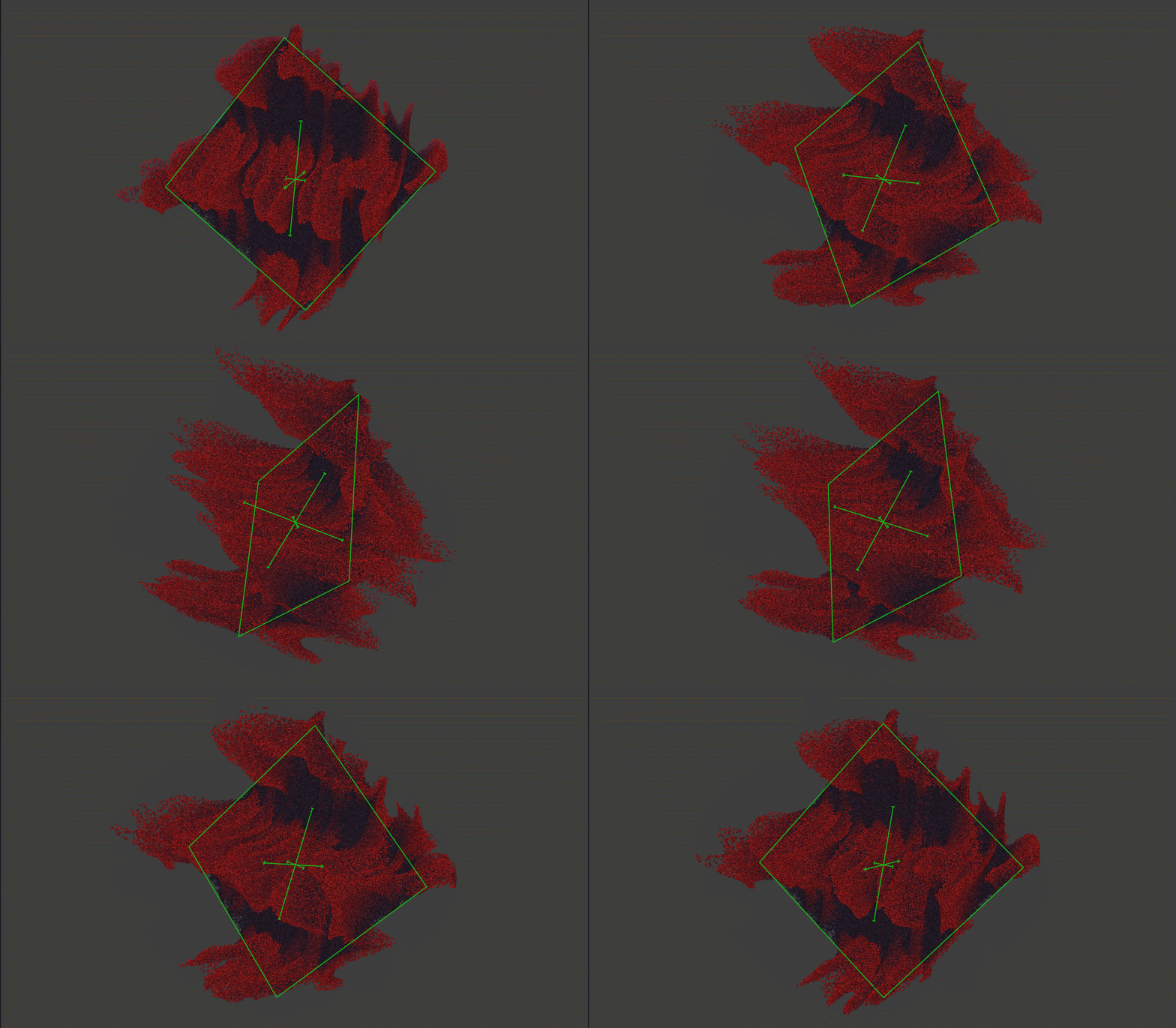
Particle Curl Affector defines an infinite force field that a curl noise function randomly distorts.
Use this affector to create natural looking movement for particles.
Use these properties to adjust the affector:
Strength property sets the magnitude and direction of the force that this affector applies to particles.
Curl Pattern Multiplier property sets the wavelength multiplier of the noise field.
Curl Pattern Movement Speed property sets how rapidly the noise field evolves.
Flow Tightness property controls the amount that flow affects particles. With this property, you set the drag of the flow defined by the noise field. Higher tightness makes particles flow along the field. Use high values to achieve fluid-like motion and low values when you want other affectors and forces to have a stronger impact on the particles.
Flow Speed property controls the speed of the flow.
Layout Transformation and Render Transformation Scale property changes the scale of the curl noise pattern.
Tip
Enable debug rendering to see the scale of the curl noise pattern clearly.
Using the Particle Drag Affector
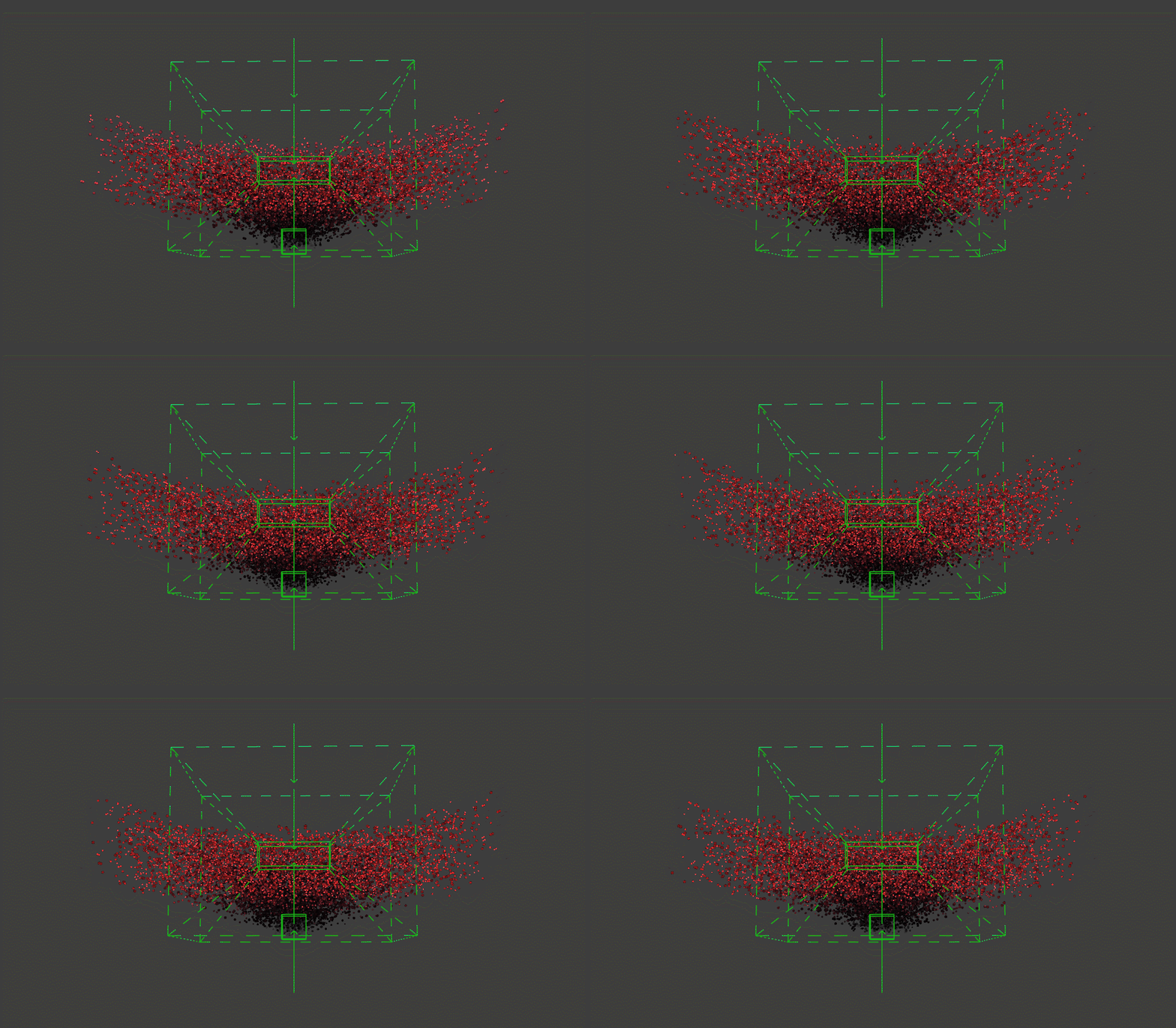
Particle Drag Affector reduces the particle speed over time.
Use these properties to adjust the affector:
Drag Strength property sets how the Particle Drag Affector influences particles along each axis. Use the same value for all axes to uniformly reduce the speed of particles. Use different values for each axis to create a directional drag effect.
Layout Transformation and Render Transformation Rotation property field changes the rotation of the drag force direction.
Enable Bounding Box property enables limiting the area where this affector affects particles. When this property is enabled, the affector affects only particles that are inside the bounding box area.
Soft Range Offset property sets the size of the area around the edges of the bounding box where the affector gradually reduces its effect on particles. This property is effective only when the Enable Bounding Box property is enabled.
Tip
Enable debug rendering to see the direction of the force and visualization for the bounding box and soft range offset area in the preview clearly.
Using the Particle Force Affector
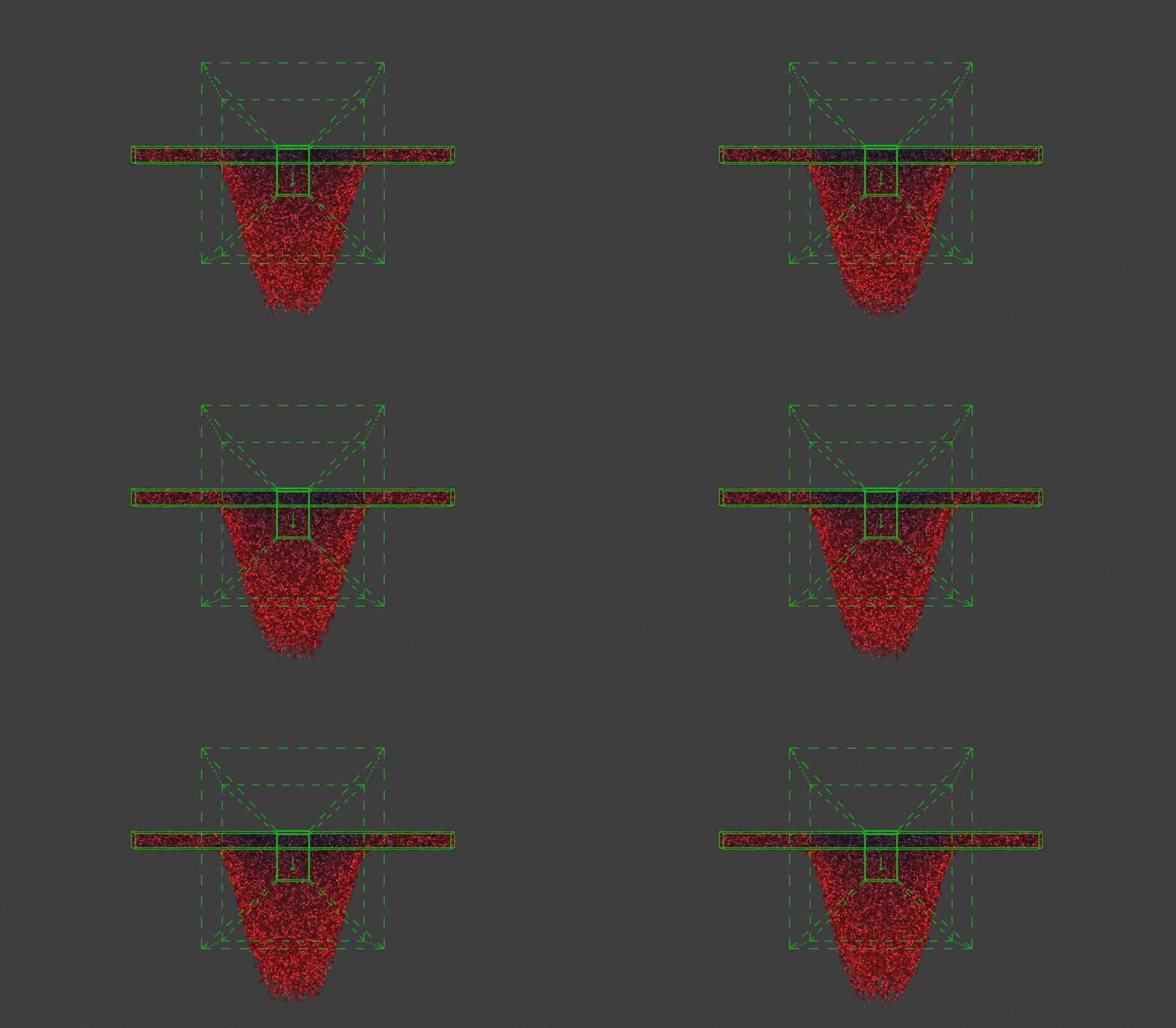
Particle Force Affector applies to particles a directional force.
Use these properties to adjust the affector:
Force Strength property controls the strength of the force.
Layout Transformation and Render Transformation Rotation property field changes the direction of the force.
Enable Bounding Box property enables limiting the area where this affector affects particles. When this property is enabled, the affector affects only particles that are inside the bounding box area.
Soft Range Offset property sets the size of the area around the edges of the bounding box where the affector gradually reduces its effect on particles. This property is effective only when the Enable Bounding Box property is enabled.
Tip
Enable debug rendering to see the direction of the force and visualization for the bounding box and soft range offset area in the preview clearly.
Using the Particle Point Affector
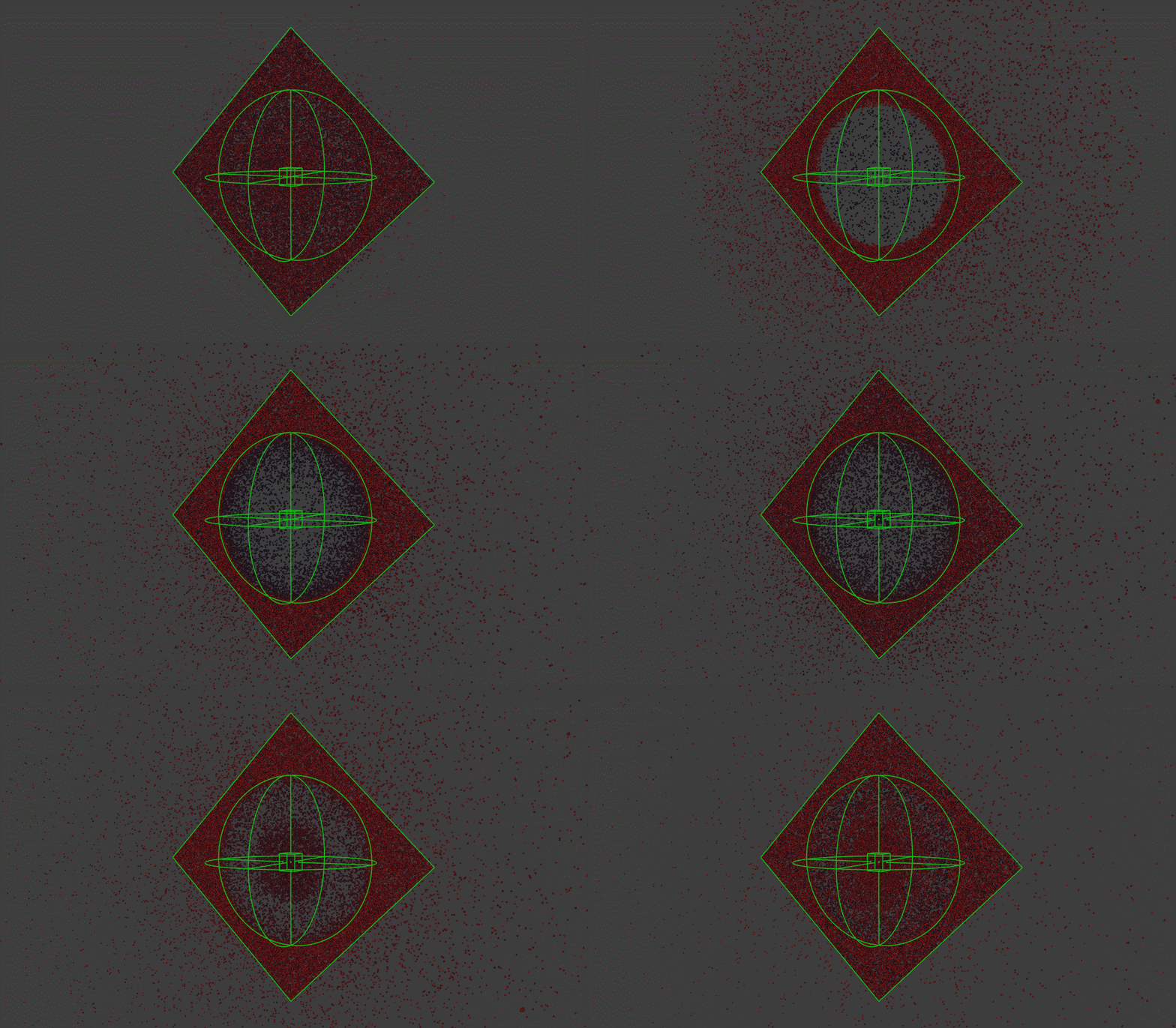
Particle Point Affector pulls particles towards or pushes particles away from itself.
Use these properties to adjust the affector:
Force property sets the magnitude of the force that this affector applies to particles.
Range property sets the area in Kanzi units within which this affector applies force to particles.
Tip
Enable debug rendering to see the direction of the force and range clearly.
Using the Particle Custom Affector
Particle Custom Affector provides support for creating custom simulation behavior by writing compute shaders.
Affector Material property sets the compute shader material that defines the custom simulation behavior of this affector.
See Creating custom simulation behavior with Custom Affector.