Step 3 - Add content to the application
In this step of the tutorial you add more content to the Home node to learn how Page Host nodes handle navigation of their subpage nodes.
Add content to the Home node
In this section you convert the Page node Home to a Page Host node and add two more Page nodes to the Home application.
Page Host nodes keep track of the currently active Page or Page Host node within their scope. When you activate a Page Host node, that Page Host node automatically activates the currently active Page or Page Host node in its scope. In other words the Page Host node remembers and restores its state during activation to the state before it was deactivated.
To add content to the Home node:
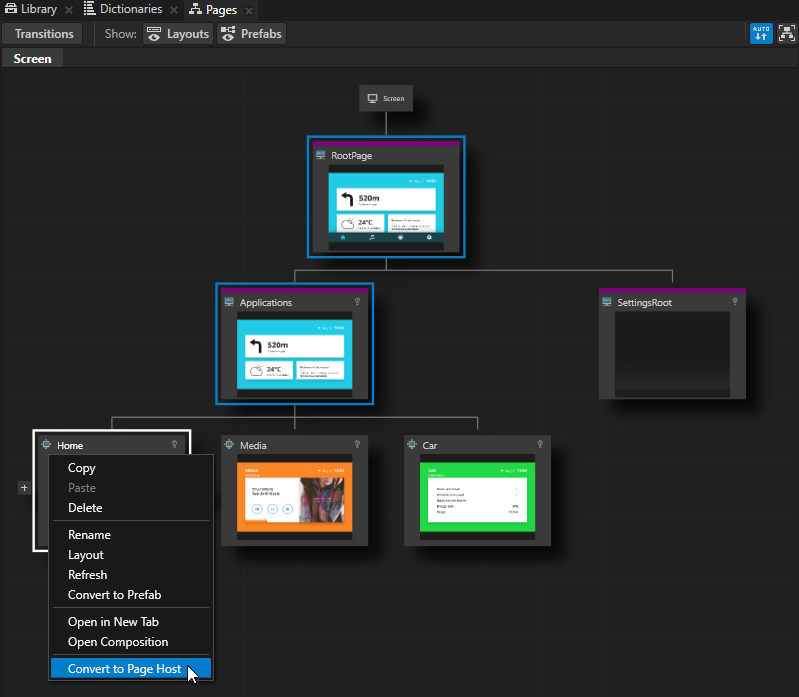
In the Pages right-click the Home node and select Convert to Page Host.
In the Pages at the bottom of the Home node click
 twice to create two child Page nodes under the Home node, and name them Recent and Favorite.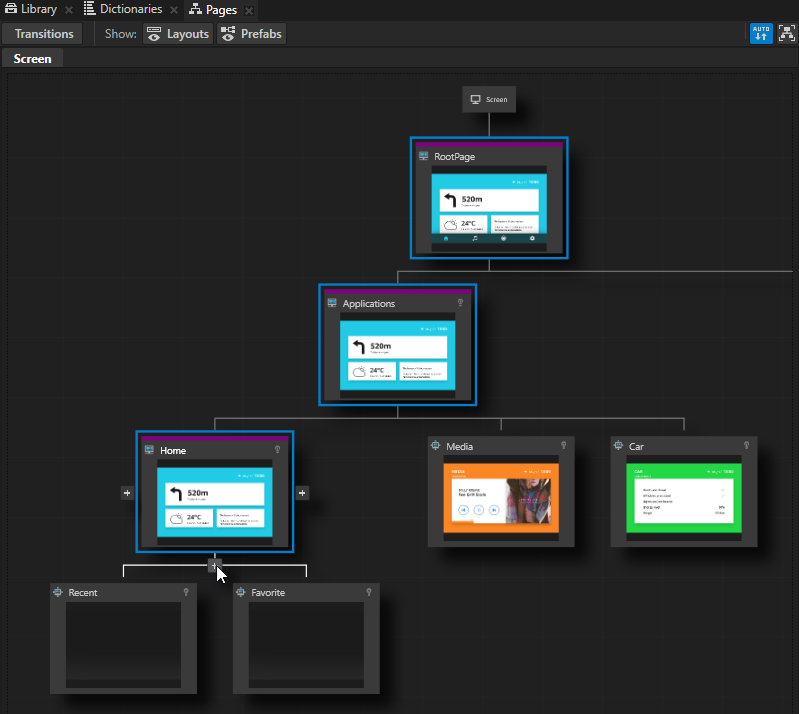
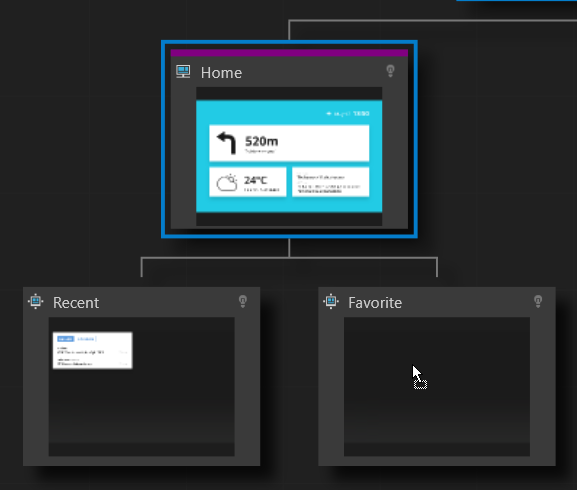
From the Assets drag to the Pages window:
Recent texture to the Recent node
Favorite texture to the Favorite node
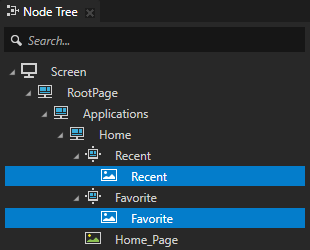
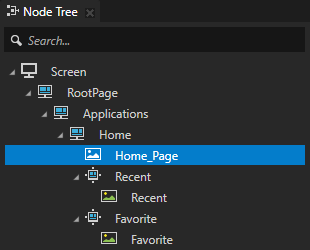
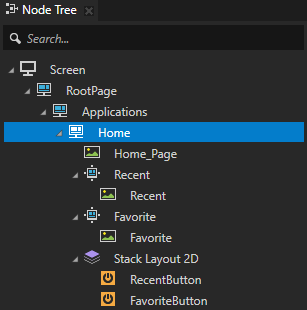
In the Node Tree drag the Home_Page node above the Page nodes Recent and Favorite. This way you make Kanzi render the Recent and Favorite nodes on top of the Home_Page node.
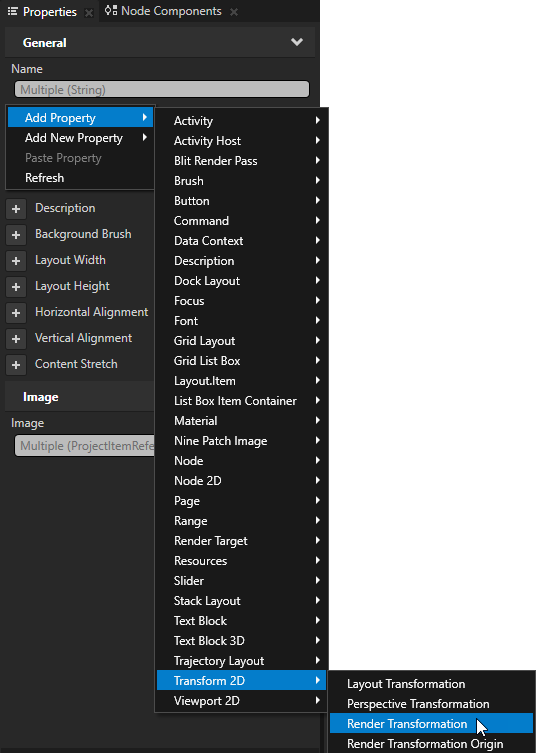
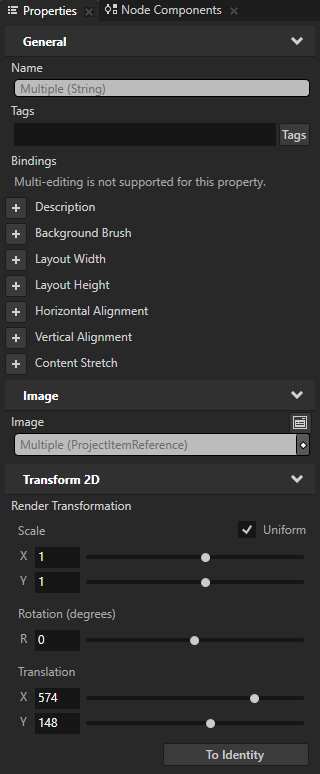
In the Node Tree select the Image nodes Recent and Favorite, in the Properties add the Render Transformation property, and set the Render Transformation Translation property fields to position the Image nodes in the application user interface next to the directions information:
X to 574
Y to 148
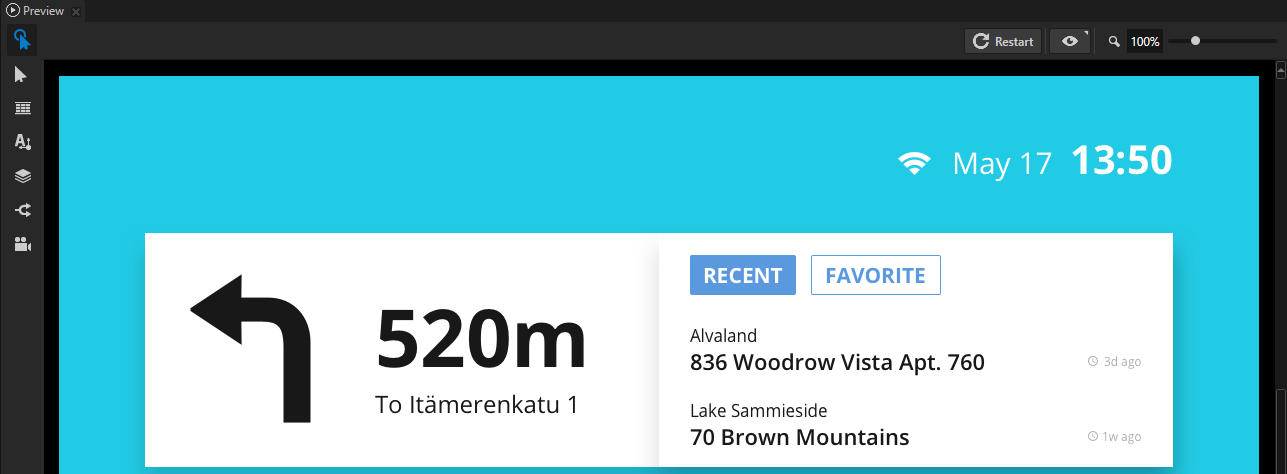
When you select the Recent and Favorite nodes in the Pages window, you see their content in the Preview.
Create the navigation for the Recent and Favorite nodes
In this section you create the navigation buttons so that you can navigate between the Page nodes Recent and Favorite in the Page Host node Home.
To create the navigation for the Recent and Favorite nodes:
In the Node Tree press Alt and right-click the Home node, select Stack Layout 2D, inside it create two Button 2D nodes, and name them RecentButton and FavoriteButton.
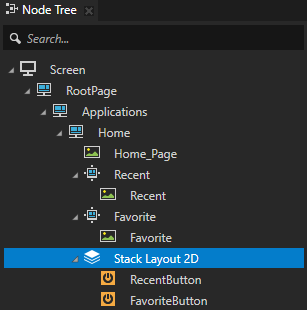
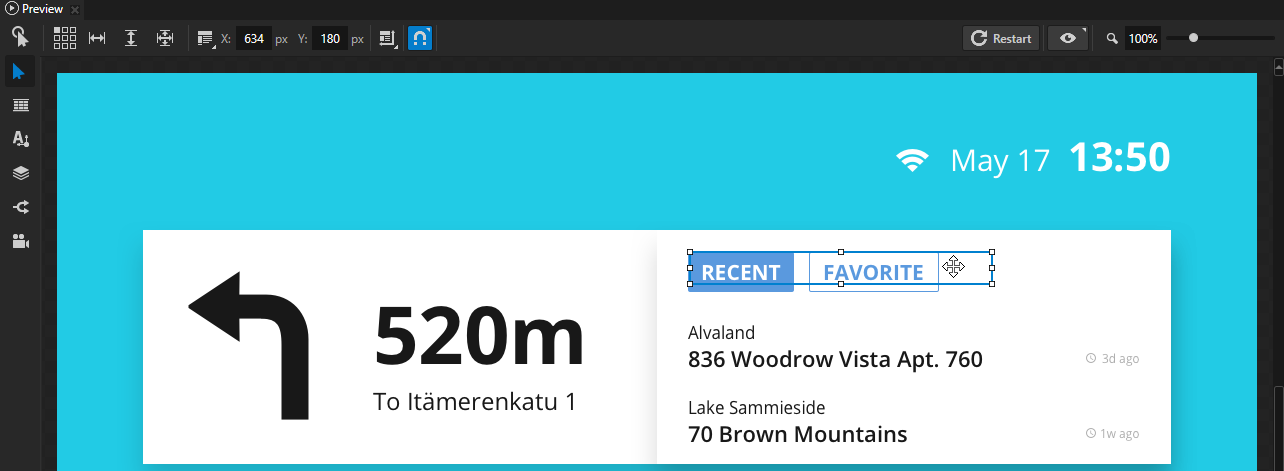
In the Pages click the Recent node so that Kanzi transitions to it, in the Node Tree select the Stack Layout 2D node and in the Preview use the Node tool
 to position the Stack Layout 2D node so that it is aligned with the top-left corner of the Recent button.
Tip
If you do not set the size of a Stack Layout 2D node, the size of its child nodes determines the size of the node.
Tip
In the Preview select the Node tool
and click  to disable snapping to nodes and guides.
When you disable snapping, you can use the Node tool to move a node in the Preview so that it does not snap to nodes or guides.
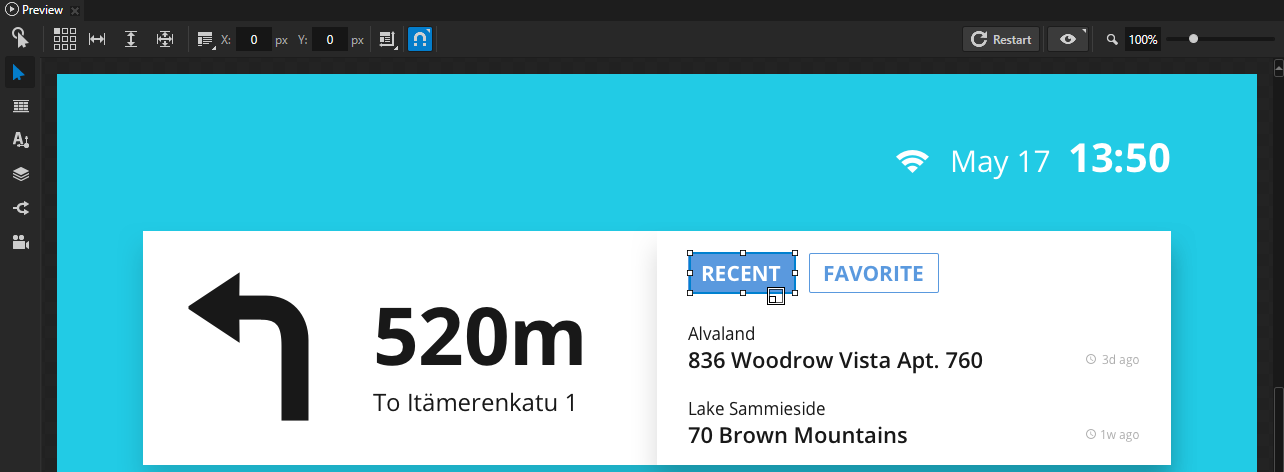
In the Node Tree select the Stack Layout 2D > RecentButton node and use the Node tool to resize and place it above the Recent button in the user interface.
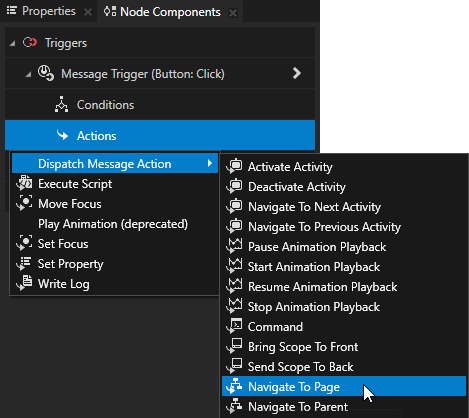
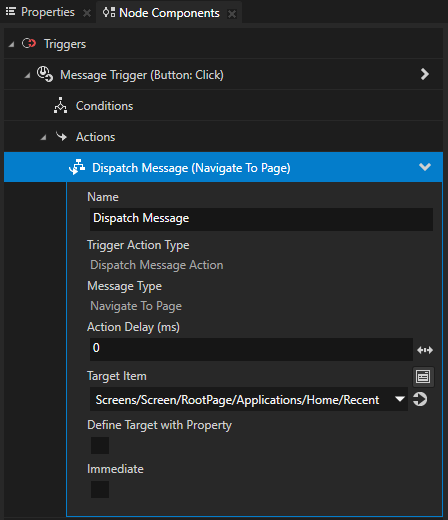
In Node Tree select the RecentButton node, in the Node Components > Triggers in the Button: Click trigger press Alt and right-click Actions, select Dispatch Message Action > Navigate to Page, and in the Navigate to Page action set Target Item to the Recent node.
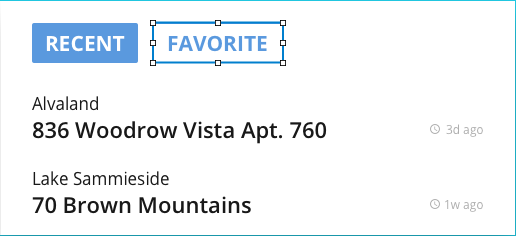
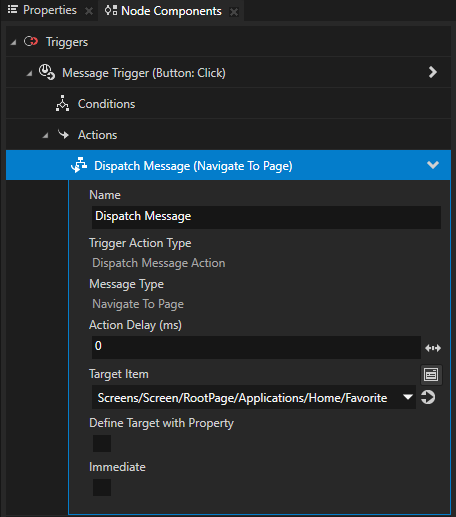
Repeat the previous two steps for the FavoriteButton node, but place the Button 2D node above the Favorite button in the user interface, and in the Navigate to Page action set Target Item to the Favorite node.
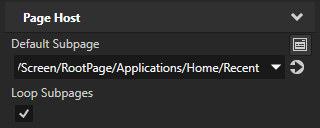
In the Node Tree select the Home node and in the Properties set the Default Subpage property to Recent.
With this Default Subpage property setting and the Default Subpage property settings you made in the previous step, when you start the application Kanzi activates the Applications > Home > Recent node.
In the Preview click
 to enter the Interact mode.
When you click the RecentButton and FavoriteButton in the Preview you go to the Recent and Favorite nodes.
See also
To find out more about the Page and Page Host nodes, see Using the Page and Page Host nodes.
To find out more about working with the state managers, see Using state managers.
To find out more about working with triggers and actions, see Triggers.
To find out more about working in the Preview, see Editing your application in the Preview.