Using the Button nodes
Use the Button nodes to create interactions through clicking, tapping, or pressing a key on the keyboard.
Use Button 3D to create a 3D button and Button 2D to create a 2D button.
Kanzi allows you to create buttons using:
State managers
Triggers and actions
The difference between the two approaches is that when you use the state manager you always know in which state the button is. For example, when a user clicks a button created with triggers and actions, the action sends the message, but your application is not aware of the state of the button. When you use the state manager, you can always check which state the button is in and even revert the state when needed. See Using state managers.
When you use triggers and actions to create a button, and the user clicks the visual representation of a button, the action generates a message that travels to the button node where you can define the behavior for that message.
When you create a Button node, Kanzi by default adds a Button: Click trigger to that node.
The Button nodes have the Focusable property enabled by default. This means that the Button nodes can receive focus. When a Button node has focus, to press that button, you can use the default keyboard keys Space, Enter, and Enter on the numeric pad.
See Using focus.
You can add other triggers to a Button node as well. For example, you can add messages that are triggered when a user presses down a mouse button or cancels a click. See Using triggers.
When you create a button it does not have a visual shape. To make a button visible, add to the button a node with content. You can make a Button 2D node visible also by filling its background with a brush. See Adjusting the appearance of 2D nodes.

To learn how to create a button complete the button tutorial. See Tutorial: Creating a button.
Controlling the behavior of a Button node
In Kanzi, to control the behavior of a Button node you can:
Use a state manager to define how a Button node reacts to user input. See Using a state manager to set button states.
Use the Button triggers that come with Kanzi to define the behavior of Button nodes. See Using Button triggers.
Enable users to double-click or double-tap Button nodes. See Enabling the double-click gesture for a Button node.
Using a state manager to set button states
Use a state manager to define how a Button node reacts to user input. For example, you can set how a button looks when the user presses or releases that button. You can see how to use state managers in Tutorial: Use state managers to control your application and Using state managers. To learn more about creating buttons using a state manager, see Tutorial: Creating a button.
To use a state manager to set button states:
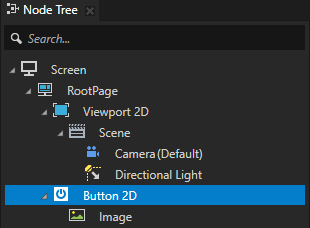
In the Node Tree select the Button node for which you want to create states and in the State Tools create a state manager for that node.
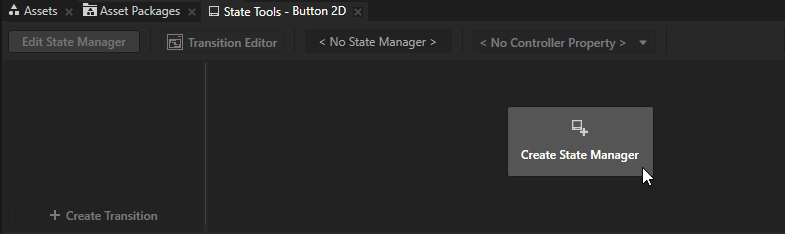
Create two states, one that defines the button when it is pressed, and another that defines the button when it is released.
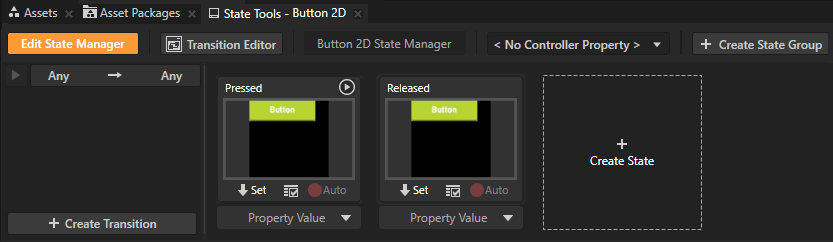
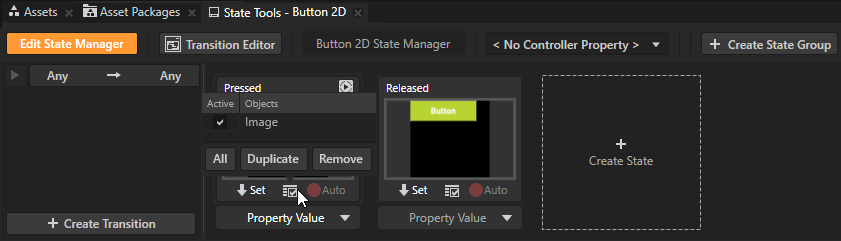
For each state, set the value of the property which sets the visual shape of the Button node.
For example, to set how a Button 2D node looks when it is pressed, in the Image node set the Image property to the image which you want to use when the button is pressed.
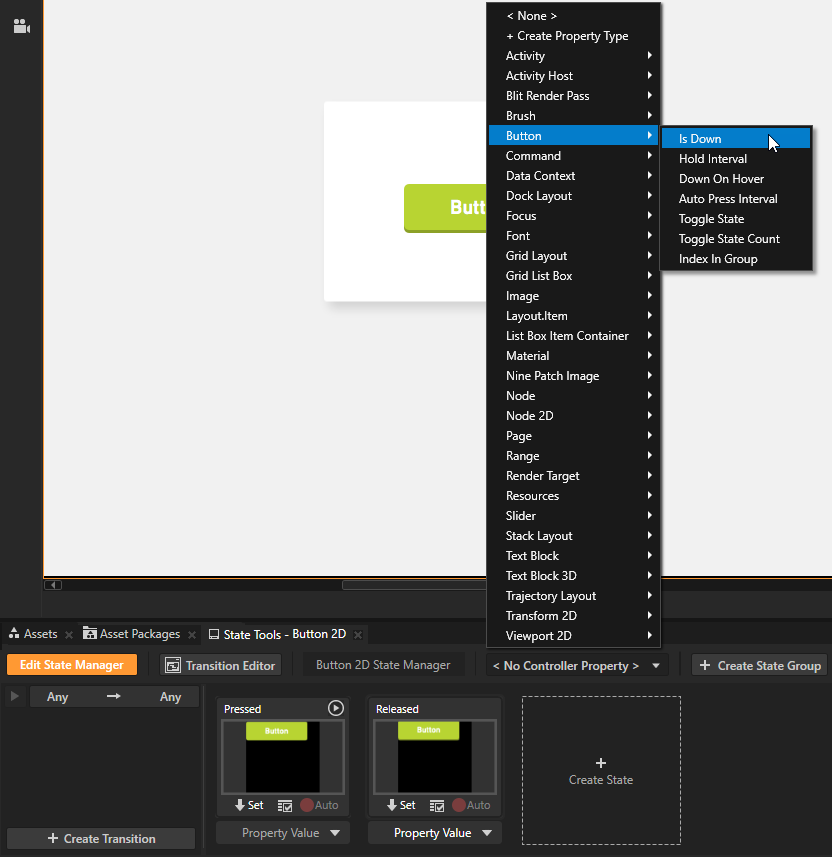
In the State Tools for the state manager which controls the Button states set the Controller Property to Is Down.
In a state manager the value of the property you select as the Controller Property defines the conditions when each state in a state group is active.
Here you use the Is Down property to transition to a state based on the value of that property.
The Is Down property controls whether a Button node is in a pressed or non-pressed state.
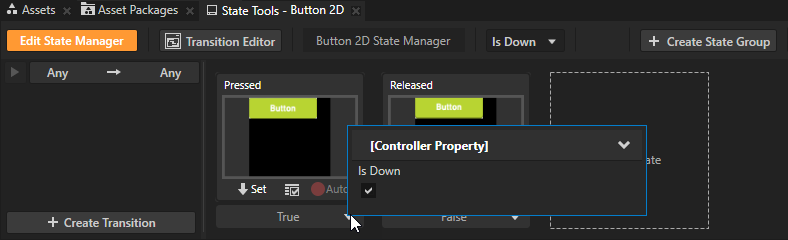
In the State Tools set the value of the Controller Property in the Pressed state to True. By doing so your Kanzi application uses the Pressed state when the button is pressed and the Released state when the button is not pressed.
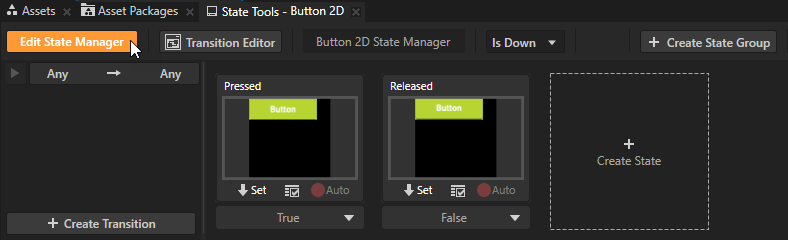
In the State Tools click Edit State Manager to deactivate the State Tools.
Enabling the double-click gesture for a Button node
Use the double-click gesture to enable users to double-click or double-tap buttons in your Kanzi application. Use the Multi-Click trigger to react to the double-click gesture. For example, you can change the appearance of a Button node when the user double-clicks or double-taps that node.
By default if two clicks occur within 250 milliseconds, Kanzi recognizes them as a double-click gesture. To use a different time, create and configure a multi-click manipulator. See Using the Multi-Click Manipulator.
To enable the double-click gesture for a Button node:
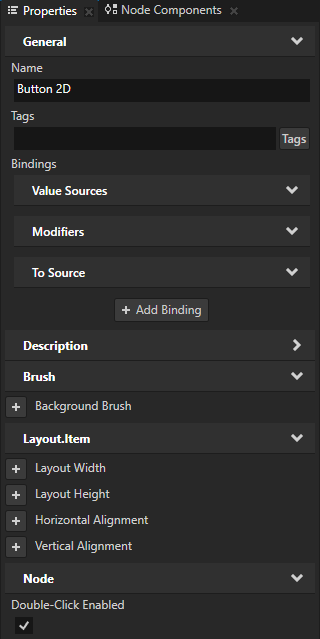
In the Node Tree select the Button node for which you want to enable the double-click gesture and in the Properties set the Double-Click Enabled property to enabled.
In the Node Components press Alt and right-click Triggers and select Message Trigger > Multi-Click.
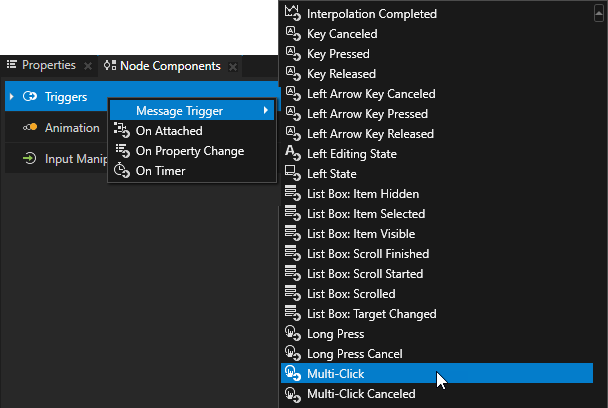
In the Node Components > Triggers press Alt and right-click the Multi-Click trigger, select an action, and configure the action. See Using triggers and Actions reference.
Setting the appearance of a Button 2D node
To set the appearance of 2D nodes:
You can fill 2D nodes with a solid color, a texture, or a material. See Adjusting the appearance of 2D nodes.


You can rotate a 2D node around all three axes to create a 3D perspective effect. See Creating a 3D perspective effect for 2D nodes.

You can apply custom rendering to 2D nodes to create post-processing effects. See Applying custom rendering to 2D nodes.

See also
Using the Toggle Button Group nodes