Applying anti-aliasing
You can apply anti-aliasing to an entire Kanzi application, or only to selected nodes:
If most of the content in your application requires anti-aliasing, apply anti-aliasing to the entire application. See Applying anti-aliasing to an entire application.
If only parts of your application require anti-aliasing, use sampling only on those parts that need it:
Multisampling requires less computation, but not all hardware supports it. See Using multisampling.
Supersampling requires more resources, but you can use it on a wider range of hardware. See Using supersampling.
Temporal anti-aliasing uses information from multiple frames to reduce aliasing and flickering in moving 3D content. See Using Temporal Anti-Aliasing.
By default, the Kanzi Studio Preview and the Kanzi Application Player on Windows apply anti-aliasing using 4 samples. For both, you can configure the amount of anti-aliasing that you want to use.
See Setting anti-aliasing in the Preview and Application Player.
You can set the preferred multisampling method for your Kanzi application. See Setting the multisampling method.
Applying anti-aliasing to an entire application
When you apply anti-aliasing for the entire application, you set the number of anti-aliasing surface samples that you want to use. Because this value depends on the device on which you want to run your Kanzi application, check the documentation of that device for supported values. If you set the number of anti-aliasing surface samples to a value that your device does not support, Kanzi Engine clamps the value to the largest value supported by the device driver.
To apply anti-aliasing to the entire application:
In the
application.cfgconfiguration file, set theSurfaceSamplesAntialiasingparameter to the number of anti-aliasing surface samples that you want to use. See Application configuration reference.For example, to use four samples for anti-aliasing, add to the
application.cfgSurfaceSamplesAntialiasing = 4
or
In the C++ application in the
Application::onConfigurefunction, set theconfiguration.defaultSurfaceProperties.antiAliasingparameter to the number of anti-aliasing surface samples that you want to use.For example, to use four samples for anti-aliasing, add to the
Application::onConfigureconfiguration.defaultSurfaceProperties.antiAliasing = 4;
Setting anti-aliasing in the Preview and Application Player
By default, the Kanzi Studio Preview and the Kanzi Application Player on Windows apply anti-aliasing using 4 samples. For both, you can configure the amount of anti-aliasing that you want to use.
If you have a Kanzi application with a C++ application, to see your content in the Kanzi Studio Preview and Kanzi Application Player the same way as when running your Kanzi application on a target device, you can set anti-aliasing in an application.cfg file. See Applying anti-aliasing to an entire application.
To set anti-aliasing in the Kanzi Studio Preview for a Kanzi application without a C++ application:
In the Kanzi Studio main menu, select Project > Properties. In the Properties in the Preview section, set the value of the Preview Working Directory property to the directory where you want to store the
application.cfgto configure the Preview.For example, set the Preview Working Directory property to
Application Player. This way, you can apply the same anti-aliasing setting to the Preview and the Kanzi Application Player on Windows. If the<ProjectName>/Application Playerdirectory does not yet exist, select File > Export > Export as KZB Player for Windows. See Building and deploying Kanzi applications to Windows from Kanzi Studio.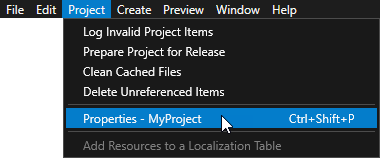
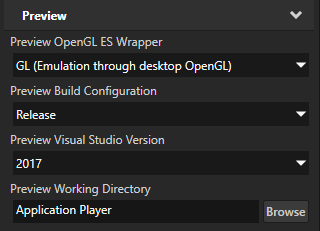
In the directory that you set in the previous step, create or open the
application.cfgfile. Add and set theSurfaceSamplesAntialiasingparameter to the number of anti-aliasing samples that you want the Preview to use.For example, to disable anti-aliasing in the Preview, in the
application.cfg, add:SurfaceSamplesAntialiasing = 0
In Kanzi Studio, restart the Preview.

Using multisampling
Use multisampling (MSAA) to reduce aliasing in selected parts of your Kanzi application. For multisampling to work, the hardware on which you want to run your Kanzi application must meet any of these requirements:
If you use Nvidia GPU with OpenGL ES 2.0, you need the GL_NV_framebuffer_blit and GL_NV_framebuffer_multisample extensions.
If you use Imagination Technologies GPU OpenGL ES 2.0, you need the GL_IMG_multisampled_render_to_texture extension.
For other OpenGL ES 2.0 hardware, you need the GL_EXT_multisampled_render_to_texture extension.
Multisampling requires less resources than supersampling. When rasterizing a polygon, multisampling generates extra samples only for the fragments at the edges of the polygon, while supersampling generates extra samples for all fragments in the polygon.
When using tile-based multisampling, usually on mobile platforms, the GPU generates multiple samples only for one GPU tile at a time. The GPU resolves the samples implicitly when writing that tile back to texture memory, saving memory and GPU bandwidth.
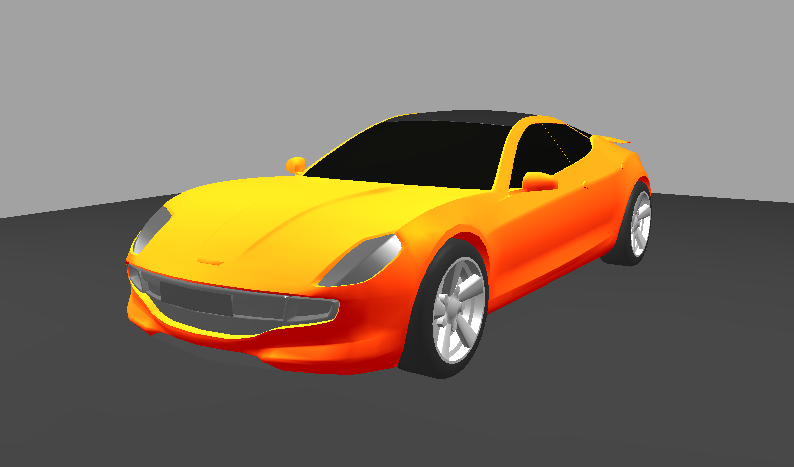
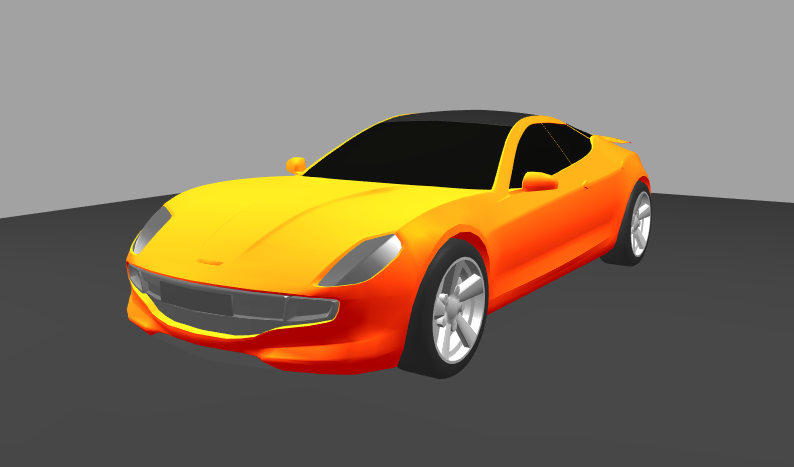
In the first image, no anti-aliasing is applied. In the second image, multisampling with 8 samples is applied.
Multisampling 3D content
To apply multisample anti-aliasing to 3D content that Kanzi renders to a composition target, in the Composition Target Render Pass that you use to render your content, set the Multisample Level property to the number of anti-aliasing samples that you want to use.
See the documentation of the device on which you want to run your Kanzi application for supported values, because the number of anti-aliasing samples depends on the device. If you set the Multisample Level property to a value that your device does not support, Kanzi Engine clamps the value to the largest value supported by the device driver.
For example:
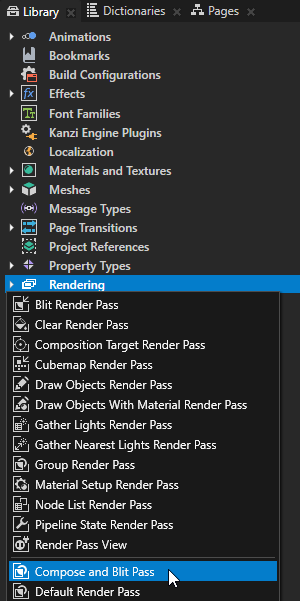
In the Library, press Alt and right-click Rendering, and select Compose and Blit Pass.
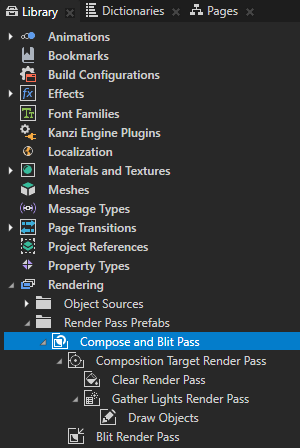
Compose and Blit Pass contains the render pass structure that enables you to blit to the screen Composition Target Render Pass render passes or textures using a specific material.
The Compose and Blit Pass render pass preset contains these render passes:
Composition Target Render Pass renders itself and its descendant render passes to one or more composition targets.
Clear Render Pass clears some or all of the buffers of the current render context.
By default, the Clear Render Pass in the Compose and Blit Pass clears the first color buffer with transparent black color and the depth buffer with value 1.
For example, to clear the first color buffer with a different color, set the Clear Color 0 property to the color that you want to use as the background color of the content that Kanzi renders to the Composition Target Render Pass.
Gather Lights Render Pass collects the Light nodes in the Viewport 2D node that you set to use the Compose and Blit Pass, and passes them to its child Draw Objects Render Pass render pass.
Draw Objects Render Pass named Draw Objects allows you to set a Camera node to render a specific list of nodes, to filter those nodes, and to control frustum culling. Draw Objects Render Pass by default renders nodes using the lights provided by its nearest ancestor Gather Lights Render Pass. By default the Draw Objects Render Pass uses the default Camera node to render all nodes in a Viewport 2D node.
Blit Render Pass blits one or more single textures or cubemap textures on the screen using a specific material.
By default, this Blit Render Pass draws on the screen the first color texture to which the Composition Target Render Pass renders its content.
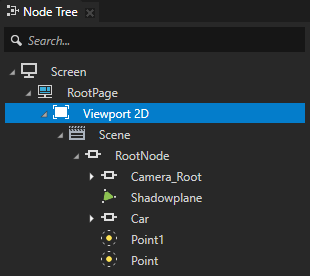
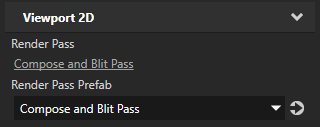
In the Node Tree or Prefabs, select the Viewport 2D node for whose content you want to reduce aliasing. In the Properties, set the Render Pass Prefab property to the Compose and Blit Pass render pass prefab.
Kanzi now renders the scene in the Viewport 2D node using the Compose and Blit Pass render pass prefab.
In the Library, select the Compose and Blit Pass > Composition Target Render Pass. In the Properties, add the Multisample Level property and set it to the number of anti-aliasing samples you want to use.
For example, set Multisample Level to 8.
See the documentation of the device on which you want to run your Kanzi application for supported values, because the number of anti-aliasing samples depends on the device. If you set the Multisample Level property to a value that your device does not support, Kanzi Engine clamps the value to the largest value supported by the device driver.
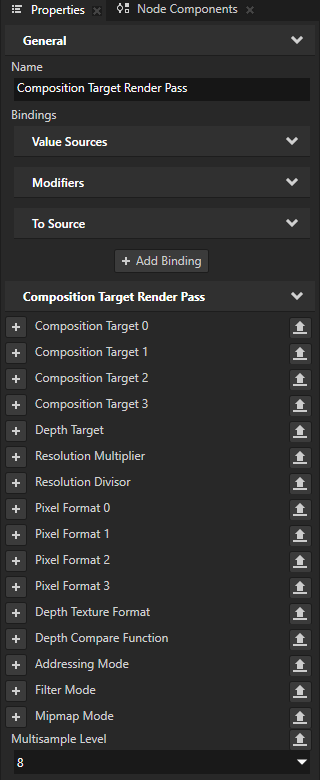
Kanzi now applies anti-aliasing to the content of the Viewport 2D node.
Multisampling 2D content
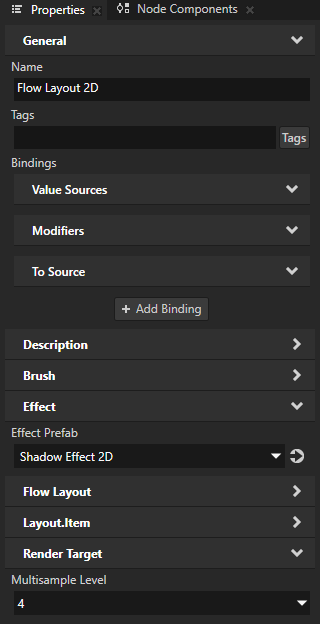
You can apply multisample anti-aliasing to 2D nodes whose content Kanzi renders to a composition target. Use the Render Target > Multisample Level property to set the number of anti-aliasing samples that you want to use.
See the documentation of the device on which you want to run your Kanzi application for supported values, because the number of anti-aliasing samples depends on the device. If you set the Multisample Level property to a value that your device does not support, Kanzi Engine clamps the value to the largest value supported by the device driver.
For example:
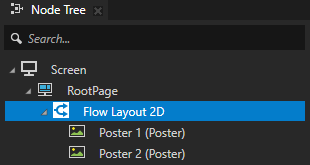
In the Node Tree or Prefabs, select the 2D node for whose content you want to reduce aliasing.
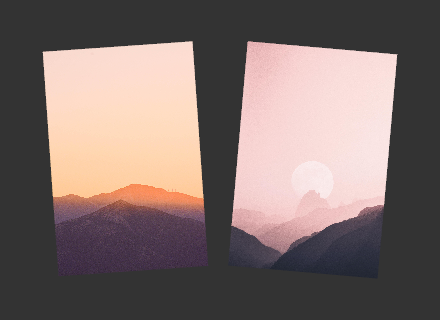
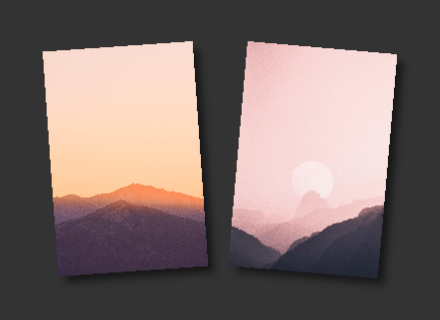
For example, create a layout control node that contains Image nodes. Rotate each Image node a few degrees.
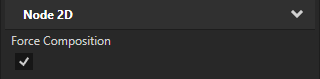
To set Kanzi to render the content of the 2D node to a composition target, in the Properties, either:
Add and enable the Node 2D > Force Composition property.
This way, you force Kanzi to render the node to a composition target.
Set a property value that makes Kanzi automatically render the node to a composition target.
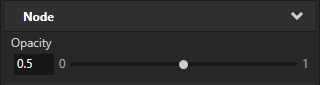
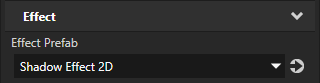
For example, when you adjust the opacity or apply an effect to a 2D node that has child nodes, Kanzi renders that node to a temporary composition target.
In the Properties, add and set the Render Target > Multisample Level property to the number of anti-aliasing samples that you want to use.
See the documentation of the device on which you want to run your Kanzi application for supported values, because the number of anti-aliasing samples depends on the device. If you set the Multisample Level property to a value that your device does not support, Kanzi Engine clamps the value to the largest value supported by the device driver.
Using supersampling
Use supersampling (SSAA) to reduce aliasing in selected parts of your Kanzi application if your hardware does not support multisampling. Supersampling requires more resources than multisampling. When rasterizing a polygon, supersampling generates extra samples for all fragments in the polygon, while multisampling generates extra samples only for the fragments at the edges of the polygon.
Supersampling a composition target
You can supersample a composition target texture when you render 3D content with a Composition Target Render Pass. To supersample a composition target texture you must use the composition target which the Composition Target Render Pass creates automatically.
To supersample a composition target:
In the Library, press Alt and right-click Rendering, and select Compose and Blit Pass.
Compose and Blit Pass contains the render pass structure that enables you to blit to the screen Composition Target Render Pass render passes or textures using a specific material.
The Compose and Blit Pass render pass preset contains these render passes:
Composition Target Render Pass renders itself and its descendant render passes to one or more composition targets.
Clear Render Pass clears some or all of the buffers of the current render context.
By default, the Clear Render Pass in the Compose and Blit Pass clears the first color buffer with transparent black color and the depth buffer with value 1.
For example, to clear the first color buffer with a different color, set the Clear Color 0 property to the color that you want to use as the background color of the content that Kanzi renders to the Composition Target Render Pass.
Gather Lights Render Pass collects the Light nodes in the Viewport 2D node that you set to use the Compose and Blit Pass, and passes them to its child Draw Objects Render Pass render pass.
Draw Objects Render Pass named Draw Objects allows you to set a Camera node to render a specific list of nodes, to filter those nodes, and to control frustum culling. Draw Objects Render Pass by default renders nodes using the lights provided by its nearest ancestor Gather Lights Render Pass. By default the Draw Objects Render Pass uses the default Camera node to render all nodes in a Viewport 2D node.
Blit Render Pass blits one or more single textures or cubemap textures on the screen using a specific material.
By default, this Blit Render Pass draws on the screen the first color texture to which the Composition Target Render Pass renders its content.
In the Node Tree select the Viewport 2D node whose content you want to supersample and in the Properties set the Render Pass Prefab property to the Compose and Blit Pass render pass prefab.
Kanzi now renders the scene in the Viewport 2D node using the Compose and Blit Pass render pass prefab.
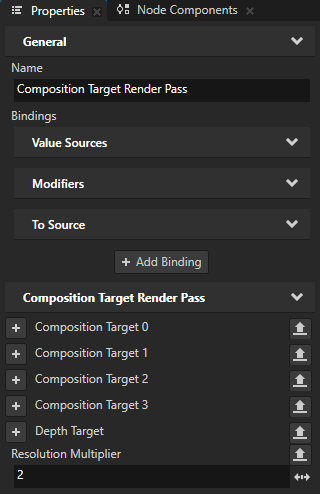
In the Composition Target Render Pass that you use to render the nodes which you want to supersample, add the Resolution Multiplier property, and set it to the value by which you want to multiply the resolution of the composition target texture.
Supersampling a render target texture
You can supersample a render target texture which you use in a Texture Brush or as an image in an Image node.
To supersample a render target texture:
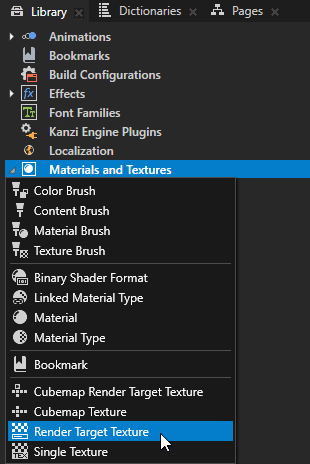
In the Library press Alt and right-click Materials and Textures, and select Render Target Texture. See Using render target textures.
This is the texture to which you render the contents of the node for which you want to reduce aliasing.
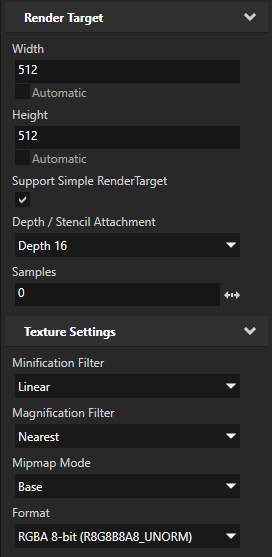
In the Library select the Render Target Texture you just created and in the Properties set:
Height and Width of the render target texture to double the size of the final size of the content for which you want to reduce aliasing.
When you use a large texture which you scale down, you smooth the rough edges that cause aliasing.
Minification Filter to Linear
Mipmap Mode to Base
Format to RGBA 8-bit
In the Node Tree select the node to which you want to apply supersampling, and in the Properties add and set:
Off-Screen Rendering to enabled
Render Target to the render target texture you created in the first step
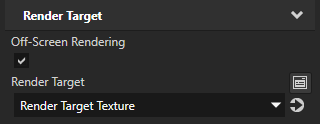
Apply the Render Target Texture you created in the first step to a node where you want to show the supersampled image of the node you selected in the previous step.
For example:
In the Node Tree press Alt and right-click and select Empty Node 2D.
In the Node Tree select the Empty Node 2D node, in the Properties add the Background Brush property, and in the dropdown menu select + Texture Brush.
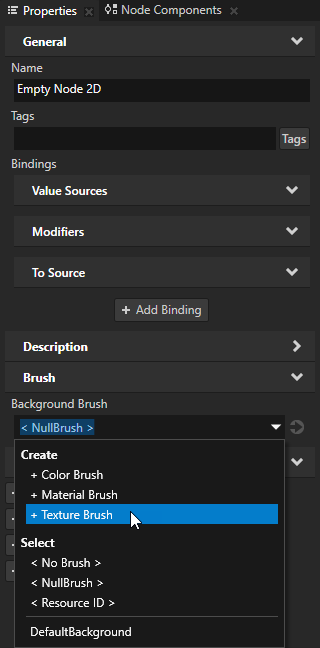
Next to the Background Brush property click
 and set the Brush Texture property of the Texture Brush to the Render Target Texture you want to show in the Empty Node 2D you created in the first step.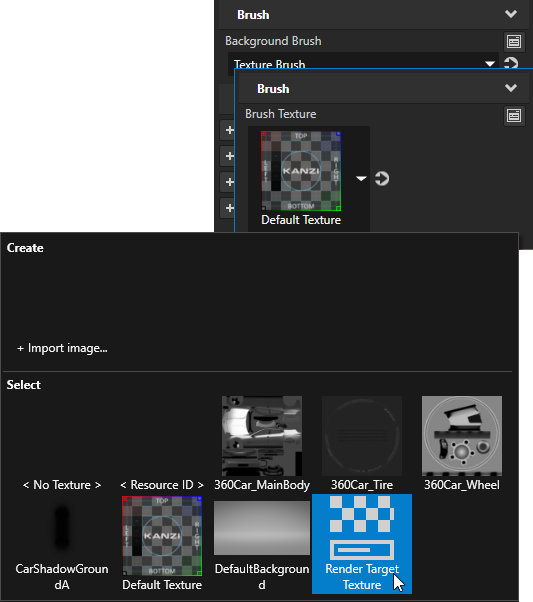
In the Node Tree select the Empty Node 2D, and in the Properties add and set the Layout Width and Layout Height properties to the size in which you want to show the content of the Render Target Texture.
Setting the multisampling method
You can set the multisampling method that your Kanzi application uses when available: blitting from renderbuffer or implicit multisampling.
When blitting from renderbuffer Kanzi first renders into a multisampled renderbuffer. When the rendering is done, Kanzi resolves the samples by blitting the result into a regular texture. Blitting from renderbuffer requires one of these:
Your platform supports OpenGL (ES) 3 or higher.
The GL_ARB_framebuffer_object extension is available.
The GL_NV_framebuffer_blit and GL_NV_framebuffer_multisample extensions are available.
Implicit multisampling means that Kanzi performs multisampled rendering to a texture without requiring an explicit resolve of the multisample data, that is, downsampling the data to single sample per pixel. Implicit multisampling requires that one of these extensions is available:
GL_EXT_multisampled_render_to_texture
GL_IMG_multisampled_render_to_texture
By default Kanzi chooses the multisampling method it deems the best:
On desktop platforms, Kanzi blits from renderbuffer.
On platforms that use OpenGL ES, Kanzi uses implicit multisampling.
To set the multisampling method, either:
In the
application.cfgconfiguration file set theMultisamplePreferenceparameter to the multisampling method that you want Kanzi to prefer:BlitorImplicit. See Using the application.cfg.For example, to prefer blitting from renderbuffer, add to the
application.cfgMultisamplePreference = Blit
In the C++ application in the
Application::onConfigurefunction set theconfiguration.multisamplePreferenceparameter to the multisampling method that you want Kanzi to prefer:MultisamplePreferenceBlitorMultisamplePreferenceImplicit.For example, to prefer blitting from renderbuffer, add to the
Application::onConfigureconfiguration.multisamplePreference = Renderer::RendererSettings::MultisamplePreferenceBlit;
Using Temporal Anti-Aliasing
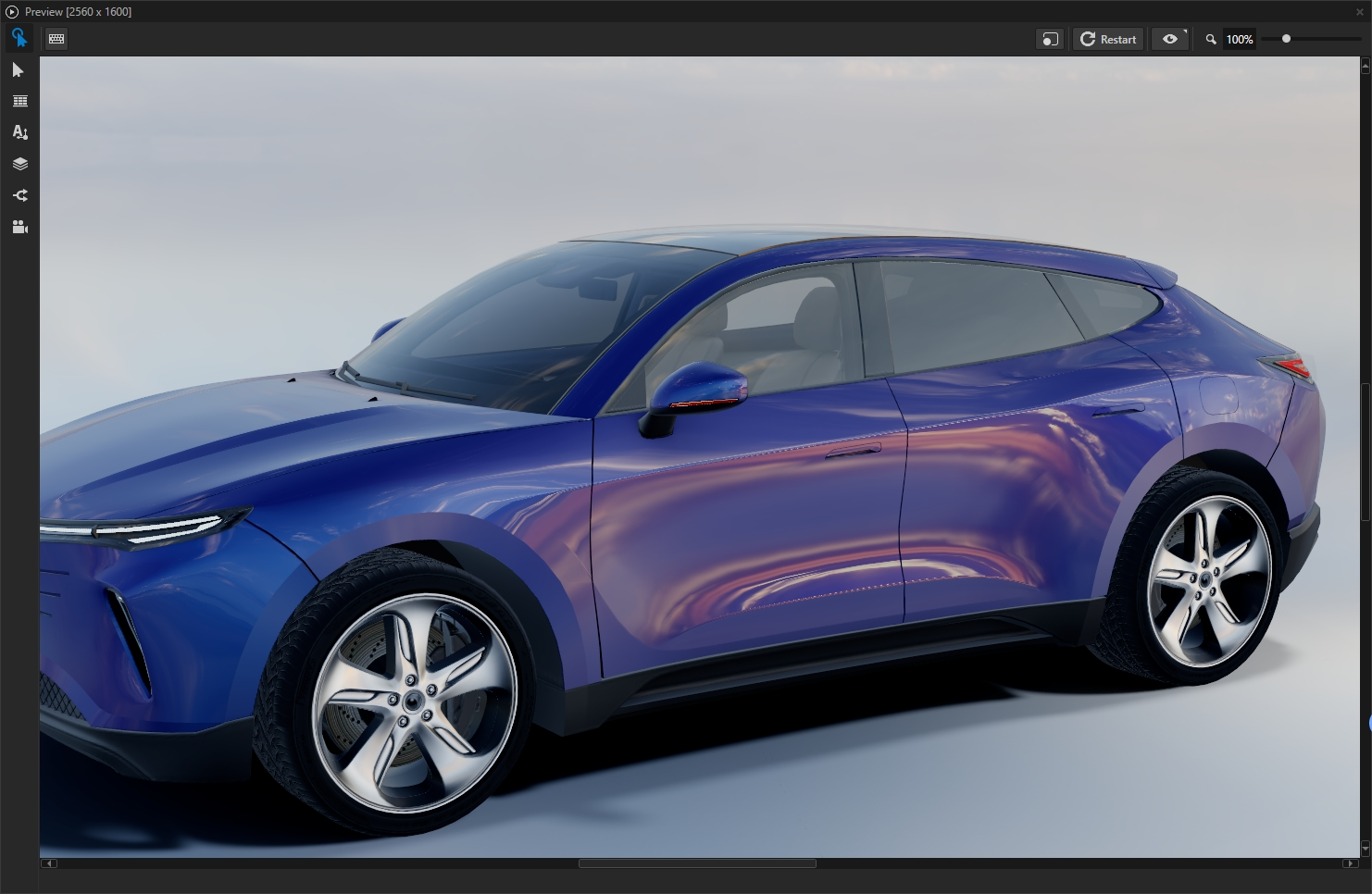
Use Temporal Anti-Aliasing (TAA) to reduce aliasing and flickering in moving 3D content. TAA uses information from the current and previous frames and motion vectors to produce smoother edges.
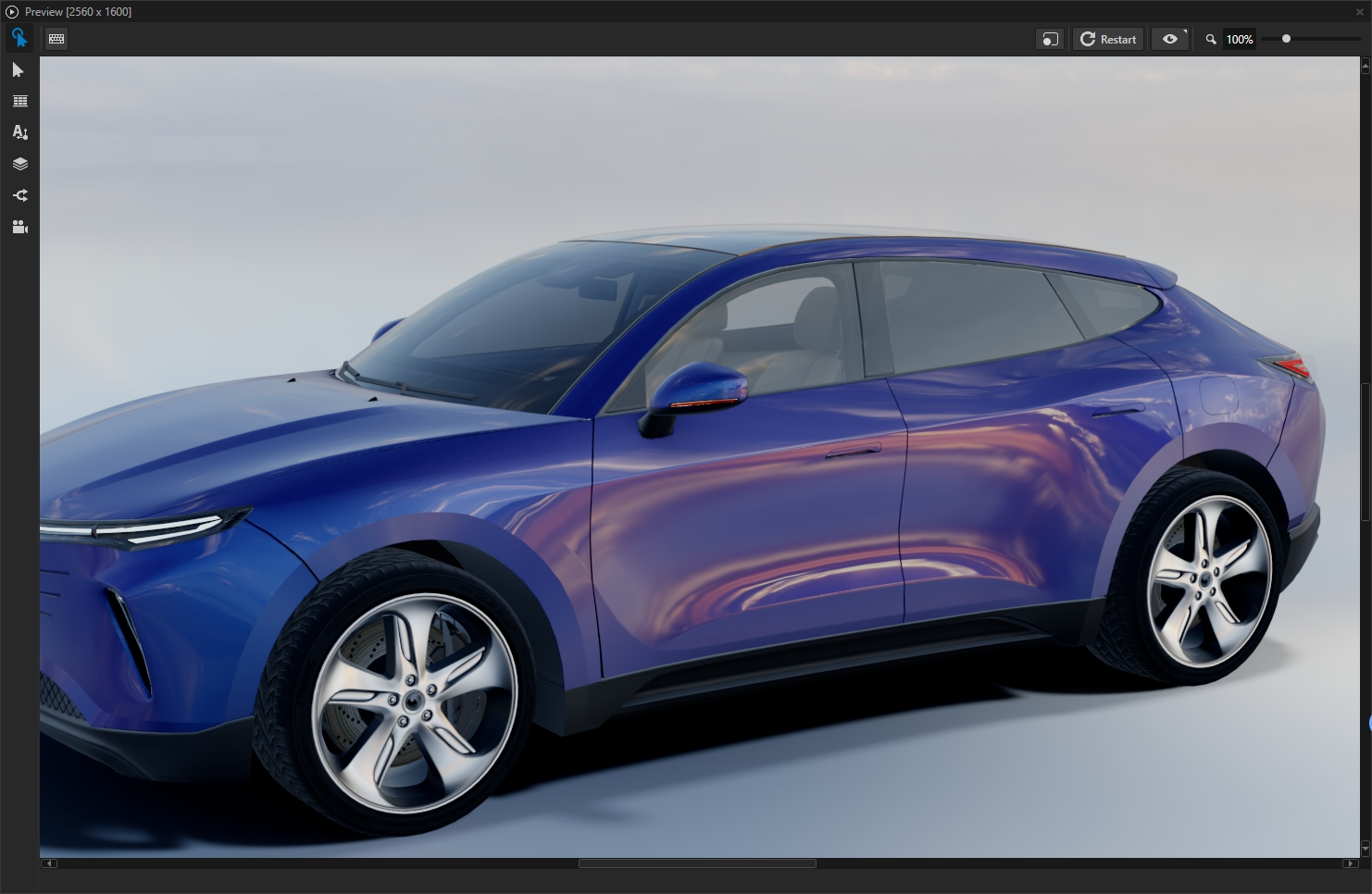
When TAA is a good fit
Main 3D perspective scenes, such as typical car models or a showroom main camera.
Compositions without MSAA, where color is written to a normal texture.
Rigid objects or the car body moving as a whole, including translation, rotation, and scale.
Opaque or common translucent materials, such as typical car paint, glass, and similar blends.
If some objects should not contribute motion vectors, disable Generate TAA Motion Vectors on those nodes and keep TAA enabled for the rest.
For most content, use Default TAA with Clean Geometry. Use Quality TAA when stationary fine seams or slowly rotating silhouettes require better stability. When using particles, use Default TAA with Fine Detail Friendly.
When TAA is not a good fit
TAA and MSAA are mutually exclusive. Disable MSAA before enabling TAA.
Orthographic cameras, shadow maps, Cube/IBL, and similar passes do not run TAA on their own because those paths do not go through main-view TAA.
A nested inner Composition does not run TAA again. Only the outermost Composition takes effect.
When the visual result relies mainly on skinned characters or strong Morph deformation, motion is not computed accurately. Ghosting and flicker are therefore likely, and the benefit of TAA is limited.
When TAA can be used, but needs special notes
Additive lights and glow are intentionally excluded from motion vectors so that they do not overwrite the velocity of objects behind them.
For very thin seams, light-gap edges, and strong specular sparkle, TAA often reduces flicker, but does not provide edges as sharp as MSAA or a completely flicker-free result.
When objects that collect motion vectors and objects that do not collect motion vectors are mixed in the same Dynamic Batch, the entire batch can end up without velocity data. This can reduce local quality. Avoid mixing these objects in the same batch.
After enabling TAA, disabling and re-enabling it, or switching TAA Mode or TAA Profile, the first few frames must rebuild history and can look briefly unstable.
During fast large motion or strong perspective scale changes, newly revealed pixels have no history. Silhouettes can therefore show short-lived aliasing.
How to use TAA
Select the Composition Target Render Pass.
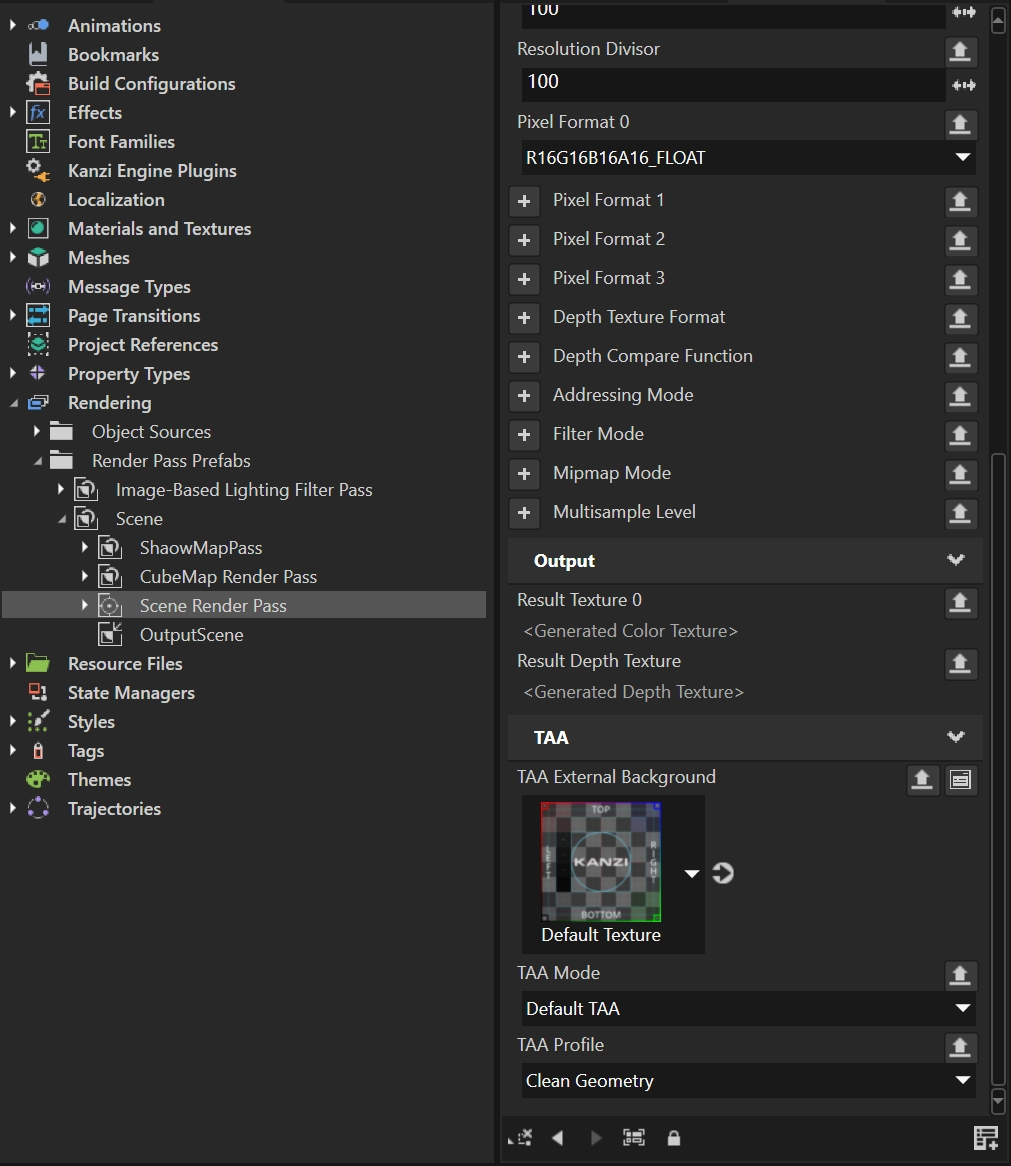
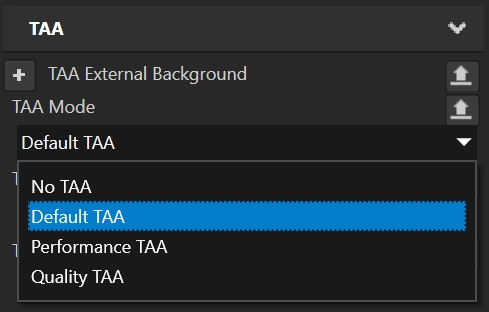
In the Properties, set TAA Mode:
Default TAA balances image quality and resource use for most content.
Performance TAA minimizes the resource cost of TAA.
Quality TAA improves the stability of fine stationary seams and slowly rotating silhouettes.
No TAA disables TAA.
Set TAA Profile:
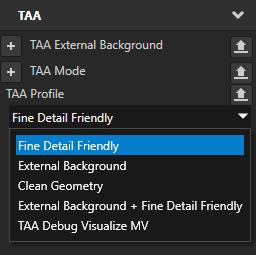
Use Fine Detail Friendly for content with particles or fine specular highlights.
When compositing with an external background, use a profile that includes External Background.
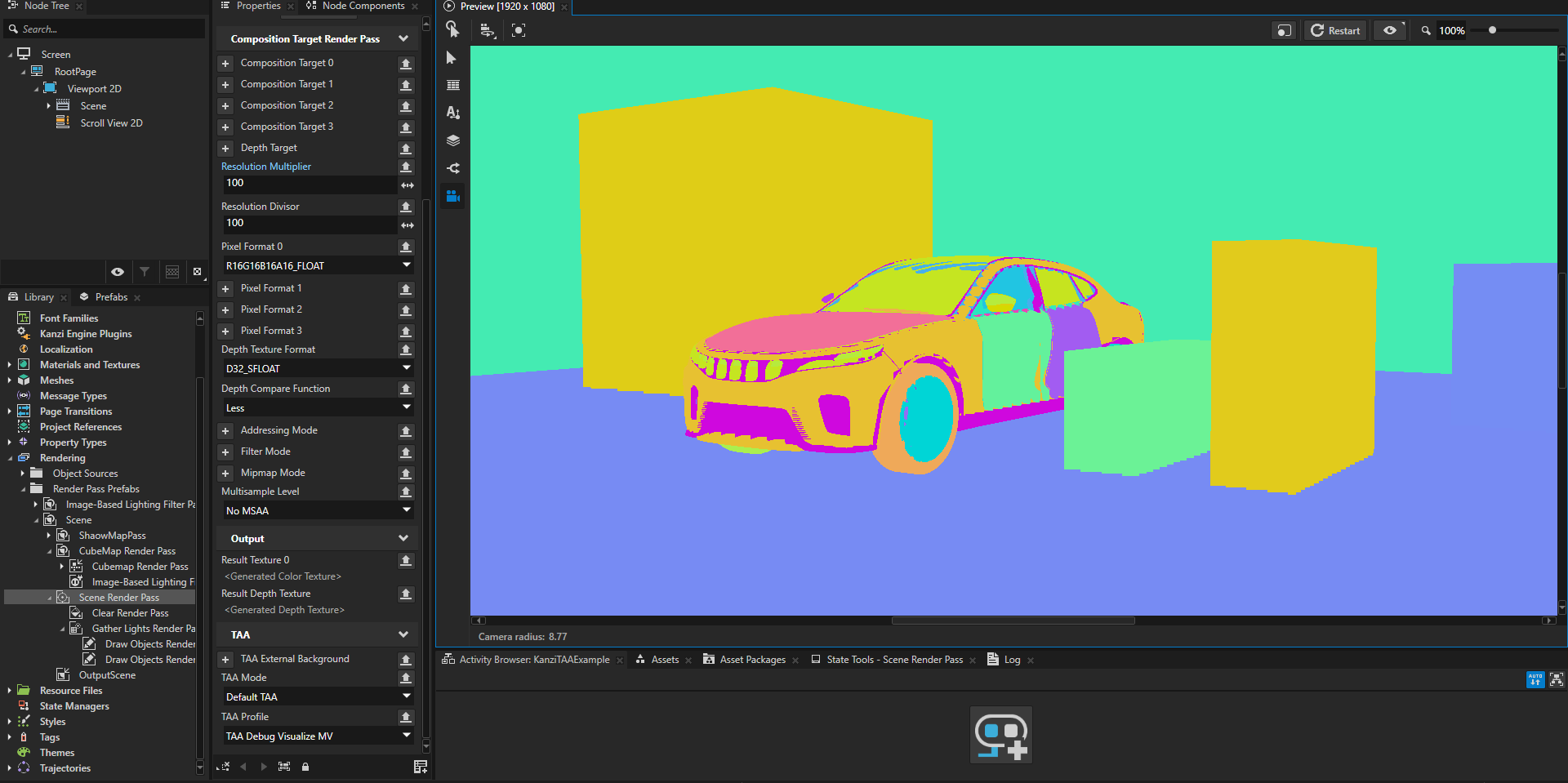
Use TAA Debug Visualize MV to visualize the content that generates motion vectors.
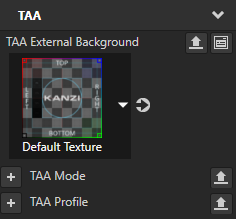
To composite an external background, configure TAA Profile and TAA External Background as described in Using an external background with TAA.
Selecting a TAA mode
All enabled TAA modes apply a subpixel jitter to each frame and use motion vectors to align the previous frame with the current frame. Select a mode based on the required image quality and available rendering resources.
TAA Mode |
Use when |
Main characteristics |
|---|---|---|
No TAA |
You do not want to use TAA. |
Disables TAA. |
Performance TAA |
Minimizing resource use is the priority. |
Uses a five-sample cross neighborhood and half-resolution motion vectors. It does not accumulate stationary fine seams or allocate the additional buffer used for that accumulation. |
Default TAA |
You need a balance between image quality and resource use for general content. |
Stabilizes stationary fine seams across multiple frames and uses half-resolution motion vectors. During motion, it blends the current frame and history based on motion speed to reduce trails from old silhouettes. |
Quality TAA |
You need cleaner stationary fine seams and more stable slowly rotating silhouettes. |
Uses half-precision history, a 3 by 3 sample neighborhood, Catmull-Rom history sampling while stationary, and full-resolution motion vectors. It briefly continues accumulation during slow rotation. |
Default TAA uses a five-sample cross neighborhood. While the scene is stationary, it removes the current frame’s jitter from the neighborhood samples and accumulates fine seams over several frames. Isolated highlights are excluded from this stationary accumulation. For highlights close to a rotation axis that move by almost no pixels, it uses the current frame to avoid leaving a persistent bright streak. When the image starts moving, Kanzi stops the stationary accumulation and blends the current frame with history based on motion speed.
By default, Default TAA uses 8-bit color for history. When the Composition color target uses a floating-point format, the history uses half-precision color to match the current image. Its half-resolution motion vectors are upscaled with coverage weighting to avoid spreading uncovered pixels into object silhouettes.
Performance TAA clamps history to the range of a five-sample cross neighborhood and blends it with the current frame. It does not use stationary seam accumulation, 3 by 3 neighborhood sampling, Catmull-Rom history sampling, or short accumulation during rotation. Use this mode to evaluate the remaining anti-aliasing quality and resource use without stationary seam accumulation.
Quality TAA uses RGBA16F history so that very dark seams are not lost to 8-bit color precision. The wider 3 by 3 neighborhood includes fine seams on diagonal edges. During slow rotation, it continues accumulation briefly to stabilize silhouettes. During faster rotation, it returns to the current frame to reduce ghosting.
Note
Quality TAA uses more memory bandwidth and graphics memory than Default TAA. It uses two half-precision history buffers, a wider sample neighborhood, and full-resolution motion vectors.
Selecting the TAA result depth source
Use TAA Result Depth Source to select the depth texture that a Composition Target Render Pass provides through Result Depth Texture. When depth-based post-processing, such as depth of field (DOF), shows edge flicker caused by TAA jitter, you can use depth without that jitter.
This property affects only Result Depth Texture. Result Texture 0 continues to provide the TAA color result. TAA Profile does not select the depth source.
TAA Result Depth Source |
Behavior |
|---|---|
Composition Target (default) |
Provides the depth from the color pass, configured through Depth Texture Format or Depth Target. This depth includes TAA subpixel jitter. The default preserves the existing behavior and does not add another depth texture. |
Unjittered From MV |
Provides depth without TAA jitter when TAA is enabled and a valid depth configuration is available. The depth contains opaque objects that participate in TAA motion vector generation, including eligible batches. It does not represent the complete scene depth. |
Keep Composition Target when post-processing does not sample Result Depth Texture, or when the depth-of-field result is already acceptable.
To use depth without TAA jitter:
Select the outermost Composition Target Render Pass that performs TAA for the main 3D view and provides depth to post-processing.
Do not enable TAA and unjittered depth again in nested child Compositions.
In Properties, configure either of these properties:
Set Depth Texture Format to a format that includes depth.
Set Depth Target to a depth texture with matching dimensions.
Disable MSAA for the Composition and set TAA Mode to Performance TAA, Default TAA, or Quality TAA.
TAA and MSAA are mutually exclusive. Unjittered From MV does not take effect with No TAA or without a valid depth configuration.
Bind the depth input of the post-processing pass or material to this pass’s Result Depth Texture.
Sampling Depth Target directly or using another pass’s depth does not use the selected result depth source.
First check the depth-of-field result with Composition Target. If edges or the focus plane flicker with TAA jitter, in Properties, in the TAA category, set TAA Result Depth Source to Unjittered From MV.
Set TAA Profile to TAA Debug Visualize MV to check which objects generate motion vectors.
Objects that do not generate motion vectors are absent from the unjittered depth. After checking, restore the profile used by your scene.
Note
The property identifier is CompositionTargetRenderPass.TAADepthSource.
Composition Target has value 1 and Unjittered From MV has value 2.
Depth coverage and motion vectors
Unjittered depth contains only opaque objects that participate in motion vector generation. Motion vector participation alone does not make translucent content part of this depth. Glass, translucent surfaces, particles, additive effects, and objects outside the 3D or batch drawing paths generally do not provide correct depth in this result.
For objects that must appear in the unjittered depth, keep Generate TAA Motion Vectors enabled (the default). Motion vector generation also requires a supported blend mode, such as Opaque or Alpha over; additive blends are excluded. If a batch contains an object that does not meet the motion vector requirements, the entire batch can be absent from the unjittered depth.
An object can be visible in color but absent from unjittered depth. In depth of field, it can appear not to occlude the objects behind it, or it can be blurred as if it were at the far plane. If these objects must contribute to depth of field, use Composition Target to retain the color pass’s depth, or avoid relying on unjittered depth for those objects.
For example, if a see-through view disables Generate TAA Motion Vectors for a car body, that body is missing from unjittered depth. During the see-through view, use Composition Target or disable depth-of-field effects that rely on unjittered depth. You can use Unjittered From MV again after restoring motion vector generation.
Checking the result
If changing the property has no visible effect, or depth-of-field edges still jitter, check that:
You changed the Composition Target Render Pass that supplies depth to post-processing.
The post-processing input samples that pass’s Result Depth Texture.
TAA Mode is enabled and MSAA is disabled.
Depth Texture Format or Depth Target provides a valid depth configuration.
When switching scenes, depth of field can briefly show an incorrect blur range or foreground occlusion. In some transitions between structurally similar scenes with little camera motion, the result can retain the previous depth for a frame.
Switching between the depth source options can also make depth of field or anti-aliasing temporarily unstable while TAA history and depth realign. Wait one or two frames before evaluating the new setting.
Performance considerations
When the camera or objects move, Unjittered From MV adds a depth draw for opaque objects that participate in motion vector generation. When the scene is stationary and depth has stabilized, the previous depth can be reused to reduce the cost.
Controlling TAA motion vector generation
Use the Generate TAA Motion Vectors property to control whether a node generates motion vectors for TAA.
To control motion vector generation for a node:
In the Node Tree, select the node.
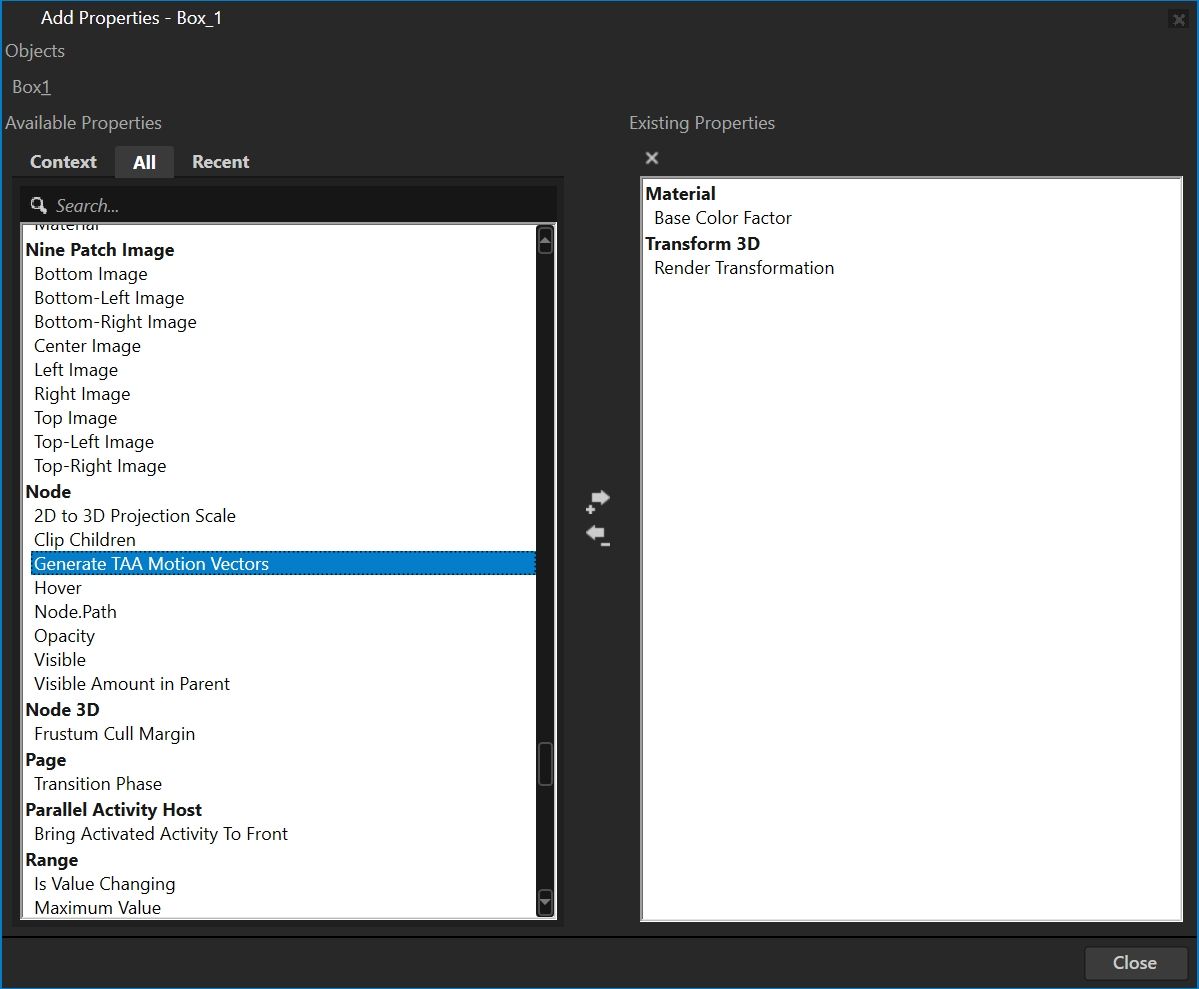
In the Properties, open the Add Properties window.
In the Add Properties window, under Node, add the Generate TAA Motion Vectors property.
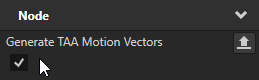
Set Generate TAA Motion Vectors:
Enable the property to generate TAA motion vectors for the node.
Disable the property to prevent the node from generating TAA motion vectors.
Note
Generate TAA Motion Vectors is not inherited by child nodes. To control motion vector generation for a child node, add and configure the property on that node.
Using an external background with TAA
Use an external background with TAA when the 3D scene has transparent areas and the final background comes from the application or another 2D layer.
Without an external background, TAA accumulates the Composition result against transparent or otherwise invalid pixels behind the 3D scene. This can make the edges of 3D objects unstable. When you provide an external background, TAA uses that background during the Resolve stage so that anti-aliasing is calculated against the same background that is visible in the final image.
If the 3D scene already renders an opaque background, you normally do not need this feature.
The resolved output has an alpha value of 1 and covers the entire Viewport2D area.
Using an external background
To use an external background with TAA:
In the Composition Target Render Pass, set TAA Profile to one of these values:
External Background
External Background + Fine Detail Friendly
Use External Background + Fine Detail Friendly when the scene contains particles, fine highlights, or similar details.
In TAA External Background, set the texture that contains the background shown by the application or 2D layer.
Use the same resource, or content that matches it. The texture resolution and crop region must also match the background shown in the final image.
Note
Kanzi does not automatically read the background from an Android Surface or another system layer. The application is responsible for providing the matching texture.
Make sure that the application layout and the Composition viewport are aligned.
TAA maps the external background texture to the current Composition viewport automatically. You do not normally need to configure the viewport separately.
If the 3D viewport and the 2D background use different positions, sizes, or crop regions, the background can be misaligned with the edges of the 3D scene.
Note
TAA and MSAA are mutually exclusive. Disable Composition MSAA before using TAA with an external background.
Considerations
Prefer a static external background. Continuous animation or frequent background changes can reduce edge stability.
When you change TAA External Background, change the background handle, or switch to or from an external-background TAA profile, TAA clears and rebuilds its history. The first few frames can be temporarily unstable.
If you do not set TAA Profile to an external-background profile, or do not assign TAA External Background, Kanzi does not use the external background during TAA Resolve.
TAA performance example
In a test on a device running Android 12 (SM8475 / Adreno 730), the performance impact of TAA was measured at a fixed frame rate of 30 FPS and with Idle disabled. The test compares the same scene with no anti-aliasing, MSAA 4x, and TAA.
Anti-aliasing |
Application CPU |
GPU Busy |
Graphics memory |
|---|---|---|---|
No AA |
23.3% |
60.4% |
1087 MB |
MSAA 4x |
24.7% |
70.5% |
1088 MB |
TAA |
26.6% |
65.8% |
1185 MB |
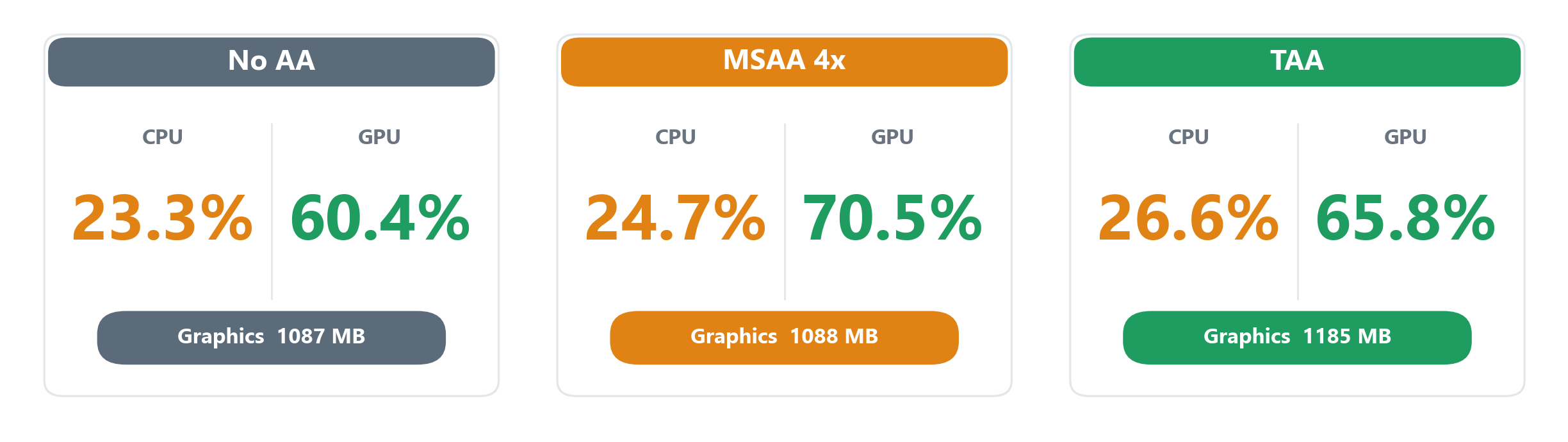
Compared with no anti-aliasing, TAA increased application CPU usage by 3.3 percentage points, GPU Busy by 5.4 percentage points, and graphics memory by 98 MB.
Compared with MSAA 4x, TAA increased application CPU usage by 1.9 percentage points and graphics memory by 97 MB, while GPU Busy was 4.7 percentage points lower. MSAA 4x used only 1 MB more graphics memory than no anti-aliasing in this test.
The main additional costs of TAA in this test were application CPU usage and graphics memory. GPU Busy remained in the same general range as the other configurations and was between no anti-aliasing and MSAA 4x.
Results depend on scene complexity, TAA settings, and the target device. Profile your content on the target hardware to determine the most suitable anti-aliasing method and TAA mode.
See also
Application configuration reference