Using dynamic batching
Dynamic batching groups compatible meshes into batches and combines their rendering data so that Kanzi can render multiple meshes with fewer draw calls.
Reducing draw calls can lower the CPU overhead of submitting rendering commands and changing rendering state, improving rendering performance in scenes with many compatible meshes.
Dynamic batching also introduces CPU processing. In particular, rebuilding batches can increase CPU load, so dynamic batching can be less suitable for content where objects are frequently created or destroyed.
To use dynamic batching, enable dynamic batching for the meshes that you want to batch, configure a dynamic batching render pass, set the batch size, and adapt the shaders used by the batched meshes.
To use dynamic batching, you must:
Enable the Dynamic Batching property for the meshes that you want to batch.
Render those meshes with a dynamic batching render pass.
Set Batch Uniform Count based on the maximum number of objects in a batch.
Adapt the shaders used by the batched meshes, either manually or with the shader conversion tool in Kanzi Studio.
Performance example
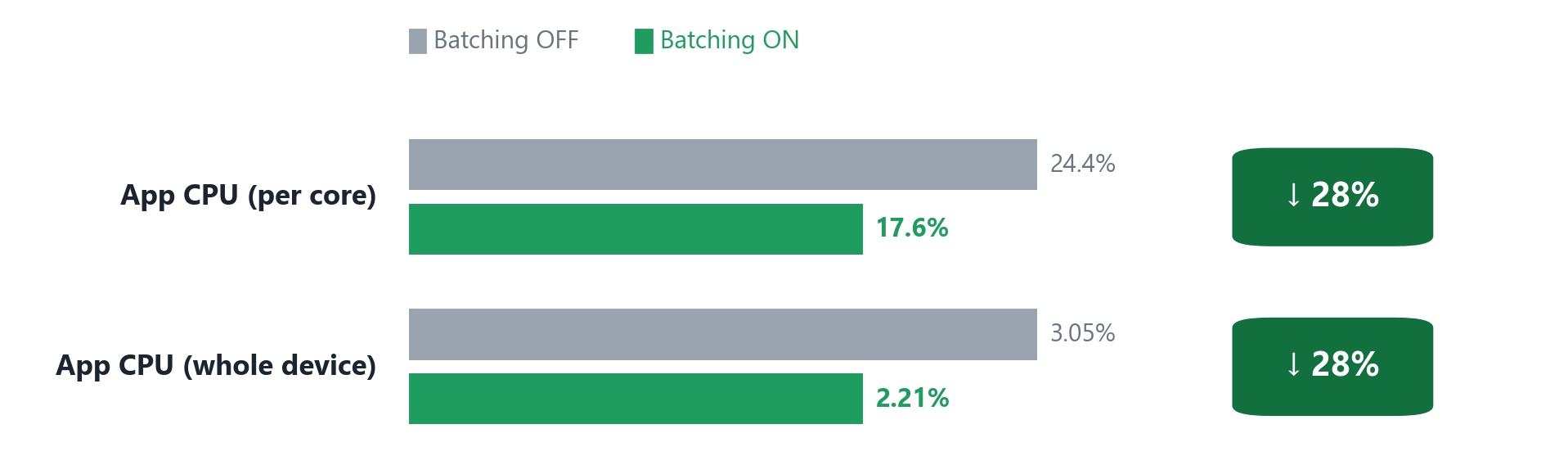
In a test on a device running Android 12 (SM8475 / Adreno 730), enabling dynamic batching reduced average application CPU usage by approximately 27.8%, while the frame rate remained at approximately 30 FPS.
The two runs each lasted approximately 300 seconds, with the frame rate capped at 30 FPS, TAA and MSAA disabled, and Idle disabled. The run without dynamic batching contained 150 samples; the run with dynamic batching contained 133 samples. The table shows sample averages.
Metric |
Without dynamic batching |
With dynamic batching |
|---|---|---|
Application CPU usage (100% = one CPU core) |
24.43% |
17.64% |
Frame rate |
29.98 FPS |
29.99 FPS |
GPU Busy |
67.74% |
69.14% |
Graphics memory reported by the profiler |
1087.30 MB |
1092.83 MB |
In this test, the main benefit was lower application CPU usage at the same frame rate. GPU Busy increased by 1.40 percentage points and reported graphics memory increased by 5.53 MB. Results depend on the scene and target device. Profile your content to determine whether dynamic batching improves performance.
Dynamic batching conditions and limitations
Dynamic batching groups meshes based on their rendering properties. Some properties determine whether meshes can be placed in the same batch, while consistent vertex attributes help reduce additional processing.
Material
Dynamic batching groups meshes by material name. Meshes whose materials have the same name can be considered for the same batch when they also meet the other batching conditions.
Blend mode
All meshes in one batch must use the same blend mode.
Keep opaque and transparent meshes in separate batches. For example, use separate tags or object sources for opaque and transparent meshes.
See Using the Tag Filter.
Vertex attributes
For best results, use the same vertex attributes for all meshes in a batch.
When meshes in a batch have different vertex attributes, dynamic batching uses the mesh with the largest number of vertex attributes as the standard mesh.
For the other meshes in the batch:
If the standard mesh has a vertex attribute that another mesh does not have, dynamic batching creates that attribute for the mesh and fills it with
0.If another mesh has a vertex attribute that the standard mesh does not have, dynamic batching discards that attribute.
To reduce additional processing and avoid discarding vertex data, use consistent vertex attributes for meshes in the same batch. For meshes with special vertex attribute requirements, such as meshes that use two sets of texture coordinates, consider leaving dynamic batching disabled.
See Optimizing meshes.
Unsupported meshes
Dynamic batching does not support:
Skinned meshes.
Meshes that use morphing.
Do not enable Dynamic Batching for these meshes.
Configuring dynamic batching
Enabling dynamic batching for meshes
To enable dynamic batching for a mesh:
Select the mesh that you want to batch.
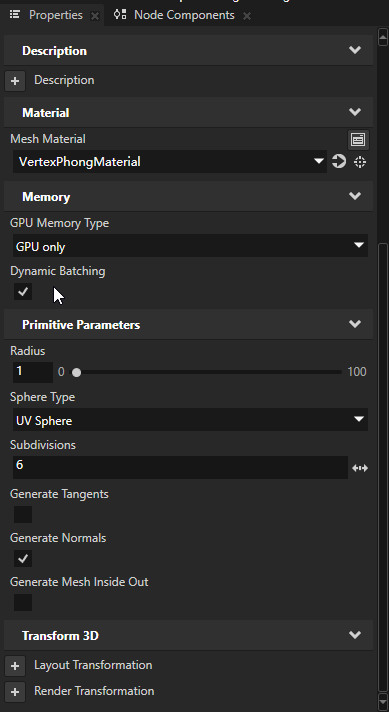
In Properties, enable the Dynamic Batching property.
Dynamic Batching is disabled by default.
Only meshes for which Dynamic Batching is enabled participate in dynamic batching.
Choosing a dynamic batching render pass
Kanzi provides these dynamic batching render passes:
Dynamic Batching Render Pass
Dynamic Batching UBO Render Pass
Dynamic Batching With Material Render Pass
Dynamic Batching UBO With Material Render Pass
Dynamic Batching Node List Render Pass
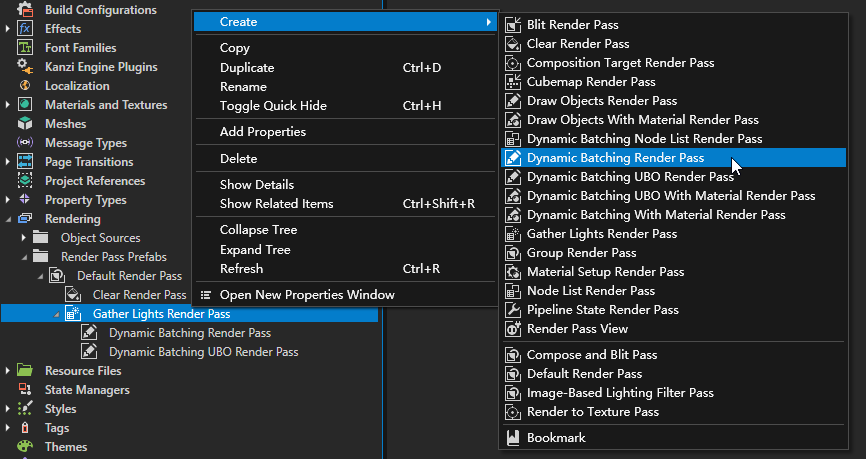
Use Dynamic Batching Render Pass or Dynamic Batching UBO Render Pass in place of a Draw Objects Render Pass.
Use Dynamic Batching With Material Render Pass or Dynamic Batching UBO With Material Render Pass in place of a Draw Objects With Material Render Pass. Configure the With Material variants in the same way as a regular Draw Objects With Material Render Pass.
The main difference between the regular and UBO variants is how the shaders store and receive batch data.
Using Dynamic Batching Render Pass
- Use Dynamic Batching Render Pass when you want to store per-mesh batch data in regular uniform arrays.
You want a simpler shader data layout.
The batch uses a relatively small amount of per-mesh data.
You do not need to store the batch data in a uniform buffer object.
If you do not have a specific reason to use UBO dynamic batching, use Dynamic Batching Render Pass.
Using Dynamic Batching UBO Render Pass
Dynamic Batching UBO Render Pass stores dynamic batching data in a uniform buffer object (UBO).
- Consider using Dynamic Batching UBO Render Pass when:
You want to keep batch data in a uniform block.
The shader contains more data that is updated for each batch.
Profiling on the target device shows that the UBO path is more suitable for the rendering workload.
The main difference between the regular and UBO variants is the shader data layout:
Dynamic Batching Render Pass and Dynamic Batching With Material Render Pass use regular uniform arrays.
Dynamic Batching UBO Render Pass and Dynamic Batching UBO With Material Render Pass use the
DynamicBatchUBOuniform block.
For performance-sensitive projects, profile both approaches on the target device and use the one that performs better for your content.
Using the With Material and Node List variants
Use Dynamic Batching With Material Render Pass when you need the dynamic batching equivalent of a Draw Objects With Material Render Pass.
Use Dynamic Batching UBO With Material Render Pass for the UBO variant.
Configure these render passes in the same way as a regular Draw Objects With Material Render Pass.
If the render pass tree uses a Node List Render Pass to collect meshes for dynamic batching, replace it with Dynamic Batching Node List Render Pass. Configure it in the same way as a regular Node List Render Pass.
If the render pass tree does not use a Node List Render Pass for these meshes, you do not need to make this change.
The With Material variants use the same dynamic batching, batch uniform count, and shader requirements as their corresponding dynamic batching render passes.
Configuring the render pass
To configure a render pass for dynamic batching:
Replace the render pass that renders the meshes with the corresponding dynamic batching render pass:
Replace a Draw Objects Render Pass with Dynamic Batching Render Pass for regular dynamic batching, or Dynamic Batching UBO Render Pass for UBO dynamic batching.
Replace a Draw Objects With Material Render Pass with Dynamic Batching With Material Render Pass for regular dynamic batching, or Dynamic Batching UBO With Material Render Pass for UBO dynamic batching.
Configure the With Material variants in the same way as a regular Draw Objects With Material Render Pass.
In the dynamic batching render pass, set Object Source to the object source that collects the meshes that you want to batch.
For example, use a Tag Filter to collect the meshes. See Using the Tag Filter.
Note
A mesh for which Dynamic Batching is enabled must be rendered with a dynamic batching render pass, and the material shader used by the mesh must support dynamic batching. If a regular Draw Objects Render Pass collects such a mesh, the mesh remains in the Preview scene but is not displayed. If a dynamic batching render pass collects the mesh but its material shader has not been adapted for dynamic batching, the mesh is not displayed in the Preview either. After enabling Dynamic Batching, configure both the render pass and the material shader.
Setting Batch Uniform Count
Batch Uniform Count sets the maximum number of objects that the dynamic batching render pass can process in one batch. The value must match the size of the corresponding batch arrays in the shader.
To set Batch Uniform Count:
Determine the maximum number of static and dynamic batched objects that can be visible at the same time in the tag or object source used by the dynamic batching render pass.
Set Batch Uniform Count to at least that number.
For example, if the maximum number of batched objects is 25, set Batch Uniform Count to at least
25.
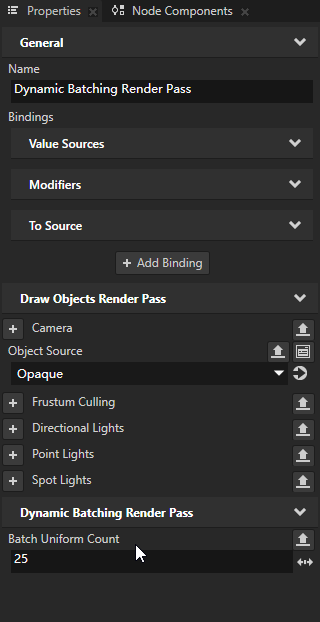
The regular and With Material variants of both non-UBO and UBO dynamic batching use 25 as the default Batch Uniform Count.
You can use a larger value when the target device supports it. Avoid unnecessarily large values. As a general guideline, use a value of 100 or less.
The maximum usable value depends on the uniform resources available on the target device.
Note
Batch Uniform Count must match the size of every corresponding batch array in the shader.
For example, with Batch Uniform Count set to 25, a regular dynamic batching shader uses:
uniform highp mat4 BatchWorldMatrix[25];
uniform highp mat4 BatchNormalMatrix[25];
If you change Batch Uniform Count to 50, change the corresponding shader array sizes to 50.
For UBO dynamic batching, the same requirement applies:
layout(std140, binding = 2) uniform DynamicBatchUBO
{
    highp mat4 BatchNormalMatrix[25];
    highp mat4 BatchWorldMatrix[25];
};
Adapting shaders for dynamic batching
The material shaders used by dynamically batched meshes must support dynamic batching.
Enabling Dynamic Batching and configuring a dynamic batching render pass is not sufficient on its own. If the material shader has not been adapted for dynamic batching, the mesh is not displayed in the Preview even when a dynamic batching render pass collects it.
You can adapt shaders in either of these ways:
Use the shader conversion tool in Kanzi Studio.
Modify the shaders manually.
Use the shader conversion tool when possible. Modify shaders manually when the tool cannot handle a shader-specific requirement.
Do not apply dynamic batching shader changes to materials that are not compatible with dynamic batching. For example, do not modify DefaultBlit or other materials used by Blit Render Pass render passes.
Modifying shaders for regular dynamic batching manually
Using GLSL ES 3.10
#version 310 es
Adding BatchId
Add the BatchId vertex attribute:
in int BatchId;
BatchId identifies the batched mesh whose per-mesh data the shader uses. Use BatchId to index the batch arrays.
Using the batch matrices
Declare the world and normal matrix arrays. For a Batch Uniform Count of 25:
uniform highp mat4 BatchWorldMatrix[25];
uniform highp mat4 BatchNormalMatrix[25];
Use BatchId to get the matrices for the current mesh:
mat4 WorldMatrix = BatchWorldMatrix[BatchId];
mat4 NormalMatrix = BatchNormalMatrix[BatchId];
For example, use WorldMatrix when transforming vertex positions:
gl_Position =
    kzProjectionMatrix *
    kzCameraMatrix *
    WorldMatrix *
    vec4(objPos, 1.0);
When the shader transforms normals, use BatchNormalMatrix[BatchId] instead of the regular per-object normal matrix. See Editing shaders.
Complete shader example
The following example shows a complete vertex and fragment shader adapted for regular dynamic batching.
Vertex shader:
#version 310 es
precision mediump float;

in vec3 kzPosition;
in vec2 kzTextureCoordinate0;
in int BatchId;

uniform highp mat4 kzProjectionCameraWorldMatrix;
uniform vec2 TextureOffset;
uniform vec2 TextureTiling;
uniform highp mat4 kzCameraMatrix;
uniform highp mat4 kzProjectionMatrix;
uniform highp mat4 BatchWorldMatrix[25];

flat out highp int vBatchID;
out vec2 vTexCoord;

void main()
{
    mat4 WorldMatrix = BatchWorldMatrix[BatchId];

    vBatchID = BatchId;
    vTexCoord = kzTextureCoordinate0 * TextureTiling + TextureOffset;

    gl_Position =
        kzProjectionMatrix *
        kzCameraMatrix *
        WorldMatrix *
        vec4(kzPosition.xyz, 1.0);
}
Fragment shader:
#version 310 es
precision mediump float;

uniform sampler2D Texture;
uniform float BlendIntensity[25];

in vec2 vTexCoord;
flat in highp int vBatchID;

out highp vec4 outColor;

void main()
{
    vec4 color = texture(Texture, vTexCoord);
    outColor = color * BlendIntensity[vBatchID];
}
Modifying shaders for UBO dynamic batching manually
UBO dynamic batching uses the same BatchId indexing principle as regular dynamic batching, but stores the batch matrices in the DynamicBatchUBO uniform block.
Using GLSL ES 3.10
#version 310 es
Adding BatchId
Add the BatchId vertex attribute:
in int BatchId;
Declaring DynamicBatchUBO
Declare the batch matrices in DynamicBatchUBO:
layout(std140, binding = 2) uniform DynamicBatchUBO
{
    highp mat4 BatchNormalMatrix[25];
    highp mat4 BatchWorldMatrix[25];
};
The array size must match Batch Uniform Count in Dynamic Batching UBO Render Pass.
Using BatchId with the UBO matrices
Use BatchId to get the matrices for the current mesh:
mat4 WorldMatrix = BatchWorldMatrix[BatchId];
mat4 NormalMatrix = BatchNormalMatrix[BatchId];
If you need the batch ID in the fragment shader, declare this output in the vertex shader:
flat out highp int vBatchID;
In the vertex shader main function, assign:
vBatchID = BatchId;
Complete shader example
The following example shows a complete vertex and fragment shader adapted for UBO dynamic batching.
Vertex shader:
#version 310 es
precision mediump float;

in vec3 kzPosition;
in vec2 kzTextureCoordinate0;
in int BatchId;

uniform highp mat4 kzProjectionCameraWorldMatrix;
uniform vec2 TextureOffset;
uniform vec2 TextureTiling;
uniform highp mat4 kzCameraMatrix;
uniform highp mat4 kzProjectionMatrix;

layout(std140, binding = 2) uniform DynamicBatchUBO
{
    highp mat4 BatchWorldMatrix[25];
};

flat out highp int vBatchID;
out vec2 vTexCoord;

void main()
{
    mat4 WorldMatrix = BatchWorldMatrix[BatchId];

    vBatchID = BatchId;
    vTexCoord = kzTextureCoordinate0 * TextureTiling + TextureOffset;

    gl_Position =
        kzProjectionMatrix *
        kzCameraMatrix *
        WorldMatrix *
        vec4(kzPosition.xyz, 1.0);
}
Fragment shader:
#version 310 es
precision mediump float;

uniform sampler2D Texture;
uniform float BlendIntensity;

in vec2 vTexCoord;
flat in highp int vBatchID;

out highp vec4 outColor;

layout(std140, binding = 2) uniform DynamicBatchUBO
{
    highp mat4 BatchWorldMatrix[25];
};

void main()
{
    vec4 color = texture(Texture, vTexCoord);
    outColor = color * BlendIntensity;
}
Controlling material properties separately for batched meshes
Meshes in the same batch can use the same material while still having different values for material properties.
For example, if each mesh needs a different value for:
uniform float BlendIntensity;
change the uniform to an array:
uniform float BlendIntensity[25];
The array size must match Batch Uniform Count.
The following example uses regular uniform-array syntax. The BatchId indexing principle is the same when you use UBO dynamic batching.
Passing BatchId to the fragment shader
If the fragment shader needs per-mesh values, pass the batch ID from the vertex shader to the fragment shader.
In the vertex shader, declare:
flat out highp int vBatchID;
In the vertex shader main function, assign:
vBatchID = BatchId;
In the fragment shader, declare:
flat in highp int vBatchID;
Use vBatchID to index the per-mesh value. For example, replace:
BlendIntensity
with:
BlendIntensity[vBatchID]
For example:
uniform float BlendIntensity[25];

...

float intensity = BlendIntensity[vBatchID];
Use the flat qualifier so that the integer batch ID is not interpolated between the vertex and fragment shaders.
Using the shader conversion tools
Kanzi Studio provides shader conversion tools that adapt the materials used by meshes for which Dynamic Batching is enabled. When you use these tools, you can skip most of the manual shader changes described above.
To convert a material for dynamic batching:
In the main menu, select the tool that matches the dynamic batching render pass:
For Dynamic Batching Render Pass and Dynamic Batching With Material Render Pass, select Tools > Dynamic Shaders.
For Dynamic Batching UBO Render Pass and Dynamic Batching UBO With Material Render Pass, select Tools > Dynamic UBO Shaders.
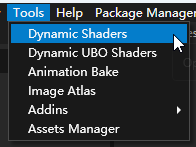
In the Material list, select the material that you want to convert.
The list contains the materials used by meshes for which Dynamic Batching is enabled.
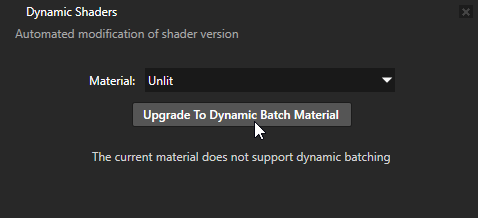
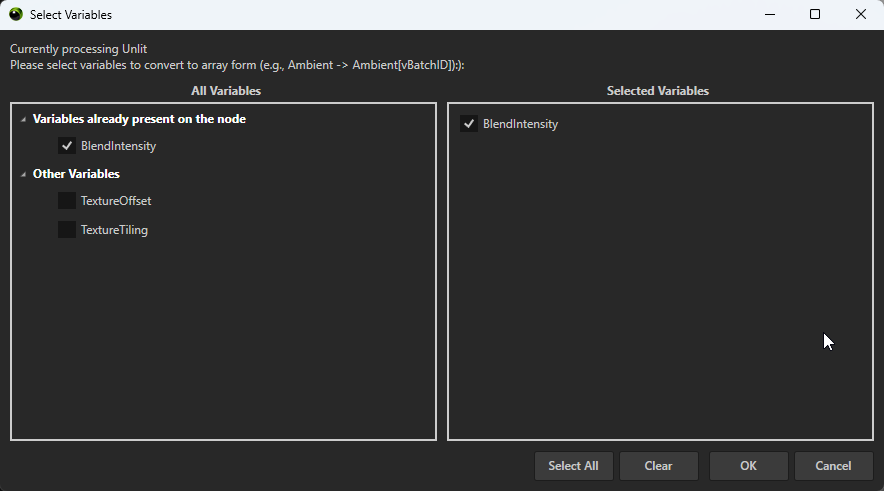
Upgrade the selected material for dynamic batching.
Kanzi Studio opens the variable selection window. The initial upgrade and Update Variables use the same variable selection layout.
In All Variables, Kanzi Studio groups the shader variables into:
Variables already present on the node: variables for material properties that Kanzi Studio detects are set on the mesh.
Other Variables: other shader variables that can be selected for dynamic batching.
In All Variables, select the variables that must have a separate value for each mesh in the batch.
Kanzi Studio adds the selected variables to Selected Variables.
The tool converts the selected per-mesh variables to batched arrays and indexes them using the batch ID.
Review Selected Variables and click OK.
Kanzi Studio updates the shader for dynamic batching.
Note
After Kanzi Studio finishes processing the shader, the Preview might not update immediately. If the Preview still shows the previous result, restart the Preview.
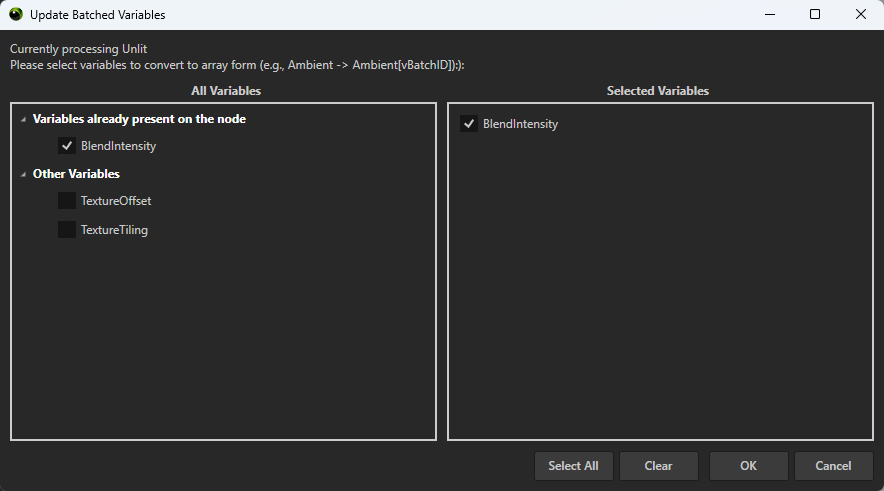
Updating batched variables
After you convert a material for dynamic batching, the shader conversion tool provides the Update Variables command.
Use Update Variables when you add or change a material property, or when you want to change which shader variables are processed for dynamic batching.
To update the batched variables:
In Tools > Dynamic Shaders, or Tools > Dynamic UBO Shaders, select the converted material in the Material list.
Click Update Variables.
Kanzi Studio opens the Update Batched Variables window. It uses the same variable selection layout as the initial material upgrade.
In All Variables, select the variables that you want to process.
Variables for material properties that Kanzi Studio detects are set on the mesh are listed under Variables already present on the node. Other variables are listed under Other Variables.
The Selected Variables list shows the variables selected for dynamic batching.
Click OK to update the shader.
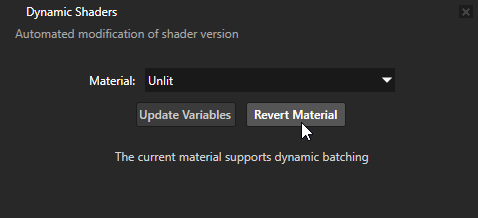
Reverting a material
To revert the dynamic batching shader changes made by the conversion tool, select the converted material in the shader conversion tool and click Revert Material.
Changing Batch Uniform Count
The Dynamic Shaders and Dynamic UBO Shaders tools generate batch arrays with a size of 25.
If you set Batch Uniform Count to a value other than 25, manually change the generated batch array sizes in the shader to match that value.
Considerations
Shader scope
Apply shader conversion and manual shader changes only to materials used by dynamically batched meshes.
Materials used for special rendering operations, such as Blit Render Pass render passes, are not suitable for dynamic batching. For example, do not apply dynamic batching shader changes to DefaultBlit.
Rebatching cost
Dynamic batching reduces draw calls and the CPU cost of submitting rendering commands and changing rendering state. Dynamic batching itself also introduces CPU processing.
Dynamic batching might not be suitable for content where objects are frequently created or destroyed and the batches must be rebuilt often. Profile the target scene to determine whether dynamic batching improves performance.