Checking property bindings
Use Binding check to collect property bindings from nodes in the current solution and export a report. Use the binding expressions, states, and node paths in the report to check the bindings.
The tool creates an .xlsx report containing a summary across projects and a detailed worksheet for each project. It also writes binding
enabled states, active states, and the report location to the Kanzi Studio log.
The check does not modify binding expressions, enable or disable bindings, or automatically fix issues.
Check scope
The check includes all projects in the current solution. In each project, the tool checks the RootNode2D node tree of Screen
and the nodes in Prefab Library. The report contains one record for each non-empty binding. It does not list nodes that have no
bindings.
Running a check
To check the bindings in the current solution:
Make sure that the projects and bindings you want to check are in the intended state.
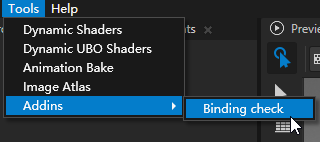
Select Binding check.
In the dialog, select a directory for the report.
Wait for the tool to finish traversing the nodes and writing the report.
In Log, find
Excel file saved:and check the file path that follows it.Open the report. Review NotBindings first, then review the project worksheets as needed.
Output file
The tool saves the report in the directory that you selected and uses the local date and time in the filename:
binding_check_yyyyMMdd_HHmmss.xlsx
Each run normally creates a new timestamped file.
Report structure
NotBindings summary worksheet
NotBindings is the first worksheet. It collects bindings marked - from all projects for priority review.
Column |
Contents |
|---|---|
Project Name |
Name of the project that contains the binding. |
Node Name |
Name of the binding target property. |
Binding Code |
Binding expression. |
Is Checked |
Current state marker; |
Node Path |
KZB URL path of the node that contains the binding. |
Note
NotBindings is neither a list of nodes without bindings nor a list of confirmed errors. It contains existing bindings that are not both enabled and active, including intentionally disabled bindings.
Project worksheets
The tool creates a worksheet named after each project. Each worksheet lists all bindings within the check scope, including records marked
O and -.
Column |
Contents |
|---|---|
Node Name |
Name of the binding target property. |
Binding Code |
Binding expression. |
Is Checked |
Current binding state marker: |
Node Path |
KZB URL path of the node that contains the binding. |
A node with multiple bindings produces multiple rows. Use Node Path to locate the node, then use the target property name to locate the binding.
Understanding check states
The tool determines the state from IsBindingEnabled and IsBindingActive:
IsBindingEnabled |
IsBindingActive |
Is Checked |
Meaning |
|---|---|---|---|
|
|
|
The binding is currently enabled and active. |
|
|
|
The binding is enabled but is not currently active. |
|
|
|
The enabled and active states differ. Review the log and node context. |
|
|
|
The binding is currently disabled and inactive. |
O is the uppercase letter O, not the digit zero.
Is Checked is a state marker generated by the tool, not a user confirmation checkbox.
Note
O only means that the binding was both enabled and active when read. It does not prove that the expression produces the intended
result. For a binding marked -, check how the binding is used before you change it.
Viewing the log
While checking project details, the tool writes the following binding information to Log:
Target property name.
Binding expression.
enable: whether the binding is enabled.active: whether the binding is active.path: node path.
The log format is:
CheckNode Name:<property name>, Binding Code: <expression>, enable: <True/False>, active: <True/False>, path:<node path>
The tool also logs the types of traversed items. After saving the report successfully, it writes:
Excel file saved: <full report path>
The report represents all three other state combinations as -. To distinguish them, check enable and active in the log.
Reviewing bindings from the report
To locate and check a binding from the report:
Open NotBindings.
Use Project Name to identify the project.
Use Node Path to locate the node.
Use the property name in Node Name to find the binding target property.
Compare Binding Code with the expression on the node.
Check
enableandactivein the log.Determine whether the binding is intentionally disabled or whether its references, expression, and usage context need investigation.
If you make changes, run Binding check again and review the new report.
A new check creates a new report and does not update the previous report. Editing report cells does not modify bindings in the Kanzi Studio project.