Using Animation Bake
Use Animation Bake to bake skeletal animations from FBX models into EXR textures and generate corresponding JSON configuration files.
During playback, the material samples bone transforms from the texture according to animation progress and skins the mesh in the vertex shader. This reduces CPU processing and data transfers to the GPU, but uses additional video memory. Animation precision depends on texture resolution.
You can define multiple actions, such as idle, walk, and turn, using start and end frames. The tool writes enabled actions to the animation texture and records each action’s frame range for selection during playback.
When you click Start Bake, the tool bakes the animations, imports the resources, and adds the mesh to Prefabs. It sets the material, material properties, and EXR image for the mesh.
Playback materials
The tool provides two materials that support skeletal animation textures:
Material |
Description |
|---|---|
VertexPhongSkinnedSkeletonAnimation |
Skeletal animation material with Phong lighting. |
PhysicallyBasedSkinnedSkeletonAnimation |
Skeletal animation material with physically based rendering. |
Both materials control skeletal animation through animation textures and clip properties. Choose a material according to the project’s lighting and appearance requirements. If you change the material manually, check that the animation texture and playback properties remain correctly associated.
Prerequisites
Before you bake skeletal animations:
Prepare an FBX file containing a skinned model and animation.
Check the animation in the modeling tool. Make sure that mesh deformation, position, orientation, and scale are as intended.
Make sure that vertices requiring skinning have valid bone weights. Animation playback supports up to four bone influences per vertex.
Determine the action names and frame ranges to export.
Make sure that the project can write to the baking output directory.
For geometry that does not require skeletal deformation, use mesh and material configurations suited to its purpose.
Opening the tool
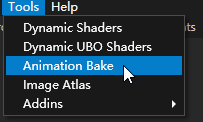
To open Animation Bake, in the Kanzi Studio main menu, select Tools > Animation Bake.
The window contains a model list, an animation clip list, an action configuration table, and baking options.
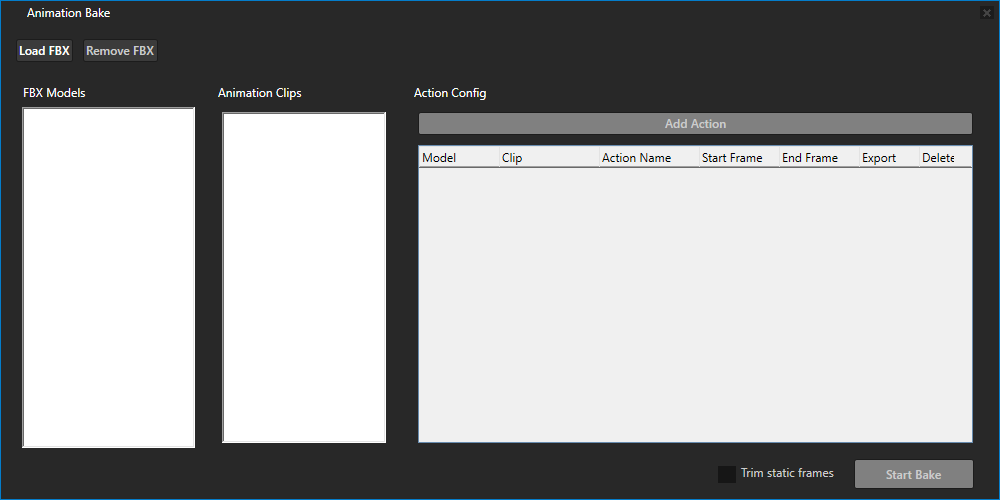
User interface
Models and animation clips
Control |
Description |
|---|---|
Load FBX |
Loads an FBX file. |
Remove FBX |
Removes the selected FBX model from the tool list. |
FBX Models |
Lists loaded models. Select a model to view its animation clips. |
Animation Clips |
Lists the selected model’s animation clips for creating actions. |
Action configuration
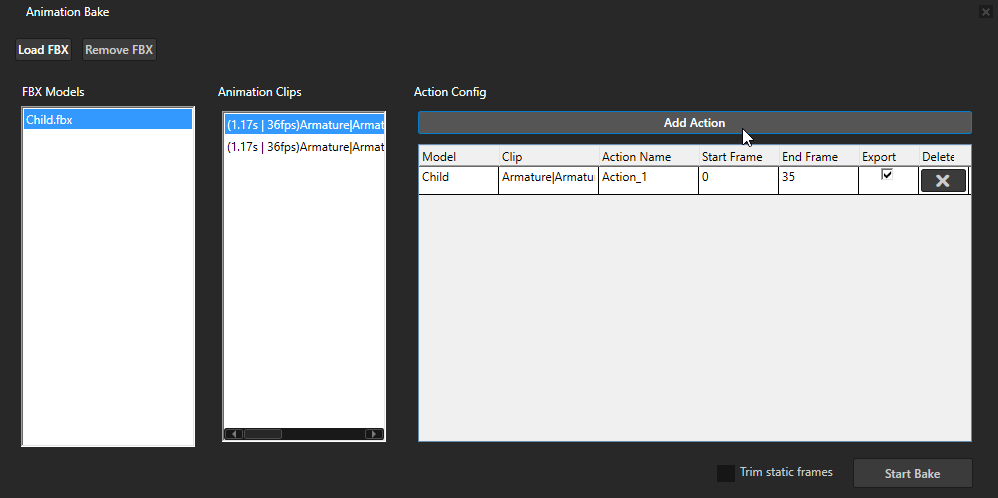
Click Add Action to add an action to Action Config. Use the table fields to specify the action name, frame range, and whether to export it.
Field |
Description |
|---|---|
Model |
Model that contains the action. |
Clip |
Source animation clip for the action. |
Action Name |
Exported action name. Use recognizable names such as |
Start Frame |
First frame of the action, inclusive. |
End Frame |
Last frame of the action, inclusive. |
Export |
Whether to include this action in the current bake. |
Delete |
Deletes this action configuration. |
Deleting an action configuration and removing a source model are different operations. Before baking, check the remaining action configurations and their Export states.
Baking options
Control |
Description |
|---|---|
Trim static frames |
Checks and trims repeated static frames at the beginning and end of actions to reduce stored animation data. |
Start Bake |
Bakes enabled action configurations and imports the related resources into the project. |
Baking skeletal animations
Loading a model
To load an FBX model:
Click Load FBX.
Select the FBX file to process.
In FBX Models, select the model that you loaded.
Review its clips in Animation Clips.
If no animations are available, check that the FBX contains animation and valid skeletal bindings.
Creating actions
To create an action from an animation clip:
In Animation Clips, select the source animation clip.
Click Add Action.
In Action Config, set Action Name to the name that you want to export.
Set Start Frame and End Frame.
Enable Export for the action.
Repeat these steps to create additional actions.
The end frame must be greater than or equal to the start frame. The range must be within the source animation’s valid range.
Both endpoints are included. Without trimming, the frame count is:
Action frame count = End Frame - Start Frame + 1
For example, this configuration divides one timeline into two actions:
Action Name |
Start Frame |
End Frame |
Export |
|---|---|---|---|
Idle |
0 |
29 |
Enabled |
Walk |
30 |
89 |
Enabled |
Idle contains 30 sampled frames, and Walk contains 60. These ranges are examples; set the ranges according to your animation.
Setting static frame trimming
To remove repeated static frames from the beginning and end of actions, enable Trim static frames.
When enabled, the tool checks for repeated bone poses at the beginning and end of actions and reduces the stored frame count when applicable. Trimming updates the action’s start row, frame count, and duration information.
Note
Disable this option if a pause at the beginning or end is part of the intended timing. This option trims static frames at action boundaries, not pauses within an action.
Starting the bake
To bake the actions that you want to export:
Check the names and frame ranges of all actions.
Make sure that Export is enabled for at least one action.
Click Start Bake.
The tool calculates bone transforms for each sampled frame and generates EXR and JSON files.
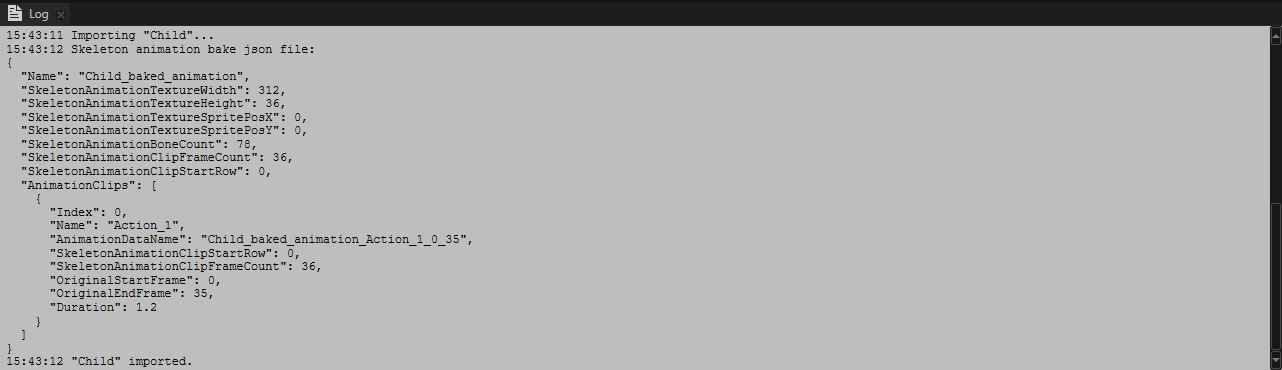
In Log, check the processing messages and baking results.
Reviewing generated resources
Prefabs
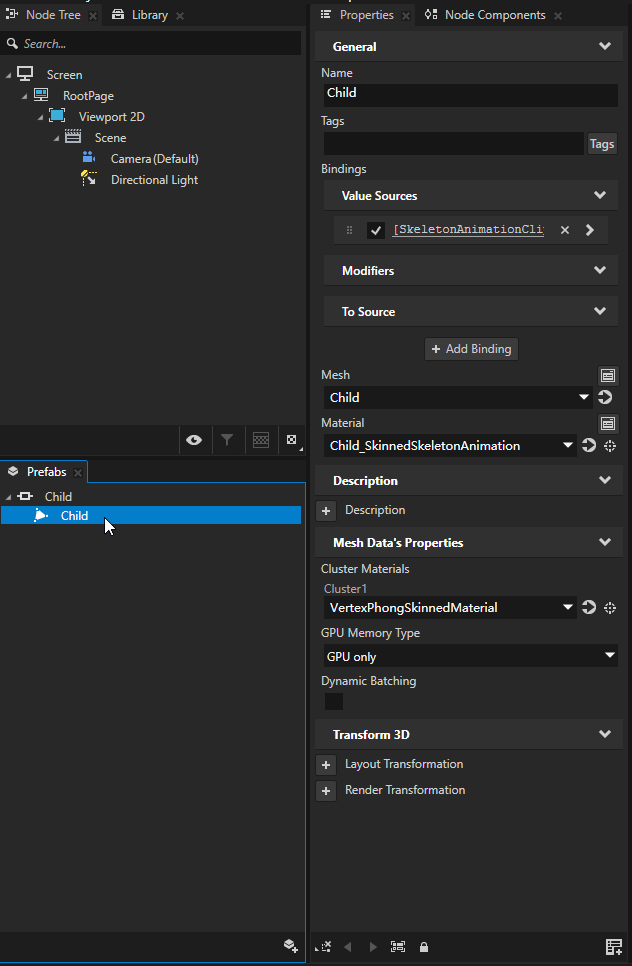
After baking, the mesh is added to Prefabs. The tool automatically configures:
A skeletal animation playback material.
Material properties required for playback.
The corresponding EXR animation image.
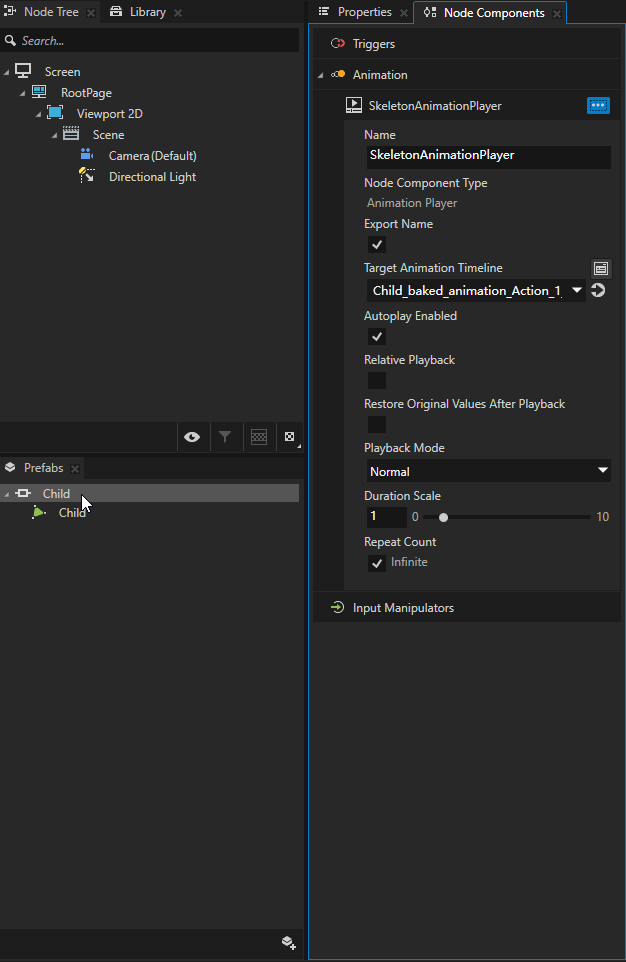
Find the generated model in Prefabs, add it to the scene, and check its appearance and animation playback.
Output files
The tool saves the generated files in:
Tool_project\Bake\Animation Bake
File type |
Contents and purpose |
|---|---|
|
Stores per-frame bone matrices for the playback material. |
|
Stores animation and texture configuration for reviewing, verifying, and using the baked result. |
Use matching EXR and JSON files. After rebaking or changing action ranges, use the newly generated resources and configuration.
Log and JSON
Review the baking process and related data in Log. For further verification, open the corresponding JSON file and check action names, clip frame counts, start rows, and texture dimensions.
When static frame trimming is enabled, use the generated configuration. Do not continue using frame counts and start rows from before trimming.
Material property reference
The tool configures animation texture properties automatically. Use this reference to check the result or control playback through application logic.
Texture properties
Property |
Description |
|---|---|
SkeletonAnimationSkinningBoneTexture |
Animation texture that stores bone transforms. |
SkeletonAnimationBoneCount |
Number of baked bones. |
SkeletonAnimationTextureWidth |
Full texture width in pixels. |
SkeletonAnimationTextureHeight |
Full texture height in pixels. |
SkeletonAnimationTextureSpritePosX |
Horizontal start position of the animation data region in pixels. Initially |
SkeletonAnimationTextureSpritePosY |
Vertical start position of the animation data region in pixels. Initially |
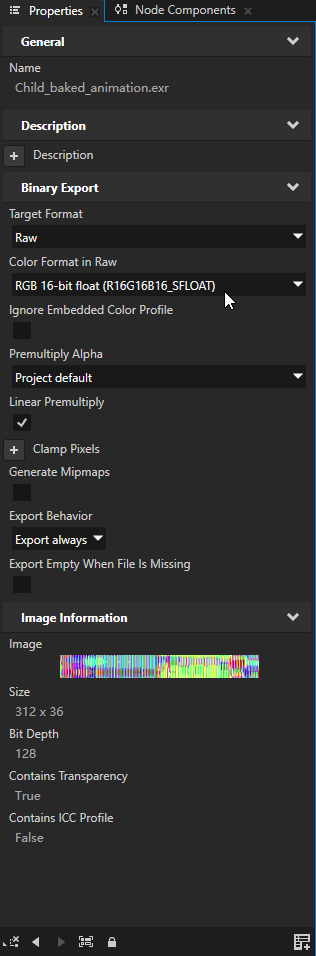
Animation textures store numerical data. Preserve valid floating-point data and avoid color conversions or lossy processing that changes matrix values.
Clip properties
Property |
Description |
|---|---|
SkeletonAnimationClipStartRow |
Start row of the current action relative to the animation data region. |
SkeletonAnimationClipFrameCount |
Number of stored sampled frames in the current action. |
SkeletonAnimationClipProgress |
Playback progress of the current action, from |
Playing and switching actions
Playing an action
To play an action:
Obtain the target action’s start row and frame count from the generated configuration.
Set SkeletonAnimationClipStartRow and SkeletonAnimationClipFrameCount.
Set SkeletonAnimationClipProgress to
0.0.Use a property animation or application logic to update progress from
0.0to1.0over the required duration.
Progress 0.0 displays the first frame, and 1.0 displays the last frame. Intermediate progress interpolates bone matrices between
adjacent sampled frames.
Pausing and looping
To pause the animation, stop updating progress and keep its current value.
To replay the animation, set progress to
0.0, then start updating it again.To loop the animation, restart from
0.0after reaching the end. The transition depends on whether the first and last poses of the source action match.
Data layout and limitations
Each bone matrix occupies four pixels, and each sampled frame occupies one row. A standalone baked texture has these dimensions:
Texture width = Bone count × 4
Texture height = Sum of stored frame counts for all exported actions
For example, 78 bones and a total of 300 stored frames produce a 312 × 300 texture.
More bones and frames increase the texture size. Before baking, enable only the actions you need and set frame ranges according to playback requirements.