Using Image Atlas
Use Image Atlas to arrange multiple project images in one atlas and generate a JSON file that records each image’s position and dimensions.
You can filter and select PNG, JPG, and EXR images, set the atlas size, and preview the arrangement before saving. After you save the atlas, you can import it into the current project.
For skeletal animation EXR textures, the tool can also associate matching animation materials with the generated atlas and update the image region offsets and atlas dimensions.
Opening the tool
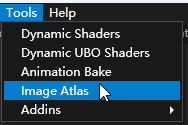
To open Image Atlas, in the Kanzi Studio main menu, select Tools > Image Atlas.
The left side lists images available from the current project. The right side shows the packing preview. Atlas size and output settings are at the bottom.
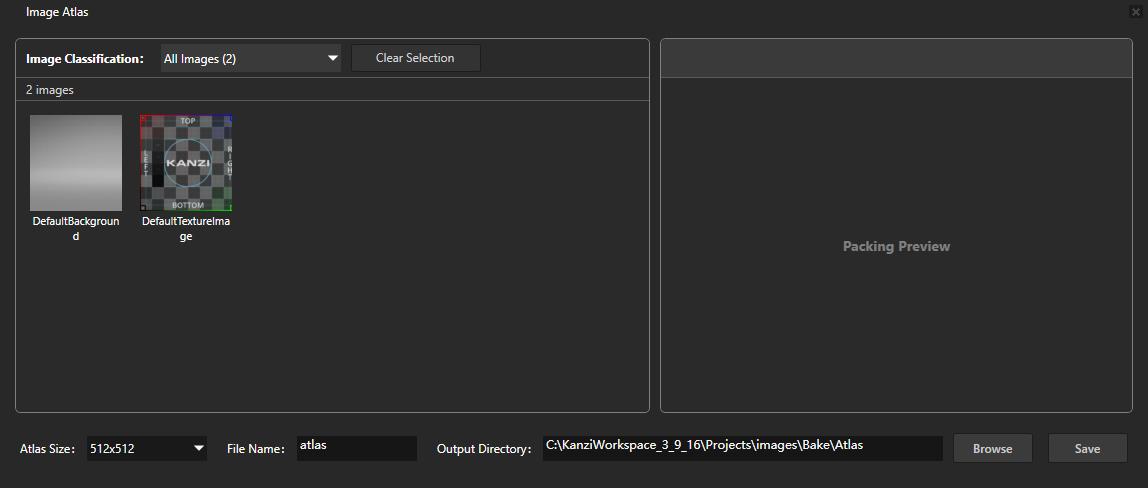
User interface
Control or area |
Description |
|---|---|
Image Classification |
Filters images by format. Includes All Images and PNG, JPG, and EXR categories when matching resources exist. The number after a category name is the image count. |
Image list |
Shows thumbnails and names. Click an image to toggle selection. A green border indicates selection. |
Image count |
Shows the number of images in the current list and related selection information. |
Clear Selection(n) |
Deselects all selected images. The number in parentheses is the selection count. |
Selection information |
Shows the selected image count and format breakdown. |
Preview area |
Shows the automatically arranged atlas. Selecting images or changing the size regenerates the preview. |
Preview dimensions |
Shows the preview bitmap width and height, which can differ from the selected packing size. |
Message area |
Shows format conversion warnings, processing status, and insufficient space messages. |
Atlas Size |
Sets the packing canvas dimensions, for example |
File Name |
Sets the output base name. The default is |
Output Directory |
Sets the output directory. |
Browse |
Browses for an output directory. |
Save |
Saves the atlas image and its JSON file. |
Note
Format filtering only changes the displayed list. It does not deselect hidden images. Previously selected images remain included when you switch categories. Use Clear Selection to start a new selection.
The tool loads images from the current project. You cannot add external files directly in this window.
Supported source extensions are .png, .jpg, .jpeg, .jfif, and .exr. Neither dimension of an individual source
image can exceed 8192 pixels.
Creating an atlas
Selecting images
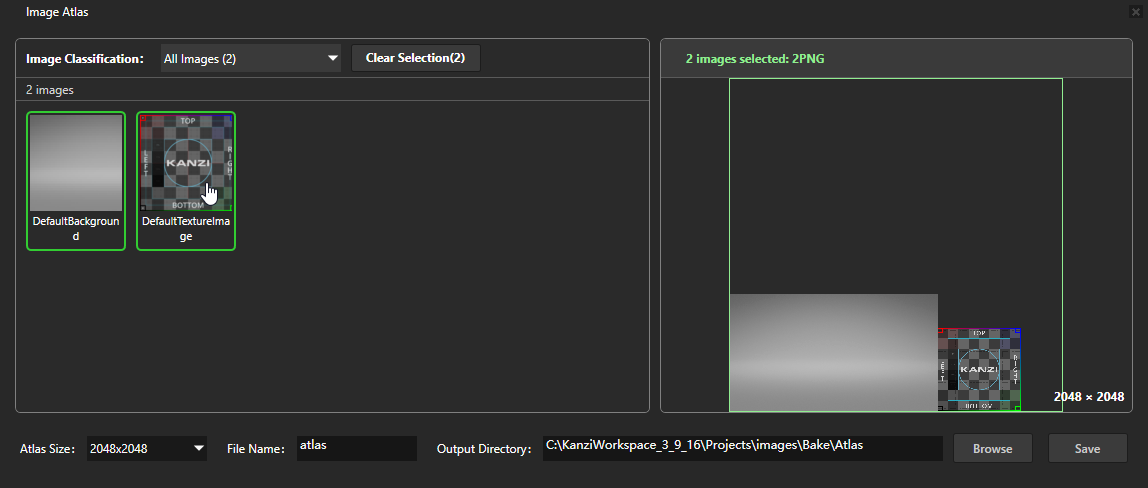
To select the images that you want to include in the atlas:
In Image Classification, select a category.
Click the images that you want to include in the atlas.
A green border marks each selected image.
Check the selection information on the right.
Click an image again to remove it from the selection. To deselect all images, click Clear Selection.
You do not need to hold Ctrl to select multiple images. Each click toggles the image’s selection state.
Setting the atlas size
In Atlas Size, select dimensions that can hold the selected images.
The tool arranges images automatically and preserves source image dimensions and orientation in the packed regions. It does not rotate or shrink source images to resolve insufficient space, or split the result into multiple atlases.
To resolve an insufficient space message:
Select a larger size or reduce the selection, following the message.
Wait for the preview to regenerate.
Confirm that the packing failure message is no longer displayed.
Setting the output
To set the output filename and directory:
In File Name, enter a base name, such as
ui_atlas.Check Output Directory, or click Browse to change it.
The default output directory is:
<project directory>\Bake\Atlas
If the filename is empty, the tool uses atlas. The selected image formats determine the output extension automatically.
Saving and importing
To save the atlas and choose whether to import it:
Wait for the preview for the current selection and size to finish generating.
Click Save.
If an image or JSON file with the same name exists, choose whether to overwrite it.
After saving, choose whether to import the atlas into the current project when prompted.
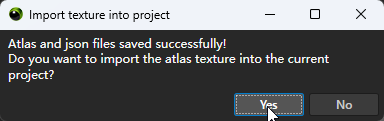
If you choose to import the atlas, the tool adds the atlas texture to the project. If you choose not to import it, you can use the saved files later. After saving, the tool clears the selection and reloads the project image list.
Output formats
The selected images determine the atlas format:
Selected images |
Output image |
|---|---|
PNG only |
PNG |
JPG, JPEG, or JFIF only |
JPG |
PNG and JPG mixed |
PNG |
EXR only |
EXR |
EXR mixed with PNG or JPG |
PNG; the interface displays a conversion warning |
Note
Pixels in skeletal animation textures represent matrix data. When combining these textures, select only EXR images to keep the output in EXR format.
Generated files
For example, setting File Name to ui_atlas and the output directory to Tool_project\Bake\Atlas generates:
ui_atlas.png
ui_atlas.json
An EXR-only atlas generates .exr and .json files with the same base name.
File |
Purpose |
|---|---|
Atlas image |
Stores the arranged image content. |
JSON |
Stores the atlas filename, packing dimensions, and region positions for each source image. |
The tool writes the generated JSON content to Log, where you can review the required information.
JSON configuration reference
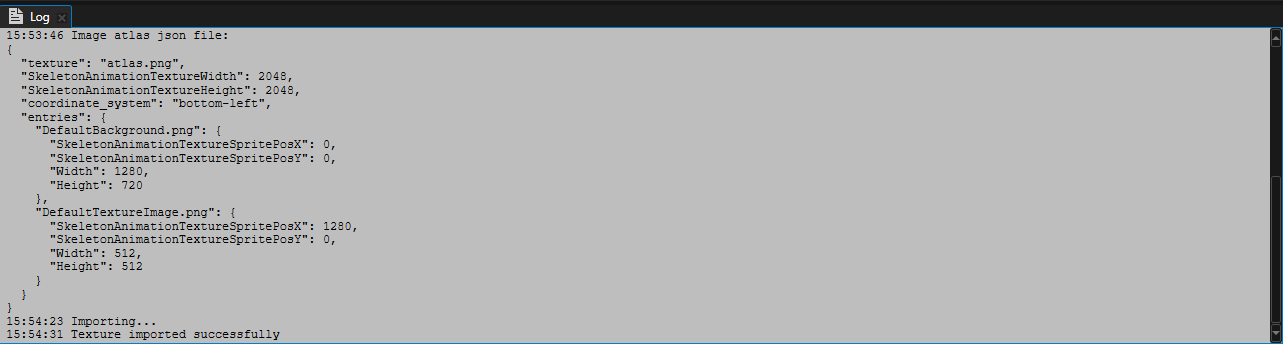
For example, the JSON for an EXR atlas can contain these entries. The values are for illustration:
{
  "texture": "animation_atlas.exr",
  "SkeletonAnimationTextureWidth": 1024,
  "SkeletonAnimationTextureHeight": 1024,
  "coordinate_system": "bottom-left",
  "entries": {
    "character_baked_animation.exr": {
      "SkeletonAnimationTextureSpritePosX": 0,
      "SkeletonAnimationTextureSpritePosY": 0,
      "Width": 312,
      "Height": 300
    }
  }
}
Field |
Description |
|---|---|
|
Output atlas filename. |
|
Atlas packing width. |
|
Atlas packing height. |
|
Coordinate convention. Currently |
|
Image regions keyed by source filename. |
|
Horizontal position of the lower-left corner of the image region. |
|
Vertical position of the lower-left corner of the image region. |
|
Source image region width. |
|
Source image region height. |
All length values are in pixels.
Atlases for ordinary images use the same field names. The atlas JSON describes image regions. It does not replace the action names, frame counts, clip start rows, or other configuration generated by Animation Bake.
Combining skeletal animation textures
To combine multiple EXR textures from Animation Bake:
Make sure that the source EXR images are imported and that their animation materials reference the source textures.
Open Image Atlas and select the EXR category.
Select the EXR images to combine. Make sure that no PNG or JPG images are also selected.
Set the atlas size and wait for the preview.
Set the name and directory, then click Save.
In the prompt after saving, choose to import the atlas into the project.
Check the texture references and region properties of the corresponding materials, and verify animation playback.
When importing an EXR-only atlas, the tool attempts to find matching skeletal animation materials for each source image and update these properties:
Property |
Update |
|---|---|
SkeletonAnimationSkinningBoneTexture |
References the generated atlas texture. |
SkeletonAnimationTextureSpritePosX |
Horizontal start position of the source image in the atlas. |
SkeletonAnimationTextureSpritePosY |
Vertical start position of the source image in the atlas. |
SkeletonAnimationTextureWidth |
Full atlas width. |
SkeletonAnimationTextureHeight |
Full atlas height. |
This process does not change clip start rows, frame counts, or playback progress. They continue to describe actions within the source animation data region.
Note
Saving and importing an ordinary PNG/JPG atlas does not automatically update all UI image references or UV regions.