Text
Kanzi has these text nodes:
Use the Text Block nodes to show a small amount of text in your application.
See Using the Text Block nodes.

Use the Text Box nodes to add single-line text input to your application.

Font type
The default font family in Kanzi is Fira Sans Regular. The font file is stored in <KanziInstallation>/Studio/Asset Library/Fonts. When you want to use your own font, import it to your Kanzi Studio project.
See Importing fonts.
You can use these font types in your Kanzi applications:
TrueType and OpenType fonts (ttf and otf files)
iType linked fonts (ltt files). See iType linked fonts.
Bitmap fonts (fnt files). See Using bitmap fonts.
Make sure that the fonts that you use provide the glyphs required by the text in your application. When you use the FreeType font engine, you can configure fallback Font Families for different Unicode writing systems. See Using font fallback.
Font size
Kanzi sets the size of fonts in pixels. When you set the Font Size property, Kanzi passes that value to the Freetype library, which Kanzi uses to render fonts, using the FT_Set_Char_Size function with the default dpi value of 72.
For example, both of these display the letter H of the same size:
Text Block or Text Box nodes with these properties set:
Text to H
Font Family to Arial
Font Size to 36
HTML markup
<p style="font-family:arial; font-size:36px;">H</p>
If you want to control the dpi scaling or set the font size in units other than pixels, you must implement that functionality in your Kanzi application. For example, if you want to automatically select the content that the images and layouts in your project use based on the dpi setting, implement that functionality in your Kanzi application.
Setting the font engine for the Preview
Kanzi supports two font rendering backends:
FreeType is an open-source based font engine included with Kanzi. It is suitable for most general use cases and supports a wide range of font formats. It uses the FreeType rasterizer, HarfBuzz shaper, ICU bidirectional library, and libunibreak for line breaking. This is the default font engine.
iType is a commercial software based font engine that requires a separate license from Monotype. It offers advanced font rendering features and optimizations. It uses the Monotype iType rasterizer and WorldType® Shaper™ for shaping. See Installing the iType font engine.
To set the font engine for the Preview:
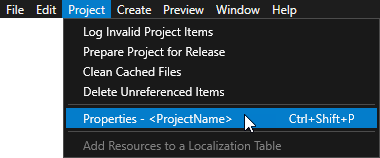
In the main menu select Project > Properties.
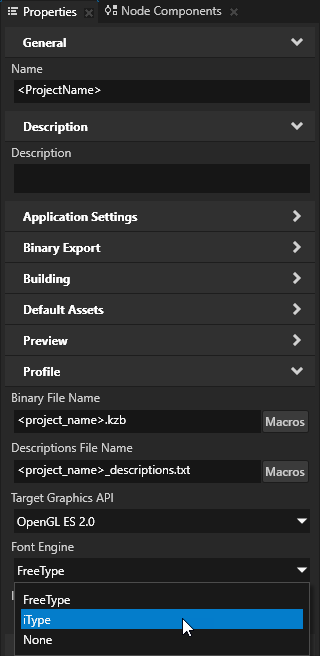
In the Properties, under Profile, set the Font Engine property to:
FreeType to use the FreeType font engine.
iType to use the iType font engine.
None to not load a font engine. When you do not load a font engine, Kanzi does not render the text in your application.
To learn how to set which font engine to load at application startup, see FontEngine.
Note
iType and FreeType font engines use different rendering and shaping algorithms. As a result, some differences in text rendering and layout can be expected. In certain cases, these font engines may also interpret different parts of the font file.
If you switch from one Font Engine to the other, updating or adjusting the font file itself may be needed to minimize or eliminate these differences.
Setting font hinting
Font hinting provides instructions for rasterization: mapping the outlines of fonts to screen pixels. Font hinting aims to both maintain the design aesthetic of a font and optimize the readability of the font at different sizes.
Text nodes in Kanzi by default use the font hinting data included in a font.
For example, font hinting can affect the height and width of characters, the width of lines, edge contrast, and the space between characters.
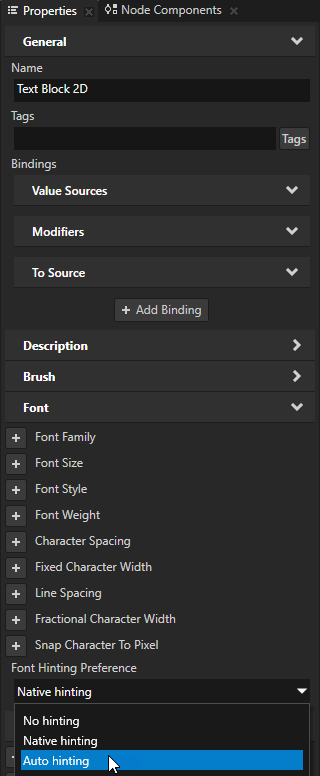
To set font hinting for a Text Block or Text Box node, in the Node Tree select that node, in the Properties add the Font Hinting Preference property, and set it to:
No hinting to render text without font hinting.
Native hinting to render text using the hinting data included in the font. If the font does not contain hinting data, Kanzi uses the hinter of the font engine rasterizer. This is the default value.
Auto hinting to render text using the hinter of the font engine rasterizer. See Setting the font engine for the Preview.
Customizing word wrapping in Thai text with iType font engine
You can customize how Kanzi iType font engine wraps words in Thai text by setting a Thai dictionary that you want to use instead of the one that is built into the iType font engine.
WorldType® SDK comes with:
Thai dictionary
Python utility that creates a Thai dictionary that your application can use
You can find these resources in the WorldType® SDK in the wtle/product/tools/language_dictionaries/thai directory.
To wrap words automatically in Thai text:
Create a Thai dictionary for the iType font engine by passing to
GenerateThaiDictionary.py:Thai dictionary in plain-text format
File where you want to store the generated dictionary
py -2 GenerateThaiDictionary.py thai-dictionary.txt thai-dictionary.wtd
GenerateThaiDictionary.pycreates a wtd file that you set in the application configuration of your Kanzi application:Reading lines from file "thai-dictionary.txt"... done. Extracting, filtering, and normalizing words... done. Adding words to trie... done. number of words: 8 number of characters: 31 longest word length: 7 number of trie nodes: 32 number of trie edges: 31 Compressing trie into a DAWG (Directed Acyclic Word Graph)... done. number of edges in root node: 9 number of DAWG nodes: 24 number of DAWG edges: 30 edges / characters = 96.8 % dawgEdges / trieEdges = 96.0 % dawgNodes / trieNodes = 75.0 % DAWG array elements: 31 Writing DAWG to file "thai-dictionary.wtd"... done. file size: 0 k
To set your application to use the Thai dictionary that you created, in a text editor set the iType font engine dictionary in the
<ProjectName>/Application/bin/application.cfgfile:# Set additional backend dictionaries. ITypeDictionaryUrls = file:///usr/share/itype/thai-dictionary.wtd
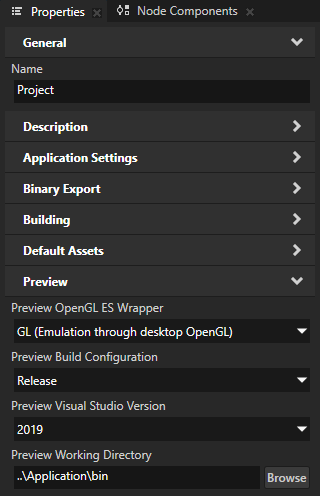
(Optional) To set the Kanzi Studio Preview to correctly render Thai text when you use the iType font engine, in Kanzi Studio open your project and in the main menu select Project > Properties. In the Properties set the Preview Working Directory property to the directory that contains the
application.cfgfile that you created in the previous step.
Using font fallback
Note
Font fallback is available when you use the FreeType font engine.
Use font fallback to render text that contains multiple writing systems, symbols, or emoji. Keep the primary Font Family assigned to the text node and add the other Font Families to its Fallback Font Family property. Kanzi selects a Font Family for each part of the text.
The image below shows text without font fallback (left) and with font fallback (right).

A Font Family provides these properties for configuring font fallback:
Font UScriptCode identifies the Unicode writing system associated with the Font Family.
Fallback Font Family lists the Font Families that supplement the character coverage of the primary Font Family.
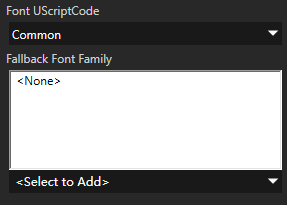
Setting Font UScriptCode
The default value of Font UScriptCode is Common.
To set Font UScriptCode for a Font Family:
Import the fonts that you want to use into your Kanzi Studio project.
In the Library > Font Families, select the imported Font Family.
In the Properties, set Font UScriptCode to the Unicode writing system that corresponds to the font.
For example, for a font that you use to render Japanese Hiragana characters, set Font UScriptCode to Hiragana.
Repeat these steps for the other Font Families that you want to use for font fallback.
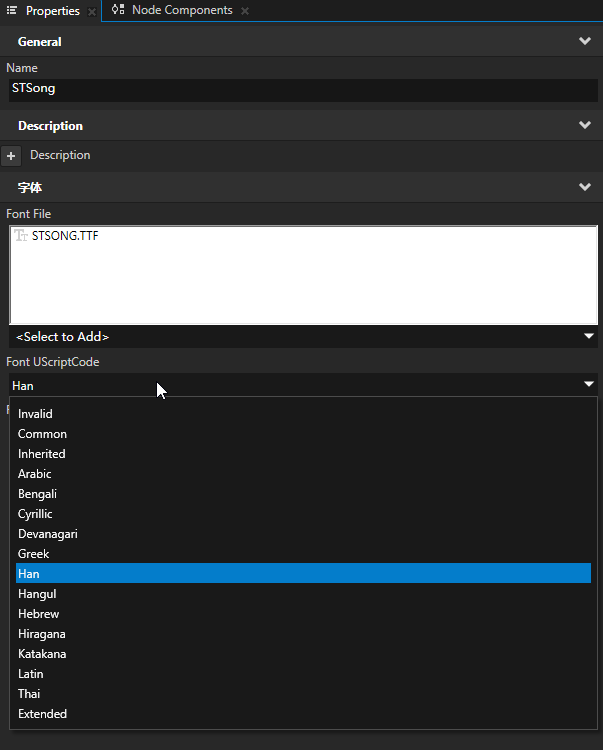
Font UScriptCode values
The Unicode writing systems listed in Font UScriptCode correspond to UScriptCode values from ICU (International Components for Unicode). For valid Unicode scripts, the table also lists the corresponding ISO 15924 script code. Extended is a Kanzi Font Family label for writing systems not listed in this property, not an ICU script.
Display name |
UScriptCode |
ISO 15924 |
Description and main languages |
|---|---|---|---|
Invalid |
|
Invalid or unspecified writing system. |
|
Common |
|
Zyyy |
Common characters, such as punctuation marks, numbers, mathematical symbols, and currency symbols, that do not belong to a specific writing system. |
Inherited |
|
Zinh |
Inherited characters that usually use the writing system property of the preceding character, such as combining marks. |
Arabic |
|
Arab |
Arabic, Persian, Urdu, Uyghur, and other languages that use the Arabic script. |
Bengali |
|
Beng |
Bengali, Assamese, and other languages that use the Bengali script. |
Cyrillic |
|
Cyrl |
Russian, Ukrainian, Bulgarian, Serbian, and other languages that use the Cyrillic script. |
Devanagari |
|
Deva |
Hindi, Sanskrit, Nepali, Marathi, and other languages that use the Devanagari script. |
Greek |
|
Grek |
Greek. |
Han |
|
Hani |
Han characters used in Chinese, Japanese, and Korean. |
Hangul |
|
Hang |
Korean Hangul. |
Hebrew |
|
Hebr |
Hebrew. |
Hiragana |
|
Hira |
Japanese Hiragana. |
Katakana |
|
Kana |
Japanese Katakana. |
Latin |
|
Latn |
English, French, German, Spanish, most other Western European languages, Vietnamese, Turkish, and other languages that use the Latin script. |
Thai |
|
Thai |
Thai. |
Extended |
Fallback fonts for writing systems not listed in this property. |
Setting Fallback Font Family
Use Fallback Font Family to add one or more Font Families that supplement the primary Font Family.
To add fallback Font Families:
In the Library > Font Families, select the Font Family that you want to use as the primary Font Family.
In the Properties, find the Fallback Font Family property.
In the <Select to Add> dropdown menu, select the Font Family that you want to add.
Add more Font Families as needed.
For each fallback Font Family, set Font UScriptCode to the Unicode writing system that corresponds to that font.
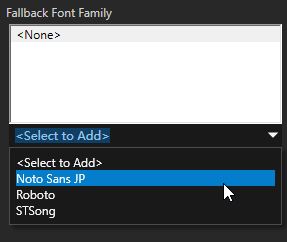
Font Family priority
For a writing system listed in Font UScriptCode, Kanzi selects a Font Family with the matching setting in this order:
The primary Font Family has the highest priority.
Kanzi checks the Font Families in Fallback Font Family in list order and uses the first matching Font Family.
For example, assume that the primary Font Family uses Font UScriptCode Latin, and you add these Font Families to Fallback Font Family in this order:
A Font Family with Font UScriptCode set to Han.
A Font Family with Font UScriptCode set to Hiragana.
Another Font Family with Font UScriptCode set to Han.
For Han characters, Kanzi uses the first Han Font Family in the fallback list. For Hiragana characters, Kanzi uses the Font Family configured for Hiragana.
The following sections describe the separate selection rules for Extended fonts, emoji, and Private Use Area characters.
Using Extended fonts
Use Extended for fonts that support writing systems not listed in Font UScriptCode, such as Tibetan, Myanmar, Khmer, and Old Persian. You can add one or more Font Families with Font UScriptCode set to Extended.
Kanzi uses the Extended Font Families only for text in an unlisted writing system. It does not use them for:
Listed writing systems, such as Latin, Han, Arabic, and Thai, even when no Font Family is configured for that writing system in Fallback Font Family.
Emoji.
Private Use Area (PUA) characters.
For each text run in the same unlisted writing system, Kanzi checks the Extended Font Families in list order and selects the first Font Family that contains all characters in the run. Using one Font Family for the entire run avoids splitting a syllable in a complex writing system across fonts.
If no Extended Font Family covers the run, Kanzi uses the primary font. Characters missing from that font appear as missing-glyph placeholders.
To configure Extended Font Families:
In Library > Font Families, create a Font Family for each unlisted writing system that you need.
For example, create Font Families named Tibetan and Old Persian.
Add the corresponding font files to those Font Families.
Select the primary Font Family used by the Text Block and add the new Font Families to Fallback Font Family.
Set Font UScriptCode for each of these Font Families to Extended.
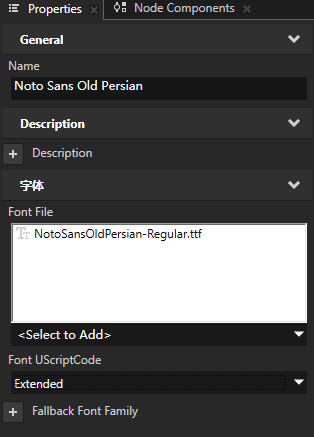
Place the more frequently used or more specialized Extended Font Families earlier in the fallback list.
Note
Extended Font Families do not fill gaps in the glyph coverage of a listed writing system. For example, if the configured Han Font Family lacks a Han character, Kanzi does not search Extended Font Families for that character. Use a Han font that contains the required glyph, or add the glyph to that font.
Using emoji fonts
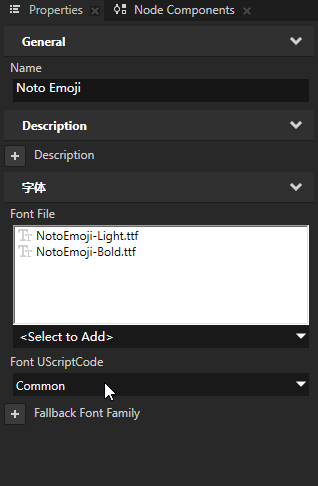
Use font fallback to display emoji alongside body text. Keep the Text Block set to the primary Font Family, add a Font Family that contains emoji to Fallback Font Family, and set its Font UScriptCode to Common.
With the FreeType font engine, the Font Family can contain a monochrome or color emoji font. For information about rendering emoji in color, see Displaying color emoji with FreeType.
Kanzi handles emoji as separate text runs. Emoji do not inherit the Font Family of adjacent Latin or Han text. For emoji, Kanzi searches in this order:
Another font file in the primary Font Family that contains the emoji, excluding the body-text font file.
A Font Family in Fallback Font Family whose Font UScriptCode is Common and that contains the emoji.
The primary font. If it does not contain the emoji glyph, the result can be a missing-glyph placeholder or an incorrect character.
To use an emoji font:
In Library > Font Families, create a Font Family that contains only the emoji font file.
For example, name it Emoji.
Select the primary Font Family used by the Text Block.
Add the Font Family that contains emoji to Fallback Font Family.
Set Font UScriptCode for that Font Family to Common.
Kanzi uses emoji font selection for:
Characters with default emoji presentation, such as 😀.
Zero-width joiner sequences, such as 👨💻 and 👨👩👧.
Flag sequences formed by pairs of regional indicator symbols.
Skin tone modifiers.
Keycap sequences, such as 1️⃣.
Ordinary digits, #, and * do not use emoji font selection. For example, 1111 continues to use the body-text font even when the emoji font contains digit glyphs.
Using private-use characters
Private Use Area (PUA) code points are often used for custom icons. Kanzi treats them as an unknown writing system and does not use either Extended or emoji font selection for these characters.
For PUA characters, Kanzi uses the Text Block’s primary font or another font file that its Font Family can select for that node.
To display PUA icons:
Include the icon glyphs in the primary font file or in a font file in the Font Family assigned to the Text Block.
In the Text property, enter the PUA code points mapped to those glyphs in the font.
Note
PUA code points do not have a shared meaning across fonts. Use the code point mappings defined by your icon font. If the selected font has no glyph for a PUA code point, Kanzi displays a missing-glyph placeholder.
Displaying color emoji with FreeType

Use a supported color emoji font with the FreeType font engine to display emoji in their intrinsic colors. First configure the Font Family as described in Using emoji fonts.
To display color emoji in body text:
In the Font Family that contains emoji, use a color emoji font file.
Set Foreground of the Text Block 2D to Color Brush, or keep the default setting.
When Foreground is a Color Brush, its color affects only body text. The opacity of the Color Brush and the node still affects color glyphs.
Supported color emoji font formats
Kanzi renders emoji glyphs in color from these font formats:
CBDT
SBIX
COLRv0
Kanzi supports importing fonts that use SVG or COLRv1, but does not render these formats in color. For these fonts, Kanzi uses grayscale outlines.
Color emoji rendering limitations
Color emoji are available only with the FreeType font engine. iType does not render color glyphs.
When Foreground in a Text Block 2D or Text Box 2D is a Color Brush, Kanzi preserves the intrinsic colors of color glyphs. When you use another Brush, a Text Block 3D, or a Text Box 3D, the glyphs can be tinted.
Color Workflow affects color glyphs in the same way as other color content. Colors are more saturated in the Legacy workflow and lighter in the Linear workflow.
Color glyphs use an RGBA glyph cache of at least 2048 by 2048 pixels, so they use more memory than grayscale body text. When the cache is full, Kanzi removes less frequently used glyphs. If some emoji do not appear while body text remains visible, increase
GlyphCacheWidthandGlyphCacheHeight.Some emoji fonts give the space character the same advance width as emoji. When the advance width is greater than 0.5 em, Kanzi sets the space width to approximately 0.25 em.
On the target device, FreeType must have
FT_CONFIG_OPTION_USE_PNGenabled and link againstlibpngto decode CBDT bitmaps. If emoji appear in color in the Preview but in grayscale on the target device, rebuild the font engine plugin with a version of FreeType that supports PNG.