Step 1 - Create application structure in the Pages window
In this step of the tutorial you create a Kanzi Studio project and import the assets you need for that project. Then you use the Pages window to create the application structure.
Assets for the tutorial
The assets you use in this tutorial are stored in <KanziWorkspace>/Tutorials/Pages/Assets.
The <KanziWorkspace>/Tutorials/Pages/Completed directory contains the completed project of this tutorial.
Create a project and import assets
In this section you create a project and import assets you use to create the application in this tutorial.
To create a project and import assets:
In the Kanzi Studio in Quick Start screen click New Project.

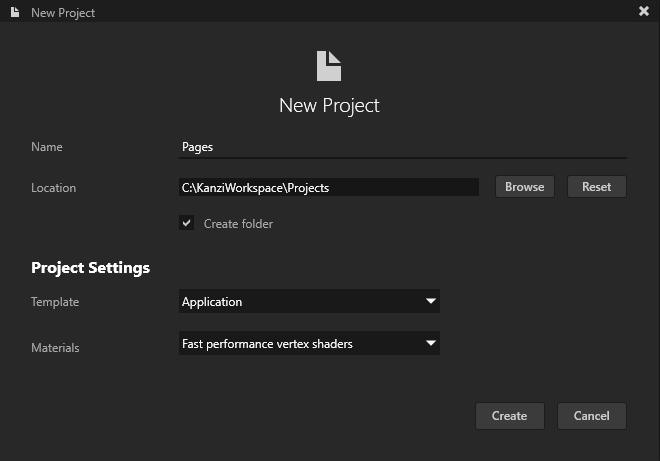
In the New Project window name your project and set the Template to Application.
Kanzi creates a Kanzi Studio project in the
<ProjectName>/Tool_projectdirectory and the structure for the application code of your project in the<ProjectName>/Applicationdirectory:bindirectory contains the kzb and configuration files of your project.configsdirectory contains the configuration files for different platforms. By default Kanzi creates configuration files for several different platforms. The recommended platform for developing Kanzi applications is Microsoft Visual Studio. See Deploying Kanzi applications.srccontains the source code for your application.CMakeLists.txtfile contains the instructions for CMake to generate the Visual Studio solution for the Kanzi application.generate_cmake_vs2017_solution.batis a script that you can use to generate a Visual Studio solution for the Kanzi application. The script generates the Visual Studio solution in the directory<ProjectName>/Application/build_vs2017directory.
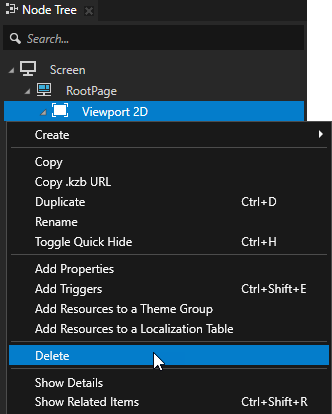
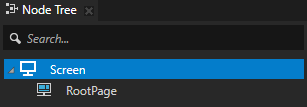
In the Node Tree right-click the Viewport 2D node and select Delete to delete the node.
You can delete the Viewport 2D node because you do not create any 3D content in this tutorial.
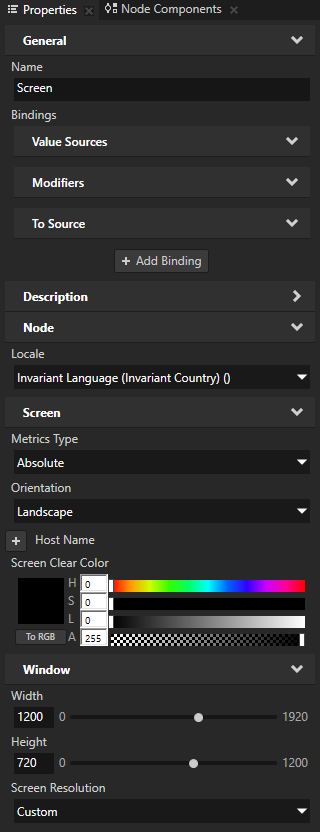
In the Node Tree select the Screen node and in the Properties set:
Metrics Type to Absolute
Width to 1200
Height to 720
This way you set the size of the application screen.
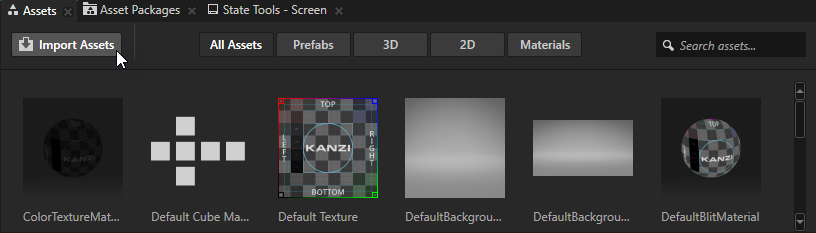
In the Assets window located in the bottom part of the Kanzi Studio interface click Import Assets.
Go to the
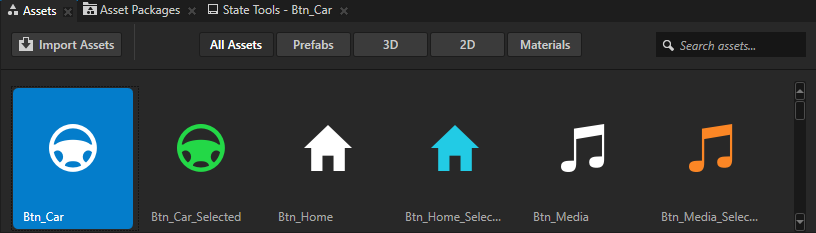
<KanziWorkspace>/Tutorials/Pages/Assetsdirectory, select all files, and click Open.Kanzi Studio imports the selected assets to your project and shows them in the Assets window.
Use the Assets window to view, select, and use the assets in your project.
Create the application structure
In this section you create the application structure with Page and Page Host nodes using the tools in the Pages window. In Kanzi Studio the Pages window is by default docked in the same position as the Library and Dictionaries windows.
To create the application structure:
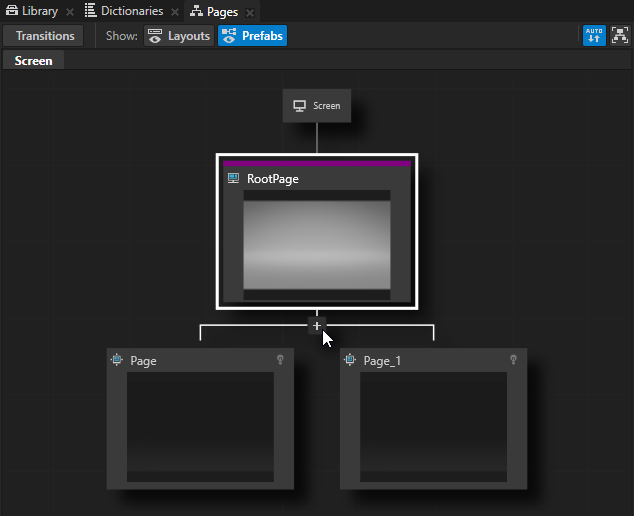
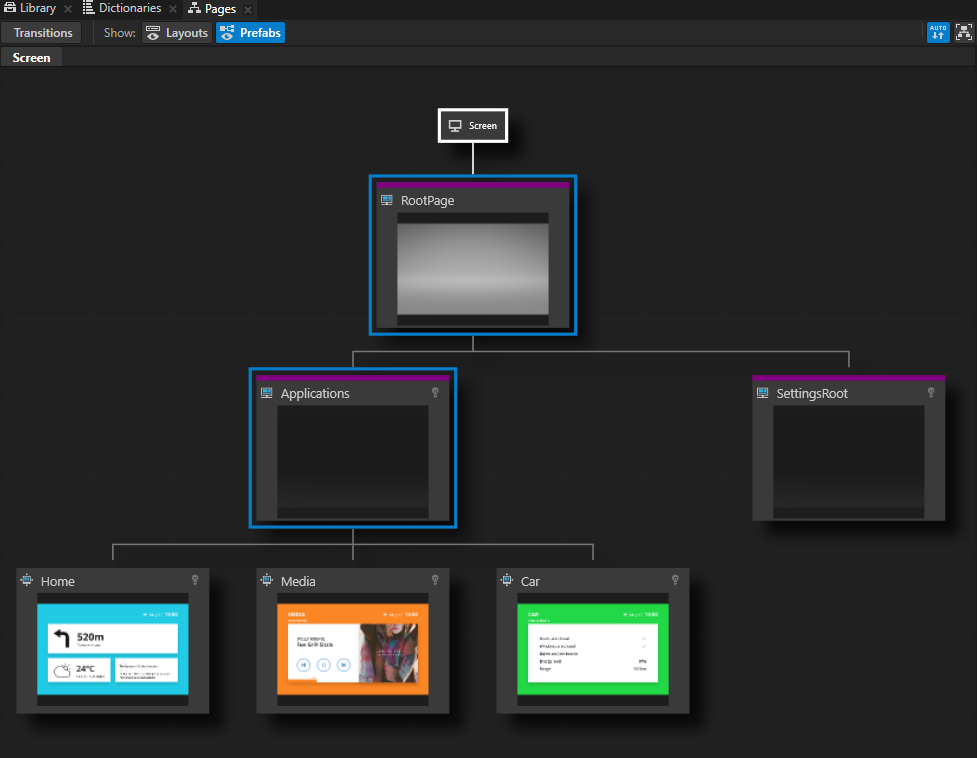
In the Pages window move your mouse pointer over the RootPage and click
 twice to create two Page nodes under the RootPage node.
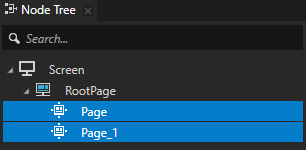
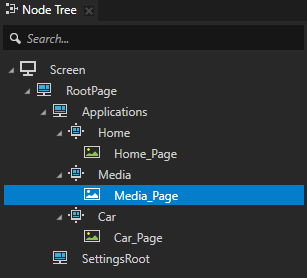
When you create Page nodes in the Pages, you can see the same Page nodes in the Node Tree too.
To pan and zoom in the Pages window, use these shortcuts:
Action
Shortcut
Pan
Click and drag the middle mouse button.
Press the Space key, and click and drag the left mouse button.
Zoom
Scroll the mouse wheel.
Press the Shift and Alt keys, and click and drag the left mouse button.
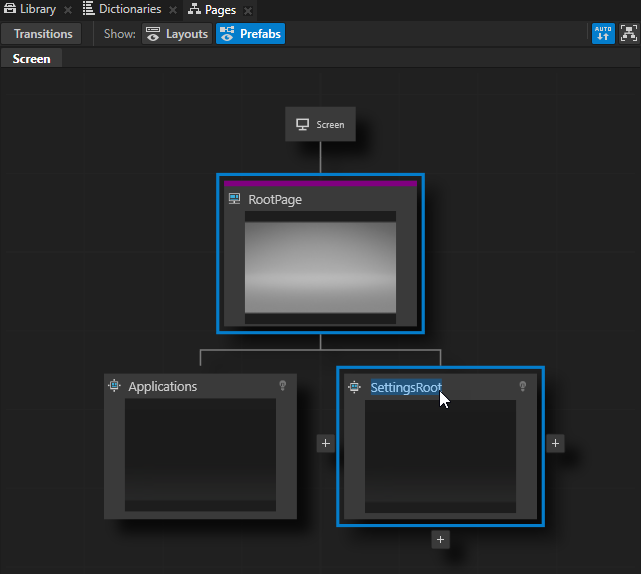
In the Pages double-click the names of the Page nodes you created in the previous step and rename them to Applications and SettingsRoot.
In this tutorial the Page Host node Applications holds the content of Page nodes, each of which represents an application, while the Page Host node SettingsRoot holds the content of a popup window that is shown on top of the applications. You create the Settings popup window in the last step of this tutorial.
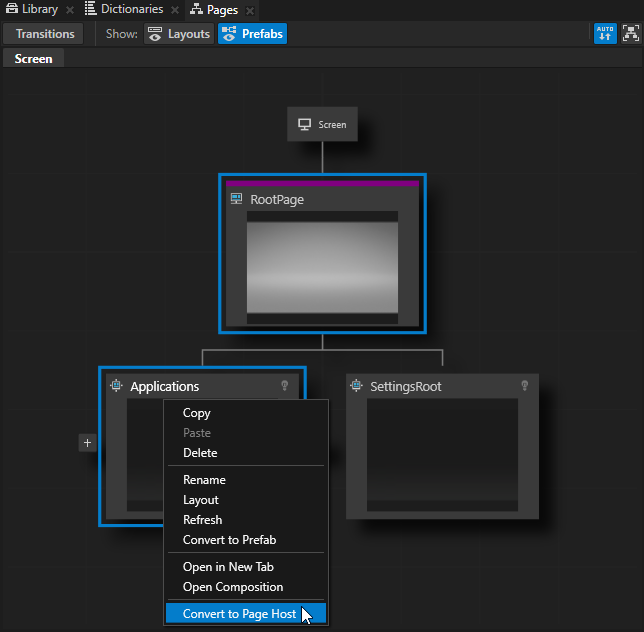
In the Pages right-click the Applications and SettingsRoot nodes and select Convert to Page Host.
Use a Page Host node to group other Page Host and Page nodes. The main difference between the Page and Page Host nodes is that the Page Host node manages navigation requests and transitions in its tree.
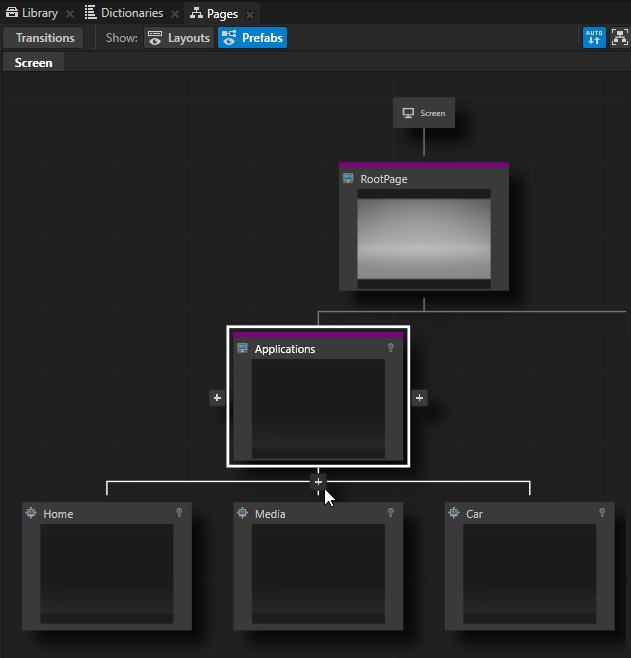
In the Pages move your mouse pointer over the Page Host node Applications and at the bottom of that node click
three times to create three child Page nodes under the Applications node, and name them Home, Media, and Car.Each of these Page nodes holds the content for their application. For prototyping purposes in this tutorial you add only images of these applications. However, when you move your application from the prototype phase to the development phase, replace the placeholders with the content of these applications.
Tip
To see the entire structure of Page and Page Host nodes in your application, in the Pages window click
 .
.
From the Assets drag to the Pages window:
Home_Page texture to the Home node
Media_Page texture to the Media node
Car_Page texture to the Car node
When you drop an image from the Assets on a Page or a Page Host node in the Pages, Kanzi Studio creates an Image node with the image you dropped.
Tip
When you click any Page or Page Host node in the Pages window, Kanzi transitions to that node and you can see the transition in the Preview.
Set the application so that it shows the contents of the Home node when you start the application:
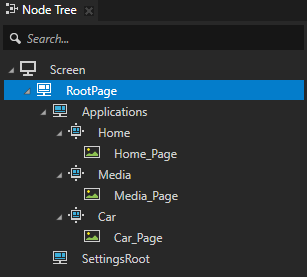
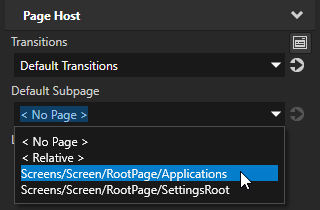
In the Node Tree select the RootPage node and in the Properties set the Default Subpage property to the Applications node.
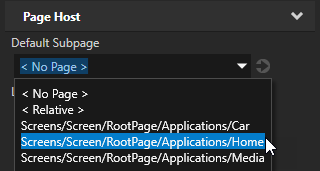
By setting the Default Subpage property you tell Kanzi which Page or Page Host node to activate when this Page Host becomes active.
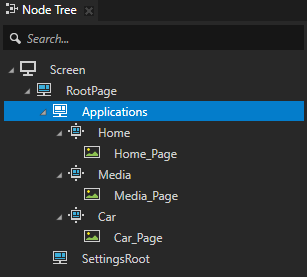
In the Node Tree select the Applications node and in the Properties set the Default Subpage property to Home.
See also
To find out more about importing assets to your projects, see Importing.
To find out more about the Page and Page Host nodes, see Using the Page and Page Host nodes.