Using OpenGL ES 3.0 in Kanzi
Kanzi supports the OpenGL ES 3.0 shading language (GLSL ES version 300). With OpenGL ES 3.0 you can use integer textures, floating point and multiple render targets. For example, this allows you to have more precision with the rendered images, you can apply better looking post-processing effects, use HDR for textures and cubemap textures, and create seamless cubemaps.
Before you use OpenGL ES 3.0 make sure that your target platform supports OpenGL ES 3.0.
To use OpenGL ES 3.0 in Kanzi:
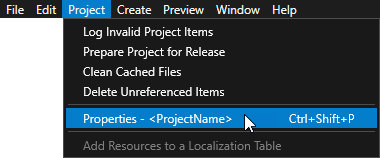
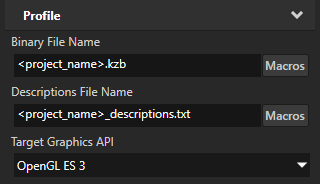
In the Project > Properties set the Target Graphics API to OpenGL ES 3.
Add as the first line of vertex and fragment shaders the OpenGL ES 3.0 version tag
#version 300 es
Setting color format of textures
You can import to your Kanzi Studio project HDR and floating point images in .dds format and set the color format of textures which use these images.
To set the color format of textures:
In the Project > Properties set the Target Graphics API to OpenGL ES 3.
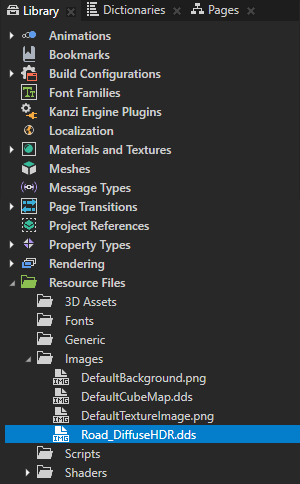
In the Library > Resource Files > Images select the image the color format of which you want to set.
In the Properties set the Target Format property to Raw.

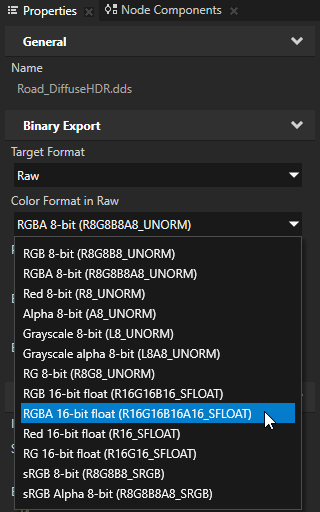
In the Properties set the Color Format in Raw property to the color format you want Kanzi to use to interpret the texture.
In the Library > Materials and Textures >
Texturesselect the texture that uses the image the color format of which you set in the previous steps, and in the Properties set:Wrap Mode to Clamp
Mipmap Mode to Linear or Nearest
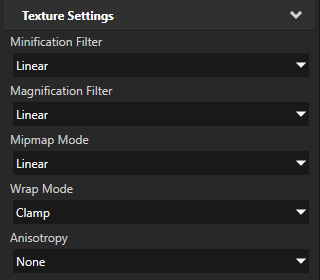
Setting the format of a render target texture
Set the format of a render target texture to define the target pixel format used by the GPU.
To set the format of a render target texture:
In the Project > Properties set the Target Graphics API to OpenGL ES 3.
In the Library > Materials and Textures >
Texturesselect or create a Render Target Texture.In the Properties in Texture Settings set the Format to the target pixel format you want to use.
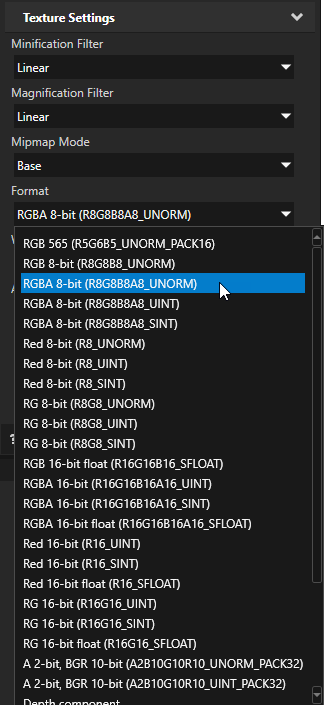
If your render target textures are in integer target format, set the Minification Filter and Magnification Filter properties to Nearest.
Selecting runtime graphics backend
On the Windows operating system you can select whether you want to use OpenGL ES or OpenGL in the Application::onConfigure() function, in the application.cfg, or using the command line arguments, if your target supports command line arguments.
On the command line use:
-glesto use OpenGL ES-glto use OpenGL-eglto use EGL-wglto use WGL
In |
|
||||
In |
|
||||
Values |
|
||||
|
# Sets the surface target for OpenGL rendering and WGL graphics context.
GraphicsBackend = opengl
|
||||
|
// Sets the surface target for OpenGL rendering and WGL graphics context.
configuration.defaultSurfaceProperties.type = KZS_SURFACE_TYPE_GL_ONLY;
|