Contents Menu Expand
Kanzi UI 3.9.0 documentation
Logo
  • Kanzi UI 3.9 beta 1
  • Installing Kanzi
    • Upgrading Kanzi
    • Kanzi Studio license management
      • Using a product key to activate Kanzi Studio
      • Using a dongle license to activate Kanzi Studio
      • Using a floating license
      • Using a license file to activate Kanzi Studio
      • Changing the type of Kanzi Studio license
      • Transferring your license
      • Upgrading computer hardware or operating system
    • What is installed with Kanzi?
  • Tutorials
    • Getting started with Kanzi Studio (Beginner)
      • Step 1 - Create a project
      • Step 2 - Create and modify content
      • Step 3 - Create user interface structure
      • Step 4 - Create interactions
      • Step 5 - Create and use resources
      • Step 6 - Add application states
    • Create a simple IVI application (Beginner)
      • Step 1 - Create a new project and import assets
      • Step 2 - Create the application structure
      • Step 3 - Create a control to navigate between the Page nodes
      • Step 4 - Create states for the Car page
      • Step 5 - Create the content for the Media page
      • Step 6 - Deploy your application
    • Materials and textures (Beginner)
      • Step 1 - Import content and create the background
      • Step 2 - Create a new material type and textures for the car body
      • Step 3 - Set the materials for tires, rims, and chrome parts
      • Step 4 - Define material properties for the windows and the headlight glass
      • Step 5 - Adjust materials
    • Application flow with Page nodes (Beginner)
      • Step 1 - Create application structure in the Pages window
      • Step 2 - Create the application navigation
      • Step 3 - Add content to the application
      • Step 4 - Create a popup window
    • Keyframe animations (Beginner)
      • Step 1 - Create the animation
      • Step 2 - Fine-tune the animation
    • State managers (Beginner)
      • Step 1 - Create a state manager to control the application state
      • Step 2 - Use a JavaScript script to control the application state
    • Set state with JavaScript (Beginner)
    • Gauges (Advanced)
      • Step 1 - Create the speed needle
      • Step 2 - Create the fuel and battery needles
    • Cluster indicators (Advanced)
    • Interpolate property values (Advanced)
      • Step 1 - Interpolate the rotation of the compass dial
      • Step 2 - React to a completed interpolation
    • 3D model rotation (Advanced)
    • Dynamic layout (Advanced)
    • Localization (Advanced)
      • Step 1 - Localize text and texture content
      • Step 2 - Create locale packs for additional locales
      • Step 3 - Load locale packs
    • Localization for right-to-left locales (Advanced)
      • Step 1 - Prepare an application for right-to-left locales
      • Step 2 - Define the application layout for the right-to-left locales
      • Step 3 - Load the locales and instantiate the prefabs
    • Theming (Advanced)
      • Step 1 - Create a theme for a cluster
      • Step 2 - Create a theme for a car variant
      • Step 3 - Export and use the API to set the application theme
    • Demo mode for application (Advanced)
      • Step 1 - Create the demo mode
      • Step 2 - Control the demo mode
    • Combine projects (Advanced)
    • Button (UI controls)
    • Toggle button (UI controls)
    • Slider (UI controls)
    • List box (UI controls)
      • Step 1 - Create a contacts list and get contacts from a data source
      • Step 2 - Set the appearance of the list items
      • Step 3 - Define the appearance for the selected item
    • Blur (Rendering)
      • Step 1 - Create materials for the blur effect
      • Step 2 - Apply the blur effect
      • Step 3 - Control the amount of blur
      • Step 4 - Toggle the blur effect
    • Bloom (Rendering)
      • Step 1 - Render the car and headlights
      • Step 2 - Show the bloom effect
      • Step 3 - Fine-tune the bloom effect
    • Stencil (Rendering)
      • Step 1 - Create the stencil
      • Step 2 - Apply the stencil
    • Reflections (Rendering)
      • Step 1 - Prepare the nodes in your project
      • Step 2 - Render the reflection
    • Progressive Rendering (Rendering)
      • Step 1 - Prepare the nodes in your project
      • Step 2 - Distribute rendering across frames
      • Step 3 - Fine-tune content rendered by the Progressive Rendering Viewport 2D node
    • Move focus in an application (Input)
      • Step 1 - Set nodes to handle focus
      • Step 2 - Move focus between UI elements
      • Step 3 - Create a popup-type window
    • Pan, zoom, tap (Input)
      • Step 1 - Pan the map
      • Step 2 - Zoom and rotate the map
      • Step 3 - Long-press to drop a pin
    • Drag and drop (Input)
      • Step 1 - Prepare the content
      • Step 2 - Implement the drag and drop functionality
      • Step 3 - Animate the button that the user drags
    • Hello World! (API)
      • Step 1 - Create project with C++ application and print to debug console
      • Step 2 - Set a property value using the Kanzi Engine API
    • Application logic (API)
      • Step 1 - Use the Kanzi Engine API to load a Kanzi binary
      • Step 2 - Access the content created in the Kanzi Studio project
      • Step 3 - Create prefab instances and load images from the file system
      • Step 4 - Create the interaction handler for selecting a widget
      • Step 5 - Create the interaction for the widget description panel
      • Step 6 - Build and deploy your application to an Android device
    • Asynchronous loading (API)
    • Data sources (API)
      • Step 1 - Define a data source
      • Step 2 - Use the data source in Kanzi Studio
      • Step 3 - Define and use a static list data source
  • Kanzi fundamentals
    • Presentation
    • Layouts
    • Resource management
    • Property system
    • Logic programming
    • Animation system
  • Best practices
    • Performance
      • Application idle state
      • Measuring application performance
        • Measuring the performance of your application code
        • Measuring the performance of Kanzi Engine
        • Resource profiling reference
        • Measuring the loading and deployment time of resources
      • Troubleshooting the performance of your application
      • Loading resources in parallel
    • Animations
      • Removing redundant Animation Data channels
      • Removing redundant keyframes
    • Images and textures
      • Adjusting the data size
      • Compressing textures
      • Filtering textures
      • Using mipmaps
      • Using a tile atlas
    • Meshes
      • Preparing 3D assets in third-party tools
      • Optimizing meshes
      • Optimizing fragment shaders
      • Reducing the number of rendered vertices
      • Setting the correct size of vertex cache
      • Editing the origin of nodes and setting the data type for vertex attributes
      • Setting culling
    • Rendering
      • Optimizing the rendering of layouts
      • Preventing overdraw with the Sorting Filter
      • Caching 2D nodes
      • Composition and blending
      • Rendering partially transparent nodes
      • Configuring nodes for efficient rendering
      • Distributing rendering across several frames
      • Applying anti-aliasing
      • Setting culling
    • Shaders
      • Reducing shader switches
      • Using binary shaders
      • Optimizing fragment shaders
    • Cleaning up your project
  • Working with …
    • 2D content
      • Applying custom rendering to 2D nodes
      • Creating a 3D perspective effect for 2D nodes
      • Caching 2D nodes
    • 3D assets
      • Preparing 3D assets in third-party tools
      • Importing 3D assets
      • Merging 3D assets
      • Using 3D models with UVs
    • Activity nodes
      • Exclusive Activity Host nodes
      • Data Driven Exclusive Activity Host nodes
      • Parallel Activity Host nodes
      • Creating transitions between Activity nodes
      • Programming Activity nodes with Code Behind
    • Aliases
    • Android
      • Deploying Kanzi applications to Android
      • Kanzi Android application framework API reference
      • Kanzi Android framework API reference
      • Kanzi Java API reference
    • Animations
      • Creating keyframe animations
      • Using keyframe animations
      • Creating property-driven animations
      • Interpolating property values
      • Interpolating property values using easing functions
      • Changing the interpolation mode between keyframes
      • Editing timeline sequences
      • Editing animation clips
      • Importing animations
      • Creating animations and timelines using the Kanzi Engine API
    • Application
      • Application configuration reference
    • Asset packages
    • Automation
    • Bindings
      • Using bindings
      • Customizing instances of prefabs
      • Bindings expressions reference
      • Troubleshooting bindings
    • Bookmarks
    • Brushes
    • Button nodes
      • Using the Button nodes
      • Using the Toggle Button nodes
      • Using the Toggle Button Group nodes
    • Camera node
      • Using the Camera node
      • Making nodes turn to a Camera node
    • Color workflow
    • Content control nodes
      • Using the Image node
      • Using the Nine Patch Image node
    • Data sources
      • Defining a data source
      • Using a data source
    • Deploying Applications
      • Deploying Kanzi applications to Android
      • Deploying Kanzi applications to i.MX6/INTEGRITY
      • Deploying Kanzi applications to Linux
      • Deploying Kanzi applications to QNX
      • Deploying Kanzi applications to Windows
    • Empty Node nodes
    • Factory content
      • Using the Factory Content assets
    • Filters
      • Using the Contains Property Filter
      • Using the Object Type Filter
      • Using the Property Is Equal Filter
      • Using the Sorting Filter
      • Using the Tag Filter
    • Focus
      • Using focus
      • Using the Key Manipulator
      • Using the Navigation Manipulator
    • Grid Layout nodes
    • Images
      • Using the Image node
      • Using the Nine Patch Image node
      • Importing images
      • Preparing images in third-party tools
      • Importing Adobe Photoshop files with layers
    • Importing
      • Preparing 3D assets in third-party tools
      • Importing 3D assets
      • Merging 3D assets
      • Importing animations
      • Importing images
      • Preparing images in third-party tools
      • Importing Adobe Photoshop files with layers
      • Importing fonts
    • Input
      • Using the Click Manipulator
      • Using the Drag-And-Drop Manipulator
      • Using the Key Manipulator
      • Using the Long-Press Manipulator
      • Using the Multi-Click Manipulator
      • Using the Navigation Manipulator
      • Using the Pan Manipulator
      • Using the Pinch Manipulator
    • Instantiator node
    • Interactivity control nodes
    • kzb binaries
    • Layout control nodes
      • Layouts
      • Using the Content Layout nodes
      • Using the Dock Layout nodes
      • Using the Empty Node nodes
      • Using the Flow Layout nodes
      • Using the Grid Layout nodes
      • Using the Stack Layout nodes
      • Using the Trajectory Layout nodes
    • Level-Of-Detail node
    • Light nodes
    • List Box nodes
      • Using the Grid List Box nodes
      • Using the Trajectory List Box 3D node
      • Using the List Box Item Container prefabs
    • Localization
      • Localizing applications
      • Using locales
      • Localization plugin API reference
    • Logging
    • Material types and materials
      • Using material types
      • Using materials
      • Physically-based material properties
      • Creating textured materials
      • Creating transparent materials
      • Using hardware composition
    • Meshes
      • Importing 3D assets
      • Optimizing meshes
      • Editing the origin of nodes
      • Meshes best practices
        • Preparing 3D assets in third-party tools
        • Optimizing meshes
        • Optimizing fragment shaders
        • Reducing the number of rendered vertices
        • Setting the correct size of vertex cache
        • Editing the origin of nodes and setting the data type for vertex attributes
        • Setting culling
      • Using materials
      • Using skinned meshes
    • Morphs
    • Node components
    • Object sources
    • Page and Page Host nodes
      • Setting transitions between Page nodes
    • Performance profiling
      • Measuring the performance of your application code
      • Measuring the performance of Kanzi Engine
      • Resource profiling reference
      • Measuring the loading and deployment time of resources
    • Plugins - Kanzi Engine
      • Using Kanzi Engine plugins
      • Creating Kanzi Engine plugins
      • Debugging Kanzi Engine plugins
      • Extending the functionality of Kanzi Engine
      • Reference for showing Kanzi Engine plugin custom types in Kanzi Studio
      • Kanzi Studio property editors for property types declared in Kanzi Engine plugins
    • Plugins - Kanzi Studio
      • Installing Kanzi Studio plugins
      • Creating Kanzi Studio command plugins
      • Creating Kanzi Studio window plugins
      • Overview of Kanzi Studio plugin interface
      • Debugging Kanzi Studio plugins
      • Kanzi Studio plugin interface API reference
      • Localization plugin API reference
      • Keyboard input codes reference
    • Prefabs
    • Preview
      • Controlling the Preview
      • Editing your application in the Preview
      • Analyzing your application in the Preview
      • Using rulers and guides
    • Projects
      • Creating a project
      • Combining Kanzi Studio projects into a Kanzi application
      • Configuring Kanzi Studio projects
      • Documenting a project
      • Creating backups of your projects
      • Importing projects
      • Merging projects
      • Cleaning up your project
      • Finding invalid project items
      • Integrating third-party libraries into Kanzi projects
    • Property types
      • Creating property types
    • Rendering
      • Rendering best practices
        • Optimizing the rendering of layouts
        • Preventing overdraw with the Sorting Filter
        • Caching 2D nodes
        • Composition and blending
        • Rendering partially transparent nodes
        • Configuring nodes for efficient rendering
        • Distributing rendering across several frames
        • Applying anti-aliasing
        • Setting culling
      • Using render passes
      • Using Kanzi Studio render pass presets
      • Rendering content to composition targets
      • Setting materials for rendering
      • Rendering multiple render passes or textures
      • Creating cubemap reflections
      • Creating a post-processing effect
      • Setting culling
      • Distributing rendering across several frames
      • Optimizing the rendering of layouts
      • Preventing overdraw with the Sorting Filter
      • Caching 2D nodes
      • Rendering partially transparent nodes
      • Configuring nodes for efficient rendering
      • Applying a stencil to 3D content
      • Using the light nodes
      • Using OpenGL ES 3.0 in Kanzi
      • OpenGL extensions used in Kanzi
    • Resource files
      • Managing resource files
    • Resources
      • Using resource dictionaries
      • Setting how Kanzi Engine handles unused resources
      • Accessing resources using bindings
      • Finding invalid project items
      • Resource management
      • Measuring the loading and deployment time of resources
    • Scene node
      • Using resource dictionaries
      • Setting how Kanzi Engine handles unused resources
      • Accessing resources using bindings
      • Finding invalid project items
      • Resource management
      • Measuring the loading and deployment time of resources
    • Screen node
    • Scripting
      • Scripting reference
    • Scroll View nodes
    • Skinning
    • Slider nodes
    • Shaders
      • Editing shaders
      • Shaders best practices
        • Reducing shader switches
        • Using binary shaders
        • Optimizing fragment shaders
    • Stack Layout nodes
    • State manager
      • Using state managers
      • Using state transitions
    • Styles
    • Tags
    • Text nodes
      • Using the Text Block nodes
      • Using the Text Box nodes
      • Importing fonts
    • Textures
      • Using single textures
      • Using cubemap textures
      • Using render target textures
      • Creating textured materials
      • Loading images from the file system
      • Images and textures best practices
        • Adjusting the data size
        • Compressing textures
        • Filtering textures
        • Using mipmaps
        • Using a tile atlas
    • Theming
      • Exporting Themes
      • Using Themes
    • Trajectories
      • Using angle trajectories
      • Using arc trajectories
      • Using circle trajectories
      • Using ellipse trajectories
      • Using line trajectories
      • Using rectangle trajectories
      • Using spiral trajectories
      • Using spline trajectories
      • Using the Trajectory Layout nodes
      • Using the Trajectory List Box 3D node
      • Using trapezoid trajectories
    • Trajectory Layout nodes
    • Triggers
      • Using triggers
      • Using messages
      • Triggers reference
      • Actions reference
    • Version control
    • Viewports
    • Workspace
  • Examples
    • Csv plugin example
    • Layout example
    • Node2D plugin example
    • Node3D plugin example
    • Scroll view example
    • Trajectory list box example
    • Virtual list box example
  • Reference
    • Kanzi Engine API reference
    • Kanzi Java API reference
    • Kanzi Android framework API reference
    • Kanzi Android application framework API reference
    • Kanzi Studio plugin interface API reference
    • Localization plugin API reference
    • Application configuration reference
    • Bindings expressions reference
    • Scripting reference
    • Actions reference
    • Triggers reference
    • Resource profiling reference
    • Reference for showing Kanzi Engine plugin custom types in Kanzi Studio
    • Kanzi Studio property editors for property types declared in Kanzi Engine plugins
    • OpenGL extensions used in Kanzi
    • Default shortcut keys
    • Keyboard input codes reference
    • Kanzi Studio command reference
    • Node and resource reference
      • 3D Asset Source File
      • Activity 2D
      • Activity 3D
      • Angle Trajectory
      • Animation Clip
      • Animation
      • Arc Trajectory
      • Binary Shader Format
      • Bookmark
      • Box
      • Brush
      • Button 2D
      • Button 3D
      • Camera
      • Circle Trajectory
      • Content Layout 2D
      • Content Layout 3D
      • Cube-map Texture
      • Data Driven Exclusive Activity Host 2D
      • Data Driven Exclusive Activity Host 3D
      • Directional Light
      • Dock Layout 2D
      • Dock Layout 3D
      • Ellipse Trajectory
      • Empty Node 2D
      • Empty Node 3D
      • Exclusive Activity Host 2D
      • Exclusive Activity Host 3D
      • Flow Layout 2D
      • Flow Layout 3D
      • Grid Layout 2D
      • Grid Layout 3D
      • Grid List Box 2D
      • Grid List Box 3D
      • Image File
      • Image
      • Instantiator
      • Level of Detail
      • Line Trajectory
      • List Box Item Container 2D
      • List Box Item Container 3D
      • Material
      • Material Type
      • Mesh
      • Nine Patch Image
      • Page Host
      • Page
      • Parallel Activity Host 2D
      • Parallel Activity Host 3D
      • Plane Mesh
      • Plane
      • Point Light
      • Prefab Placeholder 2D
      • Prefab Placeholder 3D
      • Prefab View 2D
      • Prefab View 3D
      • Primitive Meshes
      • Progressive Rendering Viewport 2D
      • Project
      • Rectangle Trajectory
      • Render Pass
      • Render Target Texture
      • Scene
      • Screen
      • Scroll View 2D
      • Scroll View 3D
      • Single Texture
      • Slider 2D
      • Slider 3D
      • Sphere
      • Spiral Trajectory
      • Spline Trajectory
      • Spot Light
      • Stack Layout 2D
      • Stack Layout 3D
      • Style
      • Text Block 2D
      • Text Block 3D
      • Text Box 2D
      • Text Box 3D
      • Texture
      • Timeline Entry
      • Timeline Sequence
      • Toggle Button 2D
      • Toggle Button 3D
      • Toggle Button Group 2D
      • Toggle Button Group 3D
      • Trajectory Layout 2D
      • Trajectory Layout 3D
      • Trajectory List Box 3D
      • Trapezoid Trajectory
      • Viewport 2D
    • Property types reference
  • Release notes and migration guides
    • Kanzi 3.9 beta 1 release notes
    • Kanzi 3.9 beta 1 migration guide
    • Kanzi 3.9 alpha 6 release notes
    • Kanzi 3.9 alpha 6 migration guide
    • Kanzi 3.9 alpha 5 release notes
    • Kanzi 3.9 alpha 5 migration guide
    • Kanzi 3.9 alpha 4 release notes
    • Kanzi 3.9 alpha 4 migration guide
    • Kanzi 3.9 alpha 3 release notes
    • Kanzi 3.9 alpha 3 migration guide
    • Kanzi 3.9 alpha 2 release notes
    • Kanzi 3.9 alpha 2 migration guide
    • Kanzi 3.9 alpha 1 release notes
    • Kanzi 3.9 alpha 1 migration guide
    • Kanzi 3.8 release notes
    • Kanzi 3.8 migration guide
    • Kanzi 3.7 release notes
    • Kanzi 3.7 migration guide
    • Kanzi 3.6.9 release notes
    • Kanzi 3.6.8 release notes
    • Kanzi 3.6.8 migration guide
    • Kanzi 3.6.7 release notes
    • Kanzi 3.6.6 release notes
    • Kanzi 3.6.6 migration guide
    • Kanzi 3.6.5 release notes
    • Kanzi 3.6.4 release notes
    • Kanzi 3.6.4 migration guide
    • Kanzi 3.6.3 release notes
    • Kanzi 3.6.3 migration guide
    • Kanzi 3.6.2 release notes
    • Kanzi 3.6.2 migration guide
    • Kanzi 3.6.1 release notes
    • Kanzi 3.6.1 migration guide
    • Kanzi 3.6 release notes
    • Kanzi 3.6 migration guide
    • Kanzi 3.5 release notes
    • Kanzi 3.5 migration guide
    • Kanzi 3.4 release notes
    • Kanzi 3.4 migration guide
    • Kanzi 3.3 release notes
    • Kanzi 3.3 migration guide
    • Kanzi 3.2.2 release notes
    • Kanzi 3.2.1 release notes
    • Kanzi 3.2 release notes
    • Kanzi 3.2 migration guide
    • Kanzi 3.1.1 release notes
    • Kanzi 3.1 release notes
    • Kanzi 3.1 migration guide
    • Kanzi 3.0 release notes
    • Known issues
  • Technical support
  • License information
    • KANZI SOFTWARE LICENSE TERMS
    • Third-party libraries used in Kanzi Engine
    • Third-party libraries used in Kanzi Studio
    • Third-party libraries used in Kanzi documentation

Reference

  • Glossary

Tutorials

Getting started with Kanzi
../_images/getting-started.png

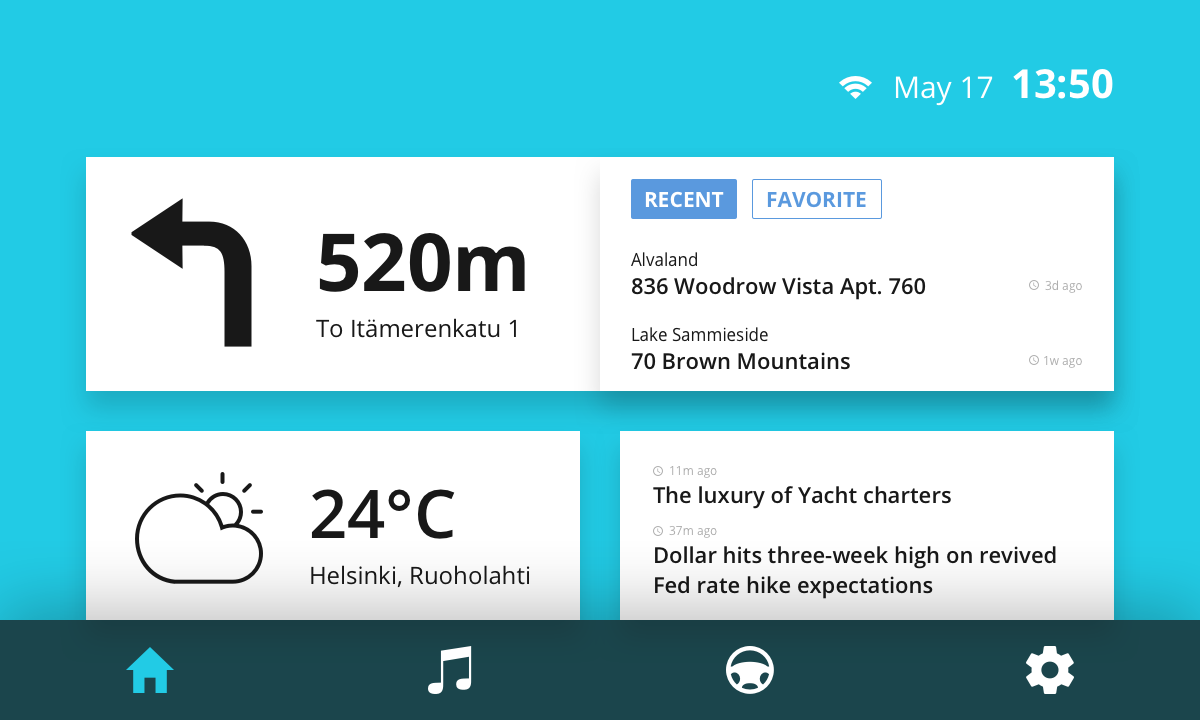
Getting started with Kanzi Studio

../_images/first.png

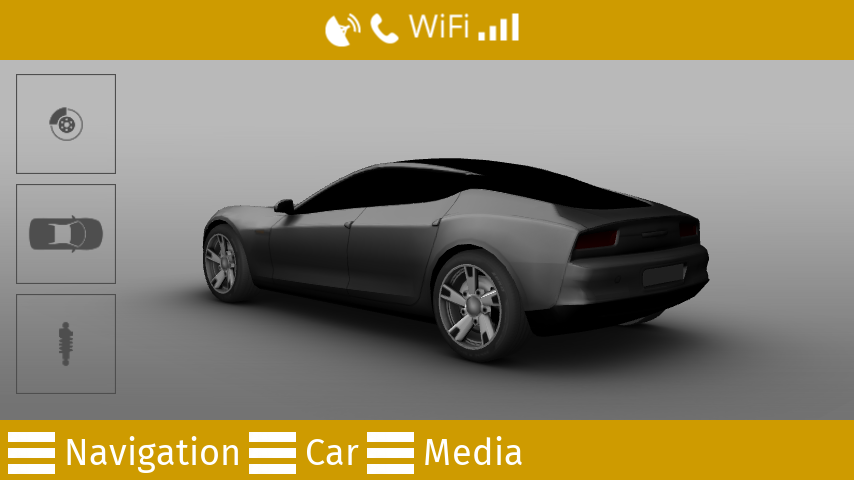
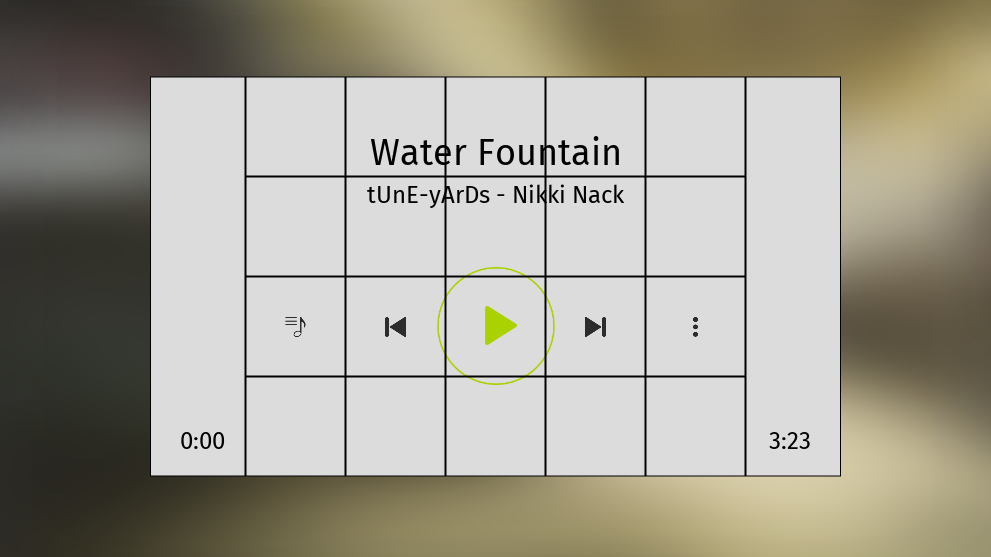
Create a simple application in Kanzi Studio

../_images/rendering.png

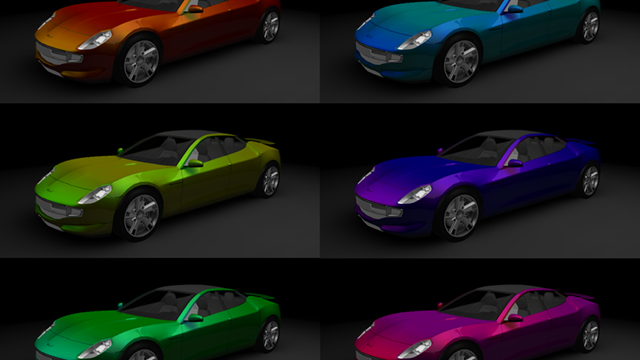
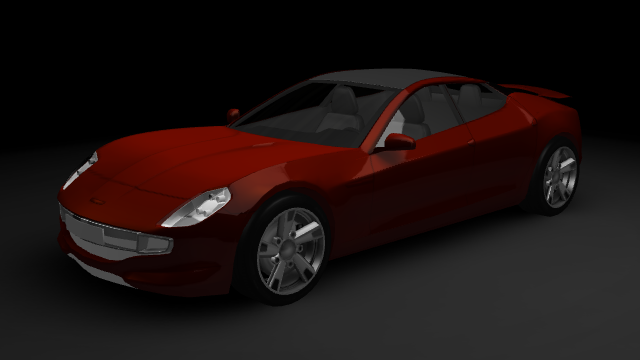
Work with materials and textures

../_images/pages.png

Create application flow with Page nodes

../_images/keyframe.png

Create keyframe animations

../_images/state-managers.png

Use state managers to control your application

../_images/scripting-states.png

Use JavaScript to control your application state

Advanced Kanzi features
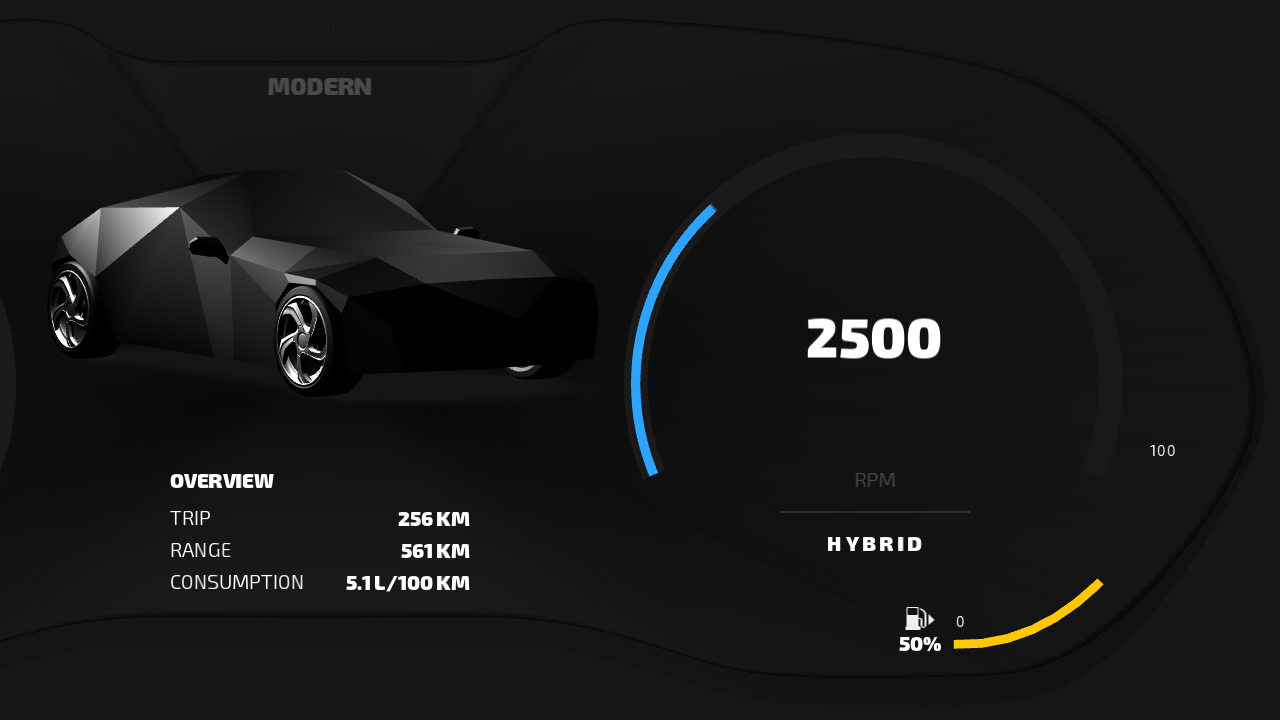
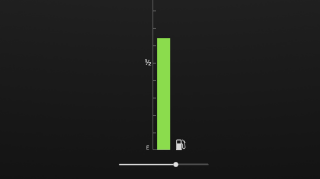
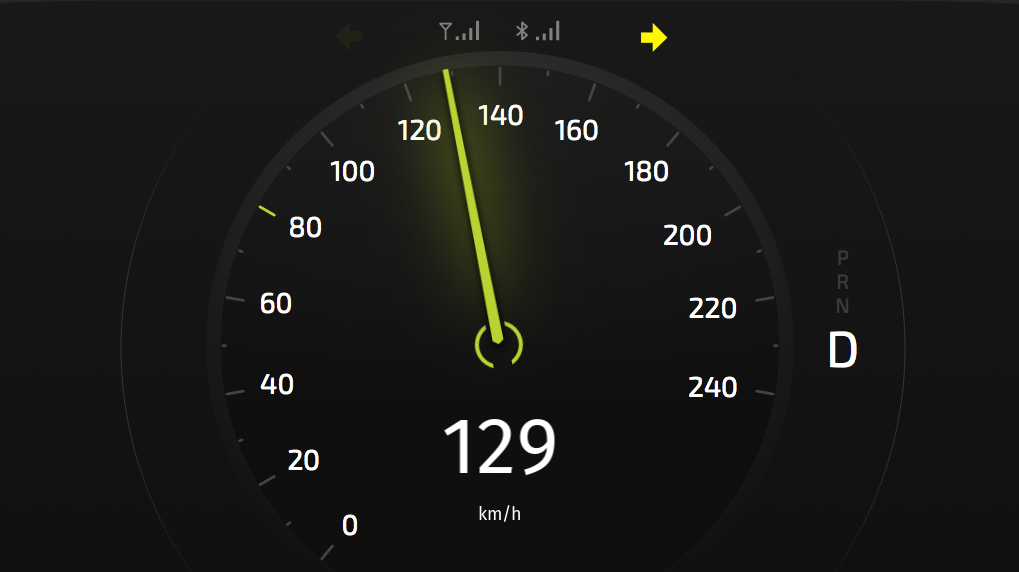
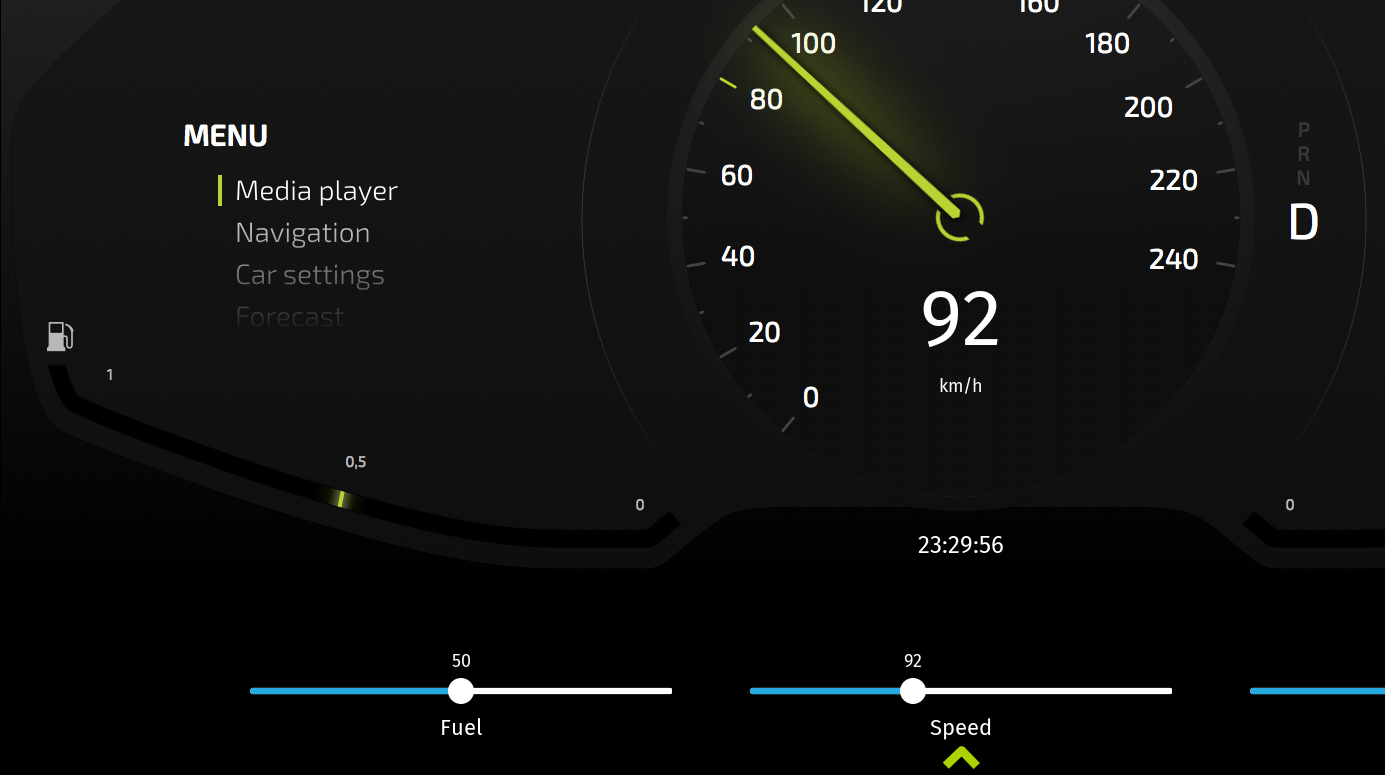
../_images/gauges.png

Control a gauge needle with a property

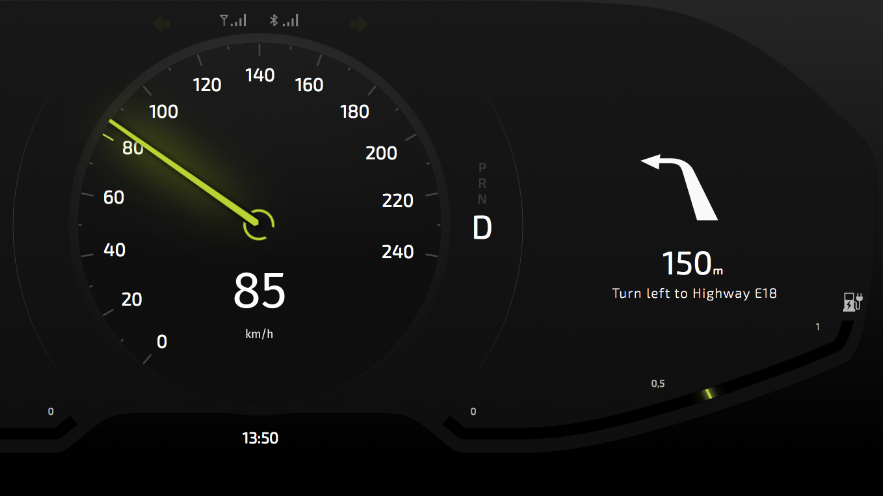
../_images/indicator.png

Control an indicator using the state manager

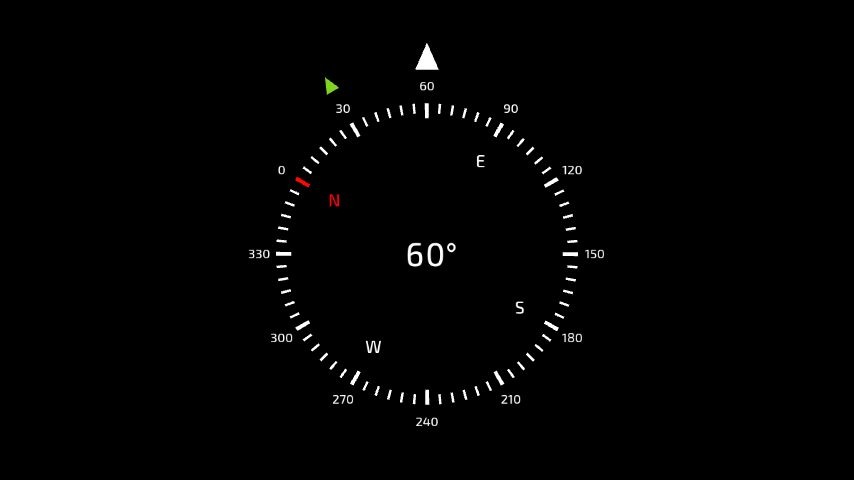
../_images/interpolate.png

Interpolate property values

../_images/rotation.png

Rotate a 3D model

../_images/responsive.png

Make your application layout dynamic

../_images/localization.png

Localize your application

../_images/localization-rtl.png

Localize applications for right-to-left locales

../_images/theme.png

Theme your application

../_images/demo.png

Use JavaScript to create a demo mode

../_images/multi-project.png

Combine projects into a single application

Kanzi UI controls

../_images/button.png

Create a button that reacts to user actions

../_images/toggle-button.png

Create a toggle button

../_images/slider.png

Create a slider

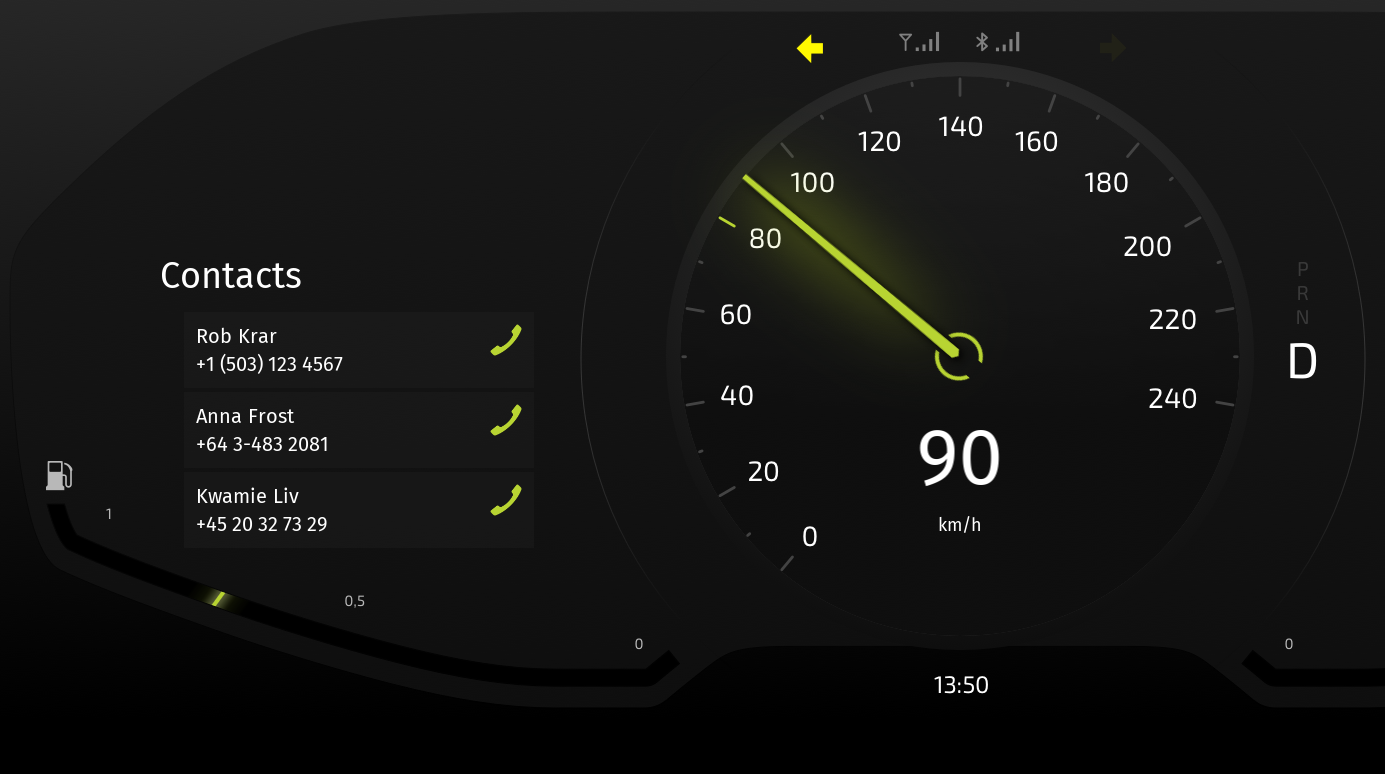
../_images/list-box.png

Create a contacts list with a Grid List Box

Rendering in Kanzi

../_images/blur.png

Create a Gaussian blur effect

../_images/bloom.png

Create a bloom effect

../_images/stencil.png

Apply a stencil to 3D content

../_images/reflection.png

Create reflections

../_images/progressive-rendering.png

Distribute rendering across several frames

Handling input in Kanzi

../_images/focus.png

Move focus in an application

../_images/pan-zoom-tap.png

Pan, zoom, tap

../_images/drag-and-drop.png

Drag and drop

Kanzi Engine API

../_images/hello.png

Kanzi Engine API Hello world!

../_images/programmer.png

Kanzi Engine API advanced use

../_images/loading.png

Load and deploy resources asynchronously

../_images/data-sources.png

Get application data from a data source

See also

To learn why Kanzi works the way it works, see Kanzi fundamentals.

To learn how to use specific features in Kanzi, see Working with ….

Examples

Next
Tutorial: Getting started with Kanzi Studio
Previous
What is installed with Kanzi?
Copyright © 2021, Rightware Oy
Contents
  • Tutorials
    • Getting started with Kanzi
    • Advanced Kanzi features
    • Kanzi UI controls
    • Rendering in Kanzi
    • Handling input in Kanzi
    • Kanzi Engine API
    • See also