Your first connection
Once all three Kanzi Figma Importer components are installed, Kanzi Figma Importer needs pairing. Pairing binds one Figma file (figmaFileKey) to a single Kanzi Studio instance (studioInstanceId + kanziProjectPath) so transfers reach a single, well-defined destination. The Kanzi Studio side initiates pairing; the Figma plugin only needs to be running in Figma so Kanzi Studio can discover it. The binding survives until either side disconnects.
Note
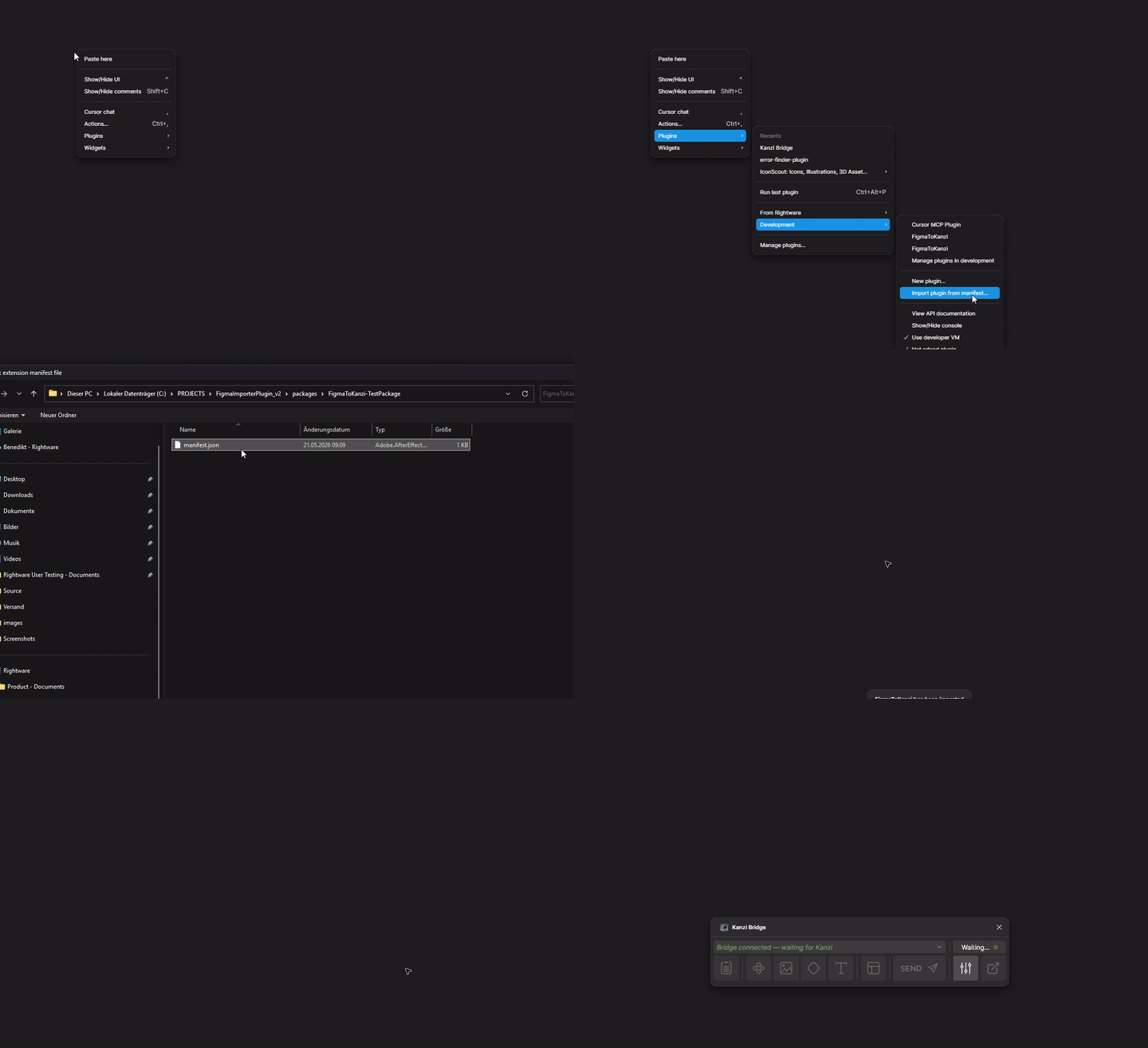
Figma Online (browser) support is not active at launch. Until the Figma plugin is published in the Figma Community, only Figma Desktop with Plugins > Development > Import plugin from manifest can pair with Kanzi Studio. Browser support arrives with the public release.
The bundled manifest.json location depends on the install path:
After a Kanzi Package Manager install:
%ProgramData%\Rightware\Kanzi <version>\plugins\FigmaImporter\FigmaPlugin\manifest.json.After the standalone installer:
%ProgramFiles%\Rightware\Figma Bridge\FigmaPlugin\manifest.json.
Pairing Figma with Kanzi Studio
To pair Figma with Kanzi Studio:
Open the Figma file in Figma Desktop.
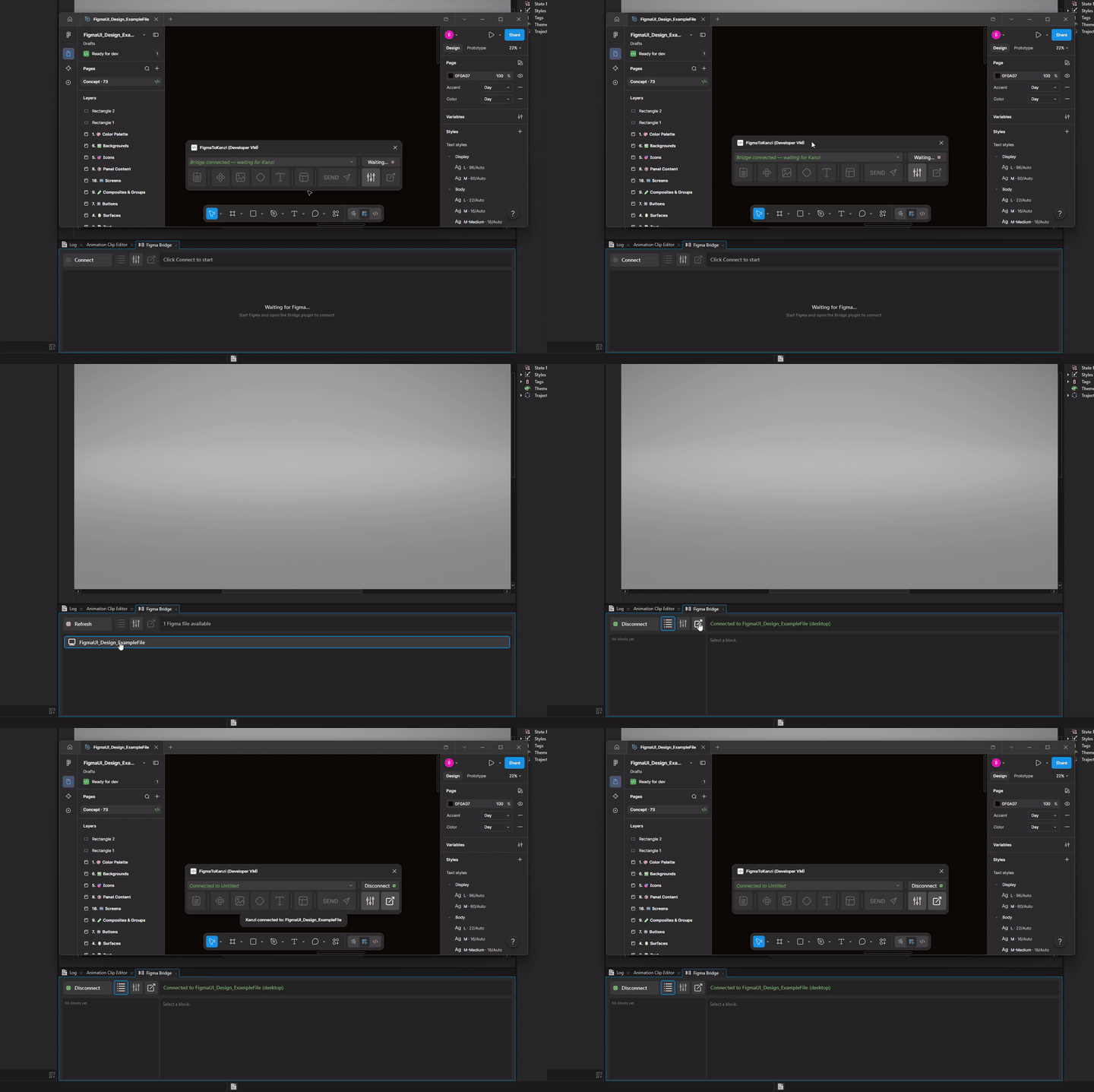
Start the Figma plugin. It opens in the Waiting state and stays there until Kanzi Studio picks it up. You can open the plugin in several Figma files at the same time; each appears as a candidate in Kanzi Studio.
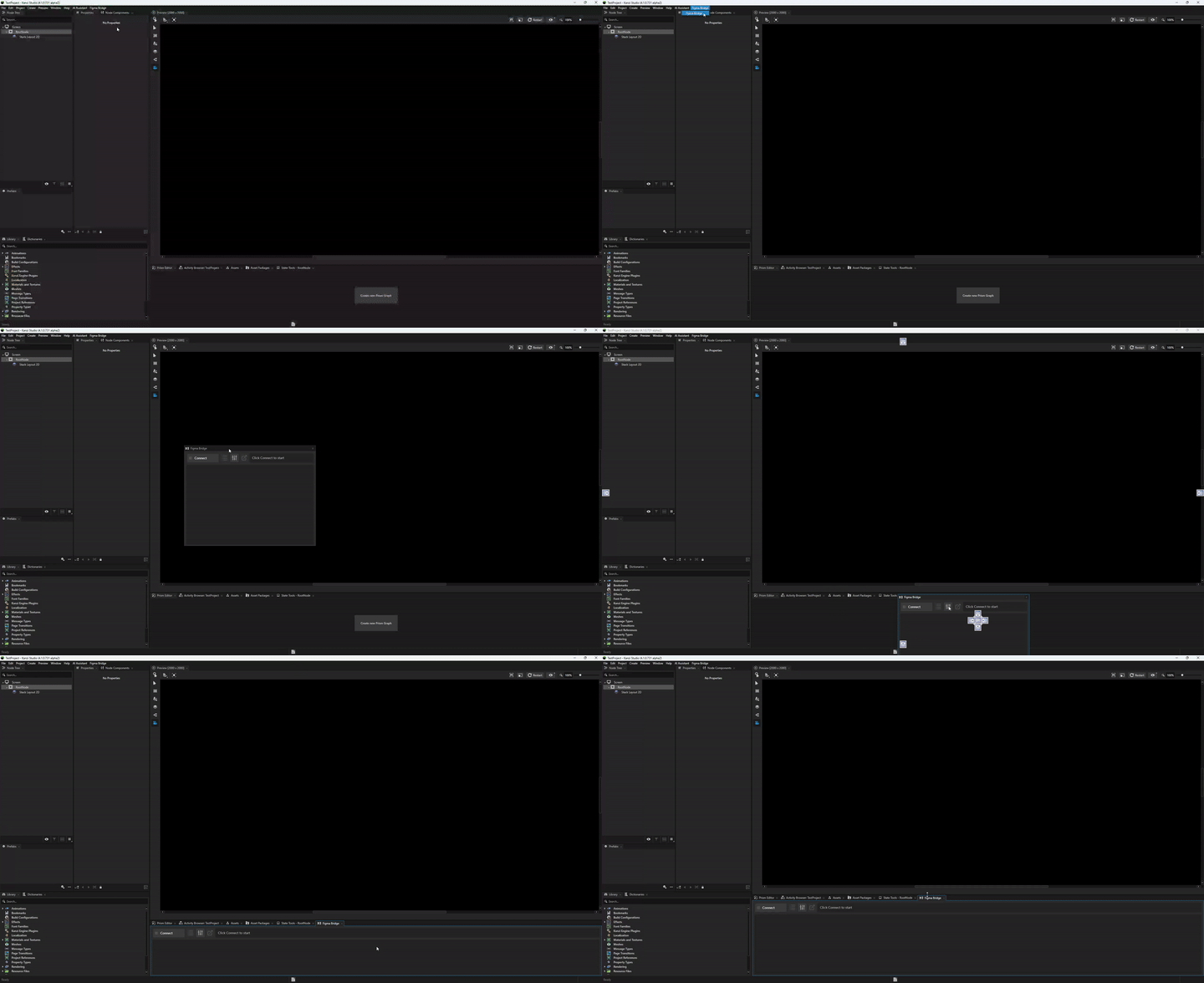
Open your Kanzi Studio project. Open the Kanzi Figma Importer panel from the Kanzi Studio top bar: Figma Importer (Experimental) > Figma Bridge. The same Figma Importer (Experimental) menu also has a Documentation entry that opens these online docs. Both entries are disabled until a project is open. The panel is single-instance — selecting Figma Bridge again focuses the existing panel rather than opening a second one.
Note
The panel opens with an amber banner reading “This is an EXPERIMENTAL version — not for production use; behavior may change.” This is expected.
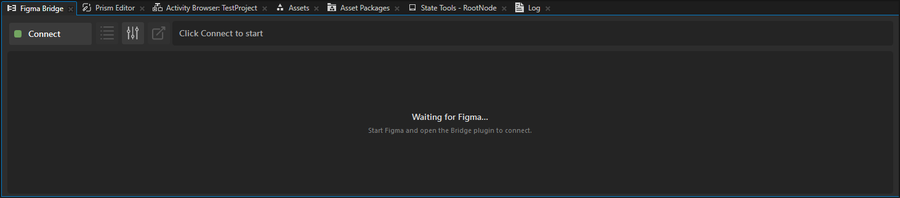
Click Connect in the Kanzi Figma Importer panel. Clicking Connect auto-starts the local bridge server — you do not need to run
npm startmanually. Kanzi Studio then scans for Figma files that currently have the Figma plugin running and shows them in a list.Tip
Scanning can take a few seconds. Switching Figma to the tab that has the plugin running typically makes the file appear in the list faster.
Click the file you want to pair with. Pairing completes immediately.
Both sides switch to a connected state without any further confirmation:
On the Kanzi Studio side, the Kanzi Figma Importer panel status reads Connected to ``<Figma file name>``.
On the Figma side, the Figma plugin header shows the paired Kanzi project, and the status icon turns green.

To learn about transferring content, see Figma plugin overview and Best practices.
What happens on disconnect
Either side can initiate the disconnect. After a disconnect:
The Figma plugin returns to the Waiting state, ready for the next Kanzi Studio to find it.
The Kanzi Figma Importer panel in Kanzi Studio returns to its initial state. Click Connect again to rescan for available Figma files.
Kanzi Figma Importer does not auto-reconnect. To re-pair, click Connect in the Kanzi Studio plugin.
Tip
To use the Figma plugin in a browser (after publication), see Online mode for the Access Key handshake.
The full handshake at a glance: