Settings
The Settings menu opens from the Settings button in the Kanzi Studio plugin header. It collects per-project preferences and the history-management buttons. The visual layout is still being refined. This page documents the current behaviour.
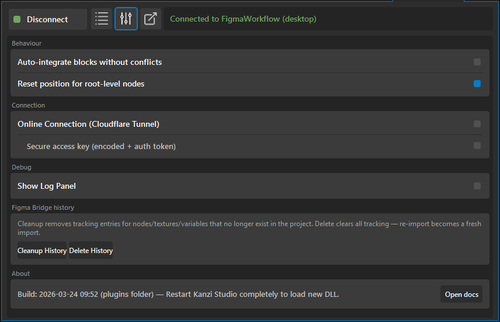
Auto integrate blocks without conflicts
When on (default), blocks with no conflicts auto-import without waiting for your Add to project click. Use this for batch transfers where the source is trusted.
When off, every block waits for the explicit click in the Inspector.
Reset position for root-level nodes
When on, transferred root nodes have their position reset to (0, 0) on import so they do not carry over Figma canvas coordinates. Child node positions are not touched; because every child is positioned relative to its parent, the visual layout is preserved when the root moves to the origin. Use this option when Figma layouts are positioned far from the Kanzi origin.
Online connection
Enables the Cloudflare-tunnel-based online connection path. Use this when Figma runs in a browser or on a different machine than Kanzi Studio. When off, the bridge server accepts localhost connections only.
See Online mode for the full setup.
Secure access key
Sub-option of Online connection. On by default.
When on, pairing requires the auto-generated tunnel access key to be pasted into the Figma plugin. When off, the connection accepts a simpler shared password. Use this option for teams that prefer a memorable string. Do not share the password publicly.
Show log panel
Toggles the docked Debug Log panel. See Debug Log panel.
The Debug Log’s toolbar also contains the eye icon that toggles visibility of the Figma metadata node in the scene tree.
Warning
Do not drag the splitter between the main panel and the docked Debug Log. Dragging it can crash Kanzi Studio and lose unsaved work. Keep the default width, and save your project before opening the Debug Log.
Import history
Two buttons that manage the importer bookkeeping. See Figma metadata node and re-imports for what each button does.
Warning
Both buttons are currently non-functional. As a workaround, delete the Figma metadata node from the scene tree manually.
About
Shows the current Kanzi Studio plugin build version and the Open Docs button.
Open Docs
Opens this online user guide in your browser. This is the same action as the Documentation entry in the top-level Figma Importer (Experimental) menu.