Layout transfer
Warning
Layout transfer is experimental. The general flow below works, but composite-specific edge cases (variant prefabs, deeply nested re-imports, mixed pipelines) still have known issues.
Layout transfer mirrors the Figma frame and component hierarchy as a Kanzi prefab tree. It is the heaviest mode but also the most general. Any selection with children flows through Layout unless redirected.
Selection contract
Selected nodes must be FRAME, COMPONENT, INSTANCE, GROUP, or a variant set (COMPONENT_SET).
What gets transferred
For each transferred frame or component, Kanzi Figma Importer creates:
A Prefab in the Kanzi project library, named after the Figma node (tags stripped).
Child Kanzi nodes that mirror the Figma children:
Frame / Group → empty
Node2Dcontainers.Rectangle / Ellipse with vector content → empty
Node2Dwith a Shape material brush.Rectangle / Ellipse with IMAGE paint →
Image2D.Text →
TextBlock2D.Instance →
Node2DPrefabPlaceholderpointing to the instance’s component prefab.
Positions, sizes, rotation, and opacity carry over.
Smart-LAYOUT: custom Override PropertyTypes
Warning
Smart-LAYOUT is experimental and needs deeper testing. Verify that every per-instance override transfers correctly on your specific component setup before relying on it in production.
When the same component is instanced multiple times in Figma with different content per instance (for example, 10 button instances with different labels), Kanzi Figma Importer exposes those overrides as custom PropertyTypes on the prefab root:
Naming:
<Prefab>.<Field>(single layer per field) or<Prefab>.<Layer>_<Field>(multi-layer). Example:Button_Design.Text,Button_Design.Image.Tag stripping:
Button_Design [KZ_BTN]becomesButton_Design.Fields covered:
characters,visible,opacity,fills,strokes,cornerRadius,strokeWeight,fontSize.
The 10 instances all reference the same prefab; per-instance overrides come from the placeholder. End result in the Inspector:
INST-OVERRIDE: 'Button_Design.Text' = '<value>' -- per instance
[KZ_BAK] uses a custom Texture-typed property on the prefab root (<Prefab>.Image).
INSTANCE placeholder reuse
INSTANCE placeholders are stamped with their Figma node ID on creation, so re-imports reuse the existing placeholder rather than creating a duplicate. Re-imports no longer produce Placeholder, Placeholder_1, Placeholder_2 chains.
Options panel: setting tags
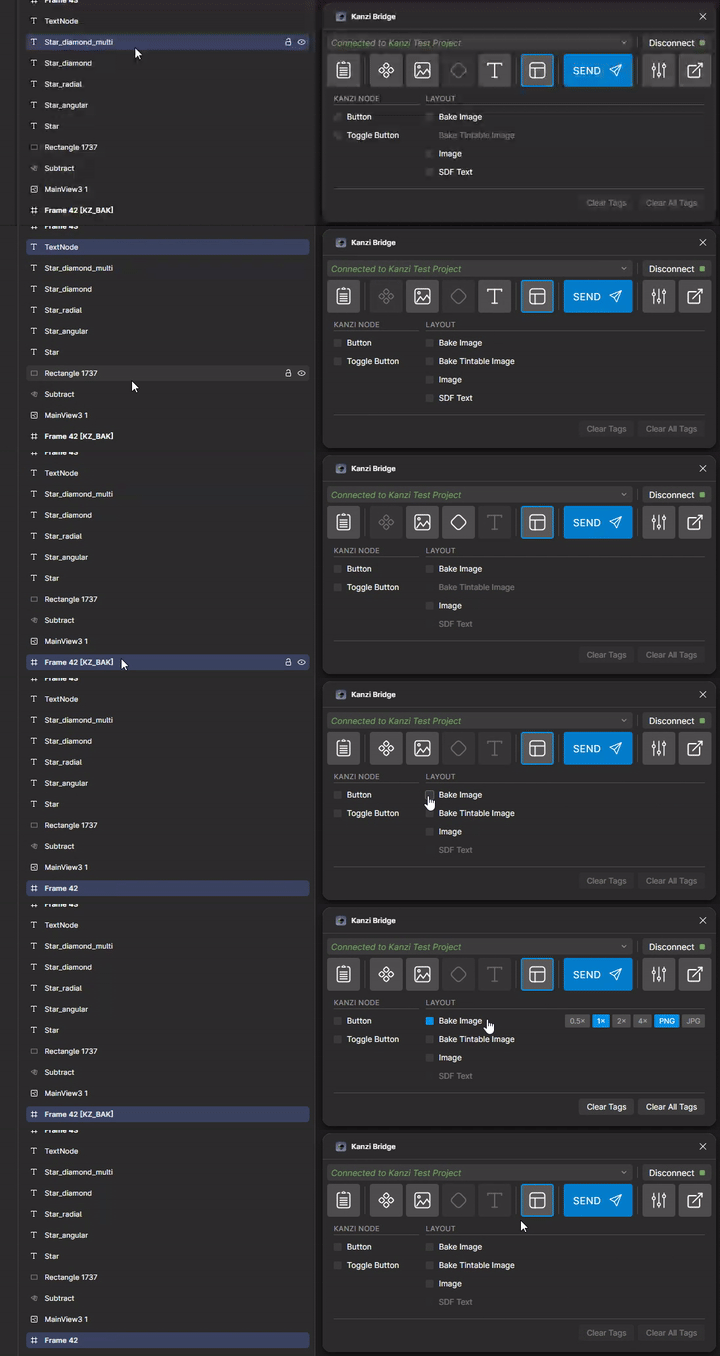
The Layout options panel is where you define how a Figma subtree should be implemented in Kanzi, without leaving Figma. Set [KZ_*] tags on the selected layer to steer the import: bake to an image, produce a button, force SDF rendering on text, and so on. The tags travel with the Figma file and survive across import sessions, so the routing decision is made once in Figma and re-applied every re-import.
The panel is context-aware: only tags compatible with the current selection are enabled; the rest stay disabled. Click an enabled tag to add it to the layer name. The Figma plugin writes the tag back to the layer so it survives outside the plugin session. A Clear button next to each row removes the tag.
Tags only persist on the Figma side. On import, Kanzi Figma Importer strips them from the names that enter Kanzi (item names, state names, variant enum keys, Inspector labels), with one current exception noted below for baked image and texture filenames. The Figma side keeps the tags so future re-imports route the same way.
Tag vocabulary
Two categories:
Transfer tags (
[KZ_BAK],[KZ_BAK_TINT],[KZ_IMG],[KZ_SDF]) describe how a layer is transferred.Node tags (
[KZ_BTN],[KZ_TGL]) describe what the node becomes on the Kanzi side.
A layer can carry one transfer tag and one node tag. For example, Mute [KZ_TGL][KZ_BAK_TINT] is a toggle baked as a tintable mask.
Note
More node tags will be added. [KZ_BTN] and [KZ_TGL] are the first two; additional tags (sliders, lists, indicators) will follow as the Kanzi-side templates stabilise.
Tag cheat sheet
How to use
In Figma, append [KZ_<NAME>] to a layer or frame name:
Button                  -- normal transfer
Button [KZ_BAK]         -- bake to single image
Button [KZ_BAK_TINT]    -- bake to B/W mask + tintable
Icon [KZ_IMG]           -- bake this one layer to an image
Button [KZ_BTN]         -- button node
Button [KZ_SDF]         -- force SDF render path on a TEXT layer
You can stack tags: Button [KZ_BTN][KZ_BAK]. Kanzi Figma Importer strips [KZ_*] markers from most Kanzi-side names automatically. See the “What is stripped” section below for the one current exception.
Tag table
Tag |
Type |
Behaviour |
Mutually exclusive with |
|---|---|---|---|
|
Bake |
Flattens the subtree to a single PNG via Image transfer. Known issue: in this release the tag is not stripped from the baked image and texture filenames; rename them manually if needed. |
|
|
Bake + tint |
Whitens fills and strokes (alpha preserved) to produce a B/W mask, plus a shared |
|
|
Image export |
Bakes this one tagged layer to an image (with scale and format options). Unlike |
|
|
Node |
Creates a |
— |
|
Node |
Creates a |
— |
|
Render hint |
On TEXT layers, force the SDF (Text as SDF) render path to flatten glyphs to vectors. Use this when the font resolver cannot find the font. |
— |
Precedence rules
The Layout options panel prevents the user from setting mutually exclusive tags at the same time. The combinations below can only occur if a tag is added to the layer name manually outside the options panel.
Combination |
Result |
|---|---|
|
Conflict. |
|
Compatible. Button-styled wrapper containing a baked texture. |
|
Compatible. Toggle wrapper with a tintable mask. |
What is stripped on the Kanzi side
Kanzi Figma Importer removes [KZ_*] tags from:
Kanzi item names. For example,
Button [KZ_BTN]becomesButton.State names inside StateManagers.
Variant enum keys.
Inspector labels.
Kanzi Figma Importer resolves the tags during import. The Kanzi side sees only the result of the routing, not the tag conventions.
Note
Known issue: in this release [KZ_BAK] is not stripped from the filenames of baked images and textures, even though the prefab and item names are cleaned. Rename those baked resources manually if the tag in the filename is a problem.
Variable bindings inside Layout trees
Auto-binding fires on the prefab root and direct properties reliably. Deeper child bindings inside a Layout subtree are partial and are being refined. See Variables and modes for the current behaviour.