Query mode
Query mode is where staged blocks live. Selecting a staged block opens its Inspector on the right, which shows the per-property diff against Figma and lets you resolve any conflicts before committing the import.
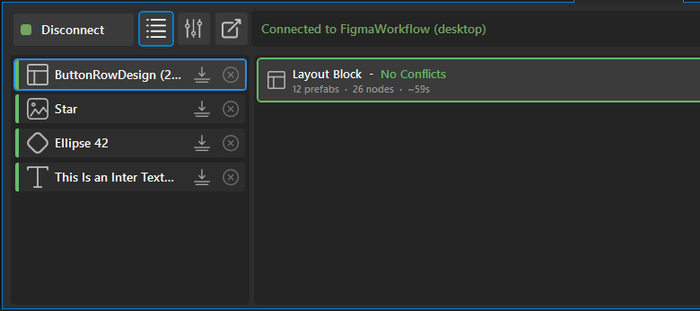
The staged block list
Each incoming transfer appears as a staged block until you add it to the project. A block is laid out left-to-right with five visible elements:
Status bar: coloured stripe on the left. Orange while any conflict or user-edit is unresolved; green when everything is resolved (or there is nothing to resolve).
Transfer-type icon: Shape, Layout, Text, Image, Library Asset.
Layer name: the Figma layer or component name (tags stripped).
Add to project button: commits the block. Until clicked, nothing is written to the
.kzproj.Delete button: dismisses the block without importing.
Clicking the block selects it and opens its Inspector to the right.
Inspector
The Inspector has two parts: a header card with transfer-type-specific information at the top, and a conflict / property body below. The Inspector content always follows the staged block that is currently selected in the list; it is not driven by the Kanzi Studio scene-tree selection.
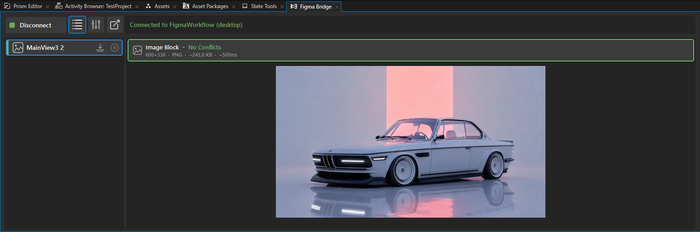
Inspector header
The header shows transfer-type-specific information:
Transfer type and status (“No Conflicts”, “2 Conflicts”).
Exposed properties and characteristics of the incoming block.
Estimated import time. Estimates are rough: the import time depends on hardware as well as on block content, and the underlying measurements are still being expanded. Use the number as an indicator, not as an exact value.
The exact content depends on the block type. Layout blocks list their child structure, Library Asset blocks list the detected assets.
When conflicts exist, the body lists every conflicting property; resolve them one by one. The bulk buttons (Replace all / Keep all / Keep user edits) also appear in this state.
Property body
The body is a flat list of rows, grouped under category sub-headers (FVC Variables, Properties).
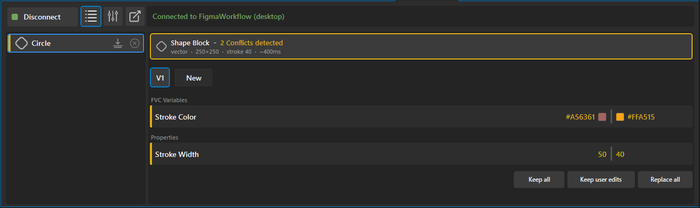
Row types
Row |
When it appears |
|---|---|
Conflict |
Incoming differs from current Kanzi value and current Kanzi differs from initial. Per-property Override / Keep toggle. |
User-edit |
Property was changed in Kanzi after the last import. The row shows Current (your edit) on the left and After Override (the incoming Figma value) on the right. |
Variable-edit |
A Figma variable’s value changed. Grouped under the |
Visual conventions:
An orange accent strip on the left of a header signals “needs attention” (Conflict or Edit headers).
Color swatches on COLOR-typed rows show the hex or RGB value.
Humanised property names:
FillColordisplays as “Fill Color”.A header counter shows the remaining work: “User edits detected (2 of 5 unresolved)”.
Locked and active blocks dim other blocks (Opacity 0.4) during import to prevent accidental parallel transfers.
Bulk actions
When a block has two or more unresolved edits, three bulk buttons appear:
Button |
Behaviour |
|---|---|
Replace all |
Take the new Figma value for every row |
Keep all |
Preserve every Kanzi-side value |
Keep user edits |
Smart default: Keep for UserOnly + Both edits, Replace for FigmaOnly |
The third option preserves your work and accepts Figma updates only where no local edits exist.
Properties bound to a Figma variable are suppressed from the conflict UI. The StateManager binding overwrites the node value on every re-import, so a drift row in this case would be redundant.
How the diff works
On import the plugin records the imported value of every supported property in the metadata blob on the sentinel node. On the next transfer the plugin compares three values:
Incoming value (from Figma).
Initial value (the snapshot in the metadata blob).
Current value (the value in Kanzi right now).
A row appears when Incoming differs from Current and Current differs from Initial. If only one of those is true, no row is shown.
Override writes the Figma value to Kanzi.
Keep leaves the Kanzi value alone but advances the baseline so the same row does not re-fire next time.
Until you choose Override, the row reappears on every re-import. This prevents accidental loss of a local edit. Resolutions persist across Kanzi Studio sessions.
Warning
The diff covers the property and variable types that Kanzi Figma Importer explicitly tracks. Not every Figma change surfaces as a conflict row; the coverage of property types is still being expanded and benefits from more testing. If you expect a change to surface but it does not, file feedback via the Kanzi Support Portal.
Version chain
Every transfer of the same Figma asset adds an entry to a per-block version chain visible in the Inspector. For the full lifecycle, see Version chain.