Figma plugin overview
The Kanzi Figma Importer Figma plugin controls what to transfer and how. It tracks the current Figma selection, lets you pick a transfer mode, and exposes mode-specific options before you click Send.
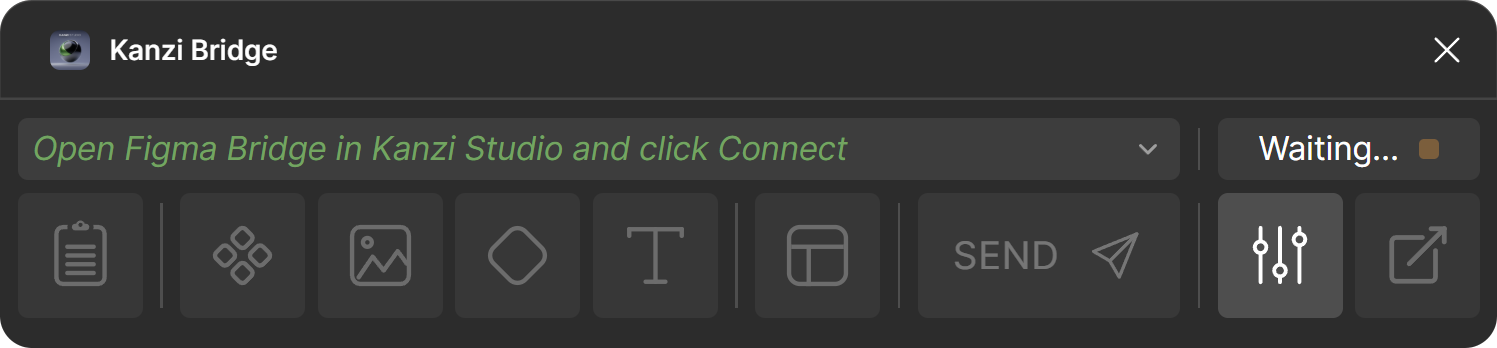
Plugin window anatomy
The window has three horizontal regions:
Top bar. Log on the left, Connect button on the right.
Action row. Transfer mode buttons on the left, then the Send button, then the Settings and Jump-To-Kanzi buttons.
Transfer options panel. Opens below the action row when you click a transfer mode button. The panel shows the assets the selected mode detected and any mode-specific options. See Transfer options panel.
Top bar
Area |
Purpose |
|---|---|
Log (left) |
Last status or error messages with a one-click expander to the full log. |
Connect (right) |
Pairing controls. Once a Kanzi Studio instance picks up this Figma file, the header shows the paired project name and the status icon. See Connection states for the icon meaning. |
Transfer modes
The action row has six transfer mode buttons. To send a transfer, select a mode, review the Transfer options panel, then click Send. Buttons enable or disable based on the current Figma selection. See Selection rules.
Note
Clipboard does not produce a staged block on the Kanzi Studio side. The property values appear in the Clipboard view of the Kanzi Studio plugin, and you apply them to a Kanzi node that you select manually. Library Asset, Image, Shape, Text, and Layout all create staged blocks visible in Query mode.
For the full reference of each mode, see Transfer modes.
Action-row buttons after the transfer modes
Icon |
Button |
Purpose |
|---|---|---|

|
Send |
Triggers the selected transfer mode. Disabled until you have both selected a mode and have a compatible selection. The mode buttons only select the mode; Send starts the transfer. |

|
Settings |
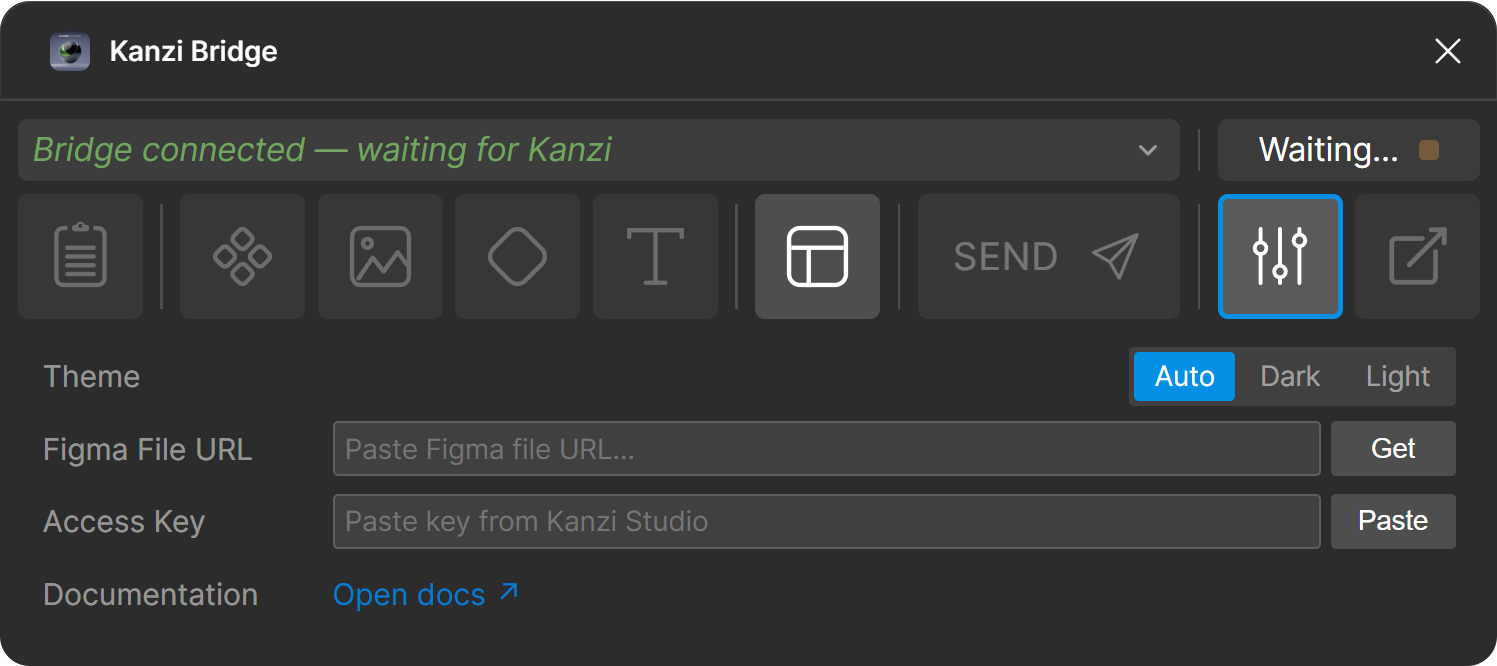
Theme (auto, light, dark), Figma file URL display, Access key (paste-from-tunnel for online mode), and a Documentation link. |

|
Jump-To-Kanzi |
Brings Kanzi Studio to the front. Use this after a transfer to inspect the result without switching windows. |
Note
The Documentation link in the Settings panel currently has no target. It will point to the published user documentation once the docs site is online.
Transfer options panel
Clicking a transfer mode button selects the mode and opens the Transfer options panel below the action row. The panel contents depend on the mode:
Clipboard: read-only preview of the per-property values detected on the source layer.
Shape: Render Mode toggle (Native or SDF). See Shape transfer.
Text: Transfer as SDF toggle (off by default). See Text transfer.
Library Asset: list of Figma assets detected in the selection (component variants, variables, text styles, colour styles).
Image: Include Child Layer toggle (on by default), Placement (Library, Image Node, Empty Node), Target Format (PNG, JPG), and Scale (0.5x, 1x, 2x, 4x). See Image transfer.
Layout: tag picker (
[KZ_BAK],[KZ_BAK_TINT],[KZ_BTN]) for steering the routing without leaving the plugin.
The Access Key field for Online mode is in the Settings panel (opened from the Settings button), not in the Transfer options panel.
Settings panel
The Settings button on the action row opens a panel with theme selection (Auto / Light / Dark), the Figma file URL display, the Access Key paste field for Online mode, and a Documentation link to this guide.
Connection states
The Figma plugin shows two states. Clicking Disconnect on either side returns the plugin to the Waiting state.
State |
Meaning |
|---|---|
Waiting (start state) |
The Figma plugin is running and waiting for a Kanzi Studio instance to pair with it. The plugin returns to this state after a deliberate disconnect on either side, or when the bridge server is not running. |
Connected |
Paired with a Kanzi Studio instance. Transfers can flow. |