Installing Kanzi
System requirements
Minimum system requirements for using Kanzi Studio:
A computer with an x86-64 architecture CPU
On a PC: 64-bit Windows 7 SP1, 8.1, 10 Anniversary Update (version 1607) or newer, and 11
On a Mac: Any of the above Windows versions in Boot Camp, or OS X with VMware Fusion or Parallels Desktop
12 GB of free disk space
1 GB of RAM (2 GB recommended)
Graphics card compatible with either OpenGL 3.3 or later, or Vulkan 1.1 or later, and graphics card drivers no more than 12 months old
Kanzi Studio depends on these Microsoft libraries and frameworks:
Microsoft .NET Framework 4.8
Microsoft Visual C++ 2015-2022 Redistributable, both x86 and x64 versions
During Kanzi installation the installer prompts you to install these.
To use the Debug build configuration of the Kanzi Studio Preview, install the Visual Studio version for the configuration that you want to use. For example, use the Debug build configuration to debug your Kanzi Engine plugins. See Debugging native Kanzi Engine plugins.
Platform requirements
Windows
To run Kanzi applications on Windows, you need:
Microsoft Visual C++ 2015-2022 Redistributable (x86)
To develop Kanzi applications and Kanzi Engine plugins, you need:
Visual Studio 2022 with the latest updates
CMake 3.25 or newer (3.x versions only)
To develop Kanzi Studio plugins, you need:
Visual Studio 2022 with the latest updates
.NET framework 4.8
Android
To develop Android applications with Kanzi, you need Android Studio, which you can download from https://developer.android.com/studio. The version of Android Studio you can use depends on the version of Android Gradle plugin your project uses, see https://developer.android.com/studio/releases#android_gradle_plugin_and_android_studio_compatibility.
Kanzi provides two Android frameworks with different features and requirements. See Developing Kanzi applications for Android.
The libraries of these frameworks are compatible with:
Kanzi Android framework (droidfw) |
Kanzi application framework (appfw) |
|---|---|
Android API 26 or higher |
Android API 21 or higher |
Android 8 or higher |
Android 5 or higher |
Java language level 11 or higher |
Java language level 11 or higher |
NDK 28.2.13676358 |
NDK 28.2.13676358 |
The application templates of these frameworks are compatible with:
Gradle 8.13
Android Gradle plugin 8.12.1
JDK 17 or 21
CMake 3.25 or newer (3.30.5 as default provided by Android SDK)
You can use other versions of AGP and Gradle, but this requires manual adjustments to your project.
For AGP and Gradle upgrades, we recommend that you use the Android Gradle plugin upgrade assistant. See https://developer.android.com/build/agp-upgrade-assistant.
To use Android features in Kanzi Studio, such as deployment of projects to Android devices and import of Java Kanzi Engine plugins, you need 64-bit JDK 17 or 21. See Setting up Android environment for Kanzi Studio.
Note that you can use Java plugins only with Kanzi Android framework (droidfw) applications.
Other platforms
To build and deploy Kanzi applications for platform packages that use CMake, you need:
CMake 3.25 or newer (3.x versions only)
Kanzi Hub and Kanzi Account
Kanzi Hub allows you to manage your Kanzi projects and installations, download Kanzi software, and access online resources. To access content through Kanzi Hub, you need a Kanzi Account.
To take Kanzi Hub and Kanzi Account into use:
Download Kanzi Hub from https://download.rightware.com/releases/public/kanzi_hub/KanziHubSetup.exe.
Install Kanzi Hub and follow the instructions to create a Kanzi Account.
Installing and activating Kanzi
To get Kanzi, go to www.rightware.com/get-kanzi or contact Rightware sales team at sales@rightware.com.
To upgrade Kanzi, see Upgrading Kanzi.
To install and activate Kanzi:
Copy the Kanzi installer file to a local disk.
You need administrator’s rights on the computer where you are installing Kanzi.
Run the Kanzi installer and follow the onscreen instructions.
Set the
<KanziWorkspace>to the root of a hard disk partition, because the Windows operating systems have a limit of 255 characters for paths.Activate your Kanzi license:
If you have a Kanzi product key, see Using a product key to activate Kanzi Studio.
If you have a Kanzi license file, see Using a license file to activate Kanzi Studio.
If you have a Kanzi dongle license, see Using a dongle license to activate Kanzi Studio.
If you are using Kanzi floating licenses, see Using a floating license.
To find out what Kanzi installs on your computer, see What is installed with Kanzi?
For technical support use the Kanzi Support Portal at http://support.rightware.com. See Technical support.
Installing Kanzi Package Manager
The Kanzi installer bundles the Package Manager installer and can run it for you as a post-install step. The Package Manager lets you browse, install, and share the assets and plugins that your Kanzi projects depend on. For more information, see Package Manager.
To install Kanzi Package Manager during installation:
On the last page of the Kanzi installer, keep the Install Kanzi Package Manager option selected.
Click Finish.
Confirm the dialog that reports the installation result.
Once the Package Manager installation is complete, it has:
Installed Conan 2.10.0.
Added Conan remotes:
kanzi-conan-external: official Kanzi release packages
kanzi-community-packages: community packages
Added the necessary Conan profiles and configurations required by Kanzi.
Installed the Package Manager Kanzi Studio plugin.
After a successful installation, the Package Manager appears in the Kanzi Studio main menu.
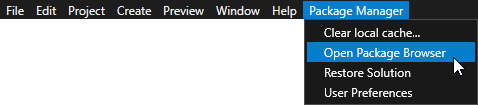
When you install Kanzi unattended, the installer deploys the Package Manager automatically.
Installing Kanzi unattended
Use unattended installation when you want to avoid user interaction during the installation of Kanzi. This is useful when you want to automate the installation.
When you install Kanzi unattended, the installer shows the installation progress window, but does not require user interaction.
To install Kanzi unattended:
Start the Windows Command Prompt with administrator’s rights.
Go to the directory where you have the Kanzi installer.
Run this command:
.\KanziStudio_<KanziVersion>.exe /silent
What’s next?
Now that you installed Kanzi you can:
Searching Documentation
The Documentation site at https://docs.kanzi.com offers a unified search across all Kanzi documentation: Kanzi framework, feature packs, and tools. Click the magnifier icon at the top of any page to open the search overlay.
To help you search faster and find more relevant matches:
Version awareness. When you open search from a documentation page, the overlay pre-selects the Kanzi version that matches the page so that results come from a consistent version. Use the dropdown above the results to switch versions when you need answers from a different release.
Documentation set filter. Use the filter to narrow your search to specific sets. For example, you can click the section to search only Kanzi framework, only feature packs, only tools, or any combination. The filter remembers your choice for the next search in the same Kanzi version.
Source pills. Each result is tagged with the set it comes from. For example, Kanzi 4.1.0, so it is clear at a glance whether the match is from the framework or a specific plugin.
Related topics. When a result is part of a larger section, the closely related topics from the same set appear grouped under it. That way you can scan related context without leaving the overlay.
Hand off to Ask Kanzi. If full-text search does not surface what you need, hand the same query off to the Ask Kanzi assistant for a longer, conversational answer.
Using Kanzi documentation offline
When you are connected to the Internet, and in Kanzi Studio you press or select Help > Documentation, Kanzi Studio points your default web browser to the Kanzi documentation at https://docs.kanzi.com.
To use Kanzi documentation offline:
Download the https://docs.kanzi.com/4.1.0/Documentation/KanziDocumentation-4.1.0.zip file, that contains the Kanzi documentation.
Extract the Kanzi documentation zip file to the
<KanziWorkspace>directory.To view the Kanzi documentation when you are not connected to the Internet, in Kanzi Studio select Edit > User Preferences and disable the Online documentation setting.
When this option is disabled, Kanzi Studio uses the documentation in the
<KanziWorkspace>/Documentationdirectory.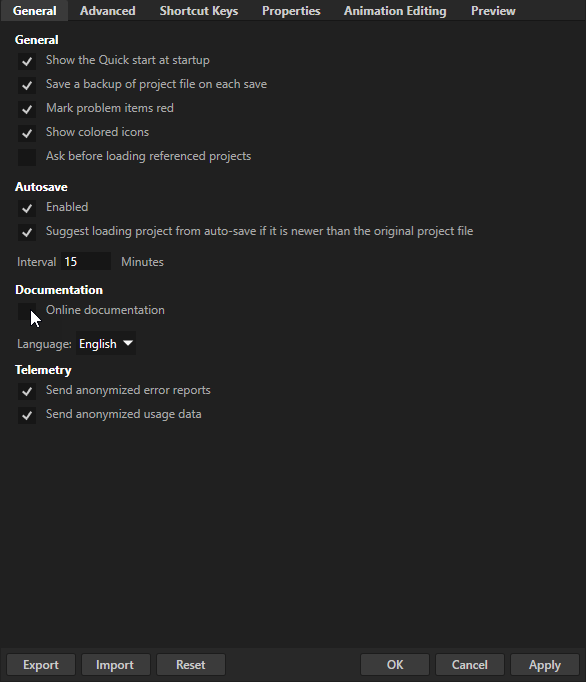
Telemetry
To help us understand how we can improve Kanzi Studio, you can let Kanzi Studio send to Rightware these anonymized telemetry data:
Error reports contain diagnostic information when an error occurs in Kanzi Studio or Kanzi Studio crashes. These reports help us understand what caused the error or crash and what we must change to prevent such events.
Usage data contains information about how Kanzi Studio features are used and how they perform. This data helps us understand how we can improve our product.
Before Kanzi Studio sends these telemetry data, it removes all information that would enable us to link it to you.
When you run Kanzi Studio for the first time, Kanzi Studio asks whether you want to send anonymized error reports and usage data.
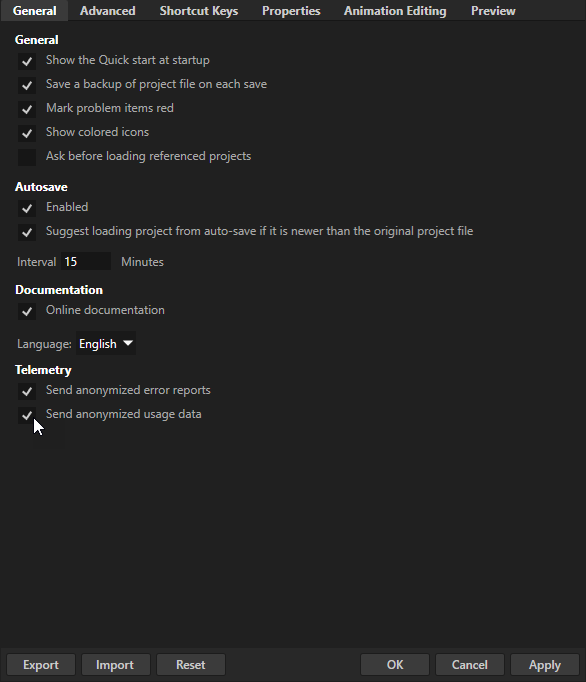
To change your preferences later, in the Kanzi Studio main menu, select Edit > User Preferences and in the General tab, use the Send anonymized error reports and Send anonymized usage data settings.
See also
Deploying Kanzi applications to Android