Promoting parameters
This tutorial walks you through promoting a constant node in a shader graph to a parameter. A promoted constant becomes a uniform on the generated shader, exposed as a property on the Material Type that you can edit from the Kanzi Studio Properties panel and see take effect at runtime.
Prerequisites
Before you start, enable the Shader Graph Editor. See Enabling the Shader Graph Editor.
Creating the base graph
In this section you build the minimal Fullscreen graph that drives the Material Output Color input from a single Color4 constant.
In the Library, press Alt and right-click Materials and Textures > Shader Graphs, and select Shader Graph. Kanzi Studio creates the shader graph with material type Fullscreen and places a Material Output node on the canvas.
Right-click on the canvas and select Color4. Click the swatch on the node and pick a color.
Drag from the result output port of the Color4 node to the Color input port of the Material Output node.
Click Generate Shader. When the shader compiles successfully, Kanzi Studio creates a Material Type in the Library.
Promoting a constant to a parameter
Any constant node (Scalar, Int, Vec2, Vec3, Vec4, Color3, Color4) can be promoted to a parameter.
In this section you promote the Color4 node so that you can edit its value from the Properties panel instead of from the node.
Right-click the Color4 node.
Select Promote to Parameter. The node updates to show that the constant is now a parameter.
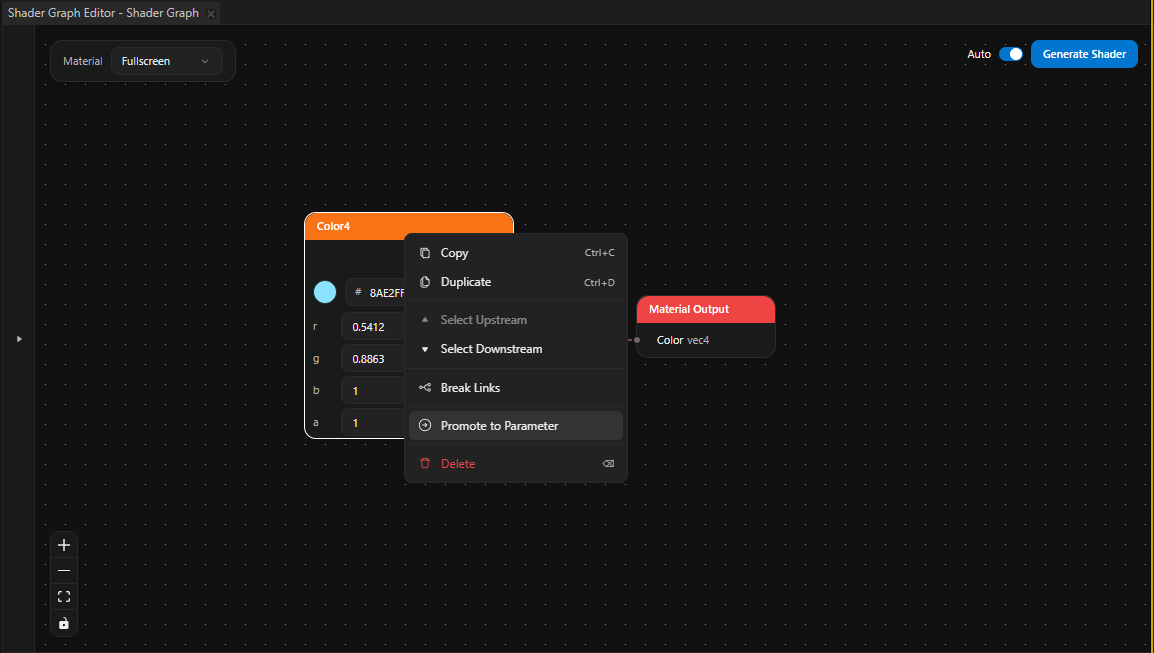
Click Generate Shader to regenerate the shader. The promoted constant is now a uniform on the Material Type and appears as a property on every Material that uses that Material Type.
If the Auto switch next to Generate Shader is enabled, the editor regenerates the shader for you.
Editing the parameter from the Properties panel
To change the value of the promoted parameter and see the effect at runtime:
In the Kanzi Studio Library, select the Material that the graph generated.
In the Properties panel, locate the property that corresponds to the promoted parameter and change its value.
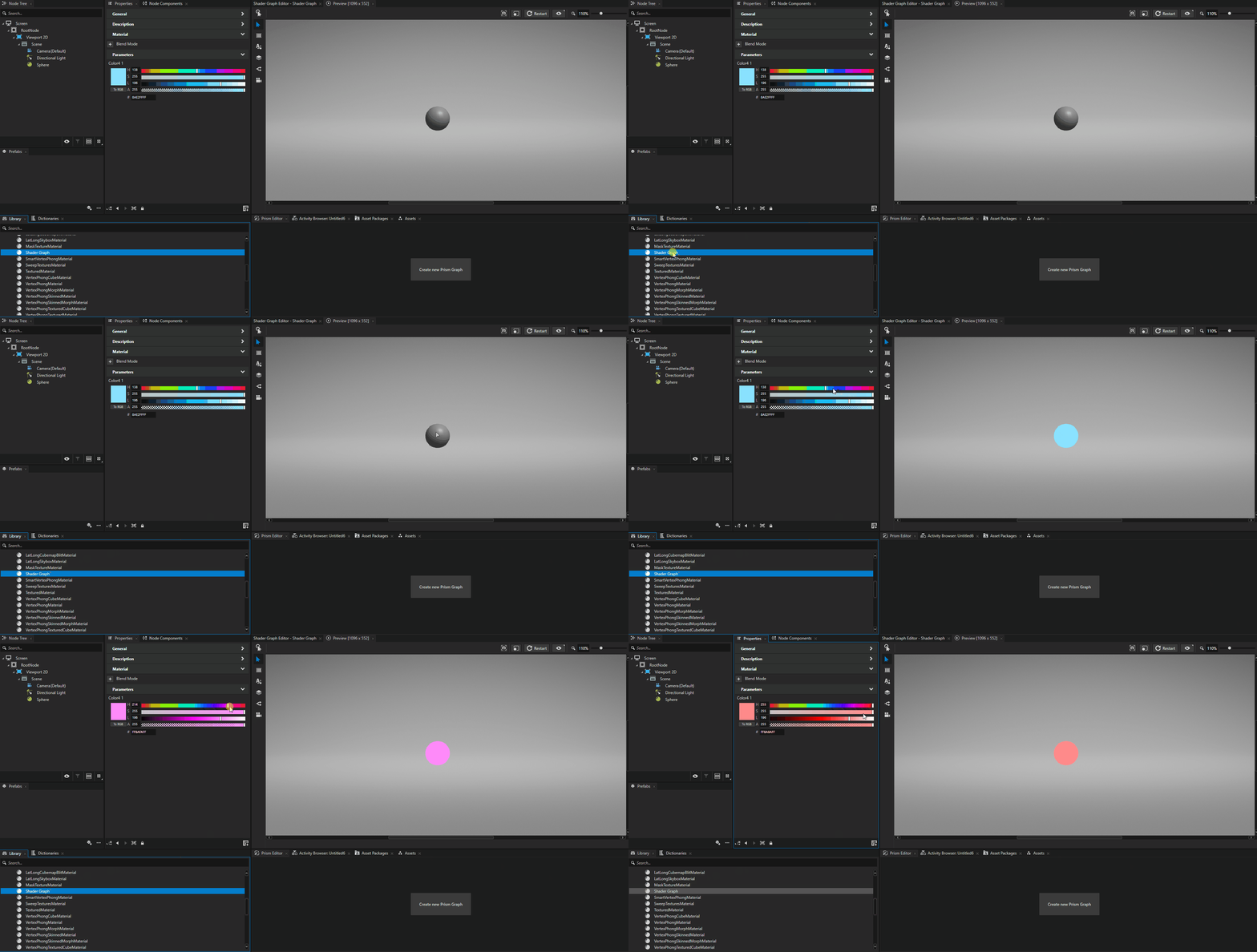
Observe the change wherever the Material is in use. Because the parameter is now a uniform, Kanzi Studio applies the new value without regenerating the shader.
Unpromoting a parameter
To revert a parameter back to a constant, right-click the promoted node and select Unpromote from Parameter. The value the node held while promoted becomes the new constant value, and the corresponding property disappears from the Material Type after you regenerate the shader.