Blending animations
Crossfading animations between states
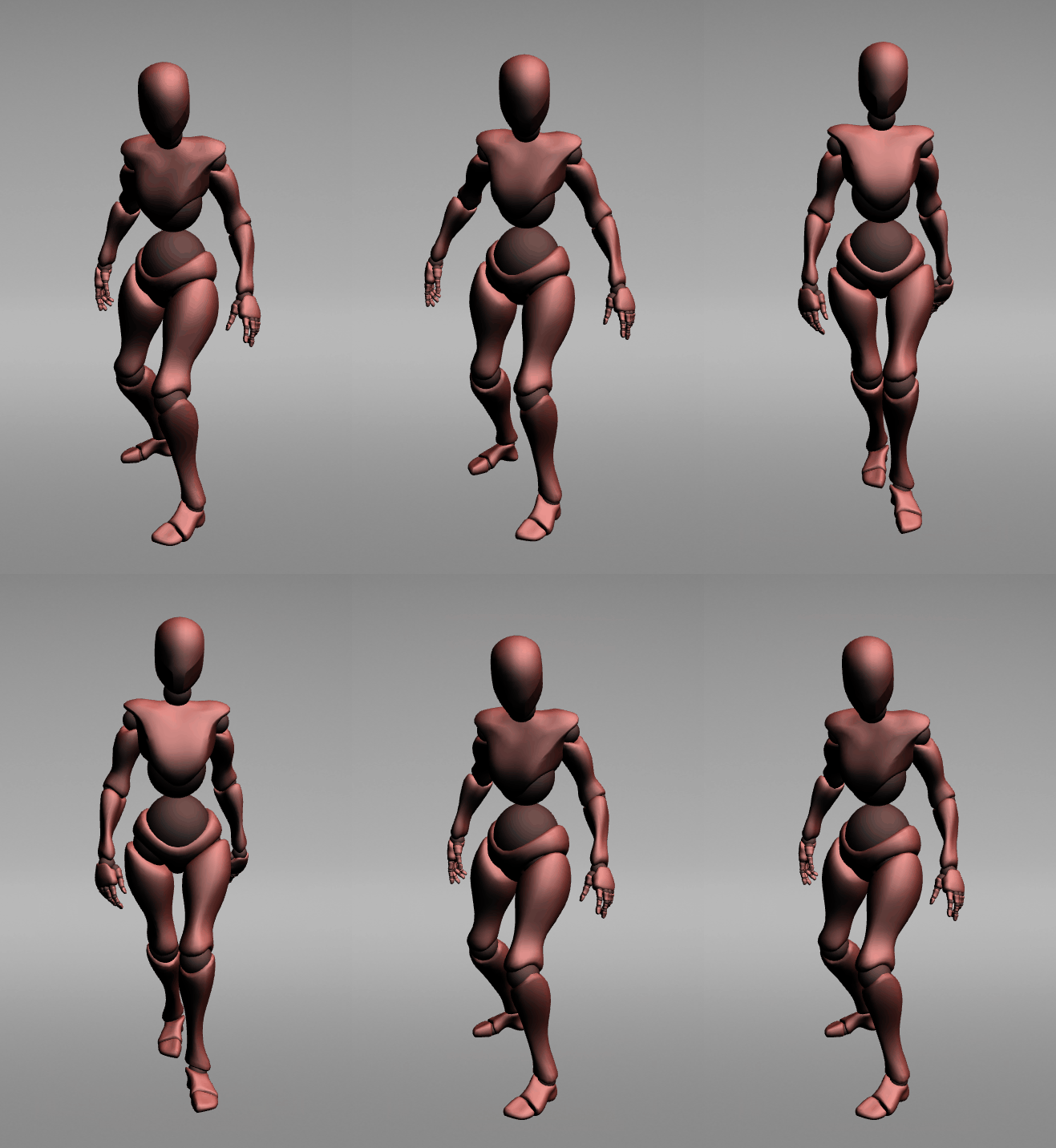
When your application transitions between states that each drive a different animation, you can make the change smooth by crossfading between the outgoing and incoming animations. The outgoing animation fades out and the incoming animation fades in over the duration you set in the state transition, instead of switching abruptly.
To make the State Manager crossfade between two animations, configure an Animation Player with the same name in each of the two states. When the State Manager transitions between the states, it blends the outgoing and incoming Animation Player playbacks over the transition duration.
To crossfade animations when the State Manager transitions between states:
Create keyframe animations for each state. See Creating keyframe animations.
For example, create two looping Animation Clip resources for a 3D character node: one that animates the character in an idle pose and one that animates the character walking.
In the Node Tree select the node that you want to animate, and add two states to a State Manager on that node. See Using state managers.
For example, create a state manager with the states Idle and Walking.
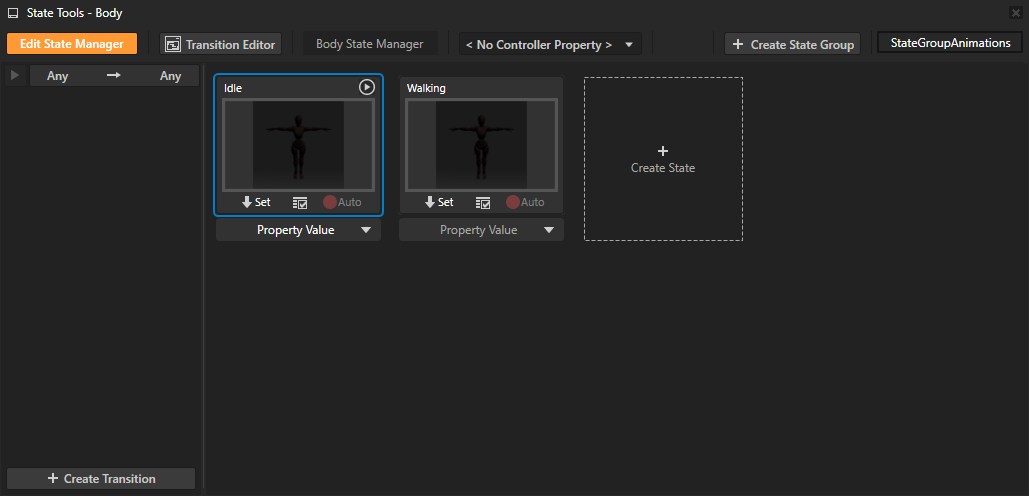
In each state, add an Animation Player node component and give both Animation Player node components the same name.
The State Manager uses the name to match the outgoing and incoming Animation Player components so it can crossfade between their animations.
For example, name both Animation Player node components CharacterAnimation.
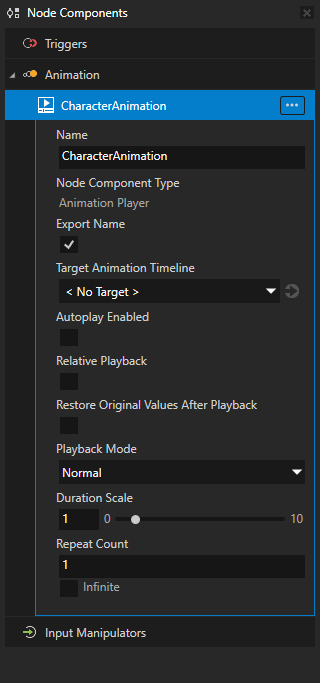
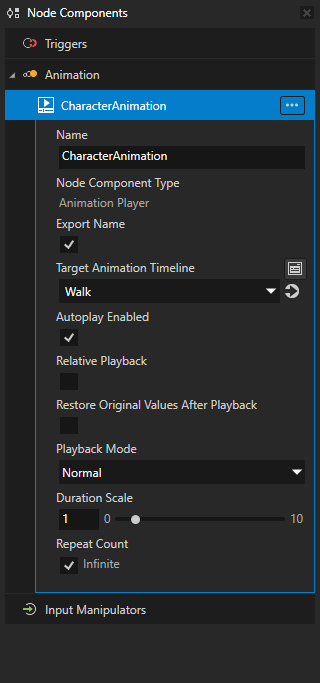
In each state, set the Target Animation Timeline property of the Animation Player to the animation for that state, and enable Autoplay Enabled.
Autoplay Enabled ensures the animation starts as soon as the state activates. Without it the incoming Animation Player never starts and the crossfade is skipped.
For example:
In the Idle state, set the CharacterAnimation Target Animation Timeline to the idle animation and enable Autoplay Enabled.
In the Walking state, set the CharacterAnimation Target Animation Timeline to the walk animation and enable Autoplay Enabled.
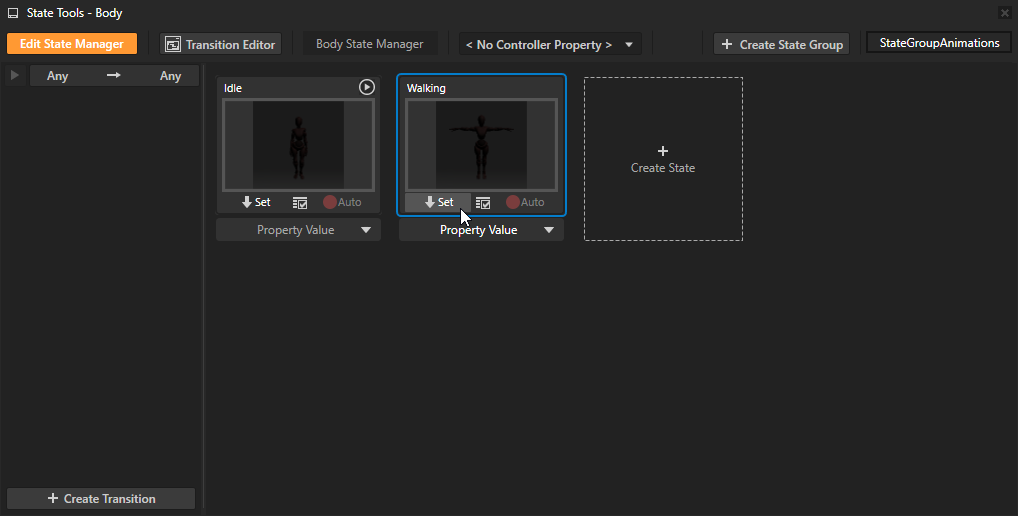
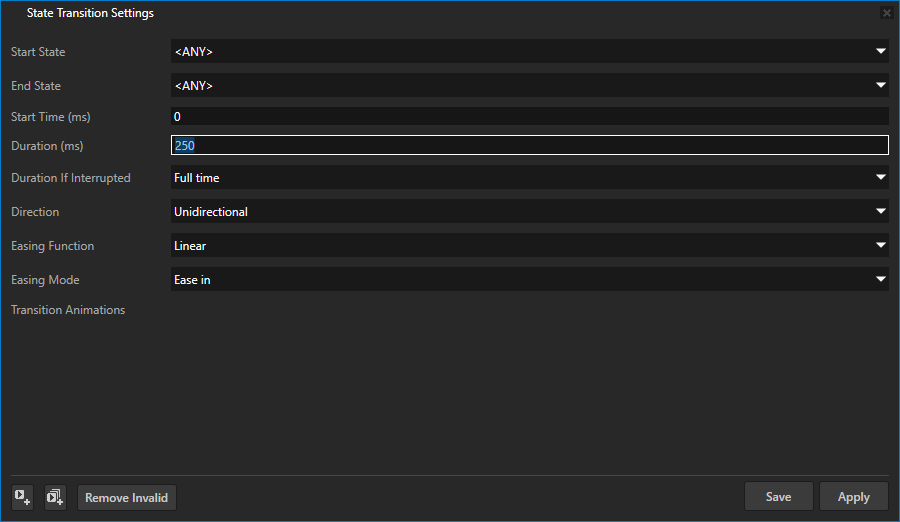
Set the duration of the transition between the states. See Using state transitions.
Note
The easing function configured on the state transition does not affect the crossfade. The blend always follows a linear curve for the configured duration.
When the State Manager transitions between the states, the outgoing animation continues playing and fades out while the incoming animation starts and fades in over the transition duration you set.
Properties not animated by the incoming animation blend smoothly toward their default values instead of switching abruptly.
Note
Crossfading is not supported when the incoming Animation Player uses Relative Playback. If the incoming player has Relative Playback enabled, the transition completes immediately without a crossfade.