Using OpenGL ES 3.0+ in Kanzi
Kanzi supports deployment to OpenGL ES 3.0, 3.1, and 3.2. Shader source code in your materials must use GLSL ES version 310 or later syntax regardless of the deployment target — Kanzi cross-compiles shaders to the GLSL ES dialect matching the project’s Target Graphics API setting. With OpenGL ES 3.0 and above you can use integer textures, floating point, and multiple render targets. For example, this allows you to have more precision with the rendered images, you can apply better looking post-processing effects, use HDR for textures and cubemap textures, and create seamless cubemaps. With OpenGL ES 3.1 you can additionally use compute shaders, image load/store, and shader storage buffer objects. With OpenGL ES 3.2, you can also use geometry and tessellation shaders.
Before you use OpenGL ES 3.0+, make sure that your target platform supports the API version.
To select the version of OpenGL ES to use in Kanzi:
In the Kanzi Studio main menu, select Project > Properties and set the Target Graphics API to the OpenGL ES version your target platform supports: OpenGL ES 3.0, OpenGL ES 3.1, or OpenGL ES 3.2.
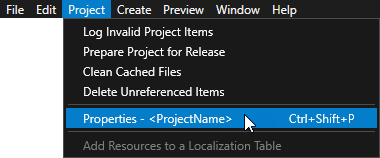
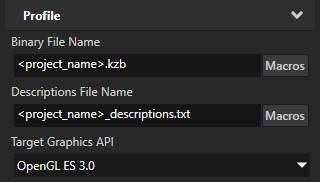
In your shader source files, add as the first line the OpenGL ES version tag.
Kanzi requires
#version 310 esor later as the version tag in shader source code, regardless of your Target Graphics API. Earlier tags such as#version 300 esare not accepted. If Target Graphics API is set to OpenGL ES 3.0, the shader is cross-compiled to#version 300 esat export time, provided the source does not use features that were introduced in GLSL ES 3.1 or later.For shaders that do not use features introduced after GLSL ES 3.1, add
#version 310 esFor shaders that use geometry or tessellation shader features (which require Target Graphics API OpenGL ES 3.2), add
#version 320 es
Setting the shader families to export
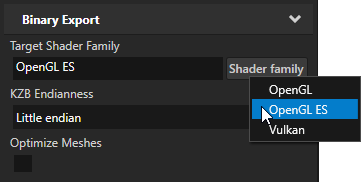
When Kanzi Studio exports a kzb file, it compiles shaders for the families listed in the Target Shader Family property. By default, Kanzi Studio compiles shaders for all three families: OpenGL, OpenGL ES, and Vulkan. To reduce the size of the kzb file, remove the families that your target platform does not use.
The GLSL or GLSL ES version that Kanzi Studio uses for the OpenGL and OpenGL ES families depends on the Target Graphics API setting.
Note
When Target Graphics API is Vulkan 1.2, Kanzi Studio exports only Vulkan SPIR-V shaders, regardless of the Target Shader Family setting.
To set the shader families to export:
In the Kanzi Studio main menu, select Project > Properties.
In the Binary Export category, set the Target Shader Family property. Click Shader family to select the families to include:
OpenGL — Kanzi Studio compiles GLSL shaders for OpenGL desktop platforms.
OpenGL ES — Kanzi Studio compiles GLSL ES shaders for OpenGL ES mobile and embedded platforms.
Vulkan — Kanzi Studio compiles SPIR-V shaders for Vulkan platforms.
To include multiple families, select each from the menu. Kanzi Studio shows the selected families as a comma-separated list in the property field.
Setting the color format of textures
You can import to your Kanzi Studio project HDR and floating point images in .dds format and set the color format of the textures that use these images.
To set the color format of textures:
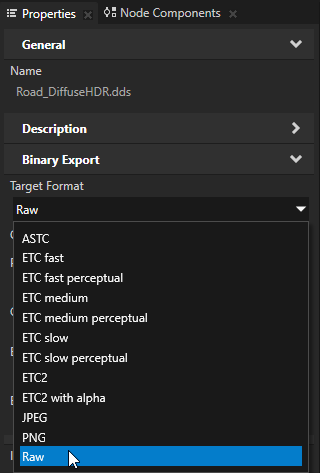
In the Library > Resource Files > Images, select the image whose color format you want to set.
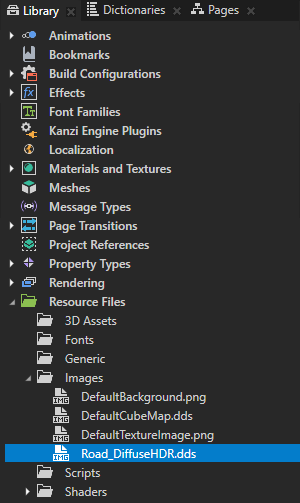
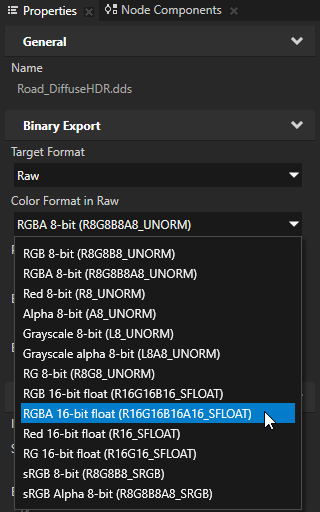
In the Properties, set:
Target Format to Raw
Color Format in Raw to the color format that you want Kanzi to use to interpret the texture
In the Library > Materials and Textures >
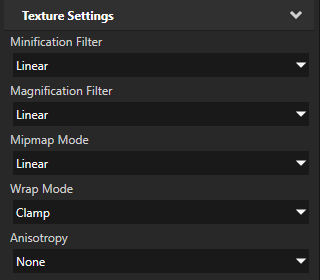
Textures, select the texture that uses the image whose color format you set in the previous step. In the Properties, set:Wrap Mode to Clamp
Mipmap Mode to Linear or Nearest
Setting the format of a render target texture
Set the format of a render target texture to define the target pixel format used by the GPU.
To set the format of a render target texture:
In the Library > Materials and Textures >
Textures, select or create a Render Target Texture.In the Properties, set the Format to the target pixel format that you want to use.
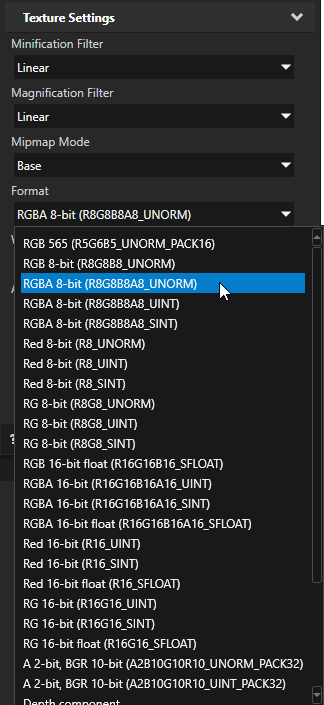
If your render target textures are in integer target format, set the Minification Filter and Magnification Filter properties to Nearest.
Selecting runtime graphics backend
On the Windows operating system you can select whether you want to use OpenGL ES, OpenGL, or Vulkan in the Application::onConfigure function, in the application.cfg, or using the command line arguments, if your target supports command line arguments.
On the command line use:
--glesor--openglesto use OpenGL ES--glor--openglto use OpenGL--vkor--vulkanto use Vulkan--eglto use EGL--wglto use WGL--glxto use GLX
In |
|
||||
|
|||||
Values |
|
||||
|
# Sets the surface target for OpenGL rendering and WGL graphics context.
SurfaceClientAPI = gl
GraphicsContextAPI = wgl
|
||||
|
// Sets the surface target for OpenGL rendering and WGL graphics context.
configuration.defaultSurfaceProperties.clientAPI = SurfaceClientAPI::OpenGL;
configuration.defaultSurfaceProperties.contextAPI = GraphicsContextAPI::WGL;
|
Enabling OpenGL ES 3.0 in the Android Emulator
When you deploy to the Android Emulator an application that uses OpenGL ES API level higher than 2.0, enable OpenGL ES 3.0 in the Android Emulator.
To enable OpenGL ES 3.0 in the Android Emulator:
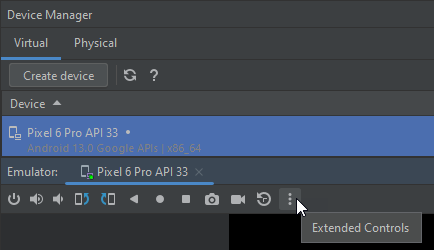
In Android Studio, in the Device Manager, for the running virtual device, select Extended Controls.
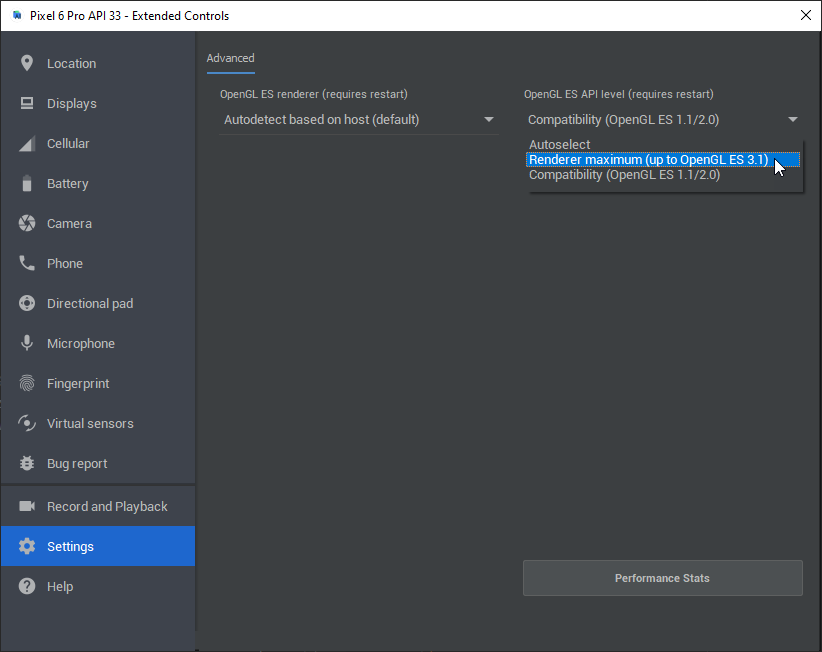
In the Extended Controls window, select Settings > Advanced. Set the OpenGL ES API level option to Renderer maximum (up to OpenGL ES 3.1).
To apply the changes, restart the Android Emulator.