Creating a PBR material
This tutorial walks you through building a physically-based material with the Shader Graph Editor. You set the graph’s material type to PBR, drive the Material Output Base Color input from a texture, generate the shader, and verify the result on a 3D mesh in the Preview.
Prerequisites
Before you start:
Enable the Shader Graph Editor. See Enabling the Shader Graph Editor.
Import a texture into the project so that the Texture node has a resource to bind to. See Textures.
Add a 3D mesh to the Node Tree (for example, a Sphere or Box primitive) so that you can verify the generated material in the Preview.
Creating the shader graph
In the Library, press Alt and right-click Materials and Textures > Shader Graphs, and select Shader Graph. Kanzi Studio creates the shader graph and opens the Shader Graph Editor.
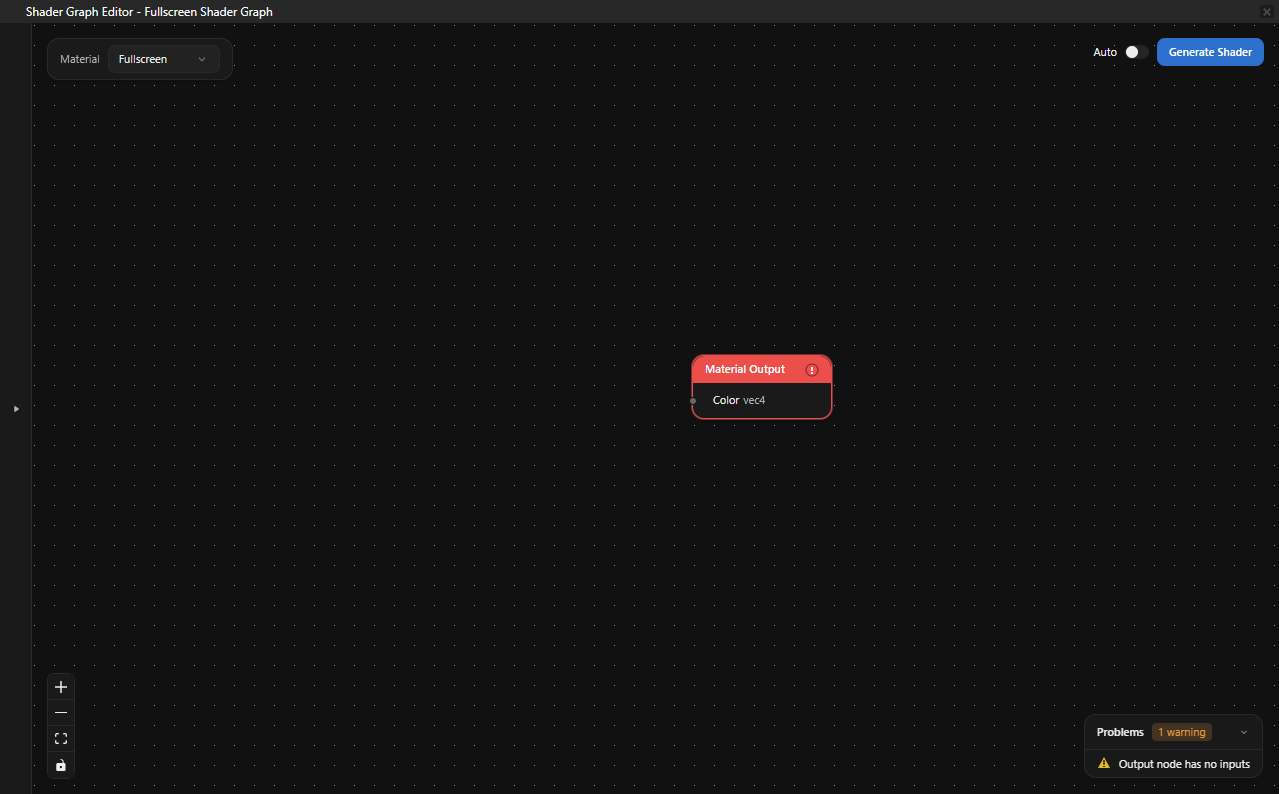
Setting the material type to PBR
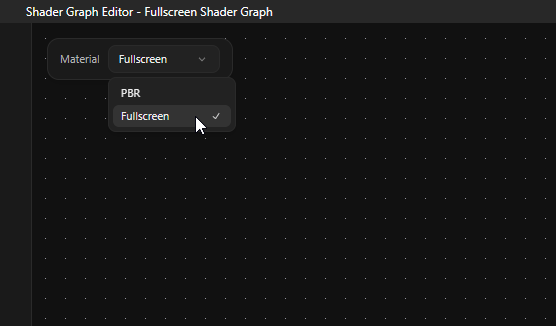
From the Material dropdown in the top-left corner of the editor, select PBR. The Material Output node updates to expose the PBR input ports: Base Color, Metallic, Roughness, Normal, Emissive, and AO.
Building the graph
In this section you drive Base Color from a texture and set Metallic and Roughness to constant values.
Right-click on the canvas and select Texture. The Texture node appears with a resource picker and a thumbnail.
On the Texture node, click the resource picker and select the texture you imported as a prerequisite. The thumbnail updates to show the selected texture.
Right-click on the canvas and select UV. Drag from the uv output port of the UV node to the uv input port of the Texture node.
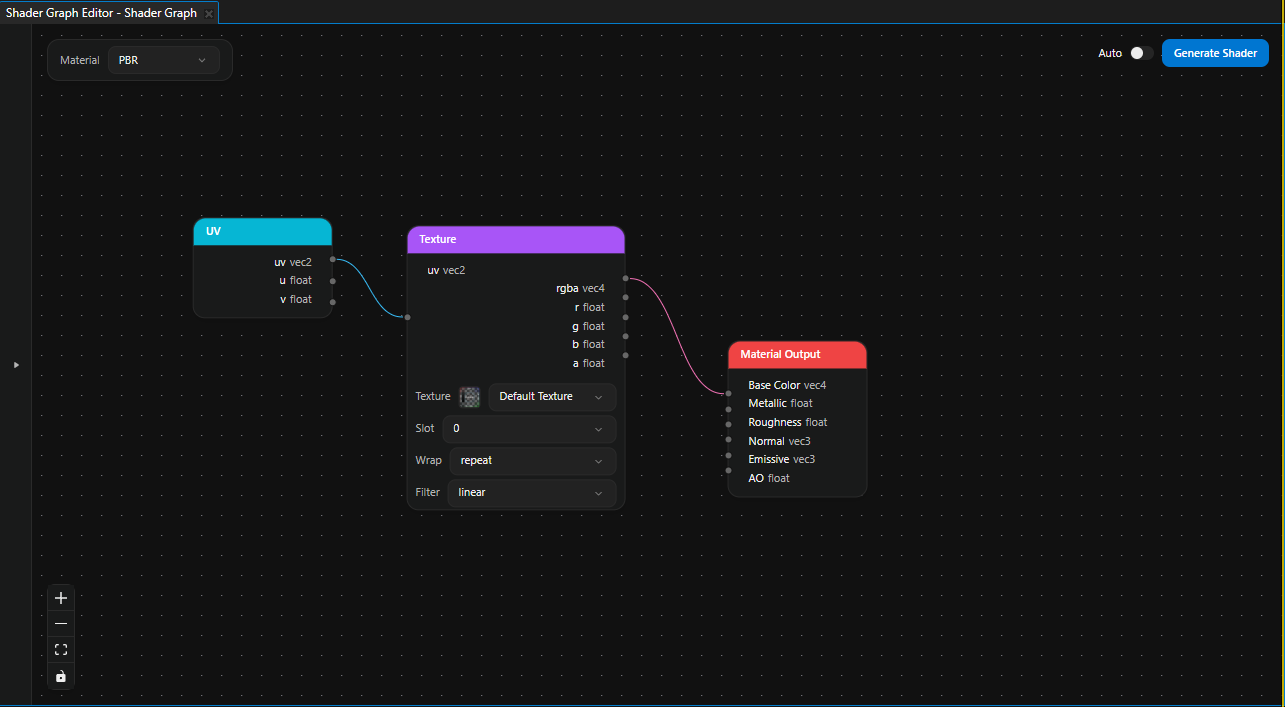
Drag from the rgba output port of the Texture node to the Base Color input port of the Material Output node.
Right-click on the canvas and select Scalar. Set the value to
0.0and drag the result output to the Metallic input of the Material Output node.Add another Scalar node, set the value to
0.5, and connect its result output to the Roughness input of the Material Output node.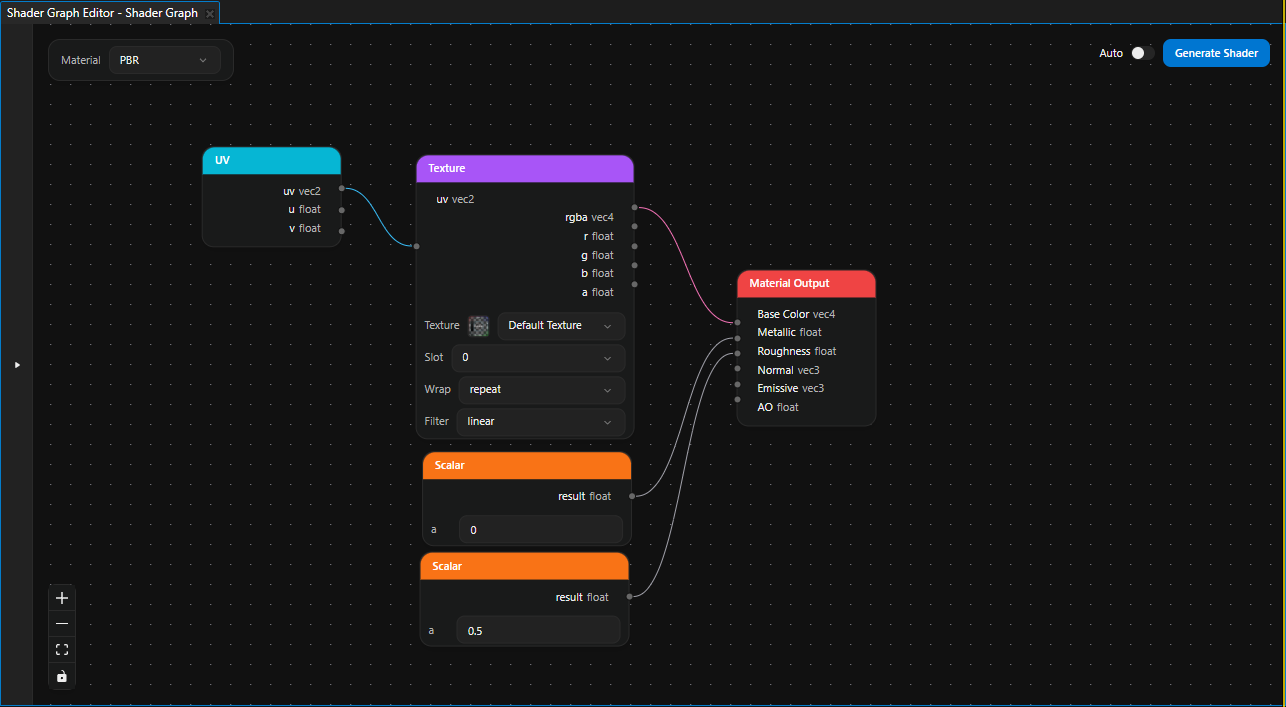
The completed graph samples the texture using UV coordinates, routes the sampled color to Base Color, and uses constant values for Metallic and Roughness. The Normal, Emissive, and AO inputs are left disconnected; Kanzi Studio uses their defaults.
Generating the shader
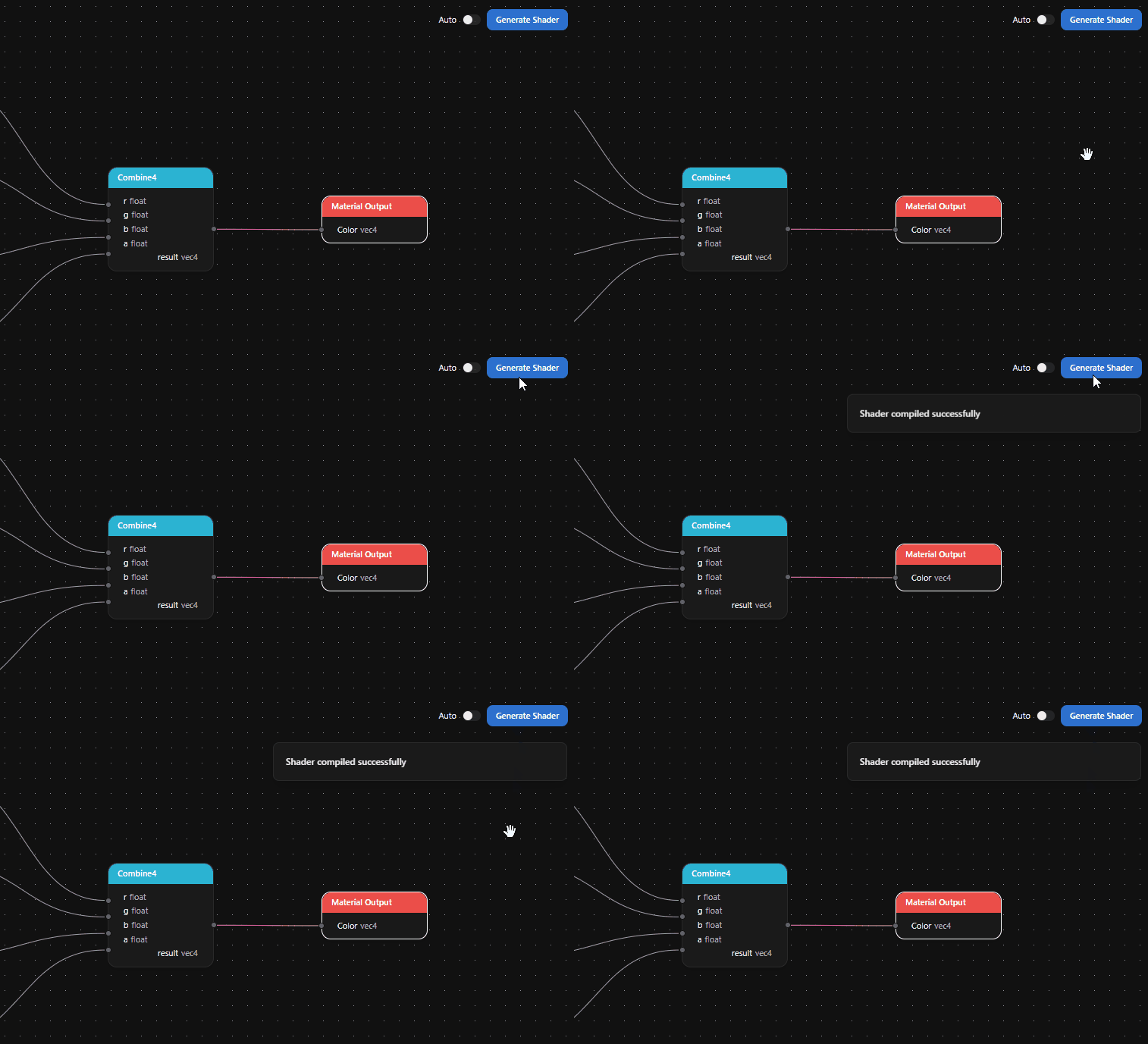
Click Generate Shader in the top-right corner of the editor. When the shader compiles successfully, a green Shader compiled successfully notification appears, and Kanzi Studio creates two resources in the Library:
A Material Type that uses the generated PBR fragment shader.
A Material that uses that Material Type.
If validation or compilation fails, the Problems panel shows what went wrong.