Creating shader graphs
This tutorial walks you through creating a shader graph that produces a color gradient from UV coordinates. You learn how to create a shader graph, add and connect nodes, edit node properties, and generate a shader.
Prerequisites
Before you start, enable the Shader Graph Editor. See Enabling the Shader Graph Editor.
Creating a shader graph
In the Library, press Alt and right-click Materials and Textures > Shader Graphs, and select Shader Graph. Kanzi Studio creates the shader graph and opens the Shader Graph Editor.
A new shader graph opens with the Material dropdown (top-left) set to Fullscreen and three nodes already on the canvas: UV, Time, and Material Output. This tutorial keeps the Fullscreen material type so that the gradient renders as a flat fullscreen color.
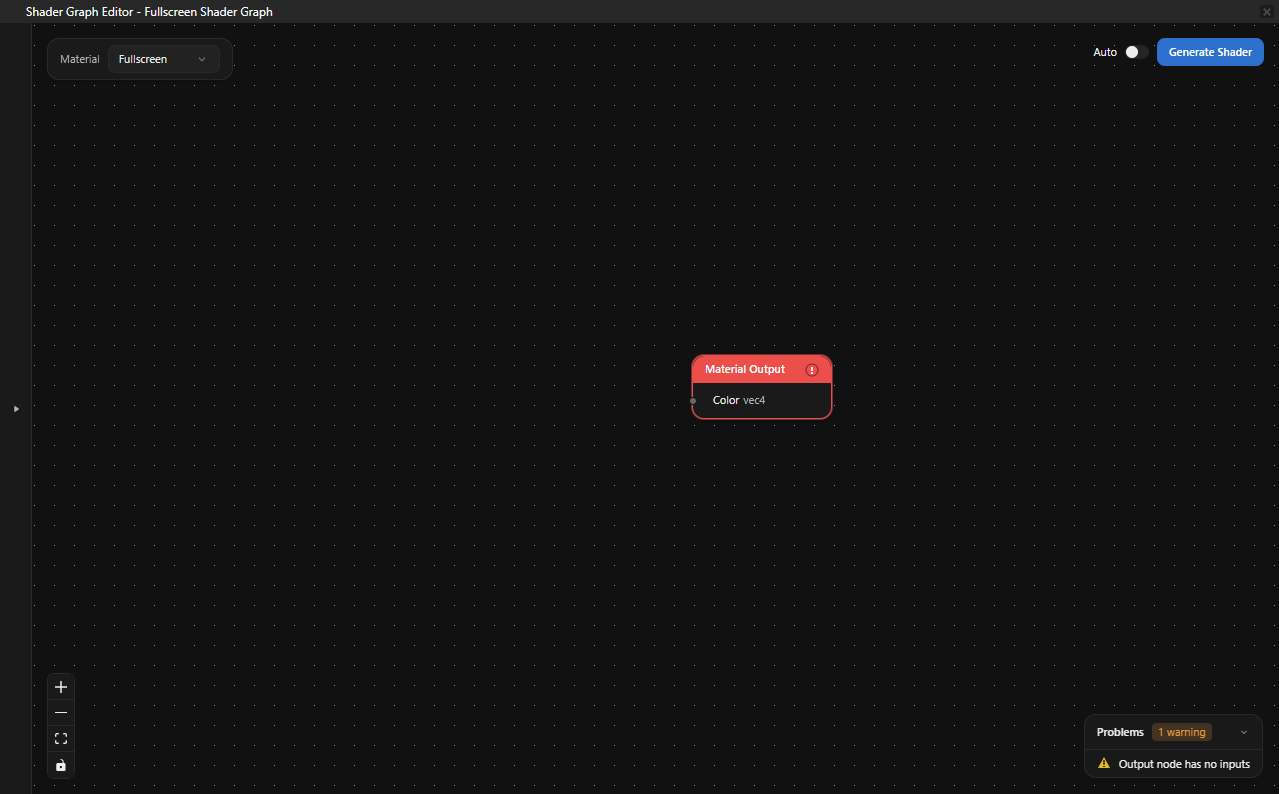
Building a shader graph
In this section you build a graph that maps UV coordinates to colors, producing a smooth gradient across the screen.
Right-click on the canvas and select Combine4.

Drag from the u output port of the UV node to the r input port of the Combine4 node.
Drag from the v output port of the UV node to the g input port of the Combine4 node.
Right-click on the canvas and select Scalar. In the node, set the value to
1.0. Drag from the result output port to the b input port of the Combine4 node.Add another Scalar node, set the value to
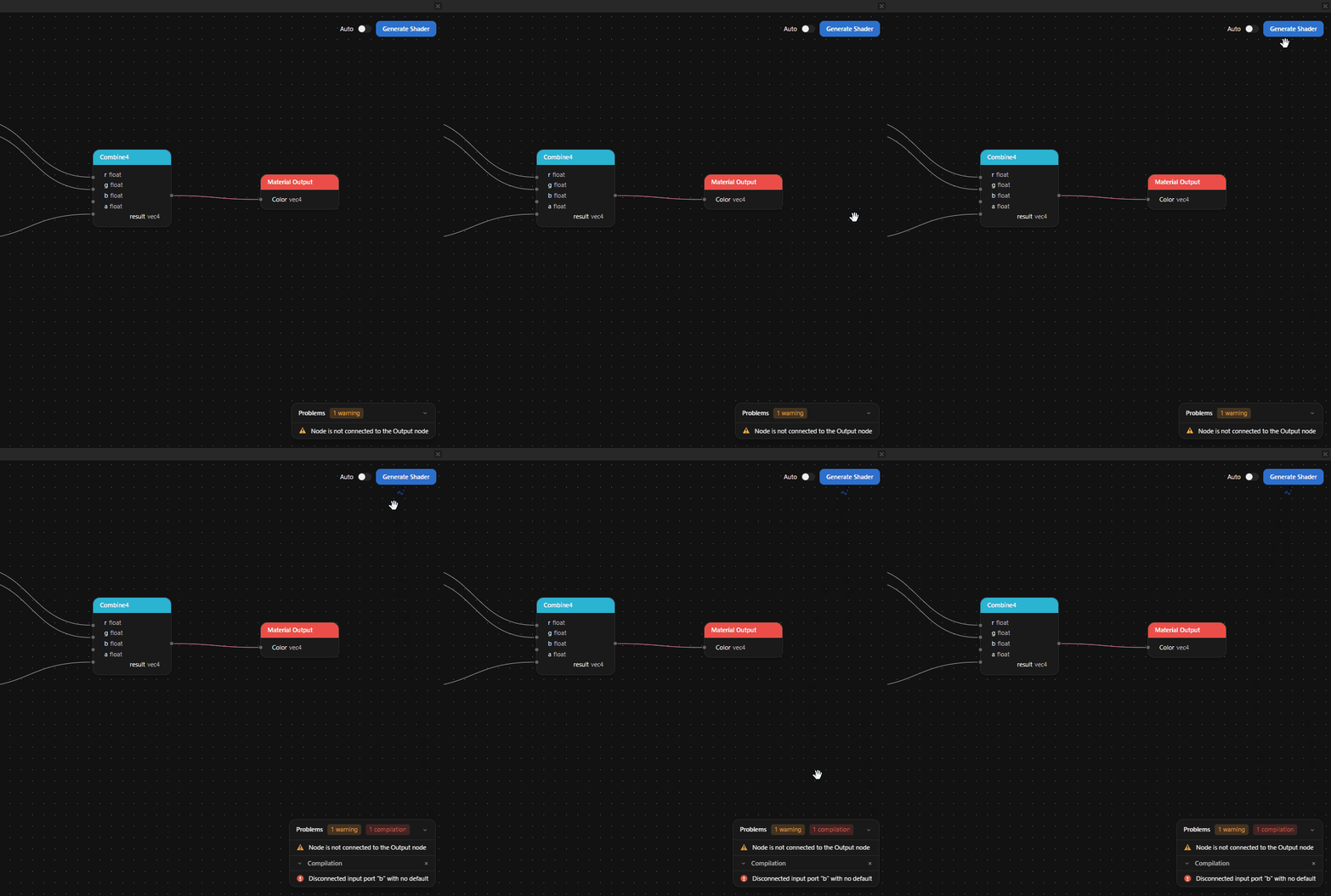
1.0, and connect its result output to the a input port of the Combine4 node.Drag from the result output port of the Combine4 node to the Color input port of the Material Output node.
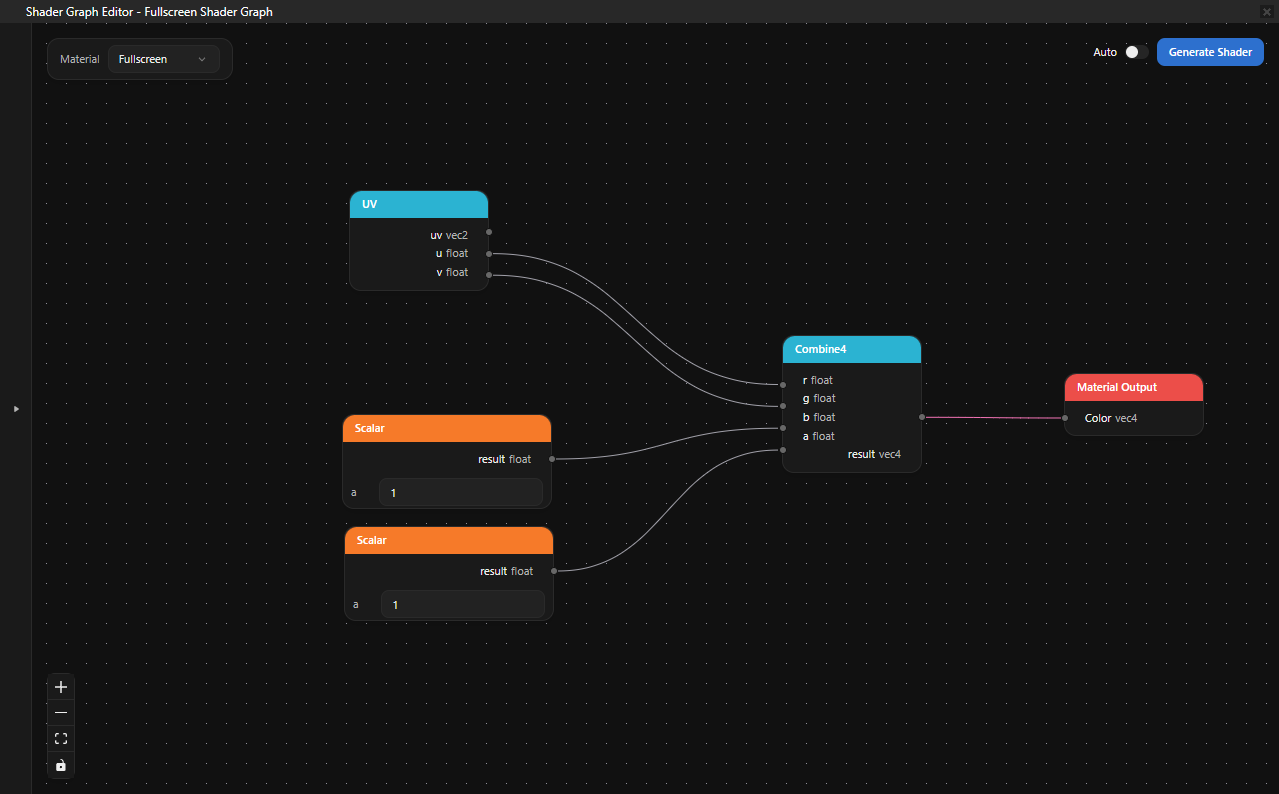
The completed graph maps the U coordinate to red, the V coordinate to green, and uses constant values of
1.0for blue and alpha. With the Fullscreen material type, this produces a smooth color gradient.
Editing node properties
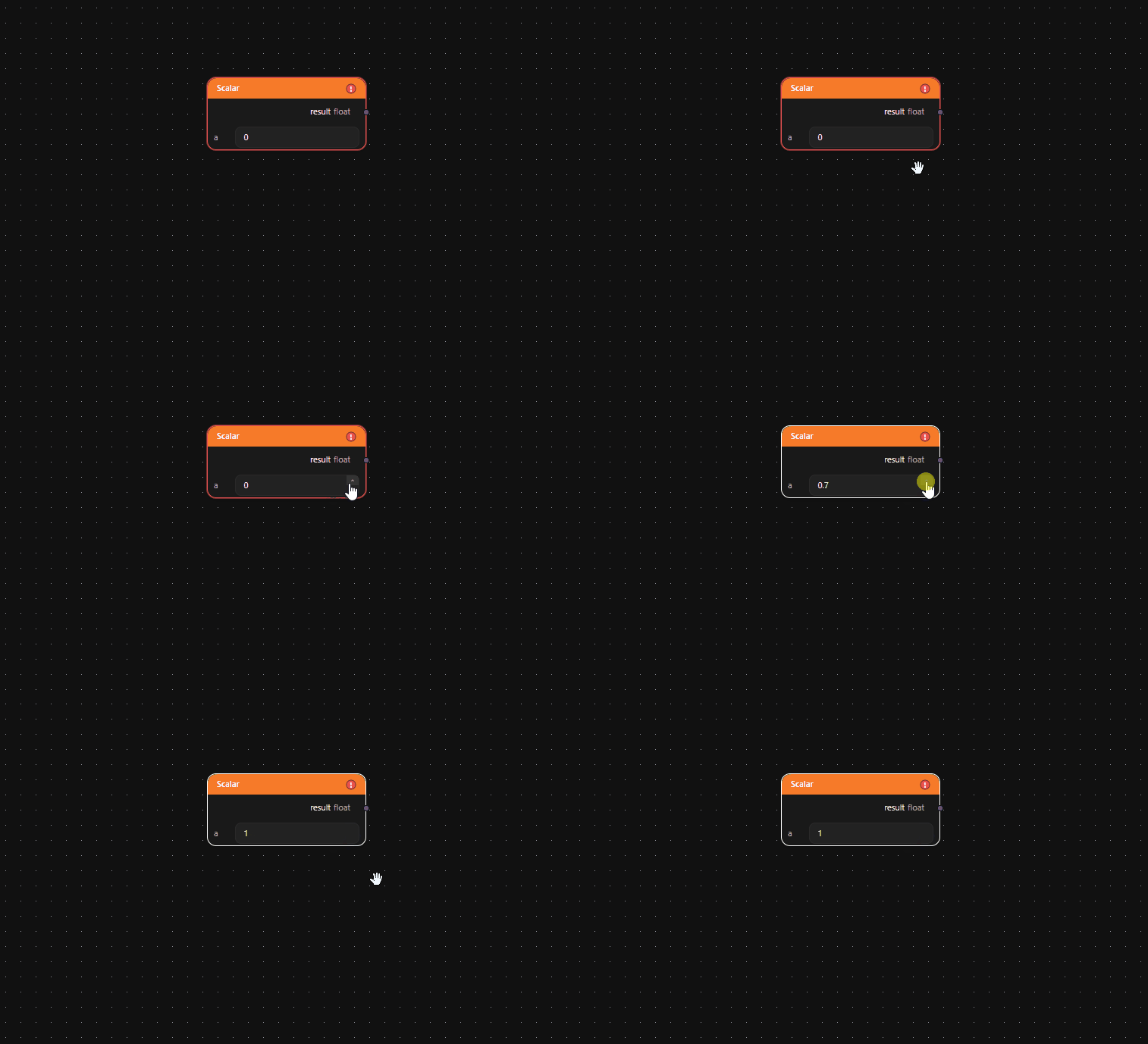
Constant nodes (Scalar, Int, Vec2, Vec3, Vec4) display editable value fields directly on the node. Click a value field and type a new value.
Generating a shader
To generate a shader:
Click Generate Shader.
The editor validates your graph. A valid graph must have exactly one Material Output or Output node, with every contributing node connected to it.
If the shader compiles successfully, a green Shader compiled successfully notification appears.
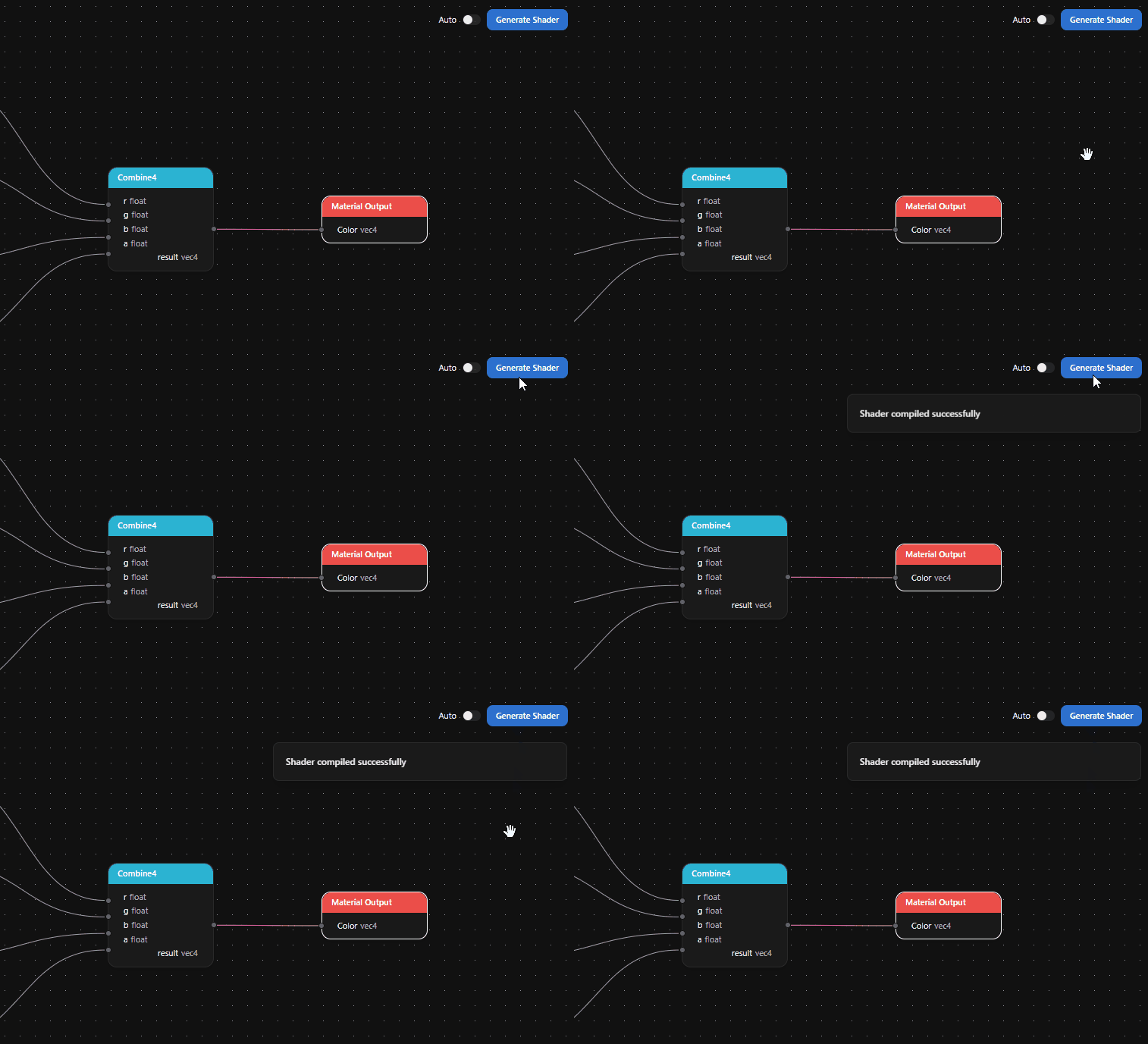
If there are errors, the Problems panel shows what went wrong.
What’s next?
To turn the constant values in this graph into properties that you can tune from Kanzi Studio without reopening the Shader Graph Editor, see Parameters.