Parameters
Parameters expose a constant value in a shader graph as a named GLSL uniform
that you can tune from Kanzi Studio. Without a parameter, the value of a constant node
is baked into the generated shader as a literal. To change the value, you must edit
the graph and regenerate the shader. After you promote a constant to a
parameter, the generated shader declares it as a uniform and Kanzi Studio
shows it in the Properties panel of the material that uses the
shader graph, so designers and integrators can tune the value at runtime
without reopening the Shader Graph Editor.
Note
Parameters are part of the experimental Shader Graph Editor. To enable the editor, see Enabling the Shader Graph Editor.
Promoting a constant to a parameter
To promote a constant node:
In the Shader Graph Editor, right-click the constant node that you want to expose.
Select Promote to Parameter.
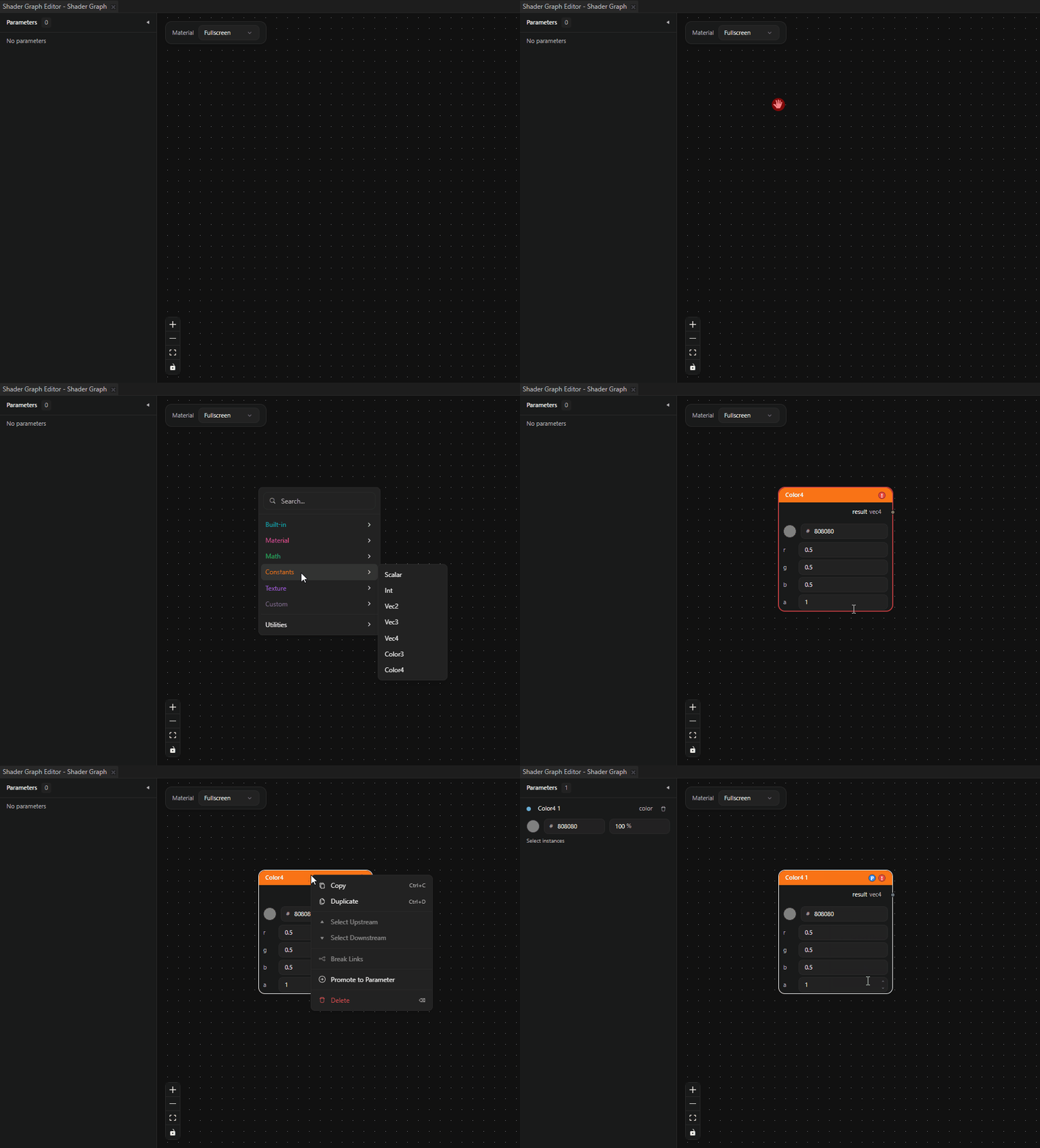
Kanzi Studio creates a parameter from the node, adds it to the Parameters panel, and binds the node to the new parameter. The next time you generate the shader, Kanzi Studio emits a uniform declaration instead of an inlined literal for that value.
You can promote these constant node types:
Constant node |
Parameter type |
|---|---|
Scalar |
float |
Int |
int |
Vec2 |
vec2 |
Vec3 |
vec3 |
Vec4 |
vec4 |
Color (RGB) |
color (alpha is fixed at 1) |
Color (RGBA) |
color |
Texture |
texture |
Math, built-in, and output nodes cannot be promoted.
Working with the Parameters panel
The Parameters panel lists every parameter in the graph. Each row shows the parameter name and a type-aware editor for the default value.
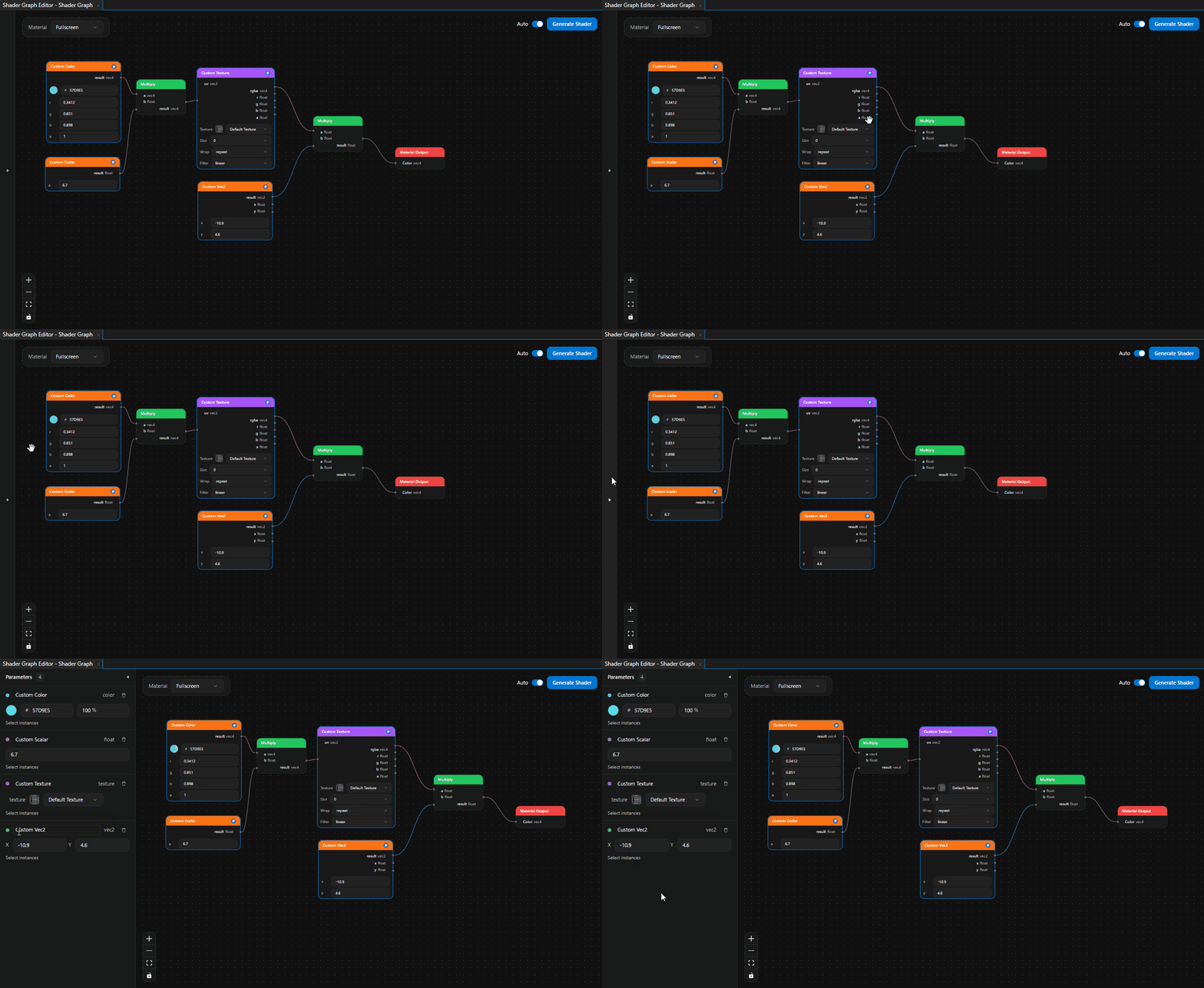
The editor adapts to the parameter type:
float and int: a numeric input.
vec2, vec3, vec4: a row of labeled inputs (X/Y/Z/W).
color: a color picker, with an alpha slider when the source node has an alpha channel.
texture: a texture selector.
Editing a default value
Edit the value field in the Parameters panel. Kanzi Studio applies the new default to every node bound to the parameter. The next time you generate the shader, the new default ships as the initial value of the uniform.
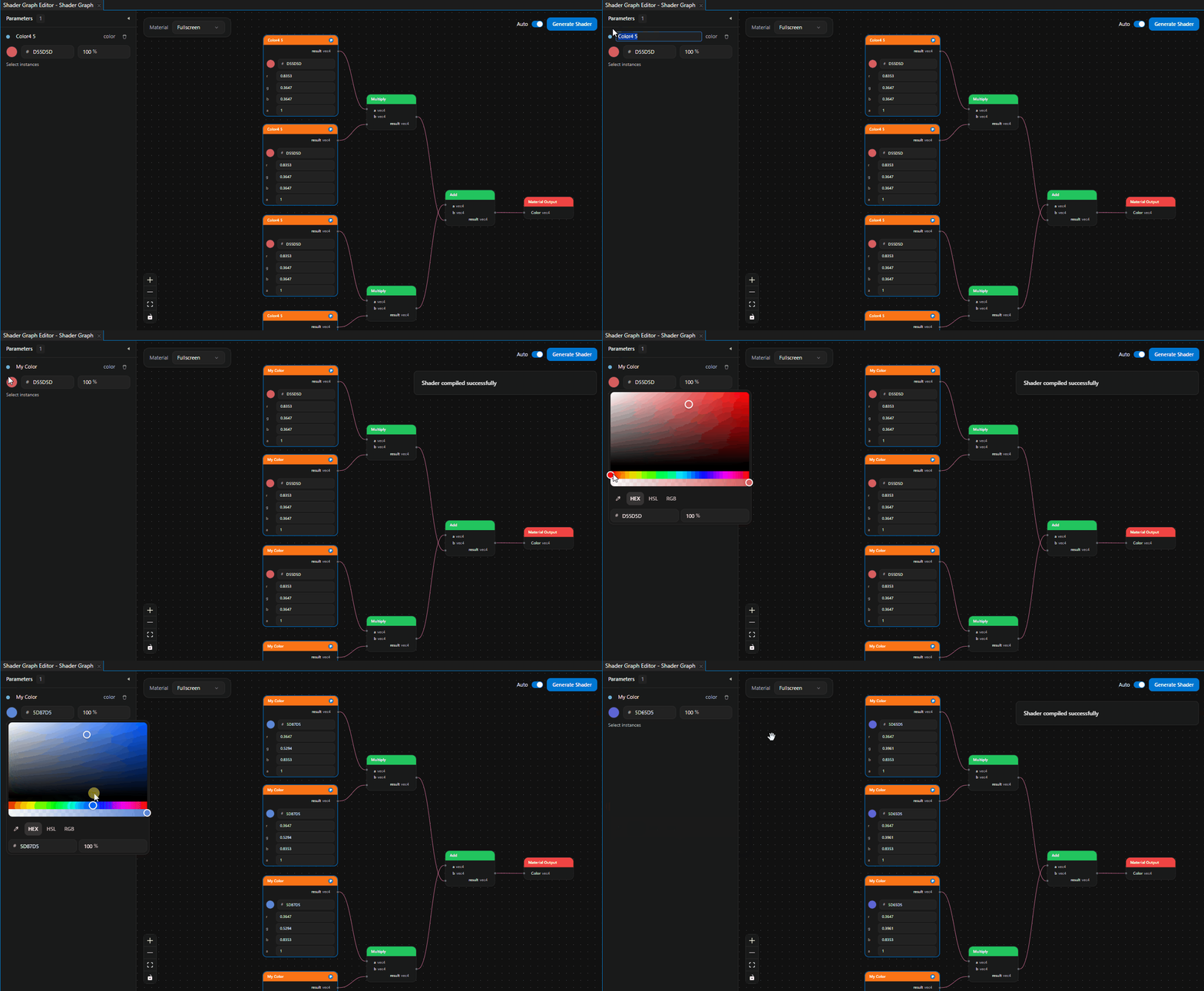
Renaming a parameter
Edit the name field of the parameter row. The new name appears in the Parameters panel and, after the next shader generation, in the Properties panel of the material that uses the shader graph.
Selecting bound nodes
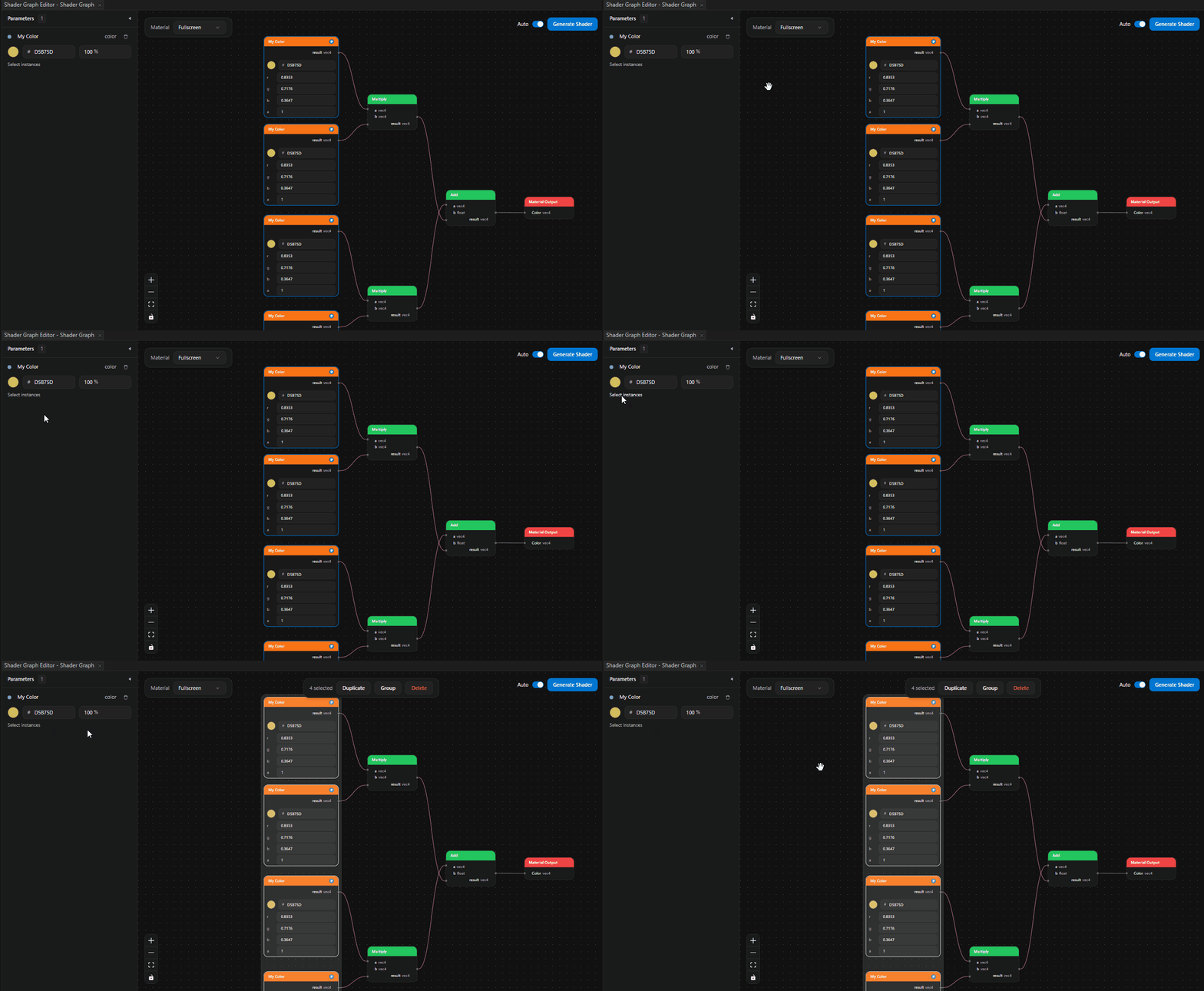
To find the nodes that a parameter drives, click Select instances on the parameter row. Kanzi Studio selects every node bound to the parameter on the canvas.
Adding more bound nodes
Drag a parameter row onto the canvas. Kanzi Studio creates a new constant node bound to the parameter. All bound nodes share the parameter default value. When you edit the default, every bound node updates.
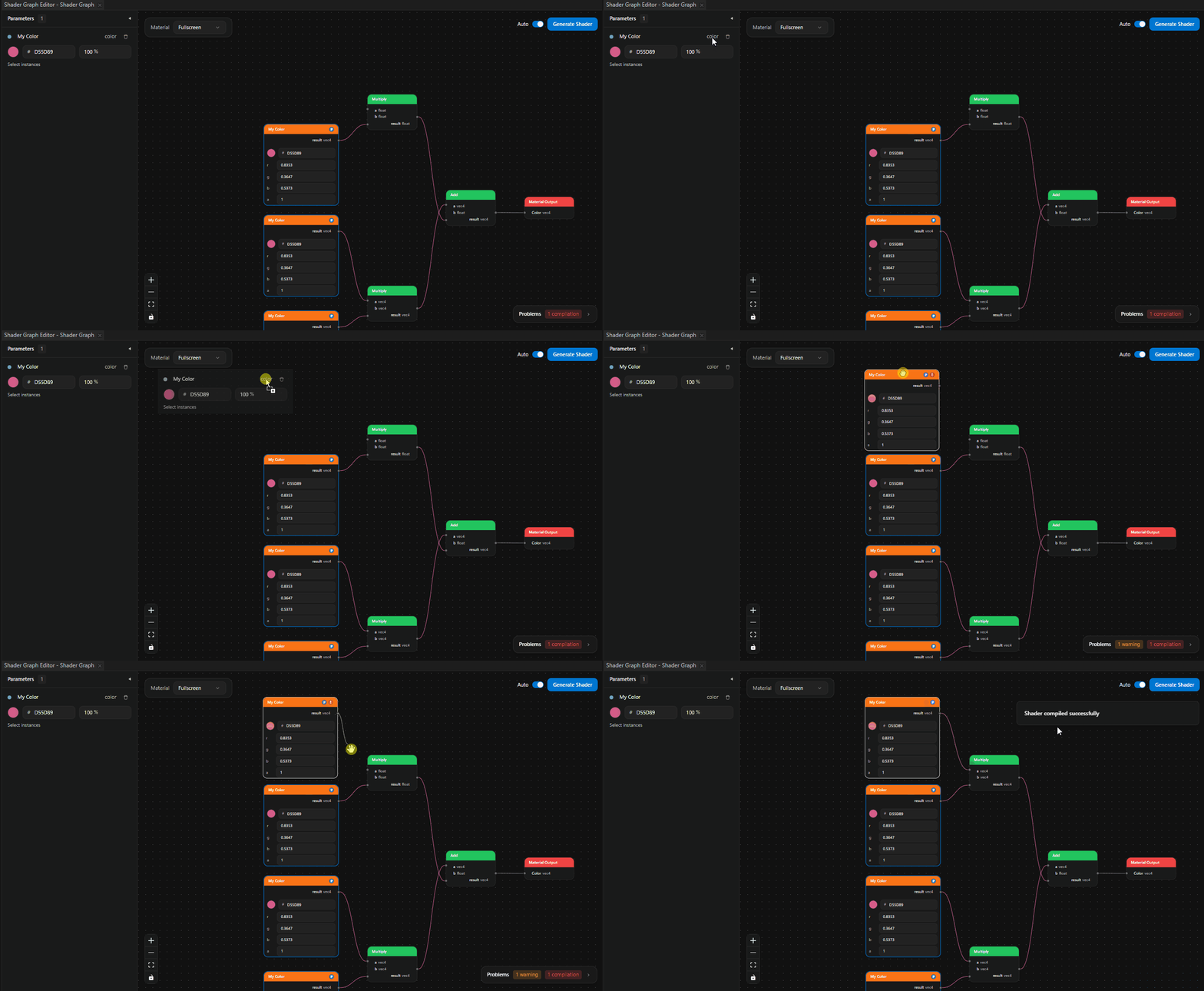
Unpromoting (deleting a parameter)
There are two ways to unpromote, with different scope:
Unbind a single node: right-click a bound constant node and select Unpromote from Parameter. Kanzi Studio removes the binding from that node only. The node keeps its current value as an inlined literal in the next generated shader. The parameter stays in the Parameters panel and continues to drive any other nodes still bound to it.
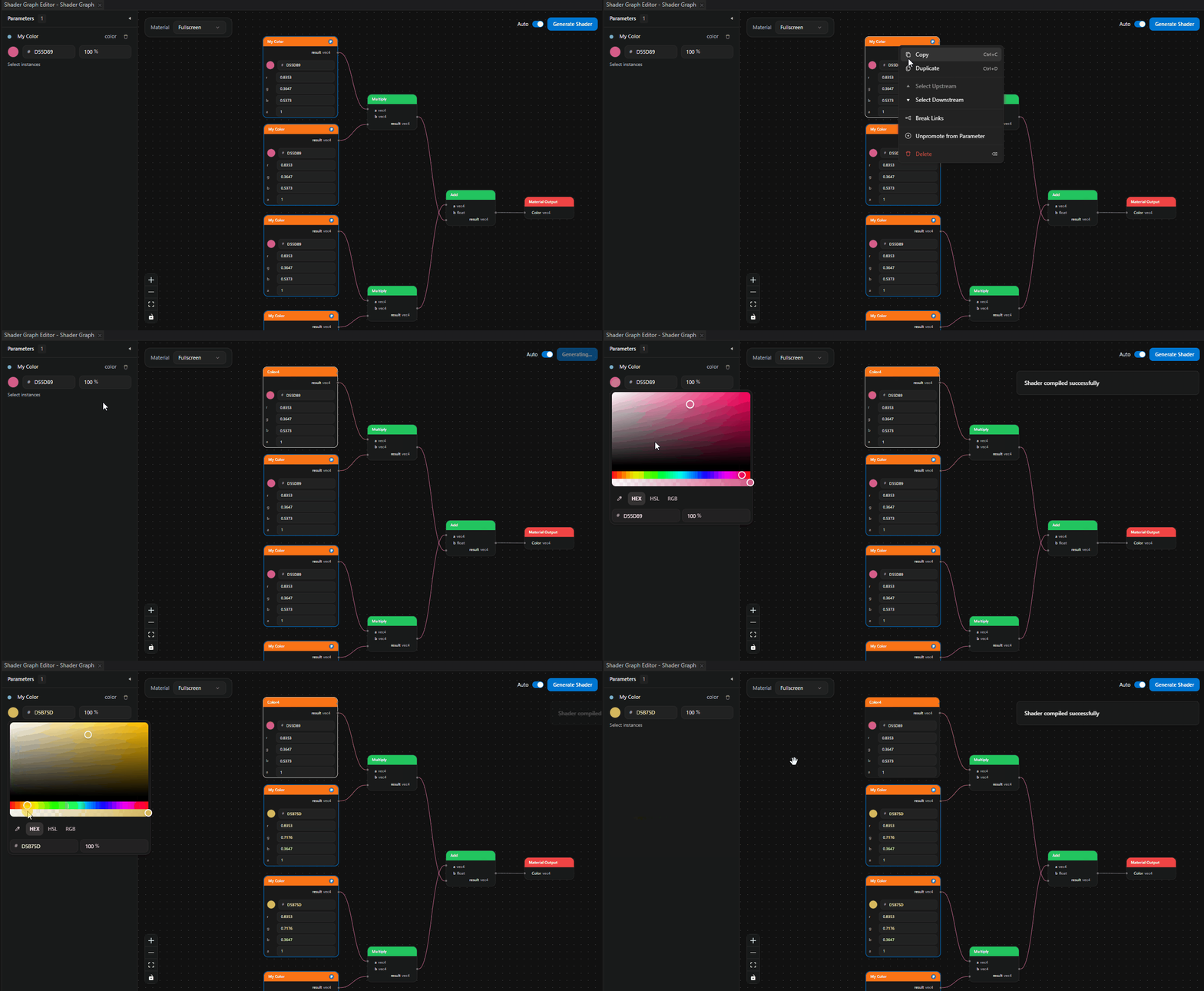
Delete the parameter: click the trash icon on the parameter row. Kanzi Studio asks whether to:
Delete only the parameter. The bound constant nodes remain on the canvas with their last value as inlined literals.
Delete the parameter and every node bound to it.
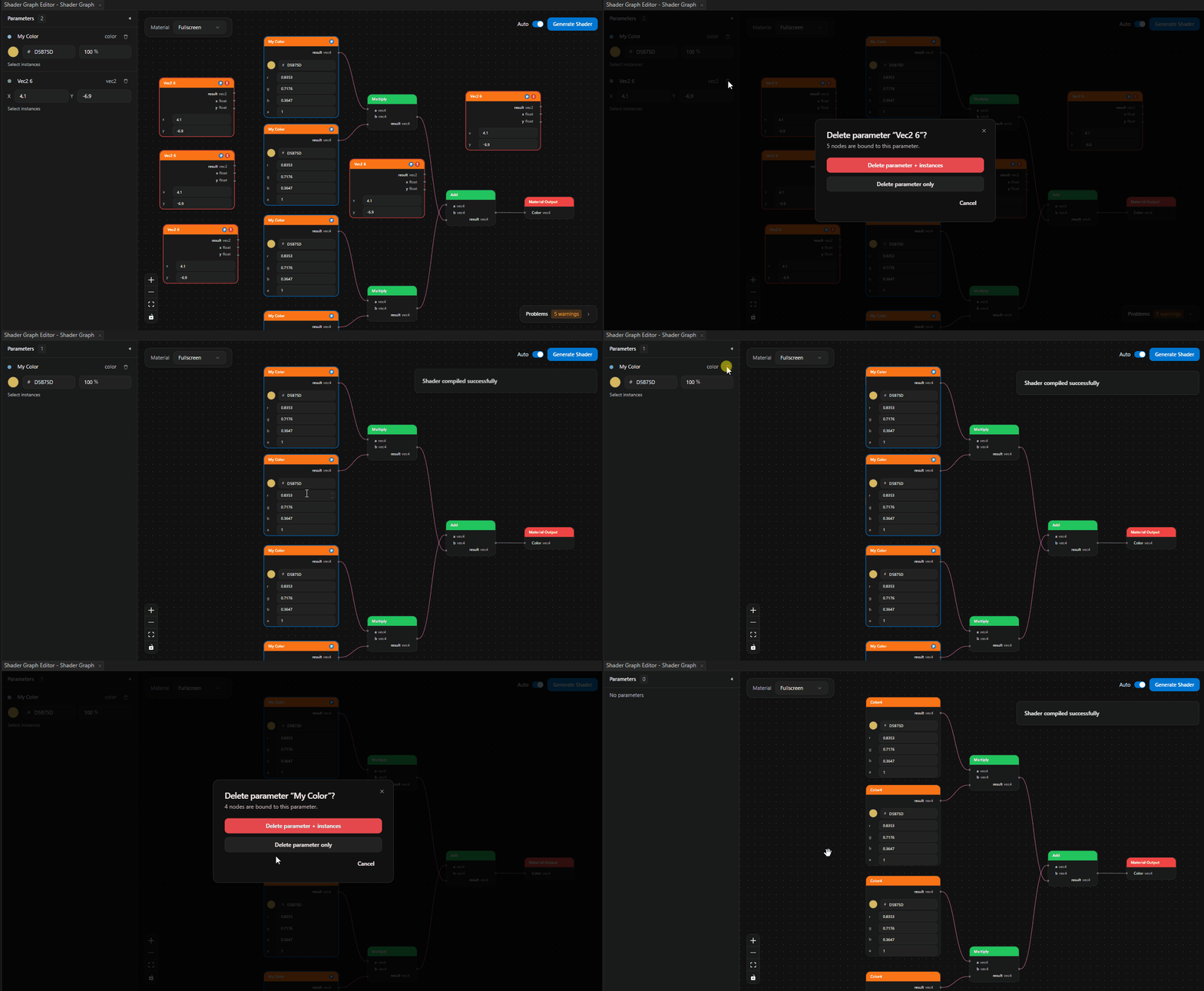
After the last binding to a parameter is removed (whether by unbinding nodes one by one or by deleting the parameter), the next generated shader inlines the constant values again instead of declaring a uniform.
Tuning parameters in Kanzi Studio
Every parameter in the graph becomes a property on the material that uses the shader graph. Generate the shader, then in Kanzi Studio:
In the Library > Materials and Textures > Shader Graphs, select a shader graph containing parameters.
In the Properties, find the property whose name matches the parameter.
Edit the property the same way you edit any built-in material property.
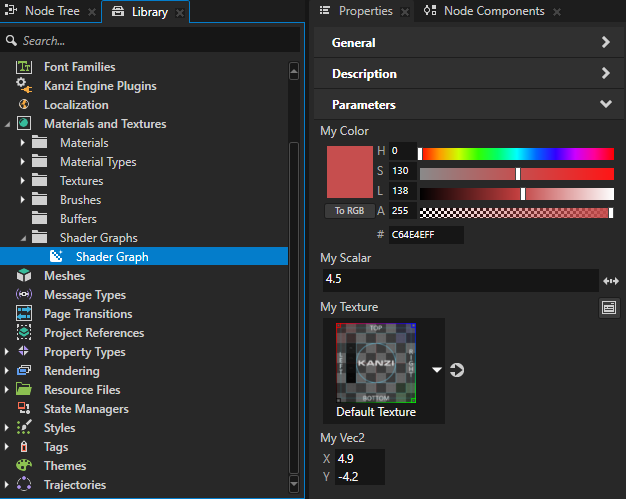
Changes you make in the Properties panel flow back to the Shader Graph Editor: the new value becomes the parameter default, and every node bound to the parameter updates to match.
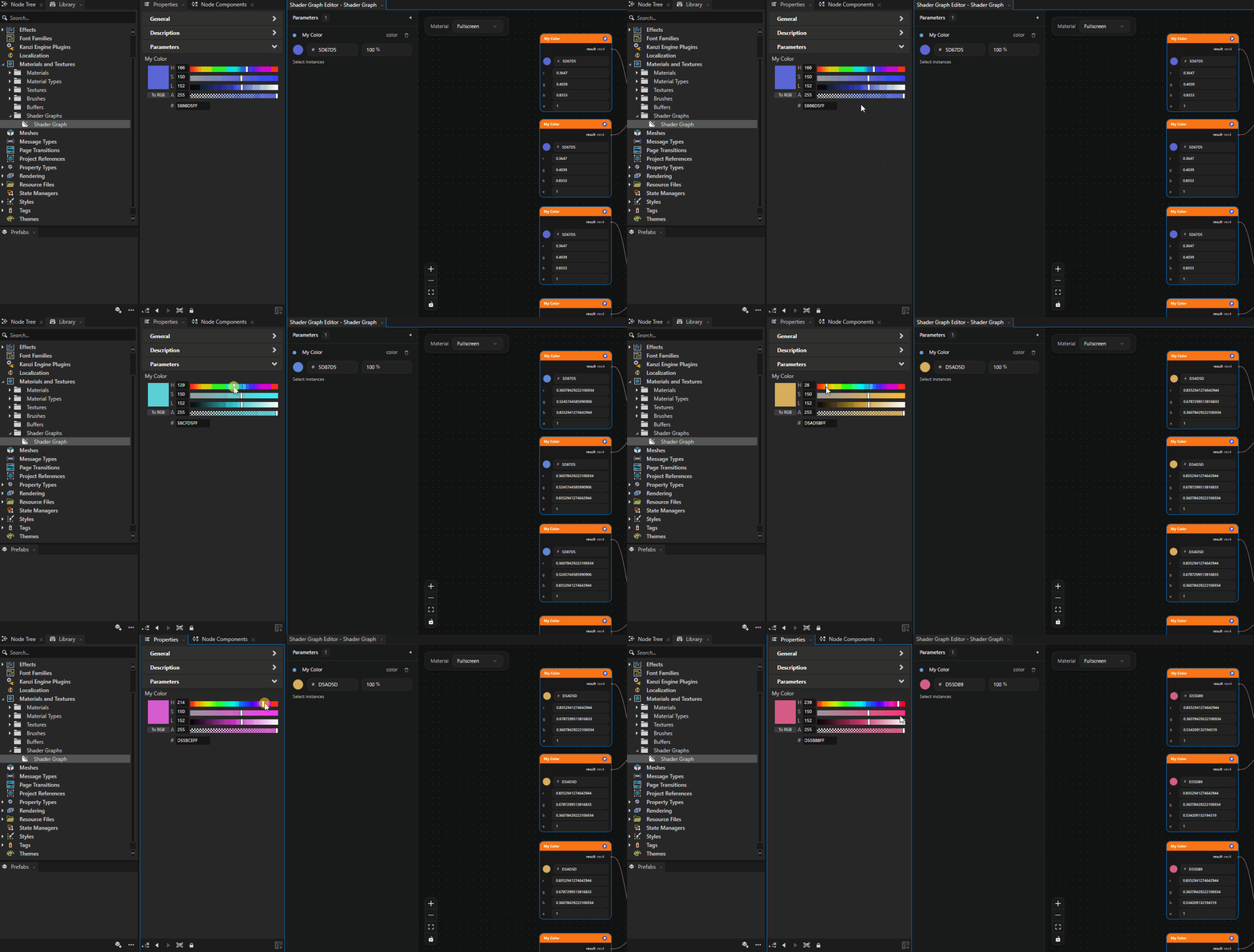
This round-trip lets a graph author publish a curated set of tunable values that designers and integrators can adjust without touching the graph itself.
Generated GLSL: uniform versus literal
Promoting a constant changes the generated GLSL from an inlined literal to a
uniform declaration.
Before promotion: a Vec3 constant with value (0.8, 0.2,
0.5) is inlined directly into the shader:
void main() {
    vec3 baseColor = vec3(0.8, 0.2, 0.5);
    /* ... */
}
After promotion: the same value becomes a uniform that Kanzi Studio declares at the top of the shader, and the rest of the code reads the uniform:
uniform vec3 u_MyMaterial_param_1;

void main() {
    vec3 baseColor = u_MyMaterial_param_1;
    /* ... */
}
Kanzi Studio only declares uniforms for parameters that the Output node reaches through the graph. Parameters whose bound nodes are disconnected do not appear in the generated shader.
For texture parameters, Kanzi Studio also generates a small wrapper function that samples the texture and exposes RGBA channels, so the rest of the graph can read the texture the same way it reads a Texture node.