Using the shader include library
The shader include library provides a set of reusable .glsl files that Kanzi Studio installs alongside itself. You can include these system shader files in any project shader without copying them into your project directory. Kanzi Studio does not include system shaders in project save data, so existing projects that do not use them are not affected.
See also Reusing shader code.
System shader directory
Kanzi Studio maintains a system shader directory that contains the .glsl files shipped with Kanzi. Kanzi Studio watches this directory for external changes and picks up additions, removals, and modifications while Studio is running. You do not need to restart Studio.
The system shader directory is at <KanziInstallation>/Studio/Asset Library/System Shaders/.
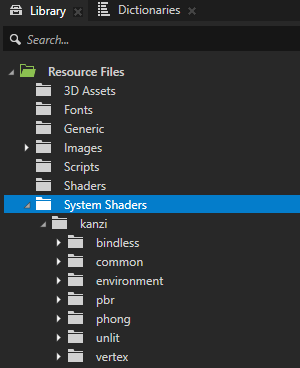
Any .glsl file placed in the system shader directory is automatically available as an include file. You do not need to register the file or configure your project.
The system shader directory is read-only from within Kanzi Studio. To customize a system shader for your project, clone it first. See Cloning a system shader to your project.
Including system shaders
The #include directive supports two forms that follow C/C++ include conventions:
Syntax |
Resolution |
|---|---|
|
Searches the project directory first, then falls back to the system shader directory. |
|
Searches the system shader directory first, then falls back to the project directory. |
Use angle brackets (<>) when you want the include to come from the system library by default. Use quoted includes ("") when a project-local file should take precedence.
For example:
// Resolves from the system shader directory first, then falls back to the project directory.
#include <kanzi/common/camera.glsl>

// Resolves from the project directory first, then falls back to the system directory.
#include "math_utils.glsl"
Cloning a system shader to your project
To customize a system shader for your project, you can clone it. Cloning copies the system shader file into your project directory, where you can edit it freely. The command copies the file to the project Shaders root and does not preserve the original subdirectory prefix. After cloning, quoted includes (#include "file.glsl") in your project shaders resolve to the cloned file instead of the system original.
To clone a system shader to your project:
In Library > Resource Files > System Shaders, right-click the system shader file you want to customize.
Select Clone To Project.
Kanzi Studio copies the file into your project directory.
Edit the cloned file as needed in the Shader Source Editor.
Project shaders that use
#include "file.glsl"now resolve to the local copy.