Using volume textures
Volume textures use a single 2D image, made up of many cross-section slices of a 3D shape, to define a 3D volume texture. This technique is often used for effects like smoke, fire, or clouds, where 3D data would be too resource intensive or difficult to generate procedurally.
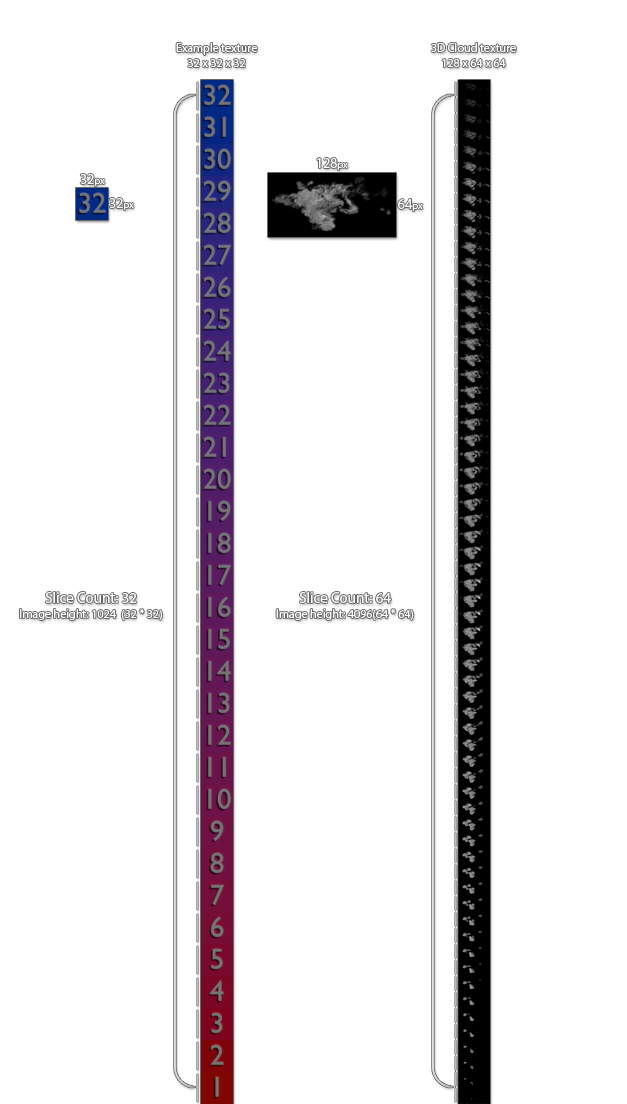
Before you can create a volume texture in Kanzi Studio you first have to have an image to use in that texture. The image must be made up of vertical slices of the 3D shape, taken at a constant intervals and in stacked in sequence on top of each other. See Using a volume texture.
You can create such a texture image in a third-party tool and import the image to Kanzi Studio. See Importing images.
Rendering example using volume textures
Below is an example of how volume textures can be used in Kanzi Studio for:
Rendering signed distance fields to create a realistic looking surface with accurate ambient occlusion, reflections and soft shadow calculations.
Using 3D texture data to raymarch a volume representing density, creating a realistic smoke effect.
Creating a volume texture
To create a volume texture:
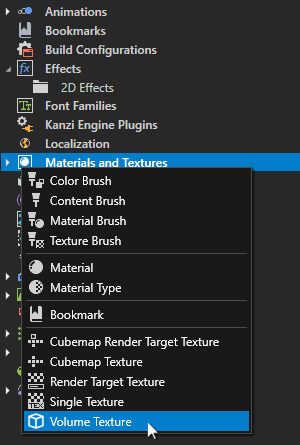
In the Library press Alt and right-click Materials and Textures and select Volume Texture.
In the Properties set the Image property to the image you want to use for the volume texture.
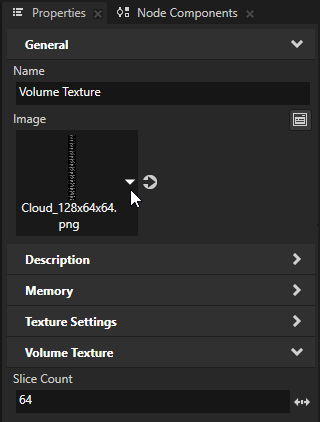
In the Properties set the Slice Count to specify how many depth slices the selected image file contains.
Using a volume texture
You can use volume textures on Model nodes:
To use a volume texture on a mesh, set the material that uses a sampler3D uniform to use your texture, and then set the mesh to use that material. See Editing shaders And Shader uniforms.
Example of a valid volume texture image containing 32 slices of size 32px x 32px.
Volume Texture property types
For a list of the available property types for volume textures, see Volume Texture and Texture.