Step 2 - Access nodes and properties
In this step, you learn how to access nodes and properties from a Lua script.
For example:
To access the node tree, use the
contextNodeLua variable. Kanzi assigns to this variable a reference to the node that is running the Lua script.Once you have a reference to a node, to read a property value, pass to the
getPropertyfunction the Kanzi Engine name of the property whose value you want to read.-- Get the value of the Name property of the contextNode. local name = contextNode:getProperty(Node.NameProperty) -- Print to Log the property value. print(name)
To access nodes in the node tree, pass to the
lookupNodefunction the path to the node that you want to access. Instead of a path, you can use an alias stored in a resource dictionary.For example, to access the Grid node using the alias that is in the resource dictionary of the Screen node of the starting point project of this tutorial:
-- Find the node with the alias "Grid".
local grid = contextNode:lookupNode("#Grid")

-- Check whether the node exists.
if grid ~= nil then
    -- If the node exists, print the name of the node.
    local name = grid:getProperty(Node.NameProperty)
    print("Found node " .. name)
end
To access all child nodes of a node, use the
getChildCountandgetChildfunctions.For example, to print the names of child nodes:
-- Find the node with the alias "Grid".
local grid = contextNode:lookupNode("#Grid")

-- Access the grid child nodes.
local childCount = grid:getChildCount()
-- Print to Log the name of each child node.
for i = 0, childCount - 1 do
    local child = grid:getChild(i)
    local childName = child:getProperty(Node.NameProperty)
    print(childName)
end
To set a property value, use the
setPropertymember function. The first parameter of thesetPropertyfunction is the property type.For example, to set a property value with a property type that is defined in a Kanzi Studio project, first look up the property type. Then you can use the property type in the same way as the built-in property types.
-- Find the node with the alias "Grid".
local grid = contextNode:lookupNode("#Grid")

-- Find the "fifteen_puzzle.PieceIndex" custom property type.
local PieceIndexProperty = PropertyType:new("fifteen_puzzle.PieceIndex")

-- Get the third child node of the grid node.
local child = grid:getChild(2)

-- Set the property value to the child node in the grid.
-- The "Piece" prefab uses the "fifteen_puzzle.PieceIndex" property type to set the piece number.
child:setProperty(PieceIndexProperty, 3)
Use
assertto make sure that the script fails when the node tree content does not match the expectations.-- Assert if the node with the alias "Grid" does not exist. local grid = contextNode:lookupNode("#Grid") assert(grid)
You can find the list of Kanzi built-in property types that you can use in Lua in the Kanzi Lua API reference.
Modify the grid and indices of pieces
For the puzzle to work, each piece must have a unique index.
To modify the grid and indices of pieces, in the Script Editor, replace the content of the new_game.lua script with:
print("Entering new_game.lua")

-- Find the "Grid" node using its alias.
local grid = contextNode:lookupNode("#Grid")
assert(grid)

-- Find the "fifteen_puzzle.PieceIndex" custom property type.
-- This property type sets the piece number.
local PieceIndexProperty = PropertyType:new("fifteen_puzzle.PieceIndex")

-- Access the grid child nodes.
local childCount = grid:getChildCount()
-- Iterate through grid child nodes.
for i = 0, childCount - 1 do
    local child = grid:getChild(i)

    -- Assign the number to the piece.
    child:setProperty(PieceIndexProperty, i)
    -- Place the piece in the third row and in own column.
    child:setProperty(GridLayout2D.RowProperty, 2)
    child:setProperty(GridLayout2D.ColumnProperty, i)
end

print("Exiting new_game.lua")
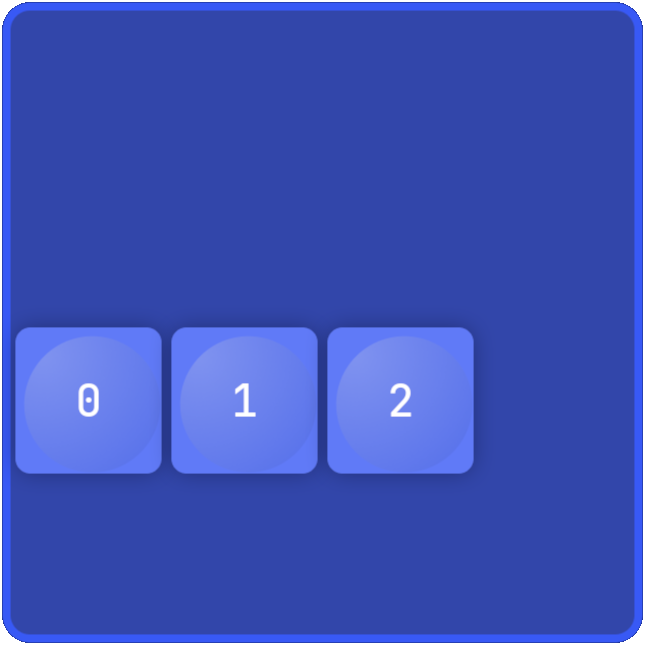
When you save the script and in the Preview click  , the script moves the three pieces in the grid to the third row and assigns a unique number to each piece.