Step 1 - Create a project
In this step, you learn how to create a Kanzi Studio project.
Get the tutorial
To get the tutorial, in the Kanzi Studio Quick Start window, click Projects and select the Tutorials tab. Next to the Getting started tutorial, click  .
.
Kanzi Studio downloads the tutorial to the <KanziWorkspace>/Tutorials directory. You can find:
The tutorial assets in the
<KanziWorkspace>/Tutorials/Getting started/Assetsdirectory.The completed tutorial in the
<KanziWorkspace>/Tutorials/Getting started/Completeddirectory.
Create a project in Kanzi Studio
You start creating a Kanzi application by creating a project in Kanzi Studio.
To create a project in Kanzi Studio:
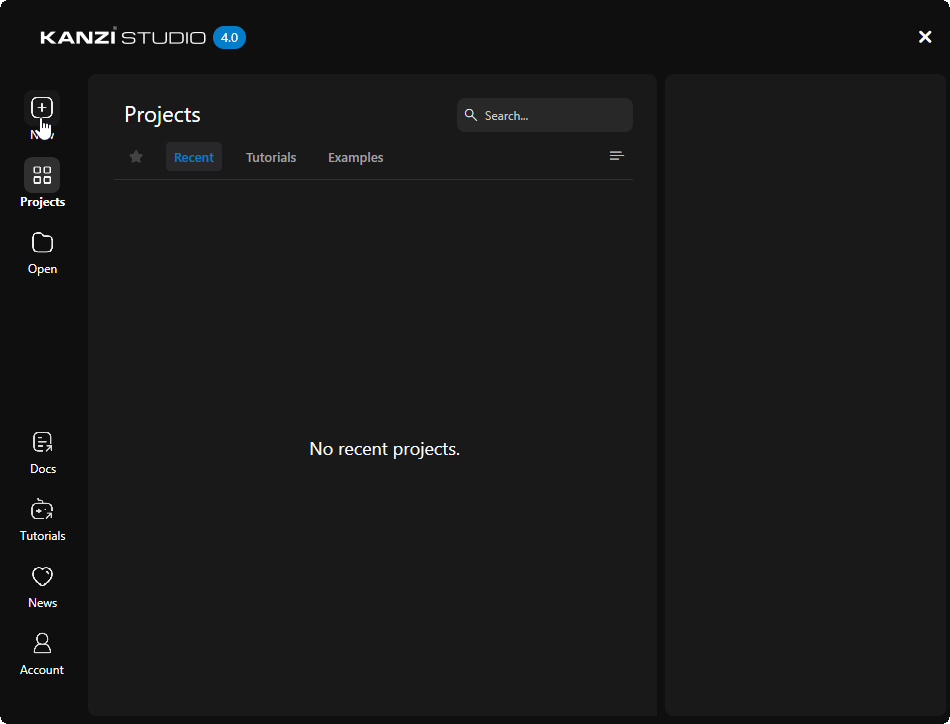
In the Kanzi Studio Quick Start window, click New.
Once you start working on projects in Kanzi Studio, the Quick Start window shows the projects that you recently opened in Kanzi Studio. You can also use the Quick Start window to open the example applications that come with Kanzi.
Tip
Your Kanzi installation comes with tutorials and examples that cover a wide range of functionality and development practices for Kanzi applications. Complete the tutorials and examine the examples to learn how to use Kanzi.
In the Quick Start window, you can find the examples and completed tutorial projects under the Examples and Tutorials tabs in the Projects list.
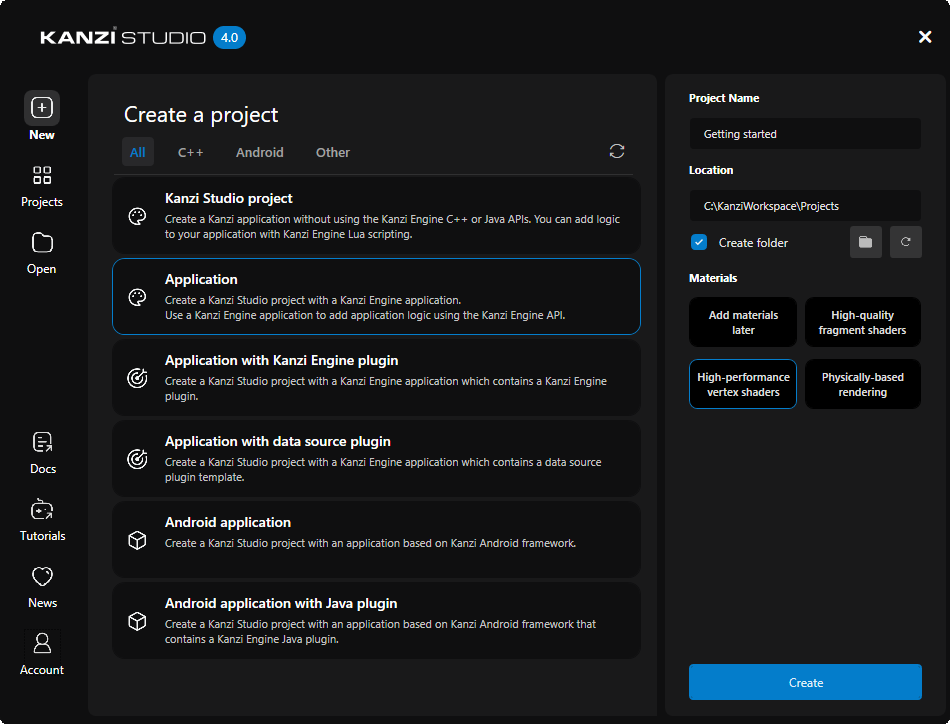
In the New tab of the Quick Start window, to define where and what type of project you want to create:
Select an appropriate project template from the list of available options.
For example, select the Application template.
Application template creates a Kanzi Studio project with a Kanzi Engine application.
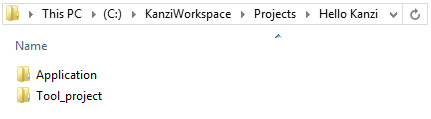
Applicationdirectory contains the structure and template source code for the application of your project.Tool_projectdirectory contains the Kanzi Studio project.
Set the Project Name to the name that you want to use for your project.
For example, enter Getting started.
Set the Location to the directory where you want to create your project.
By default, Kanzi Studio creates projects in the
<KanziWorkspace>/Projectsdirectory.Set the Materials to the type of shaders for the material types that you want to include in your project.
For example, select High performance vertex shaders.
High performance vertex shaders template is intended for low precision and high performance applications. It contains vertex-based shaders. Most of the GPU specific computation, including applying lights using the Phong reflection model, is done in the vertex shader. This is a good starting point for most devices.
Click Create to create the project.
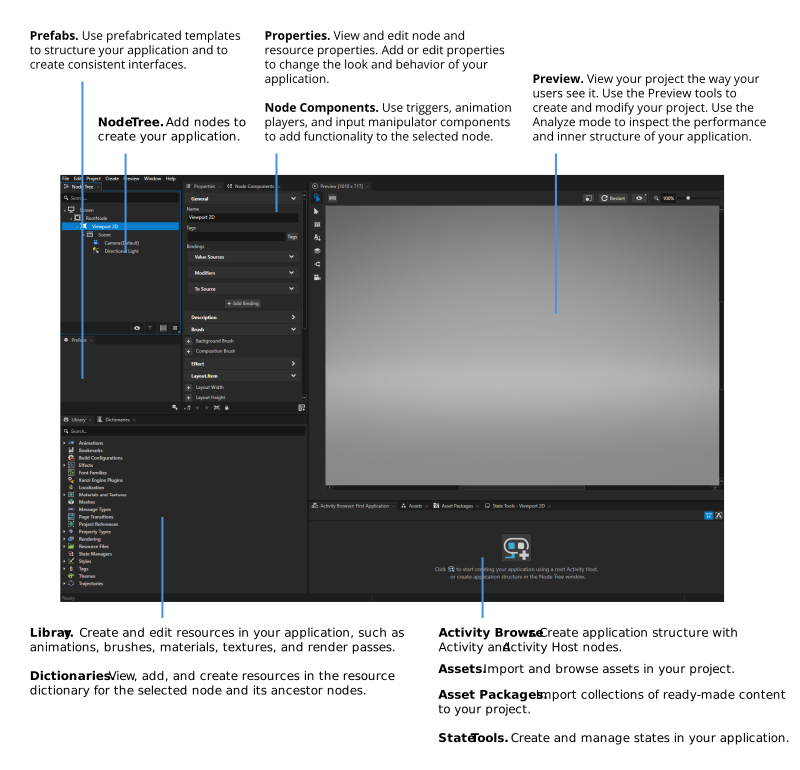
This is how Kanzi Studio looks when you create a new project.
Note
The Kanzi Studio Preview by default uses the TCP/IP for internal communication with Kanzi Studio. If you have a firewall installed on your computer, allow the Kanzi Preview process to go through the firewall.
Tip
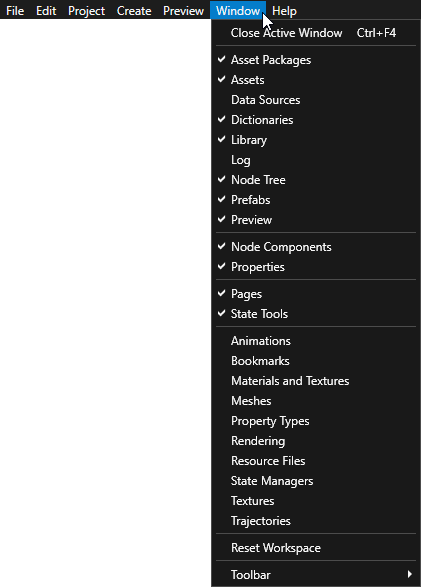
When you first create a project, Kanzi Studio shows the most commonly used windows. You can find more specialized windows in the Window main menu. Arrange windows by moving them to the parts of the Kanzi Studio interface where you want to place them. In this tutorial you learn about the tools in the most common Kanzi Studio windows.
See also
To learn more about the project and material type templates available in the New tab of the Quick Start window, see Creating a project.
To learn more about Kanzi Studio projects, see Projects.
To learn more about Kanzi Studio interface and how to organize it, see Customizing the Kanzi Studio interface.
To learn about the tutorials and example applications that come with Kanzi, see Examples and Tutorials.