Step 4 - Create interactions
In this step, you learn how to create interactions in your application with triggers and actions.
Create interactions
Use triggers and actions to create interactions. Use triggers to set off actions, such as setting a property to a certain value or setting the state of an application.
In Kanzi Studio, you add and set triggers and actions in the Node Components window.
You can find the Node Components window in the same group as the Properties window.
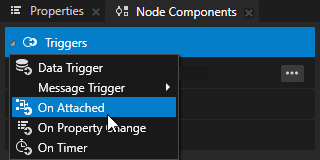
In this section, you create a button and use triggers and actions to write a message to the Log window.
To create interactions:
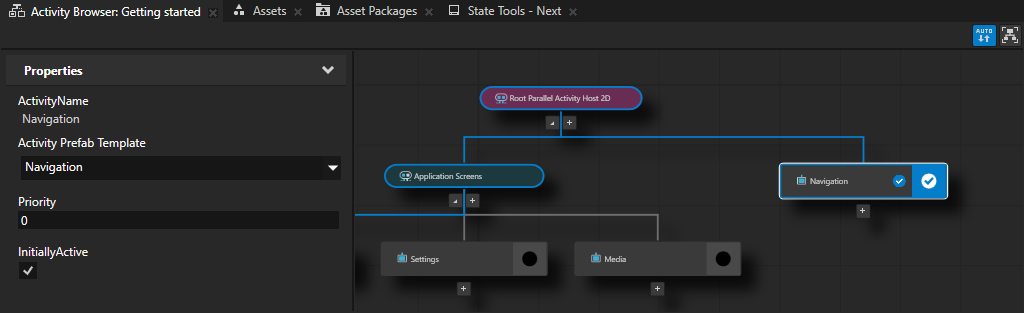
In the Activity Browser window, below the Root Parallel Activity Host, click
 , select Create Activity, and name the Activity and its prefab Navigation. In the side panel, set the InitiallyActive property to enabled.
In this Activity, you create application navigation that you want to be visible on all application screens.
In the Prefabs window, press Alt and right-click the Navigation prefab, select Button 2D, and name it Next.
Most of the Kanzi nodes set only the node layout and functionality. This gives you the flexibility to make nodes look the way you want them to look.
The content that you place in the prefab of the Navigation Activity is visible in the whole application, because it is parallel to the Exclusive Activity Host that shows the application screens and because you set it to be active already at startup.

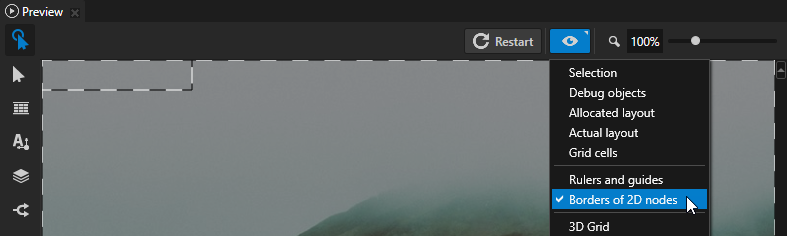
In the Preview, click
 to enter the Analyze mode, right-click
  , and select Borders of 2D nodes.
Use the Analyze mode in the Preview window to inspect the structure and performance of your application.
Borders of 2D nodes outlines the borders of 2D nodes with striped lines.
For example, this allows you to see 2D nodes that do not have a visual representation. The Button 2D node you created in the previous step is in the top-left corner of the Preview window.
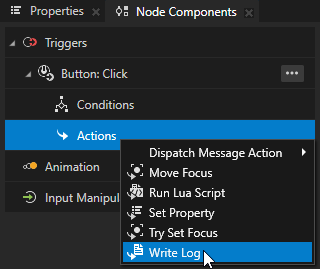
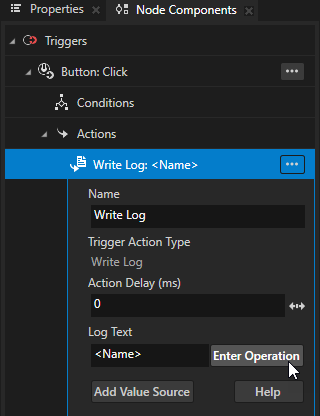
In the Node Tree window, select the Next node. In the Node Components window, in the Button: Click message trigger, press Alt and right-click Actions, and select Write Log.
Use the Write Log action to print a message to the Log window.
In the Write Log action next to the Log Text property, click Enter Operation and select <Name>.
Use the <Name> macro to print to the Log window the type of the node that contains this action.
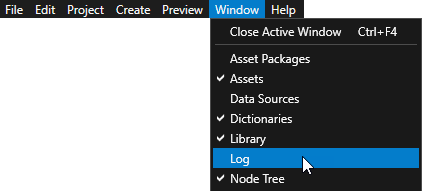
In the main menu select Window > Log to open the Log window.
Kanzi prints to the Log window messages, warnings, and errors.
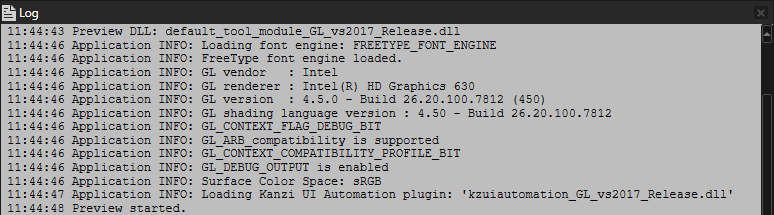
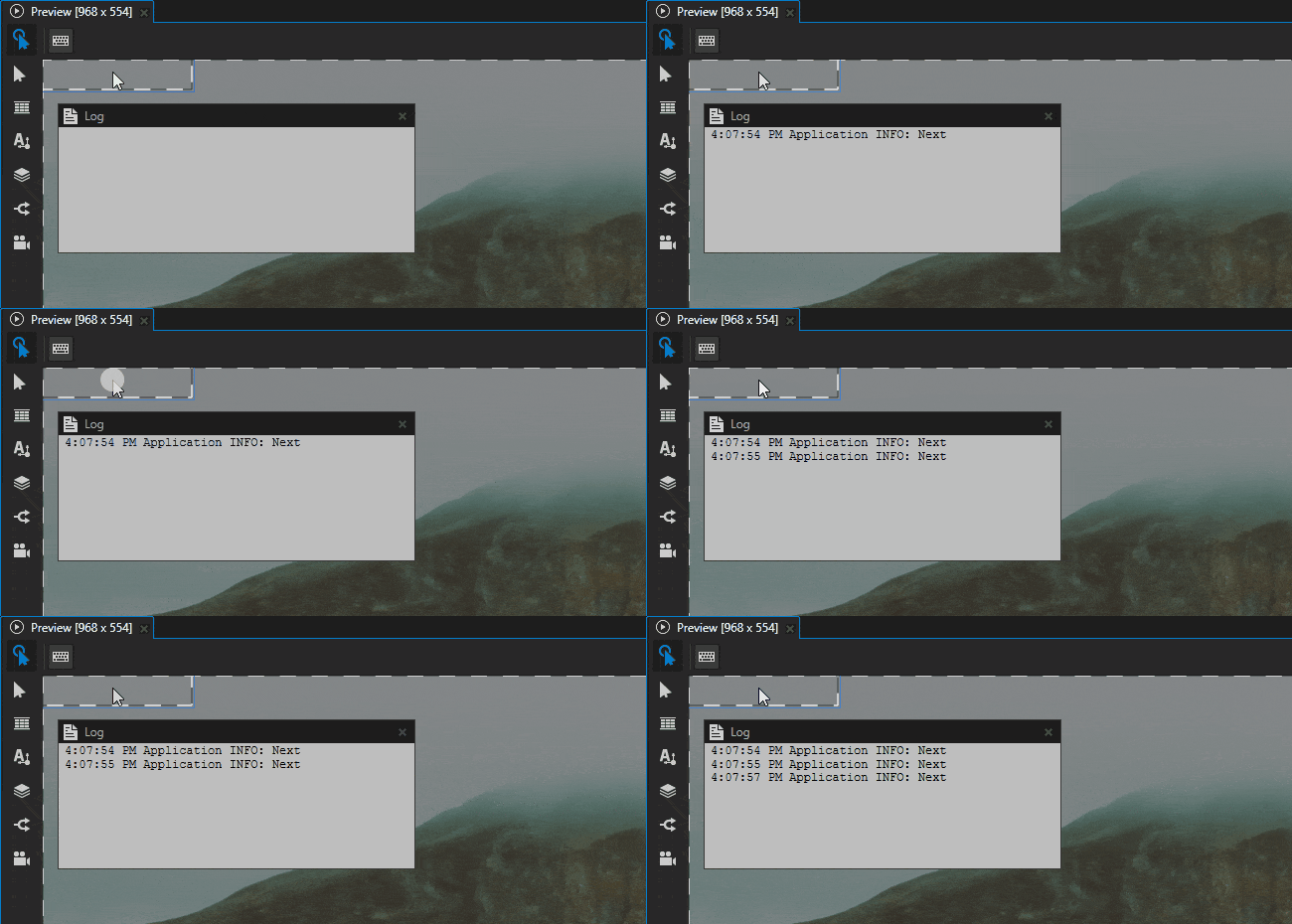
In the Preview window, when you click the area of the Next Button 2D node, you set off the Button: Click trigger that executes the Write Log action that writes the name of the node to the Log window.
Create navigation
In this section, you create the application navigation and define the look of the button that you created in the previous section.
To create navigation:
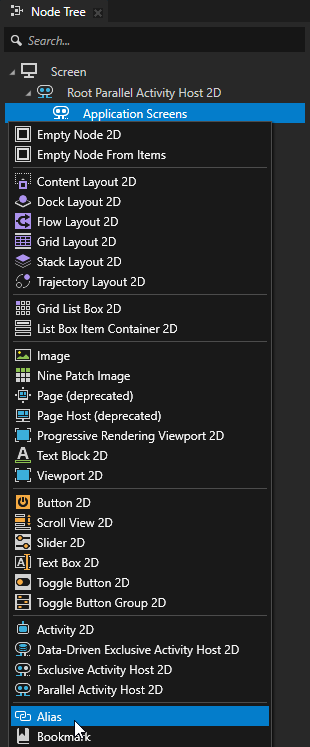
In the Node Tree window, press Alt and right-click the Application Screens node and select Alias.
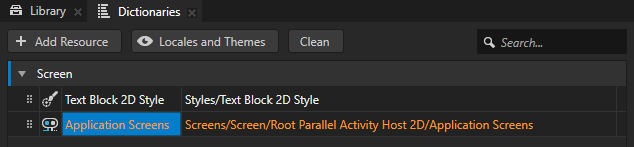
Kanzi Studio creates an alias in the resource dictionary of the nearest node. In this project, the nearest node with a resource dictionary is the Screen node.
You use this alias to access the Application Screens Activity Host and control the activation state of its Activities. This way you can create application navigation.
Use an Alias to get consistent access to a Kanzi node. You can use aliases to access nodes both in Kanzi Studio and using the Kanzi Engine API.
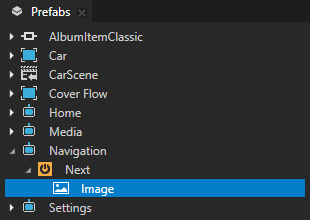
In the Prefabs, press Alt and right-click the Next node and select Image.
You use this Image node to define the look and size of the button.
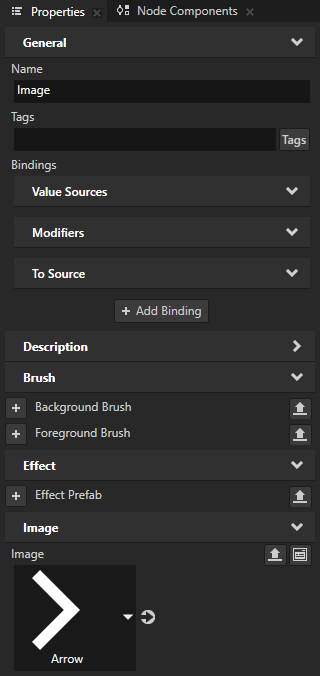
In the Properties window, set the Image property to the Arrow image.
When you add nodes to a Button 2D node, by default the Button 2D node inherits the size of its child nodes.
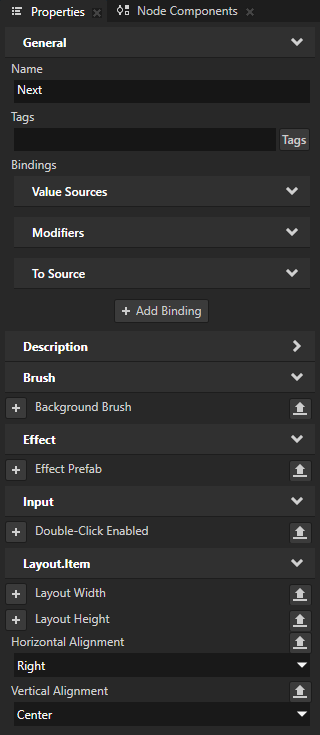
In the Prefabs window, select the Next node. In the Properties window, add and set:
Horizontal Alignment to Right
Vertical Alignment to Center
This way you align the node to the right and center of the application screen.


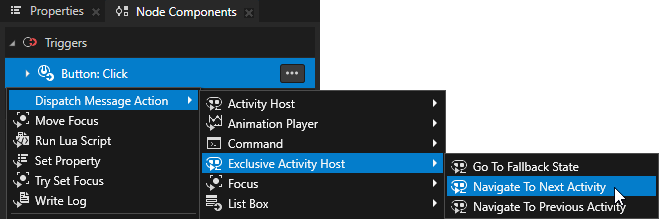
In the Node Components window, press Alt and right-click the Button: Click trigger, and select Dispatch Message Action > Exclusive Activity Host > Navigate to Next Activity.
Use the Navigate to Next Activity action to go to the next Activity in an Exclusive Activity Host node that you set in this action.
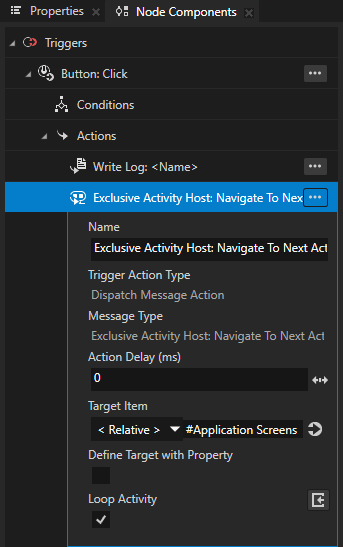
In the Navigate to Next Activity action, set:
Target Item to Relative and #Application Screens
Loop Activity to enabled
When the Button: Click trigger executes this action, the action navigates to the next Activity in the Application Screens Activity Host. When you reach the last Activity, the action navigates to the first Activity.
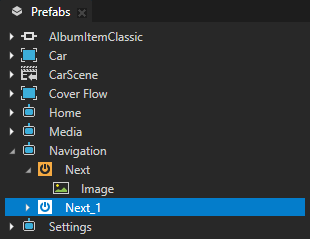
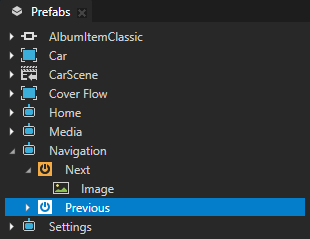
In the Prefabs window, select the Next node and press the Ctrl D keys to duplicate the node.
You duplicate and modify the Next node to create a button to navigate to the previous Activity in the Application Screens.
Press the F2 key and rename the node to Previous.
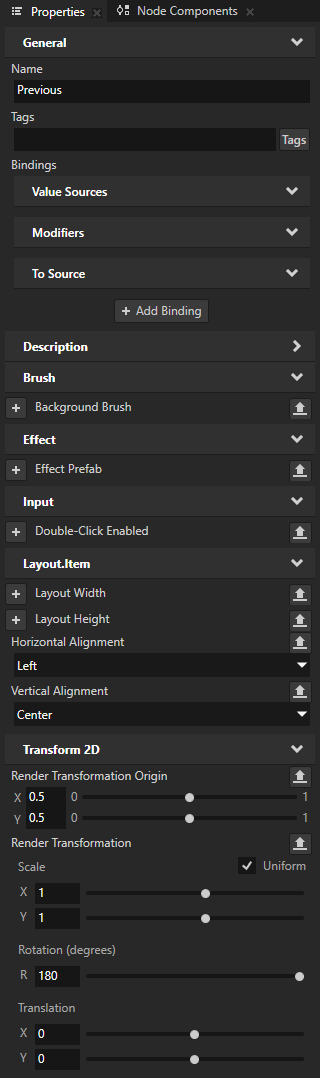
In the Properties window, add and set:
Horizontal Alignment to Left
Transform 2D > Render Transformation Origin property fields X and Y to 0.5
Transform 2D > Render Transformation property field Rotation to 180
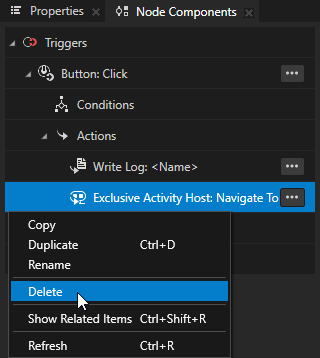
In the Node Components window, right-click the Navigate to Next Activity action and select Delete.
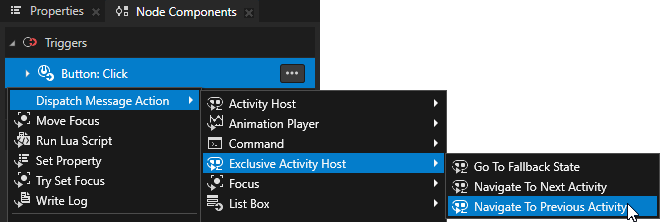
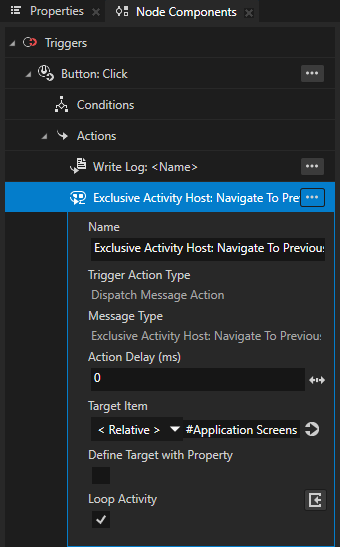
In the Node Components, press Alt and right-click the Button: Click trigger, select Dispatch Message Action > Exclusive Activity Host > Navigate to Previous Activity, and in the Navigate to Previous action set:
Target Item to Relative and #Application Screens
Loop Activity to enabled
In the Preview window, click
to exit the Analyze mode.
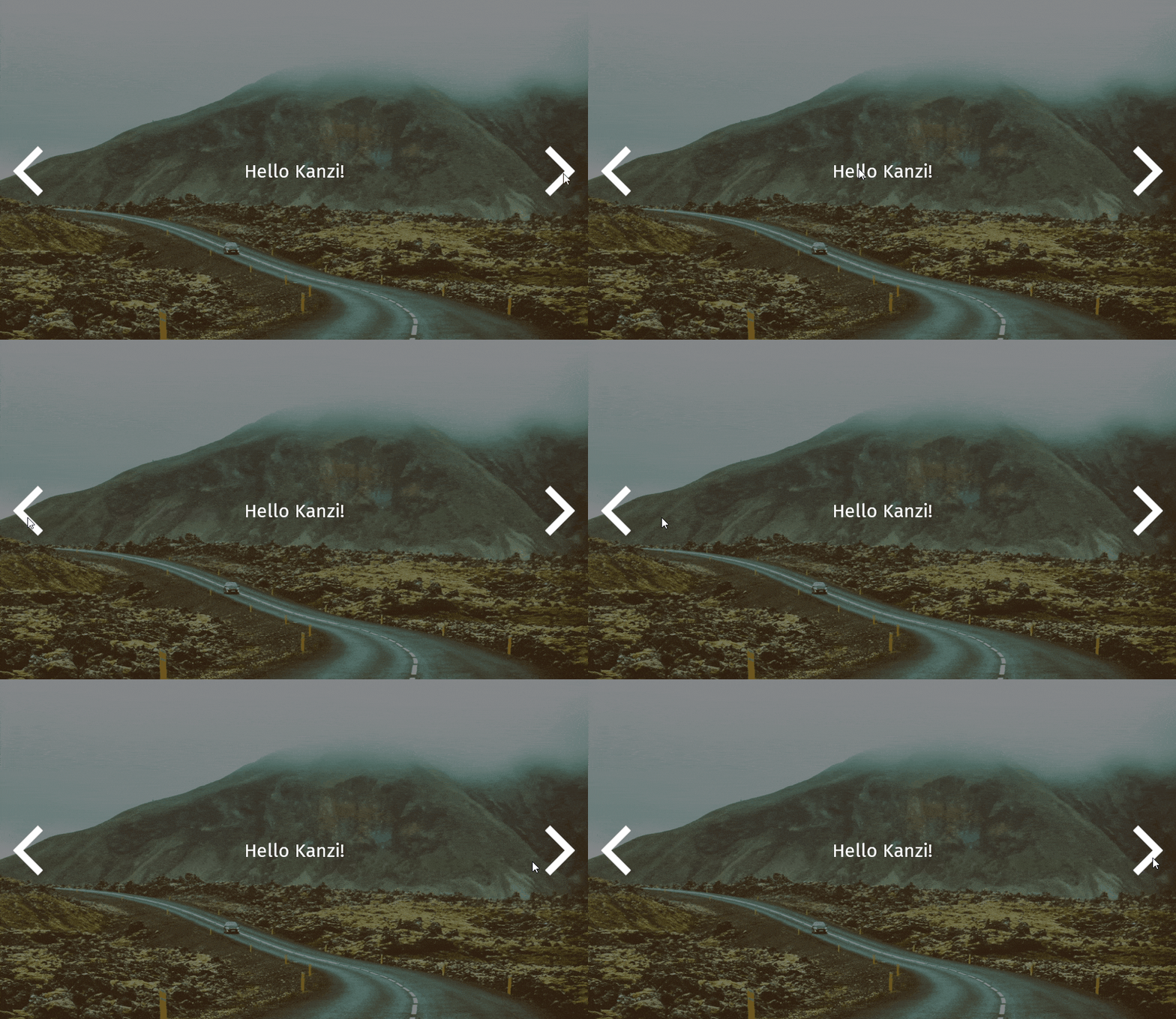
In the Preview window, when you click the Next and Previous buttons, you set off the Button: Click triggers in these buttons and use the Navigate to Next Activity and Navigate to Previous Activity actions to go to the next and previous Activity of the Application Screens Activity Host.
See also
To learn more about creating buttons, complete Tutorial: Creating a button.
To learn more about the Write Log action, see Using Write Log action.
To learn more about triggers and actions, see Triggers.
To learn more about the Preview window tools, see Editing your application in the Preview.